WORDPRESS
WordPress MCP Adapter: Couldn’t Reach the MCP Server
Claude can't connect to WordPress MCP Adapter? Match the client to the right endpoint and auth path, then separate server errors from missing abilities.
FREE WORDPRESS PLUGIN
Agent Readiness Audit
Audit how AI clients discover and read your WordPress site, and whether relevant structured capabilities are available.
- Install the local audit plugin
- Select Read, Act or Manage profile
- Review findings and next steps
Local, read-only site evidence only. Checks Adapter/route and Abilities signals; cannot test Claude or ChatGPT remote authentication, OAuth, cloud reachability or complete MCP handshakes, and does not repair connectivity.
“Couldn’t reach the MCP server” is not a diagnosis. If Claude Desktop, Claude Code, or another AI client cannot connect to WordPress, the cause may be the wrong MCP server, an authentication method the client cannot use, a missing local helper, a private network path, or a genuine endpoint problem. Start by matching the client to the server, its authentication flow, and where the request originates. Do not disable the firewall or remove authentication to make a connection appear to work. A remote connector may need an HTTPS endpoint reachable from the provider’s cloud, but that is not the same as making the endpoint unauthenticated.
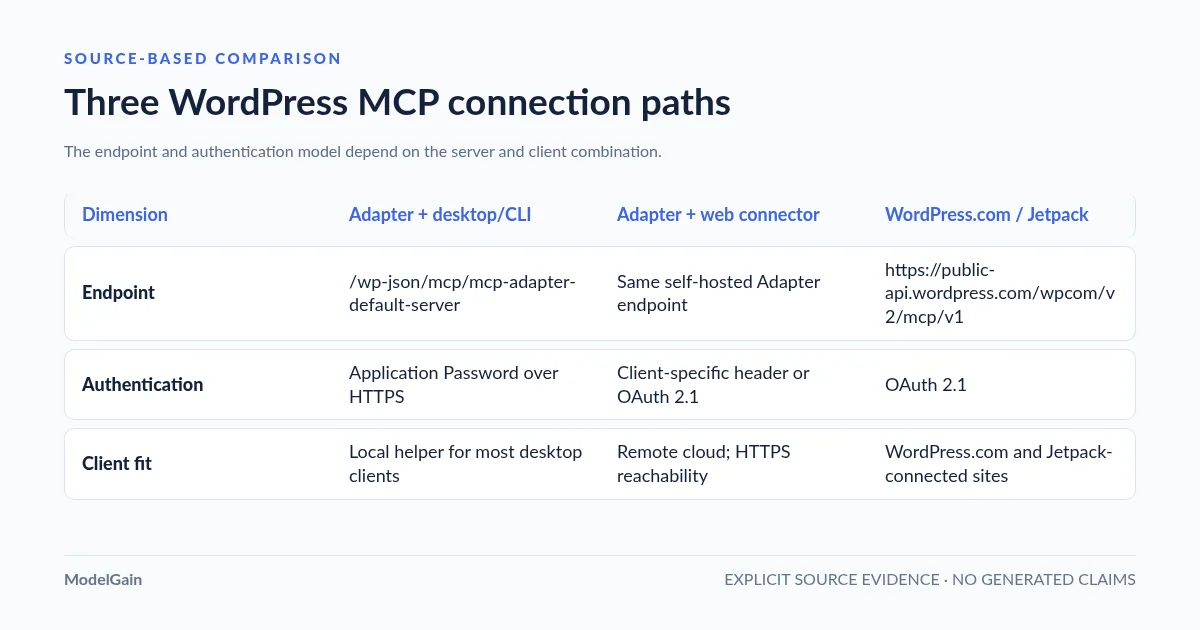
As checked on November 2, 2026, the official self-hosted WordPress MCP Adapter is version 0.7.1 and requires WordPress 6.9+ and PHP 7.4+. Its documented self-hosted path uses a WordPress Application Password over HTTPS. Web connector authentication is client-specific: Claude’s remote connectors can use fixed request headers or OAuth, while OpenAI’s documented authenticated MCP-server path expects OAuth 2.1; anonymous access is intended for public read-only tools. WordPress.com and Jetpack-connected sites have a separate MCP service with OAuth 2.1.
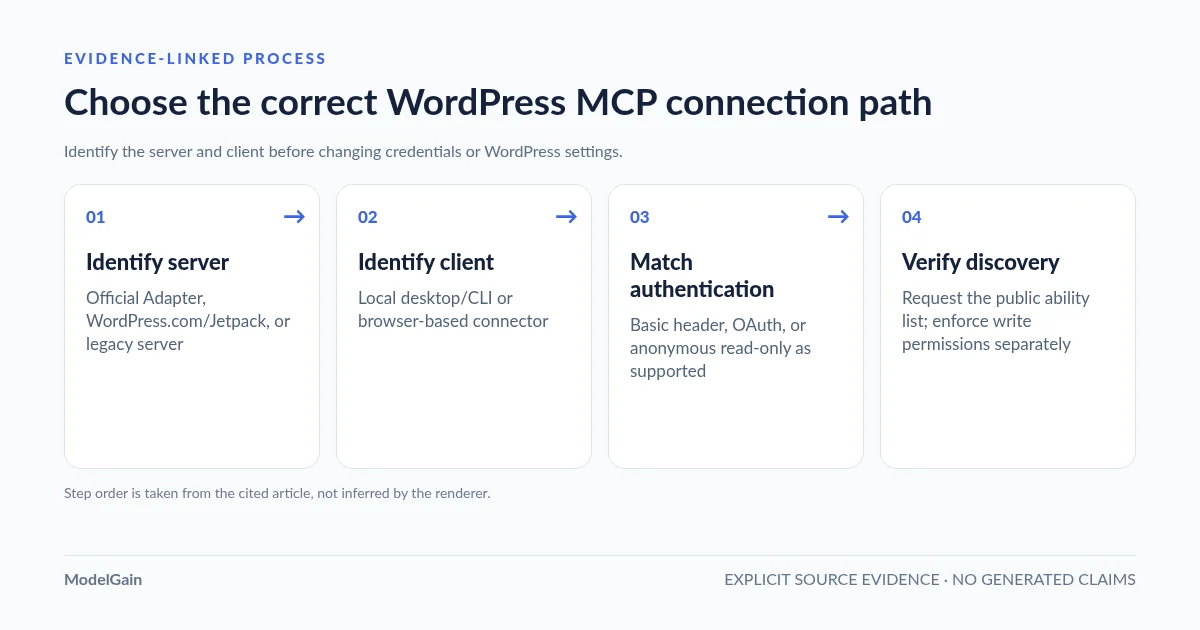
The shortest reliable path: Start by identifying the WordPress MCP server you installed. Next, identify whether the AI client runs locally or as a web connector. Then choose the authentication method that client supports. Finally, verify tool discovery with a non-destructive request.
Why can't this client reach the WordPress MCP server?
Applies when: Diagnose WordPress MCP connection failures by distinguishing the current self-hosted MCP Adapter, the WordPress.com and Jetpack MCP service, and the archived legacy server, then matching the client to its supported authentication and network path.
Quick answer
The client, server, authentication mode, and network path must match. Desktop and CLI clients can use HTTPS Application Passwords; Claude remote connectors may support fixed request headers or OAuth; authenticated ChatGPT MCP servers expect OAuth 2.1 while anonymous mode is for public read-only tools; WordPress.com and Jetpack use a separate OAuth 2.1 endpoint. Discovery alone does not prove authorization or write safety.
What to do
-
Confirm whether the site uses the current official MCP Adapter, the WordPress.com and Jetpack MCP service, or an archived or third-party integration. Do not reuse endpoints from a different project.
-
Local desktop and CLI clients can use the documented Application Password path. Claude remote connectors may accept fixed request headers; authenticated ChatGPT MCP servers expect OAuth 2.1, while anonymous access is for public read-only tools.
-
Desktop helpers call from the user's computer. Remote connectors call from provider infrastructure, so the WordPress site must be reachable over HTTPS or through a supported private-network tunnel.
-
Use HTTPS, a dedicated WordPress user, a separate revocable credential for each client, and the minimum capabilities needed. For discovery-only testing, the role must actually lack write capabilities; an Editor is not read-only.
-
Use a discovery-only prompt as a test request, but enforce write restrictions through WordPress roles and per-ability permission checks. Discovery alone does not prove authorization or write safety.
Which WordPress MCP setup are you using?
All paths are listed below. Select a symptom to focus on the most relevant path.
Use the current Adapter's local helper
Install and activate the official MCP Adapter on WordPress 6.9+, use HTTPS, create a dedicated Application Password, and configure the local @automattic/mcp-wordpress-remote helper with the full /wp-json/mcp/mcp-adapter-default-server endpoint. Preserve any path in the public Site Address. If pretty permalinks are disabled, use the ?rest_route=/mcp/mcp-adapter-default-server form. Node.js belongs on the computer running the desktop client.
Use direct HTTP only if the client supports custom headers
Use the current MCP endpoint and an Authorization: Basic header containing the base64 encoding of username:Application-Password. Protect the local client configuration, and use the local helper instead if the client cannot send custom headers.
Check Claude's remote connector authentication options
Claude's custom connector can be configured with no sign-in, OAuth, or fixed request headers. If the Request headers section accepts a custom Authorization header, Basic username:Application-Password credentials may work with the official Adapter. This is client-specific; test with a dedicated low-privilege user. Remote requests originate from Anthropic's cloud, so the site must be reachable there. Use no sign-in only for intentionally public read-only tools.
Use OAuth 2.1 for authenticated ChatGPT MCP access
OpenAI documents anonymous MCP servers for read-only use and expects authenticated MCP servers to implement OAuth 2.1. The official Adapter's Application Password/Basic-auth path is not the documented authenticated ChatGPT flow. Use an OAuth bridge or WordPress.com/Jetpack MCP for authenticated access. For a private-network server, use Secure MCP Tunnel rather than exposing it directly.
Use the WordPress.com and Jetpack MCP service
Add https://public-api.wordpress.com/wpcom/v2/mcp/v1 and complete the OAuth 2.1 browser authorization. Review Read and Write controls in the WordPress.com or Jetpack settings, then restart the client and start a new chat after changing permissions.
Do not copy the archived server's endpoint or JWT configuration
Automattic/wordpress-mcp was archived on January 19, 2026 and documents a different endpoint and authentication path. Re-identify the installed plugin, then follow the current WordPress/mcp-adapter site-owner guide if you are using the official self-hosted Adapter.
Treat an empty ability list as a discovery issue, not a transport failure
The Adapter does not create abilities for other plugins. Check whether the intended ability is registered and explicitly exposed, then review its permission behavior. Do not make private or write-capable abilities public just to populate the list.
Did this help?
1. Identify which WordPress MCP server you are using
Several projects use the words “WordPress MCP,” but they are not interchangeable. Their endpoints and authentication methods differ.
| Server | Endpoint | Authentication and intended use |
|---|---|---|
| Official self-hosted MCP Adapter | /wp-json/mcp/mcp-adapter-default-server |
WordPress Application Password over HTTPS. Intended for compatible local desktop and CLI clients. |
| WordPress.com / Jetpack MCP | https://public-api.wordpress.com/wpcom/v2/mcp/v1 |
OAuth 2.1. Works with WordPress.com sites and self-hosted sites connected through Jetpack. |
| Legacy Automattic WordPress MCP plugin | Older guides use /wp-json/wp/v2/wpmcp/streamable |
Archived project with a different server and older JWT-based setup. Do not copy its endpoint or configuration into the current official Adapter. |
The current official self-hosted MCP Adapter uses /wp-json/mcp/mcp-adapter-default-server. Use the public Site Address (URL) shown in WordPress under Settings → General, then append that path. If the public Site Address includes a path such as /blog, preserve it; do not infer the route from the filesystem directory or the separate WordPress Address setting. If pretty permalinks are disabled, WordPress may use the query-string form https://example.com/?rest_route=/mcp/mcp-adapter-default-server instead. Use the actual REST URL generated for the site, not a guessed path.
The older Automattic/wordpress-mcp repository was archived on January 19, 2026. Its setup guide documents a different endpoint and JWT flow. That is not the current official WordPress/mcp-adapter project. One easily missed detail: @automattic/mcp-wordpress-remote is still used as a local client helper by the current Adapter guide; the package name does not mean you are installing the archived server plugin.
If a tutorial gives you /wp-json/wp/v2/wpmcp/streamable, stop and check which plugin that tutorial describes. For the current official Adapter, follow its site-owner guide, not a legacy configuration copied from an older project.
2. Match the connection method to the client
The same WordPress site can work from a desktop client and fail from a browser-based connector because the clients do not necessarily support the same authentication flow or network path. A desktop helper sends requests from your computer; a remote web connector sends them from the provider’s cloud. A VPN-only site or a WAF rule that blocks provider traffic can therefore fail only from the web connector.
| Client | Recommended path | What to check |
|---|---|---|
| Claude Desktop, Cursor, VS Code, Windsurf | Use the local npx helper with the official Adapter and a dedicated Application Password. |
Node.js must be available on the computer running the client. The helper is local; it does not need to be installed on the WordPress server. |
| Claude Code or another CLI client | Use direct HTTP with an Authorization: Basic header if the client supports custom headers, or use the local helper. |
The header must encode the WordPress username and Application Password. Protect the local client configuration file. |
| Claude.ai remote connector | Use the connector’s supported auth mode. If it allows fixed request headers, an Authorization: Basic header may carry the Application Password; otherwise use an OAuth bridge. |
Claude’s custom connector supports no sign-in, OAuth, and fixed request headers. Requests originate from Anthropic’s cloud. Use no sign-in only for intentionally public read-only tools. |
| ChatGPT web MCP connector | Use OAuth 2.1 for authenticated MCP access. Anonymous mode is appropriate only for public read-only tools; use Secure MCP Tunnel for private-network servers. | OpenAI’s documented authenticated MCP-server path expects OAuth 2.1. Do not assume the connector accepts a WordPress Application Password as HTTP Basic credentials. |
| WordPress.com or Jetpack-connected site | Use the WordPress.com MCP endpoint and complete its browser-based OAuth flow. | Configure Read and Write permissions separately. Start with the minimum access the agent needs. |
3. Configure the official Adapter for a desktop client
For the official self-hosted Adapter, verify these prerequisites before editing a client configuration:
- WordPress 6.9 or newer, with the official MCP Adapter installed from WordPress.org and active.
- HTTPS on the site. WordPress Application Passwords are normally available only over HTTPS, except in local development environments.
- A separate WordPress user for the AI client, with only the capabilities required for the intended work. For discovery-only testing, use a role that actually lacks write capabilities; an Editor is not read-only. Grant content-editing capabilities only when the agent must edit content and the relevant abilities have been reviewed.
- Most desktop clients use the local
@automattic/mcp-wordpress-remotehelper started withnpx, so Node.js belongs on the computer running the client.
Create a dedicated Application Password under Users → Profile → Application Passwords. Give it a recognizable label such as Claude Desktop on laptop. WordPress displays the generated password once; store it securely and create a separate password for each client so one connection can be revoked without affecting the others.
A typical Claude Desktop-style configuration for the current official Adapter looks like this:
{
  "mcpServers": {
    "my-wordpress-site": {
      "command": "npx",
      "args": ["-y", "@automattic/mcp-wordpress-remote@latest"],
      "env": {
        "WP_API_URL": "https://example.com/wp-json/mcp/mcp-adapter-default-server",
        "WP_API_USERNAME": "your-dedicated-user",
        "WP_API_PASSWORD": "your-application-password"
      }
    }
  }
}
Replace the example domain and credentials with your own values. WP_API_URL is the full MCP endpoint, not just the site homepage. On a subdirectory installation, preserve the public Site Address path. The Application Password belongs in the local client configuration; do not paste it into a chat, commit it to Git, or publish a screenshot containing it. Restrict access to the configuration file and revoke the password when the client is no longer needed.
Clients that support direct HTTP and custom headers can skip the local helper. For example, Claude Code can be configured with the current endpoint and an HTTP Basic Authorization header:
claude mcp add --transport http my-wordpress-site \
  https://example.com/wp-json/mcp/mcp-adapter-default-server \
  --header "Authorization: Basic <base64-username-colon-application-password>"
The value after Basic is the base64 encoding of username:application-password, not the raw password. Base64 is encoding, not encryption: the value is a reusable secret and may be retained in shell history, process arguments, or the client configuration. Only use this route if the client supports custom headers. Prefer a protected secret-input mechanism where supported; never use an online Base64 encoder or paste the value into a chat. If a CLI flag is the only supported route, protect the local configuration and shell history, and revoke the credential after testing. The official site-owner guide contains the current client examples and the exact setup prerequisites.
4. Web connectors: match authentication and network reachability
The official MCP Adapter site-owner guide still documents OAuth as the web-app path because the plugin does not provide its own OAuth server. Current client capabilities are more nuanced, so do not assume every browser connector has the same authentication options.
- Claude remote connectors: Anthropic’s current custom-connector flow supports no sign-in, OAuth, and fixed request headers. If the connector’s Request headers section accepts a custom
Authorizationheader,Basic <base64-username-colon-application-password>may work with the official Adapter. This is a client-specific path, not a generic password field. Verify the current UI, use a dedicated low-privilege WordPress user, and test on staging first. Anthropic’s remote connector requests come from its cloud infrastructure, so the site must be reachable there; if a WAF blocks the requests, follow Anthropic’s current network guidance rather than disabling protection broadly. - ChatGPT remote MCP: OpenAI’s current documentation allows anonymous MCP servers for read-only use, but says authenticated MCP servers are expected to implement OAuth 2.1. The official Adapter’s Application Password/Basic-auth path is not the documented authenticated ChatGPT flow. Use an OAuth bridge or the WordPress.com / Jetpack MCP service for authenticated browser access. If the server is on a private network, use OpenAI’s Secure MCP Tunnel guidance instead of exposing the private server directly.
- No-auth is not a shortcut for WordPress administration. Use it only when the server intentionally exposes public read-only tools and contains no customer-specific or private data. Any write-capable ability or user-specific data needs real authentication and server-side authorization.
Before installing a third-party OAuth bridge, verify that it maps the OAuth identity to a real WordPress user, respects that user’s capabilities, and preserves per-ability permission checks. “OAuth supported” by itself is not enough to establish a safe permission model. For WordPress.com or a Jetpack-connected site, use the service shown in the table above. The current Jetpack MCP guide documents the Read and Write permission groups. Review those settings before authorizing a client, and do not enable every write action simply because the connection wizard offers a broad access option. The WordPress.com MCP documentation explains the account-level and site-level access controls.
5. Classify the first real error before changing WordPress
Once the server and client use a compatible path, inspect the first actual response or client log. These symptoms point to different layers:
If the response says Missing Mcp-Session-Id header or a session expired, consult our WordPress MCP Session ID and protocol-version guide before changing headers. The 2025 session-based and 2026 sessionless protocols require different fixes, and newer WordPress Adapter versions support both.
| Observed symptom | Likely layer | Next check |
|---|---|---|
npx: command not found |
Local client computer | Install Node.js locally and confirm the desktop app can find it. This is not a WordPress PHP or server-side Node.js problem. |
| Works from desktop but not from a web connector | Remote network path or client authentication | Check whether the site is reachable from the provider’s cloud, whether a WAF or VPN blocks it, and whether the connector supports the server’s authentication method. For a private ChatGPT MCP server, review Secure MCP Tunnel. |
401 Unauthorized |
Authentication | Check the username, Application Password, HTTPS, and whether the host forwards the Authorization header. |
403 Forbidden |
Permission or request filtering | Check the WordPress user’s capabilities, the ability’s permission callback, and trusted CDN/WAF or security-plugin logs. |
404 or rest_no_route |
Endpoint, route, method, or adapter registration | Verify the full MCP endpoint and active plugin. Use the dedicated WordPress MCP Adapter 404 guide for route-level diagnosis. |
400, 405, session, or protocol-header error |
MCP transport lifecycle | Record the client and Adapter versions, HTTP method, and exact protocol error. Follow the official protocol troubleshooting guide; do not treat every protocol error as a rewrite problem. |
| Connection succeeds, but no useful abilities appear | Ability registration or visibility | The transport may be working while no public abilities are available. See WordPress MCP ability not found. |
A browser GET to the MCP URL is not a complete MCP connection test. The protocol uses specific HTTP methods, headers, and session behavior. If the REST index works but the MCP endpoint returns 404, or the client reports rest_no_route, follow the dedicated route and 404 troubleshooting guide rather than repeating its checks here. If the general REST API itself is blocked, see the WordPress REST API 403 guide.
6. Test discovery without requesting a write
After configuring the connection, start a new chat or restart the client if its tool list is cached. Use a discovery-only prompt as a test request:
List the public WordPress abilities available on this site.
Do not create, edit, delete, publish, or change anything.
This prompt is an instruction, not an access-control boundary. A client can ignore it. To prevent writes, enforce the restriction in WordPress: use a role that lacks write capabilities and keep each ability’s permission callback fail-closed. For WordPress.com / Jetpack, leave Write disabled unless it is required. If you need to test write actions, use a staging site first.
The official Adapter exposes tools for listing public abilities, reading an ability’s details, and running an ability. If the list of abilities is empty, that does not automatically mean the MCP connection failed: the Adapter does not create abilities for other plugins, and only abilities made public are discoverable. Check the registration and visibility of the intended ability before changing permissions. Our Abilities API availability guide covers core-version prerequisites; the ability discovery guide covers registration and exposure.
For a self-hosted Adapter, the client acts as the WordPress user whose Application Password it uses. The user’s role and each ability’s permission callback are the actual controls; the discovery prompt does not replace them. For WordPress.com / Jetpack MCP, use the Read and Write controls to grant only the required actions. For broader governance, see the WordPress AI agent readiness checklist.
7. What a local Agent Readiness Audit can—and cannot—prove
If you still have wp-admin access, ModelGain Agent Readiness Audit can collect local, read-only evidence about your WordPress site’s agent readiness. It detects the official Adapter class and version, records a locally registered MCP REST route where detectable, inventories Abilities API metadata, and classifies side-effect signals from ability annotations and conservative name/description checks. For public abilities, it may check the permission callback as an anonymous user only after a default/no-input sample passes the ability’s own normalization and validation. This is a bounded permission signal, not a test of the authenticated remote client.
It is not an MCP connector or repair tool. The audit does not authenticate a remote Claude or ChatGPT client, test an external MCP handshake, provide OAuth, change permissions, register an MCP server, or execute third-party abilities. Its same-origin probes do not send WordPress credentials or Authorization headers. An Unknown result means the audit could not establish enough evidence; it is not proof that the site is broken.
The plugin’s server-side same-origin GET probes are bounded and send a minimal Accept header plus the ModelGain audit User-Agent. They do not include WordPress authentication cookies, Authorization headers, URL-embedded credentials, request bodies, or customer data, and they do not follow redirects.
Review the product’s WordPress.org listing for installation requirements and release history. The product is a local diagnostic layer; it complements a real client test rather than replacing it.
Related WordPress agent guides
- WordPress MCP Adapter REST endpoint returns 404 — diagnose the exact endpoint, route, method, and default-server registration.
- WordPress Abilities API is not available — verify WordPress core and API prerequisites.
- WordPress MCP ability not found — distinguish registration from MCP visibility.
- WordPress AI agent readiness checklist — review Read, Act, and Manage boundaries before granting access.
- WordPress website inaccessible to AI crawlers — investigate public discovery separately from authenticated MCP access.
Frequently asked questions
Why does Claude Desktop work while Claude.ai cannot connect?
Desktop clients can use a local helper and a WordPress Application Password. Claude’s remote connector runs from Anthropic’s cloud and has a different network path. Its current custom-connector flow can send fixed request headers, so a Basic Authorization header may work if the UI accepts it; otherwise use an OAuth bridge. A private site that is reachable only from your laptop will still fail from the remote connector.
Can ChatGPT connect to an MCP server without OAuth?
OpenAI documents anonymous MCP servers for read-only use. For authenticated MCP servers, its current guidance expects OAuth 2.1. Do not expose a WordPress endpoint without authentication if it offers private data or write actions. For a private-network MCP server, use Secure MCP Tunnel rather than opening the host to the internet.
Can I use the WordPress.com MCP endpoint on a self-hosted site?
Yes, if the self-hosted site is connected through Jetpack. WordPress.com documents the same OAuth 2.1 endpoint for WordPress.com sites and Jetpack-connected sites. It is separate from the self-hosted MCP Adapter endpoint.
Does Node.js need to be installed on my WordPress server?
No. For the documented desktop setup, Node.js is needed on the computer running the AI client because npx starts the local helper. It is not a requirement to install Node.js on the WordPress host for that connection path.
Does a successful connection mean the agent can safely edit my site?
No. Connection, ability visibility, and permission to execute an action are separate checks. Start with read-only discovery, use a dedicated low-privilege user, and expose only the abilities that have an appropriate permission model.
A successful resolution means the intended client completes discovery and exposed abilities enforce the intended execution permissions. Discovery alone does not prove authorization or write safety. Identify the server implementation, choose the authentication path that matches the client, and test discovery without making a production write.
Official references
- WordPress MCP Adapter: site-owner connection guide.
- WordPress MCP Adapter: common issues and protocol troubleshooting.
- WordPress.com MCP server and OAuth 2.1 documentation.
- Jetpack: connect an AI agent to a Jetpack-connected site.
- Anthropic: custom remote MCP connectors, authentication, and request headers.
- OpenAI: MCP server authentication and anonymous read-only access.
- OpenAI: connect custom MCP servers in ChatGPT and use Secure MCP Tunnel.
- WordPress Abilities API documentation.