WORDPRESS
WordPress Site Health REST API 403: Find the Blocking Layer
WordPress Site Health REST API 403? Compare the authenticated endpoint, nonce, permissions and WAF response before changing security rules.
When WordPress Site Health reports “REST API Response: (403) Forbidden,” do not start by disabling every security control. The first question is whether the specific authenticated request made by Site Health was rejected by WordPress permissions, a missing login cookie or nonce, or a firewall in front of WordPress. A public /wp-json/ index that returns HTTP 200 cannot prove that an authenticated block-editor request will succeed.
This guide investigates Tools → Site Health → Status → REST API errors, especially when the block editor will not load or save posts. It is not a guide to opening private API endpoints to anonymous visitors. Record the exact failed route and response before making changes.
WordPress Site Health REST API 403: find the rejecting layer
Applies when: A WordPress Site Health edit-context REST test or logged-in block editor request returns HTTP 403.
Quick answer
Compare the exact authenticated endpoint with the public API index, then classify the response as a WordPress permission/nonce error or a proxy/security rejection. Do not open privileged routes to anonymous users.
What to do
-
Record the Site Health endpoint, method, status, timestamp and whether the response body is JSON or an HTML denial page.
-
Do not publish nonce or cookie values. Reproduce within the intended logged-in editor; an anonymous 403 may be correct.
-
Check user role, nonce/session, trusted WAF log or web-handler path as supported by evidence; then retest draft saving.
What did the failing request return?
All paths are listed below. Select a symptom to focus on the most relevant path.
Check intended identity and capability
Inspect the authenticated browser request, session and exact REST error code. Separate missing nonce from insufficient editor capability; do not bypass authentication.
Correlate a real denied request
Check trusted proxy, WAF and web-server logs for the exact endpoint/time. Make only an approved narrow rule correction, not a global allow-all.
Investigate the server-to-self path
A timeout is not evidence of a deliberate 403. Check hostname resolution, transport and web-worker pressure using a bounded read-only comparison.
Separate rewrite and REST registration
A web-server HTML 404 differs from WordPress JSON rest_no_route. Check pretty permalinks, routing, namespace and method before changing rewrite rules.
Did this help?
What Site Health actually tests
WordPress’s core Site Health REST API test requests an edit-context endpoint for the post type, typically /wp-json/wp/v2/types/post?context=edit. Its implementation includes login cookies and an X-WP-Nonce header so WordPress can evaluate the request in an authenticated context. The REST authentication handbook explains the cookie-and-nonce model. A logged-out browser visiting the same edit-context URL is not running the same test and may legitimately receive a permission error.
The index at /wp-json/ exposes API discovery information, not proof that your current user can edit posts. A 403 is a symptom from one request. To identify its cause, also inspect the body and the layer that generated it.
1. Capture the exact error and its response type
Open Site Health and record the endpoint, HTTP status, timestamp and timezone. If the editor also fails, inspect the browser’s Developer Tools → Network view for the first failed /wp-json/ request, its method and its response body. Do not publish cookies, X-WP-Nonce values, authorization headers, personal identifiers or unredacted HAR files.
A WordPress JSON body with code, message and data.status suggests WordPress’s REST layer was reached. Look for an authentication, nonce or capability-specific error before calling it a firewall block. An HTML page that says “Forbidden,” returns a hosting-company error, or displays a WAF challenge suggests an upstream layer might have stopped the request. A 403 with empty content needs correlation with server and proxy logs; the status alone does not identify the responsible component.
To compare public reachability without reproducing privileged context, an ordinary anonymous GET to the index is safe:
curl --silent --show-error --max-time 15 \
  --dump-header - https://example.com/wp-json/ \
  --output /tmp/wp-rest-index.json
Read the response headers and check that the output is expected JSON. Do not add stolen or copied admin cookies or paste nonce values into a terminal to imitate Site Health. An index success confirms only that this anonymous route responded.
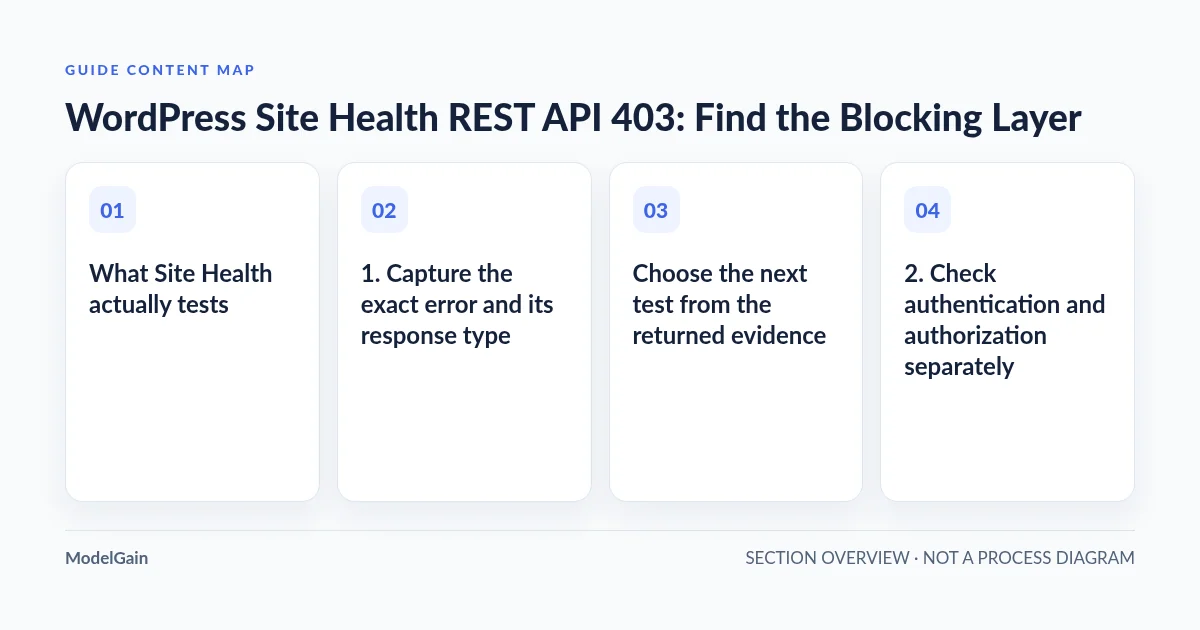
Choose the next test from the returned evidence
| Observation | Likely investigation | Next safe step |
|---|---|---|
| Index 200, edit-context route returns WordPress JSON 403 | Session, nonce or edit capability | Check actual logged-in editor request and role-specific errors |
| 403 body is a CDN, WAF or host HTML page | Security rule, reverse proxy or server policy | Correlate request ID, time and trusted edge/server logs |
| Public index and Site Health both time out | Connectivity or self-request path | Investigate site-origin loopbacks and hosting network separately |
/wp-json/ returns server HTML 404 |
Rewrite, virtual host or site-path routing | Compare with the documented rest_route fallback |
Response JSON says rest_no_route |
REST router was reached but route/method did not match | Inspect exact namespace, method and route registration |
2. Check authentication and authorization separately
Sign out and sign back in through the normal WordPress login flow, then retry the editor. Review the logged-in browser request’s actual URL and error code without sharing session material. The official cookie-authentication documentation makes clear that missing REST nonce information can cause an API request to be treated as unauthenticated. A valid nonce is not a substitute for an authorized user’s capability.
If the response specifically reports insufficient permissions to edit a post type, inspect the current user role, relevant capabilities and any code or plugin altering them. A user who can view /wp-admin/ need not have permission to edit every post type. If a nonce or cookie is missing, investigate secure cookie domain/path, HTTPS and reverse-proxy header preservation. Do not turn off permission checks to make the warning vanish.
3. Trace the security and hosting layer without broad exceptions
For a confirmed WAF/hosting rejection, ask the administrator to compare one failed request against the firewall audit, application security plugin logs, Nginx/Apache status and trusted reverse-proxy chain. Identify the specific rule before proposing a temporary, narrowly scoped change on staging. Avoid globally allowing all REST methods or disabling the entire firewall in production.
In a documented WordPress.org Site Health case, the operator initially suspected custom Nginx configuration but later found the site hostname missing from the local hosts mapping. That was one site’s root cause, not a universal instruction to edit /etc/hosts. Test your own hostname resolution and request path before changing DNS or hosts files.
If both a REST error and a separate loopback warning appear, distinguish their observations. A failed server-to-self request can affect both checks, but one response code cannot establish which layer caused both. Use the loopback cURL 28 checklist when the request times out rather than returning a deliberate forbidden response.
4. Isolate plugins and theme behavior safely
Use a representative staging clone or an approved troubleshooting mode. Record the current versions, active security and MU plugins, and the exact failing test. Change only one suspected component at a time, repeat the same request and restore the original state to confirm repeatability. WordPress’s loopback troubleshooting handbook mentions plugin/theme isolation but it is not permission to remove live customer protections or disable payment extensions on a functioning store.
Do not treat a static plugin scan or a successful public index GET as a full permissions audit. In particular, headless agents and integrations should use their intended authenticated methods with minimum capabilities; a human administrator’s cookie is not an appropriate permanent automation credential.
5. Verify the block editor and intended integration
After one targeted, approved fix, retry Site Health, then perform an authorized low-risk editor workflow: open a noncritical draft, make a reversible change and confirm it saves without a new API error. Repeat the relevant application or integration call under its own correct credentials. Confirm no regression in private API routes, authentication or security logs.
If the REST index itself is missing, follow the WordPress REST 404 routing guide. For an AI client that cannot fetch an intentionally public HTML article, use the separate crawler-access guide; page crawling and privileged REST authorization are different policies. ModelGain WordPress Development may help implement a verified server/configuration fix, but no unpublished Agent Readiness Audit is presented here as a currently available product.