WORDPRESS
WordPress Loopback cURL Error 28: Diagnose the Timeout
Diagnose WordPress loopback cURL error 28 by separating DNS, firewall, network timeout and PHP worker delays before changing cron or plugins.
“Loopback request failed: cURL error 28” means WordPress did not complete its request back to its own site within the test’s timeout. It does not tell you whether DNS resolution stalled, the connection was blocked, TLS negotiation failed, PHP workers were unavailable or the application took too long to respond. Preserve the exact error stage before increasing timeout values or changing a firewall.
This guide is for WordPress Tools → Site Health → Status loopback failures. A separate plugin reporting cURL 28 against a third-party payment or search API has a different destination and should not automatically be treated as a loopback problem.
WordPress loopback cURL 28: identify the timeout stage
Applies when: WordPress Site Health reports a loopback request timeout, not a third-party API timeout.
Quick answer
Record the full error and compare DNS, connection, response and hosting worker evidence. The error code alone does not identify a plugin or justify increasing the timeout.
What to do
-
Note destination, stage, elapsed time, timezone and matching private server logs. Do not share credentials or internal tokens.
-
A successful visitor GET does not prove server-to-self reachability. Use bounded authorized checks and trusted hosting evidence.
-
Identify normal WP-Cron or real server cron ownership and observe representative safe jobs before deciding what is broken.
Where does the self-request appear to stop?
All paths are listed below. Select a symptom to focus on the most relevant path.
Inspect the site's origin-side resolver
Compare authorized server-side DNS and hosts mapping with public resolution. Do not edit DNS from a guessed root cause.
Trace the outbound route
Ask hosting to correlate TCP connectivity, IPv4/IPv6, local firewall and CDN loopback routing. Preserve security controls.
Inspect PHP and web capacity
Correlate slow requests, PHP-FPM workers and application hooks with the timeout window. Increasing timeout alone does not repair contention.
Treat it as an access-policy rejection
Inspect trusted WAF and reverse-proxy logs for the exact request. Do not allowlist arbitrary source addresses or disable authentication.
Did this help?
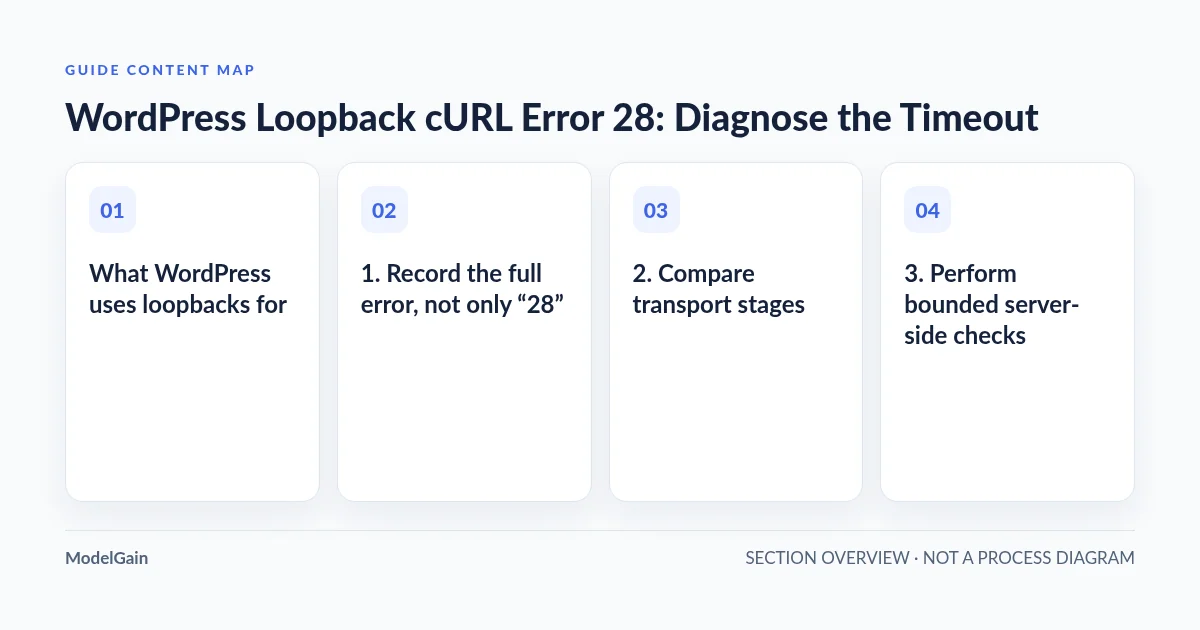
What WordPress uses loopbacks for
WordPress’s official Loopbacks handbook describes requests from the site back to itself, including WP-Cron initiation and post-edit safety checks for plugin or theme file editors. The core Site Health implementation performs a bounded HTTP self-request; its normal test timeout is 10 seconds. Failing that diagnostic signals a problem worth investigating, but it is not proof that every scheduled job failed or that PHP code contains a specific bug.
Some sites intentionally use a real system cron instead of traffic-triggered WP-Cron. In that configuration, a failed loopback test may have different operational consequences. Verify how your scheduled jobs actually run before removing an intentional cron setting or starting all jobs manually.
1. Record the full error, not only “28”
Copy the Site Health message into a private incident note with timestamp, timezone, endpoint, elapsed time and any phrase such as “Resolving timed out,” “Connection timed out” or “Operation timed out with 0 bytes received.” Also capture relevant hosting logs without exporting customer data or credentials. The wording gives an initial clue about the stage, but application-level diagnostics may need more evidence.
Check whether the site itself is reachable by an ordinary visitor and whether unrelated REST API tests also fail. A visitor’s successful 200 response establishes the public inbound path worked for that visitor; it does not prove that the server can reach its own public hostname from its network.
2. Compare transport stages
| Observed pattern | Candidate cause | Read-only investigation |
|---|---|---|
| DNS resolution timeouts | Resolver or hostname mapping trouble | Compare server-side DNS results and host configuration with public DNS |
| TCP/connect phase stalls | Outbound routing, firewall, IPv4/IPv6 or NAT hairpin issue | Ask hosting to trace the site’s actual outbound route to its public hostname |
| Connection succeeds but response stalls | PHP-FPM worker exhaustion, application latency or upstream dependency | Correlate request with web/PHP logs, worker pressure and callback timing |
| HTTP 403 or challenge HTML is returned | Security or authorization policy | Investigate real rejection logs; this is no longer simply a transport timeout |
| Only one plugin’s self-request times out | Different URL, timeout or plugin-specific path | Compare that request to the core Site Health probe before changing settings |
3. Perform bounded server-side checks
If you have authorized hosting shell access, inspect the current site’s domain from the server itself. A read-only example uses the same public hostname and a strict timeout:
curl --silent --show-error --max-time 12 \
  --output /dev/null \
  --write-out 'status=%{http_code} dns=%{time_namelookup} connect=%{time_connect} total=%{time_total}\n' \
  https://example.com/
Record the measured stages and compare a second safe target only if needed. This command tests the shell’s network and a public GET, not WordPress’s exact internal POST test or the PHP runtime’s own DNS/TLS configuration. The test may also traverse a CDN while other loopbacks follow a local route. Do not treat a successful shell curl as definitive disproof of Site Health.
If the site is behind a proxy, the server might resolve its domain to a public edge and get challenged on the way back. Ask the host to inspect trusted destination IP, local DNS, IPv6 routing and security policy. A WordPress.org Wordfence support case discusses firewall and self-request routing as hypotheses; it is a case study, not an instruction to allowlist arbitrary addresses.
4. Separate capacity from connectivity
Repeated timeouts only under load can indicate worker contention. If PHP has too few workers or an expensive hook holds the available slots, an otherwise valid self-request may wait longer than Site Health’s timeout. Compare PHP-FPM slow logs, error logs, resource usage and time of the failure against a low-load observation. A larger timeout can hide the symptom while retaining the blocked worker; measure the cause first.
Plugin/theme conflicts are possible. The official handbook recommends component isolation as one troubleshooting route. Run it in isolated staging or approved troubleshooting mode with safe external integrations, not by disabling payment, security, fulfillment or email plugins on a production store.
5. Verify WP-Cron and queue health separately
Check whether scheduled posts and representative background jobs have actually completed in the period of concern. The Action Scheduler versus WP-Cron guide explains why a configured trigger does not prove execution. If the queue has aged pending actions, diagnose their hooks and recent completion evidence before any rerun. ModelGain Queue Health can provide read-only queue observations, but it cannot repair a network route.
When Site Health reports both a REST API problem and loopback failure, follow the REST API Site Health classification. A deliberate 403 from an authenticated API endpoint and a self-request transport timeout require different proof and often different owners.
6. Make one reversible correction and verify outcomes
Only after the cause is established should an authorized operator adjust DNS/hosts, a narrow firewall rule, proxy routing, PHP worker capacity or a confirmed plugin defect. Record the original state and rollback path. Do not disable certificate checks for public clients, and do not expose an origin IP or authenticated route to bypass a challenge.
Repeat Site Health, the bounded self-request comparison and a relevant safe business workflow after the change. Observe future scheduled jobs completing under the intended cron mode. If the problem is only a public REST route returning an HTML 404, use the REST rewrite and route diagnosis instead of modifying loopback timeouts.