WORDPRESS
WordPress PHP Vulnerability Check Failed: Fix Stale Security Data
WordPress PHP security data stopped refreshing? Diagnose failed requests, stale results and WP-Cron delays, then verify fresh evidence.
FREE WORDPRESS PLUGIN
PHP Security Monitor
Identify the PHP version serving your WordPress admin request, review potentially matching PHP CVEs after consent, and prepare a host-support report.
- Install on WordPress 6.9+ with PHP 7.4+
- Open Tools → PHP Security and review the web runtime
- Opt in to Check now, then review evidence and the host report
Version evidence only; an advisory match is not proof of exploitability or compromise. Cannot patch PHP, verify backports or provide continuous protection. External checks share server IP/PHP version after consent; optional WP-Cron checks and email require separate consent and are not guaranteed.
Your WordPress PHP vulnerability check stopped updating, but an older result is still visible. That is a data-retrieval problem to diagnose—not evidence that the PHP runtime is safe or that every previously reported vulnerability remains current. A failed refresh may leave the last usable snapshot on screen as Stale: historical evidence only. If that evidence has expired, the current assessment becomes unknown.
Fastest recovery path: open Tools → PHP Security in the free ModelGain PHP Security Monitor, compare Last attempt, Last successful retrieval and Provider updated, then make one authorized Check now request. If the request fails again, isolate the outbound HTTP or response-validation problem before touching scheduled checks. If the request succeeds but the status remains stale, inspect the upstream timestamp. These are different failure modes.
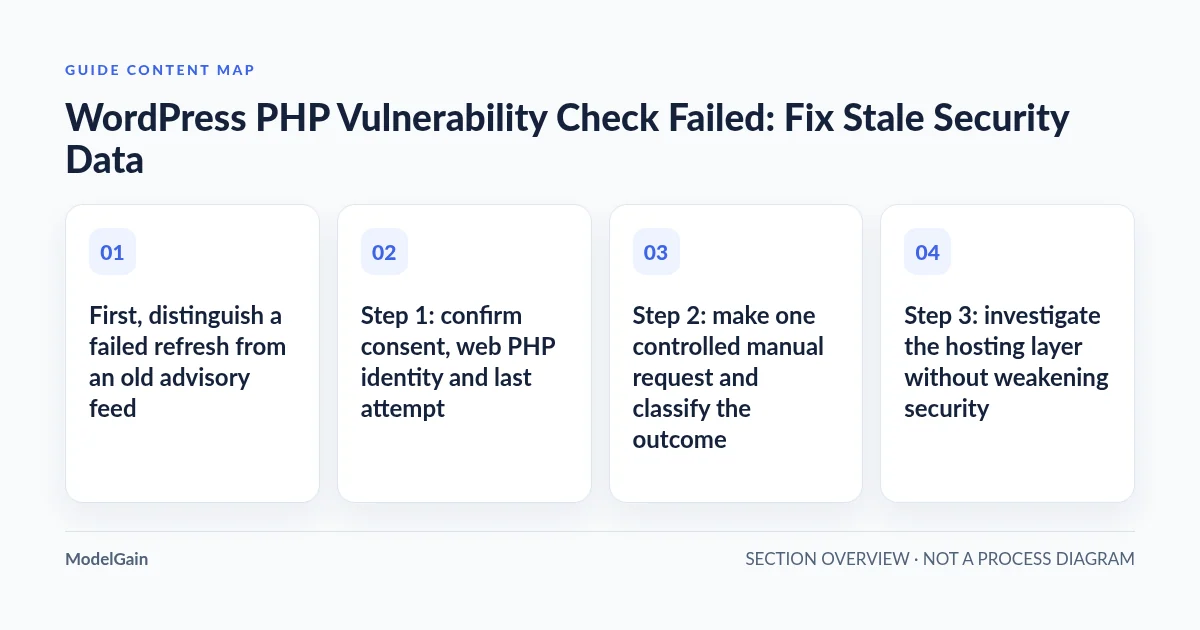
First, distinguish a failed refresh from an old advisory feed
In the released PHP Security Monitor, the dashboard shows the PHP version and SAPI serving the current WordPress administrator request, and the stored evidence status. Merely viewing the page makes no external request. Manual data queries require opt-in; scheduled queries and email alerts have their own opt-in. The plugin evaluates PHP advisory data for the observed PHP version, not the installed WordPress plugin/theme code or malware.
| What you see | What it means | Your next check |
|---|---|---|
| Not enabled (no external request) | Manual queries were not authorized. There was no automatic scan. | Review the external-service disclosure, then choose whether to opt in. |
| Unknown: no check for this runtime | No saved result exists for the currently observed PHP version. | Confirm the web PHP version; make an authorized first check. |
| Stale: historical evidence only after a failed attempt | An earlier usable snapshot was retained, but the latest request did not produce a validated result. | Inspect attempt/retrieval timestamps; investigate the outbound request or response. |
| Stale after a successful retrieval | The provider’s own update timestamp or retrieval timestamp is already at least 24 hours old. | Compare both clocks. A new download cannot make old upstream data new. |
| Unknown: evidence expired (7 days) | At least one relevant evidence clock is seven days old or older. | Do not use prior counts as a current verdict; obtain fresh evidence or host confirmation. |
| Fresh (less than 24 hours) | Both clocks are under 24 hours old, with no retained request-error state. | Interpret potential matches and unknown records, then confirm monitoring separately. |
Two timestamps matter: Last successful retrieval records when WordPress accepted a usable response, and Provider updated is the upstream advisory-data timestamp. Fresh means both are less than 24 hours old. At 24 hours the result is stale; at seven days, expired. The separate Last attempt clock can advance even when the successful retrieval does not. For deeper interpretation of a fresh result with zero potential matches, see why an empty PHP vulnerability result does not mean a safe server.
Step 1: confirm consent, web PHP identity and last attempt
- Sign in as a WordPress administrator and open Tools → PHP Security. Note the displayed
PHP_VERSIONandPHP_SAPI. Do not substitute the hosting control panel’s PHP selector or a shellphp -vresult; they can be different runtimes. - Read Evidence and lifecycle. Capture the exact displayed state plus Last attempt, Last successful retrieval and, when a usable snapshot exists, Provider updated. All are shown in UTC.
- If the status is Not enabled, decide whether to allow a manual query after reading the privacy notice. Enable manual queries by itself does not fetch. The separate Check now action initiates the request.
- If the runtime has changed, expect a missing result for the new PHP version. A saved snapshot is tied to the version it was collected for. Confirm the actual serving version before checking again.
External manual checks send the observed PHP version to the WPVulnerability provider, whose server can also see the requesting server IP and the generic plugin User-Agent. The plugin does not send login credentials, cookies or the site URL. You can withdraw consent; doing so also clears its saved evidence and monitoring state. Do not publish an open phpinfo() page to investigate a discrepancy. If the hosting panel and WordPress disagree, follow the live PHP version mismatch guide.
Step 2: make one controlled manual request and classify the outcome
If manual consent is active, use Check now (at most once per minute). The released plugin enforces that request spacing, uses WordPress’s safe HTTPS HTTP API, allows up to eight seconds, follows no redirects, and rejects oversized, malformed or incomplete advisory payloads. Repeated rapid clicking will not reliably generate new evidence. The interface intentionally gives a generic failed/invalid-data message rather than displaying confidential server-side transport diagnostics.
| Observation after Check now | Likely investigation | Avoid |
|---|---|---|
| Last attempt changed; Last successful retrieval did not | The request did not produce an accepted snapshot. Check hosting outbound HTTPS/DNS, firewall or proxy restrictions and server-side HTTP error records using authorized, redacted diagnostics. | Calling the old snapshot a completed new check; turning off TLS certificate verification globally. |
| Attempt changed; message says the last request failed or returned invalid data | Transport failure, non-200 status, unexpected redirect, invalid JSON/envelope, version mismatch or incomplete branch history are distinct possible causes. The public screen alone does not identify which one occurred. | Claiming an exact HTTP code or root cause without host logs or a reproducible authorized test. |
| Last successful retrieval advanced, but the status remains stale | Read Provider updated. The upstream feed may not have refreshed within 24 hours, even though WordPress successfully fetched it. | Changing WordPress cron settings to fix provider-side data age. |
| No new attempt is recorded | Check whether consent is enabled, whether a previous attempt occurred within 60 seconds, whether the current runtime is supported, and whether the action actually returned. | Assuming an unrecorded attempt was successful. |
| Status returned to Fresh | Record both timestamps and the observed PHP version. Continue with the actual potential/unknown/not-matched advisory interpretation. | Treating a fresh feed as proof of host patching, exploitability or absence of compromise. |
For the underlying retrieval model, see the WordPress HTTP API documentation. The plugin queries the WPVulnerability PHP advisory API only after authorization. A valid HTTP 200 response can still fail semantic validation—for example, if the JSON is invalid or the advisory branch does not match the observed runtime. Conversely, a host can block the request before a provider response is received. Do not describe these as a single generic “cache bug.”
Step 3: investigate the hosting layer without weakening security
When the manual attempt cannot retrieve usable data, ask the hosting provider to check the WordPress web worker’s outbound HTTPS connectivity to the fixed advisory endpoint, DNS resolution, network egress policy, proxy behavior, TLS certificate-chain trust and relevant PHP HTTP transport. Check timestamped server logs available to the site operator; redact IPs, paths, tokens and request details before sharing them externally. A host may use different outbound policies for CLI and PHP-FPM, so an unrelated command-line request succeeding does not prove the administrator web request will succeed.
If connectivity succeeds, move to response quality. The released plugin accepts only a bounded JSON envelope for the requested PHP branch and refuses a malformed or incomplete advisory history. Do not delete database options, manually forge a “fresh” timestamp, replace plugin code, modify its consent flags or disable TLS verification to make an error disappear. The point of this check is to recover trustworthy evidence, not a green badge.
If a serious current PHP advisory is independently confirmed during the outage, address it through your host instead of waiting for the feed to recover. Follow the WordPress PHP vulnerability warning response guide. If a hosting vendor claims to have backported a fix while an upstream version still matches, read how to verify version-specific vendor patch evidence.
Step 4: check scheduling only if manual refresh works
A successful manual check followed by missing later updates points to a different problem: the optional monitoring schedule. PHP Security Monitor can register an approximately six-hour WP-Cron event only after separate monitoring and email consent. Open Monitoring health to review Last run, Status, Last fresh, Mail and Next scheduled. A scheduled time is not proof that a callback ran. WordPress’s official WP-Cron handbook explains why page-load-driven cron can be delayed on quiet sites.
The plugin deliberately skips a PHP CLI/phpdbg scheduled check because that context does not identify the production web-serving PHP runtime. This matters if the host executes WordPress cron exclusively through CLI: other cron jobs may run while the PHP Security Monitor’s web-runtime check is skipped. Ask the host to inspect the actual web-based WP-Cron invocation and its effect on the recorded monitor status. Do not run every due job on a live site solely as a diagnostic shortcut. For general scheduling failures, see Action Scheduler jobs not running even with WP-Cron enabled.
Email is a separate path. A stale feed can prevent a meaningful alert; a broken scheduler cannot reliably notify you about its own outage; and wp_mail() accepting an email does not establish inbox delivery. If manual evidence is fresh but messages are absent, follow the WordPress email-delivery troubleshooting guide.
Decision guide: which failure should you resolve first?
Choose what the plugin actually displays. The decisions below explain the next diagnostic action; they do not connect to your site, make a request or run a vulnerability scan.
Recover a failed PHP vulnerability-data refresh
Applies when: An administrator using ModelGain PHP Security Monitor has an unsuccessful manual or scheduled advisory-data refresh and must distinguish missing, stale, expired and provider-outdated evidence.
Quick answer
Check consent and actual web PHP first, compare the three timestamps, isolate transport versus provider-data age, and verify both freshness clocks after the issue is resolved. Validate scheduled monitoring only after manual checks work.
What to do
-
Record PHP_VERSION, PHP_SAPI, evidence status and last attempt under Tools → PHP Security. Explicitly enable manual queries only if authorized.
-
Compare Last attempt with Last successful retrieval, then inspect Provider updated when available. A failed attempt preserves historical evidence, not a new clean result.
-
Resolve HTTP or provider issues, perform one spaced authorized check, verify Fresh with both clocks under 24 hours and separately test WP-Cron monitor status.
What does your PHP Security Monitor show after you try to refresh?
All paths are listed below. Select a symptom to focus on the most relevant path.
Confirm permission and current PHP
Review the external-query disclosure and current web PHP_VERSION. If authorized, enable manual queries and click Check now. The previous version's snapshot cannot validate a changed runtime.
Diagnose a failed WordPress outbound request
Inspect Last attempt versus Last successful retrieval, then ask the host for redacted web-worker HTTPS/DNS/TLS/proxy and response evidence. An old snapshot must not become a new green result.
Check the upstream update clock
A new successful fetch does not refresh old upstream advisories. Compare Provider updated against UTC now; if it exceeds 24 hours, seek provider confirmation and use original advisories for urgent risk.
Verify actual monitoring execution
Separate manual-query consent from monitoring/email opt-in. Inspect Last run, Last fresh and Next scheduled. WP-Cron depends on execution; CLI PHP checks are skipped by this monitor.
Did this help?
How to prove the refresh is recovered
- Repeat a manual check only after the previous 60-second request window has elapsed and the host or provider issue has been addressed. Do not trigger rapid parallel queries.
- Confirm the WordPress administrator web PHP version is the same version you intend to assess. After a PHP update, collect new version-bound evidence.
- Verify the Last attempt and Last successful retrieval values actually changed in the expected way. Record Provider updated separately.
- Confirm that the displayed state is Fresh (less than 24 hours) and there is no last-request-failed message. A new retrieval time without a fresh provider timestamp is not a pass.
- Review any potentially affected and unknown advisory records against original notices and vendor packages. Fresh data does not certify a patched host.
- If scheduled monitoring was enabled, verify a subsequent real web-runtime monitoring result, not merely the existence of a scheduled event. Confirm email delivery separately if alerts are part of your workflow.
A support request your hosting provider can act on
Subject: WordPress web PHP advisory data request failed
Our authorized WordPress administrator checked PHP Security Monitor on [UTC date/time]. Observed web PHP_VERSION / PHP_SAPI: [values]. Status: [as displayed]. Last attempt: [UTC]; last successful retrieval: [UTC]; provider updated: [UTC or not available]. Please check the PHP web worker’s outbound HTTPS request to the WPVulnerability PHP endpoint, DNS/TLS/proxy and firewall path, relevant redacted transport errors and whether the response can be returned intact. Please also confirm current PHP package build and any applicable vendor security patches. We will verify both evidence timestamps after recovery.
You can copy the plugin’s built-in Host-support report and review it before sending. The plugin does not send that report for you. Share only the information needed to investigate this site.
Use a focused PHP diagnostic instead of treating a stale count as protection
The free ModelGain PHP Security Monitor is available from its official WordPress.org listing for WordPress 6.9+ and PHP 7.4+. It displays the PHP version serving the admin request, conservative advisory matches and a clear freshness state; authorized checks and optional six-hour monitoring are separate choices. It does not repair PHP, check every WordPress plugin vulnerability, confirm vendor backports or guarantee a scheduled alert. When a refresh fails, its most valuable output is often the distinction between old evidence and a new valid result.
Frequently asked questions
Why does PHP Security Monitor show yesterday’s findings after Check now failed?
A failed HTTP/JSON attempt may preserve the most recent usable snapshot, but the plugin labels it stale historical evidence. Once the relevant timestamp is seven days old, the evidence is expired and cannot serve as a current finding count.
Can clearing the WordPress cache fix a stale vulnerability feed?
Not by itself. This diagnostic maintains a version-bound saved snapshot. Separate a failed outbound request, an old upstream updated timestamp and a changed web PHP version before considering unrelated page/object caching.
Why does a new Last successful retrieval still show Stale?
The provider’s advisory database may have an old update timestamp. Both retrieval and provider clocks must be under 24 hours old for the plugin to label data fresh.
Will enabling WP-Cron monitoring automatically fix a failed manual query?
No. The optional six-hour schedule uses the same data-retrieval path and depends on a suitable web PHP runtime, consent and actual WP-Cron execution. Fix the manual request first, then validate background operation.
Does a fresh result mean the site is no longer vulnerable?
No. It means the advisory feed passed this tool’s freshness and validation checks for the observed PHP version. The affected-version comparison, advisory conditions, vendor backports and wider WordPress security require separate verification.
Official references and next checks
- ModelGain PHP Security Monitor — released WordPress.org description and limitations
- WPVulnerability — API reference, errors and update timestamps
- WPVulnerability — provider privacy statement
- WordPress — HTTP API and response handling
- WordPress — WP-Cron scheduling semantics
- ModelGain — interpret zero results and unknown evidence
- ModelGain — respond to an actionable PHP security warning