WORDPRESS
Change PHP in a Hosting Panel Safely: What WordPress Can and Cannot Check
Changing PHP in a hosting panel? Use this WordPress preflight, staging checklist, runtime verification and rollback plan before a live switch.
Changing the PHP selector in a hosting control panel is the execution step, not the compatibility test. WordPress can show the version that handled a request and report some environment issues. It cannot prove that all plugins, cron jobs, checkout flows or external integrations will work after the host changes the PHP handler. Treat a hosting-panel switch as a reversible production change with a tested staging rehearsal and clear rollback path.
This guide applies to a managed hosting dashboard, cPanel, Plesk or a VPS hosting panel. The exact label and mechanism vary by provider; do not follow a generic screenshot that points to a different domain or PHP handler.
PHP hosting-panel switch: choose the next gate
Applies when: Planning, verifying or rolling back a hosting-panel PHP version change for a WordPress site.
Quick answer
Back up and verify the recovery path, rehearse the target web handler on staging, then change the specific production domain with an operator available to verify and revert.
What to do
-
Record the domain, observed web PHP handler, previous version, owner and tested restore location before changing panel settings.
-
Use isolated staging, intercepted email and sandbox payments. Test real login, editing, forms and relevant queued work.
-
Read Site Health's server runtime, repeat scoped tests and inspect logs. A hosting panel label is not final proof.
What is your current evidence?
All paths are listed below. Select a symptom to focus on the most relevant path.
Stop before production
Verify an isolated restore of database and files and document the host's previous-handler restoration procedure. Do not make an irreversible cutover.
Complete representative tests
Match relevant versions, handler and extensions on a protected staging site; exercise the affected business workflows with no live side effects.
Find the web runtime actually serving the domain
Compare Site Health with panel mapping and PHP-FPM/vhost configuration. php -v may only describe CLI and cannot settle the discrepancy.
Preserve evidence and revert the bounded change
Record the first matching fatal or failed workflow, use the verified prior PHP handler and retest. Separate database or plugin migrations need their own recovery plan.
Did this help?
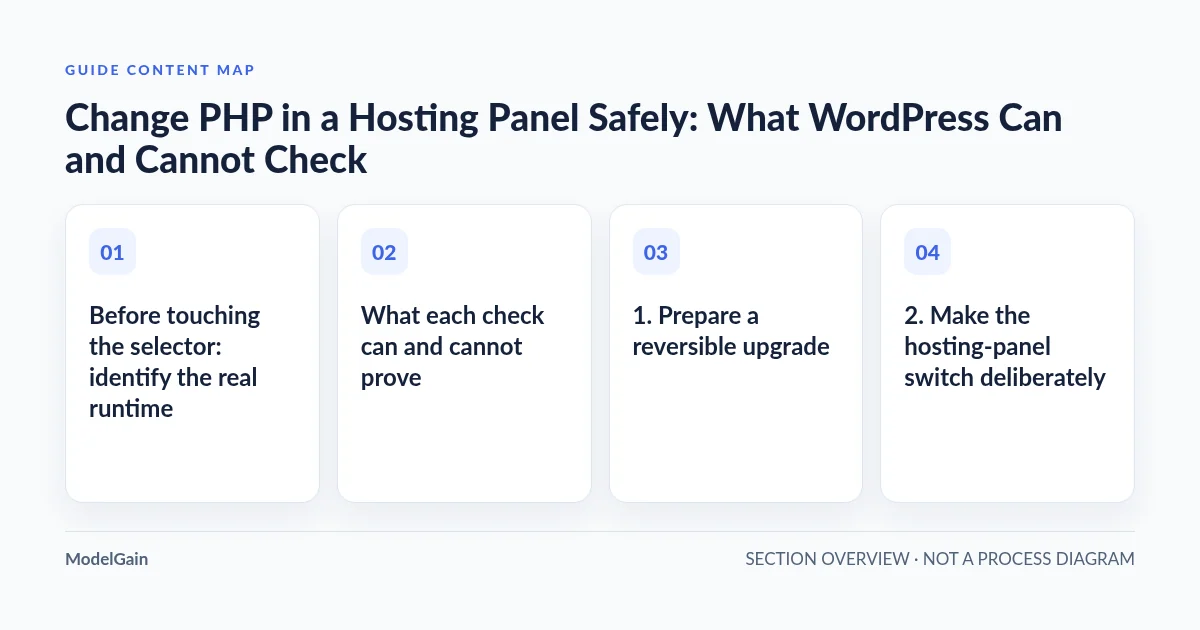
Before touching the selector: identify the real runtime
WordPress’ official PHP update guide recommends a backup, updates and compatibility checks before switching PHP through your hosting company. As of October 2026, WordPress recommends PHP 8.3 or newer. This is a recommendation, not a guarantee that every installed extension works on the target version.
In WordPress, open Tools → Site Health → Info → Server; a WooCommerce store can also inspect WooCommerce → Status → Server environment. Record the observed web PHP version, site URL, handler where known, relevant extensions and installed WordPress/plugin/theme versions. In the hosting panel, verify the exact domain and the selector that governs its web requests. A single panel can host multiple sites, subdomains and PHP pools.
CLI commands such as php -v show the command-line interpreter, which may be a different build from PHP-FPM or another web handler. The Site Health documentation covers server information and module notices, but passing Site Health does not simulate your payment gateway or a third-party callback.
What each check can and cannot prove
| Check | What it establishes | What it does not establish |
|---|---|---|
| Hosting-panel selector | Configured version for a selected domain or handler | That every request uses it or that code is compatible |
| Site Health Info | Runtime details observed from WordPress’ web context | All extensions’ behavior, cron’s CLI binary or business outcomes |
| Static compatibility scan | Selected source-level patterns worth reviewing | Runtime coverage, configuration fidelity or third-party API success |
| Staging smoke test | Observed results for the tested workflows and setup | Untested journeys or differing production-only integrations |
| Verified backup restore | Ability to recover the tested data and files | Automatic reversal of emails, payments or other external effects |
1. Prepare a reversible upgrade
Take a backup of the database, wp-content and essential configuration; verify that it can be restored to an isolated destination. Record the current PHP version and how the hosting provider can restore the previous handler, including necessary extensions. Backups matter, but on a live WooCommerce store a database restore can destroy orders received after the snapshot. Plan a PHP-only rollback first when the change is strictly a handler switch.
Inventory active plugins, themes, must-use plugins, custom code and PHP modules. Review release notes and run a source compatibility scan if available. A clean scan is only a preflight signal; it cannot execute a storefront. Avoid upgrading many independent components in the same unobserved step unless the exact combination was tested in staging.
Rehearse on staging with representative versions and web PHP settings. Block outgoing customer emails and live payments, replace integrations with sandboxes and keep production credentials out. Check login, content editing, forms, uploads, checkout/tax/shipping in sandbox, critical hooks, Action Scheduler, cron and external callbacks where applicable. Record individual pass/fail results and the effective PHP version after the staging change. Use the dedicated staging checklist for detailed acceptance gates.
2. Make the hosting-panel switch deliberately
Schedule a low-risk maintenance window with an operator able to reverse the change. Confirm the exact site and selected PHP version before saving. If the panel has per-domain or per-pool settings, verify the requested route is affected; a system-wide PHP default may be irrelevant to one virtual host. Note the switch time, handler name and any restarted service for later log correlation.
After saving, refresh the Site Health server information from the affected domain. Do not conclude success solely because the panel shows the new version. If a site returns an error, preserve the HTTP result and correlate the server’s private logs before making unrelated configuration edits. The WordPress debugging handbook shows how to collect application diagnostics without displaying traces publicly.
3. Verify the actual customer path
Test representative anonymous and authenticated pages, administrator editing, uploads and forms. On WooCommerce, verify cart totals, shipping/tax behavior, sandbox-rehearsed checkout steps, order state, scheduled actions and expected notifications without creating unauthorized live payments. Confirm that external callbacks are reaching the expected endpoints. Observe private PHP error logs and queue progress during the agreed monitoring period.
Run scheduled CLI jobs through their documented handler if safe to inspect. A successfully loaded web page does not prove a server cron job uses the new PHP binary. Do not trigger every pending action as a diagnostic: payment, fulfillment and email callbacks may not be safe to replay.
4. Decide whether to keep or roll back
Keep the new version only when critical flows pass and there are no unexplained new fatal errors or business-impacting failures. If a critical route breaks, record the incident and revert the PHP handler using the verified provider procedure. Then verify the previous runtime and affected workflows again. If the deployment also altered data or plugin versions, use a separate, change-specific recovery plan; reversing PHP cannot reverse a schema migration.
For a staging-only fatal, follow the staging versus production investigation. For a missing extension, follow the handler/module comparison. PHP Upgrade Risk Audit can surface static source risks; combine its results with real workflow tests and a verified rollback, rather than marketing it as an upgrade guarantee.