WORDPRESS
WordPress PHP Security Alert Email Missing? Diagnose Four Failure Points
WordPress PHP security alert email missing? Verify whether an event was due, WP-Cron ran, wp_mail accepted it, and the admin inbox received it.
FREE WORDPRESS PLUGIN
PHP Security Monitor
Identify the PHP version serving your WordPress admin request, review potentially matching PHP CVEs after consent, and prepare a host-support report.
- Install on WordPress 6.9+ with PHP 7.4+
- Open Tools → PHP Security and review the web runtime
- Opt in to Check now, then review evidence and the host report
Version evidence only; an advisory match is not proof of exploitability or compromise. Cannot patch PHP, verify backports or provide continuous protection. External checks share server IP/PHP version after consent; optional WP-Cron checks and email require separate consent and are not guaranteed.
WordPress is showing a PHP security warning, but no alert email arrives. Before changing SMTP settings, find out whether an email was actually due. A visible warning and an email-notification event are different things. The problem could be a deliberately silent scan, an overdue WP-Cron check, an attempted send, or a message accepted by WordPress but lost downstream.
Fast answer: in Tools → PHP Security, inspect Monitoring health: Last run, Status, Last fresh, Mail and Next scheduled. Confirm that monitoring and email were separately enabled, then use Send administrator test email to test the current mail path (at most once per minute). The plugin’s accepted_not_delivered state means WordPress’s mail method accepted the request, not that the administrator received the message.
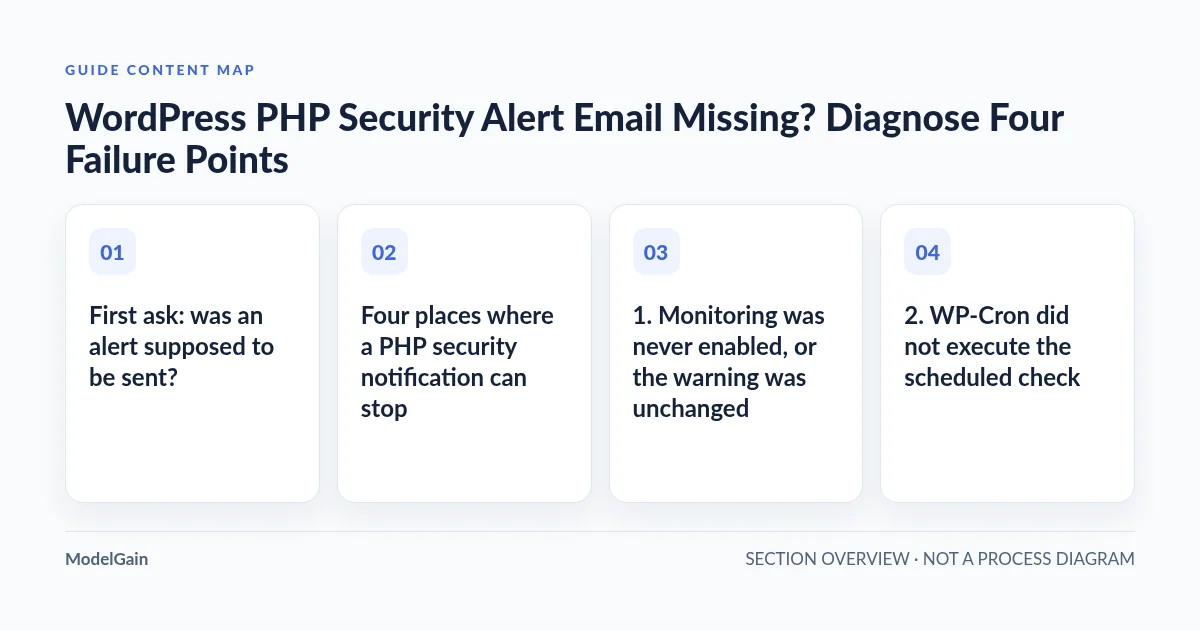
First ask: was an alert supposed to be sent?
In the released ModelGain PHP Security Monitor, manual PHP vulnerability checks and optional notifications are separate choices. Installing the plugin or viewing an alert does not start background queries or authorize email. The administrator must first consent to manual PHP-version queries, then separately enable scheduled monitoring and email notifications.
| Observed event | Should an automatic email be expected? | Why? |
|---|---|---|
| First complete, fresh monitoring scan: no potential matches; upstream PHP lifecycle is supported | No | It creates a silent baseline, not a routine “all clear” email. |
| First complete, fresh monitoring scan: potential advisory matches or upstream end of life | One initial alert is attempted | Existing potential risk is reported once after opt-in. |
| Later complete, fresh scan: same potential matches and lifecycle state | Normally no new alert | Unchanged evidence is deduplicated. |
| Later complete, fresh scan: new matches, previously matched records no longer matched/listed, or newly end-of-life status | Change notification is attempted | It reports a change in evidence, not proof of compromise or remediation. |
| No validated fresh evidence for at least 48 hours | One failure alert may be attempted | Only when the scheduled callback actually runs; the incident is not repeatedly mailed until fresh evidence returns. |
| Manual Check now or an administrator reopening the dashboard | No automatic notification merely for doing this | A manual data query is not the scheduled-monitor event evaluation. |
Important: the scheduled event needs sufficiently complete, fresh provider evidence to establish or update its security baseline. Unknown advisory records, unsupported lifecycle evidence and stale data do not establish that the risk has disappeared. If a security advisory is urgent, independently check the PHP warning triage guide and your host’s advisory rather than waiting for an email.
Four places where a PHP security notification can stop
1. Monitoring was never enabled, or the warning was unchanged
Open Tools → PHP Security. Under Monitoring health, verify whether the Enable monitoring and email alerts control is still offered or the monitoring timestamps and Disable monitoring and email control are present. These choices are distinct from Enable manual queries. Do not infer notification consent from a successful manual scan.
If the first complete scan found no potential matches and no upstream end-of-life status, no first email is expected. If a known warning was already reported and has not changed, a later scan is intentionally silent. Do not repeatedly toggle monitoring or trigger queries in an attempt to force historical notifications.
2. WP-Cron did not execute the scheduled check
Monitoring is scheduled approximately every six hours, not guaranteed to execute every six hours. WordPress’s WP-Cron handbook explains that ordinary WP-Cron is triggered by site traffic. A quiet site, failed loopback request, disabled cron without a working replacement, or a host scheduling problem can delay the callback. Check the actual Last run and Next scheduled values instead of assuming that an entry in the schedule proves it ran.
The plugin specifically skips PHP CLI/phpdbg monitoring callbacks: those interpreters cannot confirm the PHP runtime serving a WordPress web request. A server scheduler invoking WordPress directly with a PHP CLI runner may produce skipped_cli, rather than a valid web-runtime security check. Have the host verify an appropriate supported web-triggered scheduling path; do not blindly force-run production cron hooks or disable TLS verification.
Use WordPress loopback troubleshooting if Site Health reports a loopback problem. Operators who have WP-CLI may inspect the read-only cron event list and look for modelgain_php_security_tick; the presence of that hook alone is not historical execution evidence. A 48-hour failure notification also depends on this same callback running, so a completely stopped scheduler cannot reliably notify you of its own outage.
3. A message was attempted, but WordPress did not confirm acceptance
Read Mail in the plugin’s monitoring line. The shipped implementation distinguishes never, attempt_claimed, accepted_not_delivered, and failed_no_retry. These are application-side states, not an inbox audit. An attempt_claimed value can result from an interrupted send whose final outcome was never recorded.
For automatic alert events, the plugin claims the attempt before calling wp_mail() to prevent duplicate messages after an ambiguous failure or crash. A failure is not automatically retried. That is why repeatedly refreshing the dashboard cannot recover an already claimed event. WordPress documents that wp_mail() returning true means the sending method processed the request without reporting an error—it says nothing about final delivery.
4. WordPress accepted the send, but the inbox is empty
The only recipient of this plugin’s event and test emails is the site’s administration email address, configured in Settings → General, not the current logged-in user’s email and not a custom notification mailing list. Confirm the saved address, then inspect that mailbox’s Inbox, Spam/Junk, quarantine and mail provider delivery or rejection logs. An SMTP service can accept a message and still fail later delivery.
Use the existing administrator Send administrator test email (once per minute) button. It tests the mail path without running a vulnerability-feed query or changing the alert baseline. If the test fails, investigate the site’s WordPress mail configuration and ask the host or mail provider for SMTP authentication, sender-domain, SPF/DKIM/DMARC or downstream delivery evidence. Do not send credentials, full mail headers with sensitive data or production user information in public support threads.
Choose the next check from the evidence you actually have
This decision guide classifies observations you can read in the WordPress dashboard. It does not access your site, send emails, run cron jobs or alter plugin settings.
Find where a PHP security alert email stopped
Applies when: A WordPress administrator sees a potential PHP security issue but did not receive an expected ModelGain PHP Security Monitor email.
Quick answer
First determine whether the event was due. Then check whether WP-Cron ran, whether wp_mail accepted a message, and whether the administrator mailbox received it. A visible finding is not proof that any email was due.
What to do
-
Confirm separate monitoring and email consent. A clean first complete scan is silent; unchanged advisory matches do not send repeated alerts.
-
In Tools → PHP Security, compare Last run, Status, Last fresh and Next scheduled. A future WP-Cron time does not prove the job executed.
-
Interpret never, attempt_claimed, failed_no_retry and accepted_not_delivered; test the administrator mail path separately without replaying old alerts.
What is the first relevant observation on your site?
All paths are listed below. Select a symptom to focus on the most relevant path.
Confirm an event was actually due
Review the separate monitoring/email opt-ins and the last complete baseline. Initial clean scans and unchanged risks are silent; do not reset consent or force a scan to replay an old event.
Restore trustworthy web-scheduled execution
Check traffic, WordPress Site Health loopbacks and an appropriate host cron trigger. The shipped monitor skips PHP CLI/phpdbg because that environment may use a different interpreter. A stopped cron cannot email its own 48-hour failure alert.
Investigate an ambiguous or failed send
The plugin claims automatic attempts before sending and deliberately does not retry failed or interrupted events. Use the once-per-minute administrator test email; inspect WordPress mail errors and the host transport without replaying the historical event.
Check downstream mailbox and provider evidence
wp_mail returned true, which is not proof of delivery. Confirm Settings → General administration email, check spam/quarantine, then request message acceptance/rejection/delivery evidence from the mail provider.
Did this help?
How to interpret the monitoring status
| Dashboard field | What it can establish | What it cannot establish |
|---|---|---|
| Last run + Status | Last recorded monitoring callback and its processing state, including skipped_cli |
That every planned check ran or all web nodes have the same runtime |
| Last fresh | When a complete accepted monitoring baseline was last recorded | That the feed is still fresh today or that the host is patched |
| Next scheduled | The next queued time for the generation-specific WP-Cron hook | That WordPress will execute it exactly then |
| Mail: never | No attempted mail is recorded in current monitoring state | Whether an earlier monitoring generation sent a message |
| Mail: attempt_claimed | Attempt was reserved before an outgoing call | Whether a crashed/aborted call reached the provider |
| Mail: failed_no_retry | The plugin did not receive a successful wp_mail() return for this attempt |
Why the underlying transport failed without further logs |
| Mail: accepted_not_delivered | wp_mail() returned true for the attempt |
Actual delivery, inbox placement or whether the user read it |
A safe 10-minute investigation, in order
- Read the latest finding: confirm whether the PHP warning is current, complete and based on the web PHP runtime. A stale or unknown result must not be interpreted as a clean bill of health. Start with how to interpret a zero or stale vulnerability result.
- Read the monitoring line: record the UTC times for Last run, Last fresh and Next scheduled, plus Status and Mail. Distinguish an expected silent scan from a missing evaluation.
- Verify opt-ins and recipient: check manual-query consent, separate monitoring/email consent and the current administration email, without changing credentials or sending test messages to customers.
- Use one administrator test: respect its one-minute rate limit, record whether the mail transport reported acceptance, and check the admin mailbox. A working test today does not prove an earlier event was due or delivered.
- Escalate only the failing stage: ask the host about traffic/loopback/scheduling if there is no execution evidence; ask the email provider about rejected/filtered mail when an actual attempt was recorded.
For a report to hosting support, include the WordPress/plugin version, observed web PHP_VERSION and PHP_SAPI, approximate UTC event window, redacted monitoring fields, and whether the administrator test arrived. Do not post an API token, private SMTP credentials, WordPress session cookies, full customer email or server environment dump.
When the underlying PHP risk still needs attention
Restoring alerts does not patch a PHP vulnerability. If the plugin reports a potentially matching advisory, check the upstream advisory and ask your host to verify installed packages, relevant modules and any security backports. Use our initial warning triage for urgency and the vendor-patch verification guide when the provider says a fixed package still reports an older upstream version. If the core issue is a failed scheduled job, see our broader WP-Cron missed schedule troubleshooting; do not confuse Action Scheduler jobs with this plugin’s native WP-Cron hook.
Where ModelGain PHP Security Monitor helps
ModelGain PHP Security Monitor is a free WordPress plugin with a public WordPress.org listing. It displays the web-request PHP version and SAPI, consented PHP-advisory evidence, freshness and monitoring states, an administrator test email, and a copyable host-support report. Installation requires WordPress 6.9 or later and PHP 7.4 or later; that minimum is not a recommendation to use an unsupported PHP branch.
It does not repair PHP, verify vendor backports, prove server compromise, deliver email independently of WordPress, scan all WordPress extensions or guarantee continuous protection. External checks require explicit consent and share the web PHP version and server IP with WPVulnerability. Optional scheduled queries and email require separate consent. The useful outcome is an evidence-backed next action, not the mere appearance of an alert badge.
Frequently asked questions
Why didn’t I get an email when the PHP vulnerability warning was already visible?
The visible finding may come from a manual query. Automatic email requires separate monitoring and mail consent, an actual scheduled evaluation, and a qualifying first or changed event. An unchanged warning is intentionally deduplicated.
Does a successful test email mean all earlier security alerts were delivered?
No. It proves only what was observable about that test at that time. It does not replay old events, prove the earlier baseline was eligible, or confirm previous inbox delivery.
Can I rely on a 48-hour failure email if WP-Cron is broken?
No. The 48-hour condition is evaluated by the monitoring callback. If cron never runs, the plugin cannot reliably send a notification about that outage. Monitor critical infrastructure externally if dependable independent alerting is required.
What if Mail says accepted_not_delivered?
WordPress reported that its mail method processed the request. Check the configured site administration inbox, spam/quarantine, transport configuration, and provider rejection/delivery records. The plugin does not itself confirm delivery.
Should I run the scheduled monitor from PHP CLI manually?
No. The plugin intentionally skips CLI/phpdbg callbacks because that PHP interpreter may differ from the web runtime. Ask the host to verify a working, supported web-triggered WP-Cron path rather than force a CLI scan or replay production jobs.
Primary references
- ModelGain PHP Security Monitor — published feature boundaries and limitations
- WordPress
wp_mail()— successful return does not establish delivery - WordPress Cron handbook — timing and page-load triggers
- WordPress loopback request troubleshooting
- WP-CLI cron event list — read-only inspection
- WordPress support discussion — missing system emails and transport questions
Bottom line: decide whether a notification should exist, verify scheduled execution, interpret the recorded mail attempt, then inspect actual delivery evidence. Troubleshoot the missing stage—not all four at once.