WORDPRESS
WordPress Missed Schedule: Why a Scheduled Post Was Not Published
WordPress shows Missed Schedule? Diagnose WP-Cron triggers, loopback errors, and scheduled post timing before changing cron or rerunning jobs.
A WordPress “Missed Schedule” notice means the expected publication did not happen by the scheduled time. Start with the post’s status and timestamp, then inspect the WP-Cron event and its trigger. Publishing that post manually may resolve today’s editorial deadline, but it does not prove tomorrow’s schedule will work.
This guide concerns ordinary WordPress scheduled posts. They normally use WP-Cron’s publish_future_post event, not an Action Scheduler job. WooCommerce queue warnings may share an underlying cron problem, but clearing that queue is not a standard fix for a missed blog post.
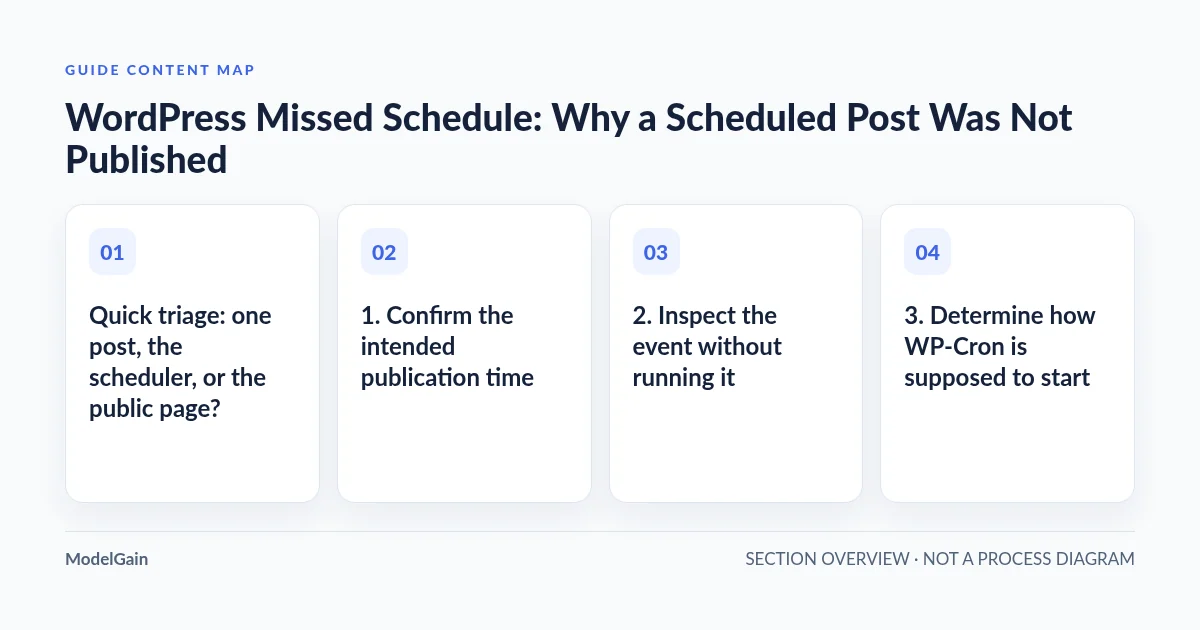
Find why the scheduled post stayed unpublished
Applies when: An ordinary WordPress scheduled post missed its intended publication time.
Quick answer
Compare post status and GMT date with its publish_future_post event. Separate one post's state from a site-wide trigger failure and a stale public cache.
What to do
-
Record the post ID, scheduled time, site timezone, and current status before manually publishing or changing the date.
-
List WP-Cron events and match publish_future_post arguments to the post ID. Do not run all due events as a connectivity test.
-
After a targeted correction, observe the normal trigger and the next approved publication. Confirm persisted status and the logged-out canonical URL.
Which observation matches the post?
All paths are listed below. Select a symptom to focus on the most relevant path.
Match the post to its event
Compare future status, GMT date, and the matching publication event. Preserve missing-event evidence; do not recreate events blindly.
Inspect the shared cron trigger
Check Site Health and the configured server scheduler's target, run history, and errors. DISABLE_WP_CRON may be intentional when a verified replacement exists.
Inspect the public response
Check visibility and the canonical URL separately from the blog listing. Refresh only an evidenced stale cache; do not reschedule an already-published post.
Did this help?
Quick triage: one post, the scheduler, or the public page?
| Observation | Investigate | Safe first check |
|---|---|---|
| Post is still scheduled and its time is past | Publication event or execution path | Compare post dates with the matching cron event |
| Several unrelated WordPress events are late | WP-Cron triggering or a shared execution failure | Read Site Health and host scheduler logs |
| Only one post is affected | Missing event, changed status, or post-specific code | Inspect that post ID and recent edits |
| WordPress says Published but visitors see no change | Public cache, visibility, or listing rules | Check the canonical post URL separately from the blog index |
| Scheduled time is still in the future in UTC | Timezone interpretation | Compare the site timezone, local date, and stored GMT date |
1. Confirm the intended publication time
Open Posts → All Posts and record the affected post’s status, ID, and scheduled date. Check Settings → General → Timezone. Compare the editor’s intended time with the current site time and UTC. A named timezone accounts for daylight-saving changes; a fixed UTC offset does not encode those seasonal rules.
Ask whether the date or status changed after the original scheduling. A post moved back to Draft or Pending Review is not simply a late scheduled post. Equally, a private or password-protected post can be published without appearing to an anonymous reader as expected.
If the deadline matters, decide separately whether to publish the approved article manually. That is a real public-content operation, not a read-only diagnostic. Record the original schedule first, and obtain editorial approval if publication timing is consequential. Do not publish an unreviewed test post on production to troubleshoot cron.
2. Inspect the event without running it
With authorized shell access, an administrator can read the post fields and event list. Replace 123 with the actual post ID and run these from the correct WordPress installation. On multisite, select the intended site with WP-CLI’s --url option.
wp post get 123 --fields=ID,post_status,post_date,post_date_gmt --format=json
wp option get timezone_string
wp option get gmt_offset
wp cron event list --fields=hook,next_run_gmt,next_run_relative,args --format=json
The official WP-CLI event-list documentation describes these fields. Inspect the publish_future_post event whose arguments match the post ID, rather than assuming every event with that hook belongs to the same article. These commands inspect state; they do not deliberately execute cron callbacks. WordPress bootstrap still loads site code, so use an approved maintenance context.
If the post remains in future status but its event is absent, preserve that finding for the developer. Do not recreate events or edit the serialized cron option blindly. A plugin, failed status transition, or custom scheduling implementation may need investigation.
The core publication callback checks that the post still has future status and that its GMT date is due. If the time is still future, it reschedules rather than publishing early. This is why matching status, GMT time, and event arguments matters.
3. Determine how WP-Cron is supposed to start
WordPress’s WP-Cron handbook explains that the default mechanism checks for due work on page loads rather than running continuously like a server scheduler. A quiet site can therefore publish late. Cache layers can also mean visible visits do not all reach WordPress PHP; a traffic chart is not proof of cron execution.
Read Tools → Site Health for scheduled-event and loopback notices. Ask the host whether DISABLE_WP_CRON is set and whether a replacement scheduler is actually configured. The constant alone is not a defect: disabling traffic-triggered cron is intentional on sites with a functioning server trigger.
For a configured replacement, ask for its exact site target, execution user, cadence, last successful run, exit status, and captured errors. An enabled control-panel entry can still point to the wrong PHP binary or a previous deployment directory. A successful command can also launch WordPress while a callback fails later; correlate PHP logs.
Do not use a request to wp-cron.php as a harmless connectivity probe: it may execute due tasks, including third-party work. Likewise, wp cron event run --due-now changes application state. Inspect first; plan any execution test with the responsible operator.
4. Investigate the failing trigger or callback
If self-requests time out, compare the exact timestamp with web-server, PHP, and security logs. Our loopback timeout guide separates a transport failure from a slow application. If unrelated events are healthy but one publication fails, inspect errors associated with the post’s publication hooks and plugins instead of replacing the whole scheduler.
A fatal trace pointing into a core hook dispatcher does not necessarily implicate core. Use the first relevant application frame and our guide to identifying a plugin from a stack trace. Reproduce a plugin conflict on a protected staging copy, with external emails, payments, and webhooks isolated.
If the affected hook turns out to be Action Scheduler’s queue trigger rather than publish_future_post, switch investigations. Our WP-Cron versus Action Scheduler execution guide explains the separate gates. Restoring one does not establish the health of the other.
A real case: manual publication was not a scheduler diagnosis
In the WordPress.org “Blog Not Published” thread, the reporter manually published the missed article and asked why automation had failed. Replies pointed to Site Health and cron reliability, but the thread did not establish a verified root cause. It illustrates the distinction between recovering one deliverable and fixing the recurring mechanism; it is not proof that any particular recovery plugin is necessary.
5. Verify the next scheduled publication end to end
After a targeted correction, use a controlled staging publication first. On production, use the next approved scheduled article or an explicitly authorized test. Record the intended timestamp, verify its event exists beforehand, and observe the normal trigger across the due time. A test performed only while an administrator repeatedly visits the site cannot establish unattended reliability.
The verified outcome is a persisted Published status plus a usable public URL after the intended trigger runs. Check the canonical URL logged out, then the blog listing. If WordPress has published but the listing is stale, investigate only the affected cache or listing logic. A query-string cache bypass does not prove the ordinary visitor URL is current.
What not to do
- Do not delete the entire cron option, bulk-run every event, or clear Action Scheduler tables.
- Do not disable WP-Cron before a replacement trigger is configured and verified.
- Do not install several missed-schedule recovery plugins with overlapping responsibilities.
- Do not change timezone settings simply to force one post out; other schedules may change meaning.
FAQ
Does low traffic always explain missed schedules?
No. It is one possibility. A blocked spawn, broken replacement cron, missing event, or callback error can cause the same visible delay.
Can Queue Health repair ordinary scheduled posts?
It is not a publication repair tool. Its Action Scheduler diagnostics concern a separate queue; inspect the post’s WP-Cron event directly.
Does a real server cron guarantee exact publication?
No. It reduces traffic dependence, but cadence, resource limits, and callback health still matter. Verify the actual publishing path rather than promising second-perfect timing.
When is custom development appropriate?
When custom publication hooks or integrations repeatedly fail, provide the event and timestamp evidence for scoped investigation. ModelGain WordPress development covers integration work, not an automatic guarantee that every host scheduler can be repaired remotely.