WORDPRESS
PHP 8 Curly-Brace Offset Fatal Error in WordPress: Fix It Safely
Fix the PHP 8 curly-brace offset fatal in WordPress. Identify whether core, a plugin or theme owns the error, restore access and test the repair safely.
FREE WORDPRESS PLUGIN
PHP Upgrade Risk Audit
Before switching PHP, scan installed plugins and themes for known PHP 8 compatibility risks—without changing your server runtime.
- Install the plugin
- Choose your target PHP version
- Review the scan findings
Read-only risk scan, not a repair. If your site is down, restore access first. Listed on WordPress.org as “Upaccn PHP Upgrade Risk Audit”; test on staging.
Quick fix: The PHP 8 fatal error Array and string offset access syntax with curly braces is no longer supported means a PHP file still uses the old $value{0} form to read an array element or string character. PHP 7.4 deprecated this notation and PHP 8.0 removed it. First read the file path in the error, then repair the responsible WordPress core, plugin, theme or custom-code component. If the website is down, preserve the error and restore access through a controlled recovery path before attempting upgrades or scans. Do not replace every curly brace in a PHP file, and do not hand-edit WordPress core.
If you are preparing another PHP switch on an accessible site, Upaccn PHP Upgrade Risk Audit provides a read-only local scan of installed plugins and themes against a selected PHP target. It does not change PHP, repair code, update WordPress core or recover an inaccessible dashboard. This guide is for the exact curly-brace offset failure; for an unidentified outage, start with our broader WordPress PHP critical-error triage.
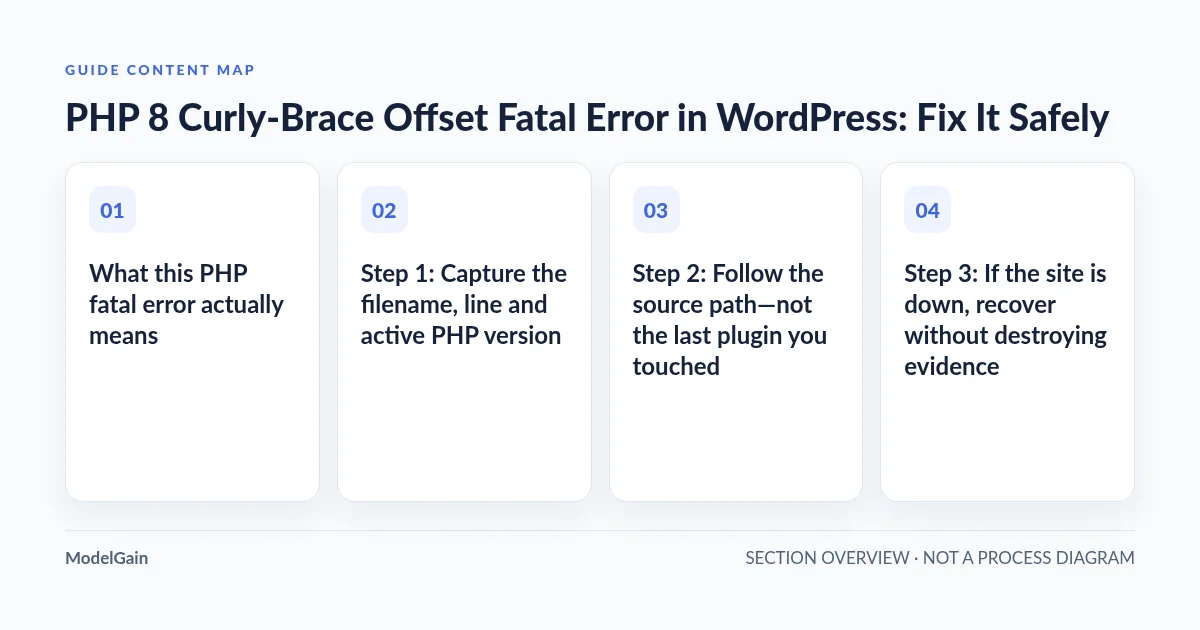
What this PHP fatal error actually means
The PHP 7.4 deprecations reference warned that using curly braces to access an array or string offset would stop working. The PHP 8.0 incompatibility reference confirms the syntax was removed. This is a source syntax failure: the PHP engine cannot compile the affected file; it is not a WordPress permalink, browser cache, database or HTTPS setting.
<?php
// PHP 7.4: deprecated; PHP 8.0+: unsupported.
$label = 'WordPress';
$first = $label{0};
$items = array('red', 'blue');
$firstItem = $items{0};

// Correct offset syntax for supported PHP releases:
$first = $label[0];
$firstItem = $items[0];
This applies specifically to an array/string offset. Normal PHP blocks such as if ($ready) { ... }, function bodies, object properties and string interpolation are not replacements for square brackets. A global find-and-replace of { and } will corrupt working PHP. A developer can usually correct an isolated offset expression, but a production incident is better resolved by upgrading or replacing the maintained component rather than maintaining an untracked edit.
In this case the error text is more specific than “There has been a critical error on this website.” For comparison, Call to undefined function each() and Call to undefined function create_function() are other PHP 8 removals, but need different fixes. Use our separate each() error guide and create_function() guide when those are the actual messages.
Step 1: Capture the filename, line and active PHP version
A typical, illustrative message is:
PHP Fatal error: Array and string offset access syntax with curly braces
is no longer supported in
/home/example/public_html/wp-content/plugins/old-widget/includes/helper.php
on line 87
The path above is synthetic and does not identify a real vulnerable plugin. In your host’s PHP error log or WordPress administrator recovery email, record the exact path, line, timestamp, active PHP handler/version and the recent change that preceded the incident. A file under wp-content/plugins/ implicates that plugin’s code; wp-content/themes/ indicates a theme or child theme; wp-includes/ or wp-admin/ may indicate an outdated or inconsistent WordPress core installation. If only the generic critical-error screen is visible, read the official WordPress debugging guide or ask your host for the server-side PHP log.
Check the PHP version for the failing website, not just a terminal’s default php -v; an SSH CLI and the web server’s PHP-FPM handler can be different executables. Use the hosting panel’s domain-specific PHP settings or an administrator-only diagnostic. Do not expose a public phpinfo() page. Avoid displaying errors to visitors or putting raw logs into tickets without redacting customer information, paths, and secrets.
Step 2: Follow the source path—not the last plugin you touched
| Error path | Likely owner | First safe response | Avoid |
|---|---|---|---|
wp-includes/ or wp-admin/ |
WordPress core; especially an old release | Verify installed version and official core file integrity; plan a tested core update | Editing core syntax in place or overwriting wp-content |
wp-content/plugins/name/ |
Named plugin, possibly bundled vendor code | Find a maintained PHP 8-compatible release or replacement; isolate only if business-safe | Deleting plugin data or disabling all plugins without evidence |
wp-content/themes/name/ |
Active parent or child theme | Confirm the active theme, installed version and available update; review staging repair | Assuming a theme swap is harmless on a busy store |
wp-content/mu-plugins/ or custom path |
Must-use plugin or custom integration | Contact the code owner; back up and patch/test the precise expression | Expecting ordinary plugin deactivation to disable MU plugins |
| Path is unavailable or inconsistent | Unknown until verified | Get the first fatal, current PHP handler and deployment history | Random site-wide edits or changing database credentials |
WordPress.org has recorded the exact error in an old-core support incident where the path was wp-includes/script-loader.php, and in a plugin incident where it was within wp-content/plugins/invisible-recaptcha/. Those reports illustrate why a path-based diagnosis is safer than assuming every incident comes from the newest plugin. The PHP project’s own upgrade reference documents the same removal regardless of the hosting provider.
Find the right owner of the PHP 8 curly-brace fatal
Applies when: The exact error Array and string offset access syntax with curly braces is no longer supported on a WordPress website using PHP 8 or newer.
Quick answer
The old $value{0} array or string offset syntax was deprecated in PHP 7.4 and removed in PHP 8.0. The file path determines the responsible code owner; restore access if required, then update or review that owner and test under a supported target PHP runtime.
What to do
-
Privately capture the exact filename, line, current domain-specific PHP version and triggering change.
-
Distinguish wp-includes/wp-admin core, wp-content/plugins, wp-content/themes, and must-use or custom code.
-
If the site is down, use a controlled recovery. Update or replace a maintained component or patch owned custom syntax on staging; retest the formerly failing request.
Where is the PHP fatal's file path located?
All paths are listed below. Select a symptom to focus on the most relevant path.
Treat as a core version or file-integrity investigation
Check the real WordPress version and official checksums, then plan a backed-up and staged core update. Never patch wp-includes as a permanent fix.
Update or replace the exact plugin
Identify the named plugin and release. Test a maintained PHP-compatible version or replacement on staging; do not arbitrarily deactivate unrelated components or delete plugin data.
Review the named parent or child theme
Back up the theme, locate the exact offset expression and test a maintained theme update or owner-reviewed patch on staging. Theme switching can disrupt templates or checkout.
Patch only the precise offset access
Have the custom-code owner change array/string offset syntax such as $name{0} to $name[0], not block braces. Validate with the target PHP and run the exact affected workflow.
Recover enough access to diagnose safely
Preserve the incident log, use approved hosting recovery or backup procedures, and avoid leaving unsupported PHP in production. An inaccessible WordPress site cannot run a new scanner.
Did this help?
Step 3: If the site is down, recover without destroying evidence
First record the precise error and the time of the PHP version change. Follow the site’s existing incident, backup and hosting procedures before making a second production change. There are three controlled recovery routes:
- Restore the prior host-supported PHP handler where possible. If the upgrade itself caused the outage, a temporary return to an earlier supported and securely maintained runtime may restore access. If only an obsolete PHP 7.x runtime can execute the old code, treat any temporary use as an explicitly risk-accepted emergency measure with a tight replacement window—not a normal or permanent deployment. WordPress recommends modern PHP releases; its published requirements currently recommend PHP 8.3 or newer.
- Use WordPress recovery mode for the identified plugin or theme. When an administrator recovery email exists, follow it only for the named broken component. Pausing a payment, order, access-control or subscription extension can create a separate business outage; consult the service owner before doing so.
- Use a verified files-and-database recovery if neither route is viable. Check backup date and restore coverage; replacing only a PHP file may not reverse a database migration. Keep the snapshot and error log for later analysis.
If you cannot access wp-admin but have host file-manager or SFTP access, the WordPress common-errors guide documents plugin-directory isolation. Prefer an exact named-plugin change, with a record of the original folder name and a reversibility plan, rather than renaming every plugin blindly. A theme or MU-plugin incident may need a different host-supported intervention. A temporary “site loaded again” is an availability check, not proof that orders, logins, scheduled work or email still function.
Step 4: Make the durable fix appropriate to the code owner
If the error is in WordPress core
Confirm the actual WordPress release before modifying files. In a documented case, a site still using WordPress 5.1 surfaced this error when paired with newer PHP. Resolve an out-of-date core installation through a staged WordPress update and verified backups, not a manual edit of script-loader.php. If the installed version claims to be modern but the core file is unexpected, investigate incomplete updates, stale server files or integrity issues first. On a working and authorized WP-CLI environment, wp core verify-checksums can compare core files against official checksums; check its output and the running core version before deciding to replace files.
For a manual core repair, follow WordPress’s official update procedure; preserve site-specific wp-config.php and all wp-content data, and ensure a rollback plan exists for schema-changing upgrades. Do not download an arbitrary patched WordPress ZIP or assume a core file seen in an internet example belongs to your version.
If the error is in a plugin or theme
Identify the component version, vendor and whether there is a maintained release compatible with the target PHP and WordPress versions. Update a controlled staging copy first and retest the exact failing URL or admin action. If no maintained version exists, prefer replacing the component, including a data/export and integration migration plan where appropriate. A source patch should be an exceptional, owned and version-controlled change—not an invisible line edit that vanishes on the next plugin update.
If the error is in custom code
For a verified array or string offset, replace only the precise syntax, as in $name{0} → $name[0]. Have the code owner review behavior, run PHP syntax validation using the target PHP executable, and test the actual feature on staging. Avoid broad textual replacement: {} also delimit valid PHP blocks and strings. A passing syntax check establishes that the file parses; it does not prove the entire application behaves correctly.
Step 5: Use a PHP compatibility scan only after WordPress is accessible
After restoring a functioning WordPress dashboard, a pre-upgrade static scan is useful for finding more code that needs attention. Upaccn PHP Upgrade Risk Audit runs a read-only, local analysis of installed plugin and theme source against a selected PHP 8 target. Its report groups findings by component, file, rule and severity where supported; its purpose is to prioritize review, not to rewrite code or change the hosting runtime.
Important scope limit: this tool does not scan WordPress core as an upgrade path, and a static analyzer may miss dynamic behavior, third-party binaries, unsupported parser constructs or paths outside its inspected files. A clean report is not a guarantee that this fatal cannot happen. Do not try to install the scanner into an inaccessible site: first complete incident recovery or work on an independently accessible staging copy. Our preflight guide explains the scanner workflow; the component-ownership guide explains how to interpret its results.
Step 6: Verify the repaired site under the intended PHP runtime
In staging, repeat the original request, plus login/admin, forms, background jobs, scheduled tasks, email and any commerce-critical functions used on the site. Inspect both PHP and WordPress logs after the tests. If you change core, theme or an extension, confirm the deployment and cache layers are actually serving the new files. Only then schedule a controlled production release with a matching backup, rollback procedure and known maintenance window.
After deployment, check the actual domain-specific PHP version, the formerly failing operation, logs, and at least one business-critical workflow. Clear temporary diagnostics that could expose server details, retain the private root-cause record, and close the incident only when the previous fatal no longer recurs. If the failure changes to a different PHP 8 error, treat it as new evidence rather than suppressing all warnings or disabling the error log.
Quick questions about the curly-brace fatal
Why does a working website break only after switching to PHP 8?
The old code could still parse under PHP 7.4, which emitted a deprecation notice. The same source no longer parses under PHP 8.0 and newer. The PHP version change exposes existing incompatible source; it does not necessarily mean WordPress changed that source itself.
Does this error mean my WordPress database is corrupt?
No. The exact message points to unsupported PHP source syntax. Preserve backups and check the named file; do not reset database credentials or run database repairs as the first response.
Can I fix every instance by replacing curly braces with square brackets?
No. That would break valid PHP block syntax. Only offset-access expressions such as $array{0} need the specific replacement $array[0], and production code should be reviewed and tested by its maintainer.
Will clearing my WordPress or Cloudflare cache fix this fatal?
Not by itself. The PHP source cannot be compiled by the active PHP 8 engine. Caches can influence which page version or response you see, but the underlying offending code must be updated, removed from the execution path or run temporarily in an explicitly accepted recovery environment.
Does a PHP 8 plugin scanner automatically repair the error?
No. PHP Upgrade Risk Audit identifies potential compatibility findings on a working installation. It cannot recover a down site, automatically modify source or guarantee safe execution under every PHP version.
When is this incident actually resolved?
Keep a minimal record with the original fatal path and line, old and new PHP versions, the core/plugin/theme owner, recovery action, permanent code or version change, staging evidence, production checks and rollback location. A response is complete when the affected workflow and critical adjacent business tasks work on a supported intended PHP runtime and the same fatal no longer appears in the logs.
For a system-wide preparation process, use the WordPress PHP staging checklist. If the faulty component is unmaintained and requires a scoped custom-code repair or replacement, see ModelGain WordPress Development. These are next-step options after the actual cause is known; neither substitutes for restoring an inaccessible site.