WORDPRESS
How to Check WordPress Plugins Before a PHP 8 Upgrade
Check plugin and theme compatibility before upgrading WordPress to PHP 8. Find risks, review file-level findings, test staging, and plan rollback.
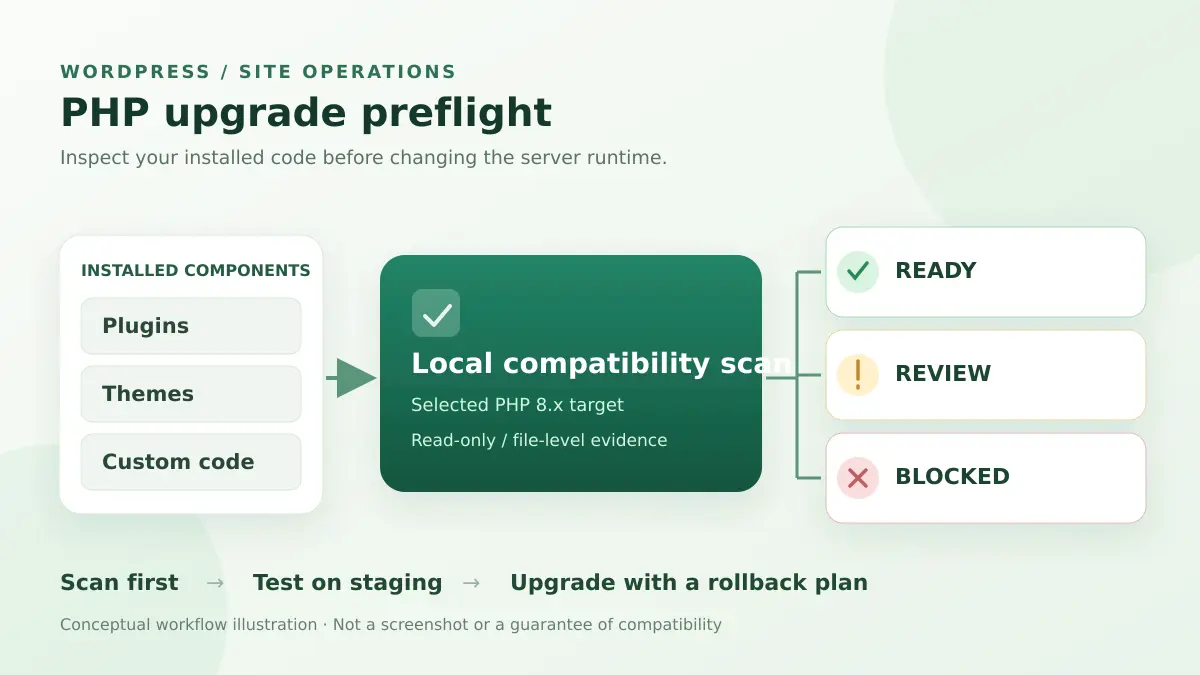
Before changing the PHP version on a WordPress site, check three things separately: whether your WordPress core version supports the target PHP version, whether installed plugins and themes contain known incompatible code, and whether your real workflows still work on staging. A green compatibility scan is useful evidence, not permission to skip testing.
This matters most when a hosting panel recommends PHP 8.3, 8.4 or 8.5 while your site still runs a mixture of commercial plugins, custom code and an older theme. In a WordPress.org support case, changing a site from PHP 7.4 to 8.3 led to an immediate blank screen; the hosting provider pointed the owner toward a theme compatibility problem. The exact theme and error differ by site, but the sequence is familiar: the server-side runtime changes, and a previously untested execution path fails.
PHP upgrade readiness check
Applies when: You plan to change the PHP runtime on an existing WordPress installation.
Quick answer
Check WordPress core support, third-party plugin/theme compatibility, and real site workflows separately. A compatibility scan cannot guarantee that payment, form, email or background jobs will work on the new runtime.
What to do
-
Record current PHP, WordPress, plugin and theme versions; confirm a restorable backup and a tested runtime rollback path.
-
On staging, inspect PHP errors and test login, forms, checkout where relevant, cron jobs and integrations.
-
Apply the upgrade with monitoring and a rollback decision. Test the same critical workflows on production.
What is your current situation?
All paths are listed below. Select a symptom to focus on the most relevant path.
Build a versioned pre-upgrade baseline
Compare your target PHP release with the official WordPress core compatibility information, then check active extensions and custom code. Test the real workflows rather than treating core support as site-wide approval.
Investigate the warning's actual execution path
Distinguish an incompatible function call from a generic or inactive-code warning. Check whether the affected code executes on the target PHP runtime; do not assume every scanner result is a production blocker.
Switch to incident recovery
Preserve the PHP error evidence and use a known-good rollback path when available. Diagnose the first fatal error before making further site changes.
Did this help?
The short pre-upgrade checklist
- Identify your target. Check your WordPress version, current web-server PHP version and proposed target against the official WordPress/PHP compatibility matrix.
- Inventory your code. List active and inactive plugins, the active theme, must-use plugins and custom snippets. Identify unsupported or abandoned components.
- Scan installed components. Run a read-only, source-code compatibility check for your selected PHP target. Review the file, line and rule behind each finding.
- Test on staging. Make the PHP switch on an up-to-date clone, not on your live checkout or contact form.
- Prepare the reversal. Verify backups, keep the old PHP runtime available temporarily if your host permits it, and have a monitored deployment window.
The important distinction is that WordPress core compatibility and site compatibility are not interchangeable. The core compatibility matrix records what WordPress itself supports. It cannot certify PHP code written by every plugin vendor, theme author or former contractor.
Step 1: check what is actually running
Open Tools → Site Health → Info → Server in WordPress to inspect the PHP version used by the website. Compare it with the version available in the hosting control panel. Do not rely only on the output of php -v over SSH: that command reports the command-line PHP interpreter, which can differ from PHP-FPM or the web server’s configured runtime.
If you administer the site with WP-CLI, you can capture a read-only inventory:
wp core version
wp plugin list --fields=name,status,version,update --format=table
wp theme list --fields=name,status,version,update --format=table
These commands list installed software; they do not perform a source-code compatibility scan. Note any must-use plugins, code-snippet managers and custom integrations separately. If WP-CLI is unavailable, use the WordPress Plugins and Appearance → Themes screens instead.
Step 2: scan plugins and themes before switching PHP
PHP Upgrade Risk Audit is a focused ModelGain diagnostic product for this exact decision. Its current public WordPress.org release is listed as Upaccn PHP Upgrade Risk Audit, version 0.1.0. That release requires WordPress 6.9 or later and PHP 7.4 or later for the diagnostic tool itself; it is not installable on every legacy WordPress version. It runs a local, read-only static scan of installed plugins and themes against the PHP 8.x version you select. It does not upload source code to a remote scanning service.
- Install Upaccn PHP Upgrade Risk Audit from WordPress.org, or review its release page before installing it.
- In your WordPress admin area, open Tools → Upaccn PHP Upgrade Risk Audit.
- Choose the same target PHP version that your host plans to enable.
- Select the installed plugins and themes relevant to the site, including custom or premium components when they are readable.
- Run Scan selected components. Keep the result available as you review each component’s findings.
The scanner works inside WordPress, without requiring shell execution functions, Composer or server command-line access. It uses bounded processing to avoid turning the scan into one long request. Because it bundles its own analysis engine, it deliberately excludes itself from the list of scan targets.
How to interpret Ready, Review and Blocked
| Result | What it tells you | Next decision |
|---|---|---|
| Ready | No known blocking pattern was identified by this static scan in the selected source. | Continue to staging. Do not interpret it as a runtime guarantee. |
| Review | The scan found something that needs human interpretation, including a possible compatibility risk. | Open the cited file and line, assess reachability and ask the maintainer when appropriate. |
| Blocked | The tool identified a serious compatibility finding for the chosen target. | Resolve, replace or isolate that component before treating the upgrade as ready. |
Inspect each result’s component, file, line, severity, rule and message. A result pointing into a bundled vendor dependency deserves a different investigation from a result in the plugin’s own PHP code. Neither automatically proves that the affected path executes during normal site traffic.
Step 3: distinguish a real PHP blocker from unrelated warnings
Some PHP migrations include hard breaking changes. For example, PHP removed create_function() in PHP 8.0. If a custom plugin still calls it, the actual runtime can produce an undefined function fatal error when that path is executed. This change is documented in the official PHP 8.0 backward-incompatibility notes.
Other findings are more contextual: an outdated declaration might generate a deprecation notice while a separate type mismatch might stop checkout entirely. Review the exact error class and affected workflow rather than calling every warning a crash or dismissing every notice. You should also distinguish unsupported code from a missing PHP extension or a changed php.ini configuration; a source scan alone cannot diagnose every server dependency.
If one plugin is flagged: check whether an updated version exists, read that vendor’s PHP compatibility notes, and test the corrected version on staging. Do not edit third-party production plugin files as your first response: updates can overwrite those changes, and a seemingly harmless fix may break other paths.
Step 4: prove the upgrade on staging with actual workflows
Create a staging clone that matches production as closely as possible: current WordPress core, the same plugin/theme versions, important PHP extensions and relevant PHP-FPM settings. A test that uses different plugins or a default theme does not exercise the same risk.
- Confirm the staging backup or snapshot can be restored; preserve the current runtime and configuration details.
- Run the source-code scan against your target PHP version while the clone is still on its original runtime.
- Switch staging to the target PHP version through the host’s supported process, and confirm the web-server runtime actually changed.
- Check the homepage, a long-form post, site search, login, wp-admin, the REST API endpoint and forms. On e-commerce sites also test cart, checkout, payment callbacks and order emails using sandbox payment methods—never place real orders as a compatibility test.
- Review PHP/web-server logs and background jobs. A healthy homepage does not rule out a fatal error in an admin action, AJAX request or scheduled task.
- Apply the fixes, repeat the failing scenario, and only then schedule production rollout with monitoring and a reversal plan.
Keep evidence: old and target PHP versions, affected plugin/theme version, exact stack trace, failing URL or action, and the before/after result. This makes vendor support much faster than reporting only “WordPress broke after PHP upgrade.”
If WordPress already shows a critical error after upgrading
Stop making multiple unrelated changes. First check whether your host allows a temporary PHP-version rollback so the site can serve traffic while you investigate. Then inspect your WordPress administrator’s Recovery Mode email and the hosting error log. Recovery Mode can help you regain access after some fatal errors, but it is not guaranteed to activate for background jobs or every failure mode.
For a test environment, WordPress documents WP_DEBUG, WP_DEBUG_LOG and WP_DEBUG_DISPLAY as tools for capturing PHP errors. Keep error display disabled for visitors and do not leave verbose debugging enabled in production. See WordPress debugging documentation and the Recovery Mode guide.
Use the first actionable stack-trace location to decide whether the problem belongs to the theme, an installed plugin, custom code, or the server configuration. If the issue was caused by a PHP version switch, the PHP runtime change can be reversed independently of the WordPress content database, but a PHP rollback alone does not undo other updates made at the same time.
When a compatibility scan is not enough
Static analysis cannot reproduce your checkout, payment gateway, cron schedule or database state. Dynamic code loading, data-specific paths, extensions and integrations can fail without a matching static rule. A Ready verdict is a useful preflight signal, not a guarantee. Conversely, a finding in unreachable or unused code may require review without necessarily blocking the entire deployment.
If your scan identifies a dependency you cannot upgrade or replace, keep the PHP change in staging and establish a vendor-supported remediation. Running an outdated PHP branch indefinitely is not a risk-free fallback; treat it as a temporary containment measure with a defined exit plan.
Frequently asked questions
Can WordPress core support PHP 8.5 while one plugin does not?
Yes. WordPress core has its own PHP support matrix; third-party plugins and custom themes are separate codebases and must be verified independently.
Does the scanner change my site’s PHP version or edit plugins?
No. Version 0.1.0 only reads installed source code and reports findings. The server’s PHP version is controlled by your host or server administration tools.
Can it inspect premium plugins and custom themes?
Yes, when the relevant source files are installed and readable by WordPress. A compatibility database entry or public source repository is not required for that local scan.
Should I run the scan or staging test first?
Ideally both. Scan on the current runtime to prioritize source risks; clone and stage the actual upgrade to catch behavior static analysis cannot. If a production install has severe resource restrictions, perform initial diagnostics on an equivalent staging copy.
Next actions
Start with a component inventory and a targeted scan. If you need file-level evidence before making a server change, review ModelGain’s PHP Upgrade Risk Audit product page and its WordPress.org release. Then verify the actual PHP change in staging. For ongoing background-task symptoms discovered during testing, the separate Action Scheduler troubleshooting guide covers queue health and how to avoid unsafe bulk repair.
Sources and further reading
- Make WordPress Core — PHP Compatibility and WordPress Versions (core support matrix; accessed October 2026).
- WordPress.org Support — PHP 8.3 update (real site outage after changing from PHP 7.4).
- WordPress.org — Upaccn PHP Upgrade Risk Audit (version 0.1.0 behavior, setup and limitations).
- PHP Manual — PHP 8.0 backward-incompatible changes (removed functions and changed behavior).
- WordPress Developer Handbook — Debugging in WordPress (debug logging and safe configurations).
- WordPress.org — Recovery Mode (recovering admin access from certain fatal errors).