WORDPRESS
WordPress Updating Failed: The Response Is Not Valid JSON
WordPress says Updating failed: not a valid JSON response? Inspect the editor REST request, response body, authentication, and plugin errors safely.
“Updating failed. The response is not a valid JSON response” means the block editor could not interpret the reply it received while saving. It does not identify the broken plugin, prove the REST API is entirely unavailable, or even prove that the post was not saved. An HTML firewall page, a login redirect, and PHP output mixed into an otherwise valid response can produce similar symptoms.
First protect your unsaved text. Then inspect the specific failed request rather than changing unrelated settings. The useful question is not “How do I reset JSON?” but “What replied to this save request, and what did it return?”
Classify the editor's failed response
Applies when: The block editor reports an invalid JSON response while saving.
Quick answer
Protect unsaved text, then inspect the specific failed request. HTML interception, a valid JSON authentication error, and PHP output require different investigations.
What to do
-
Copy unsaved content and check saved revisions before refreshing or repeating an update.
-
Inspect the failed request's status, final URL, content type, and response body in DevTools Network. Redact credentials and private content.
-
On a controlled draft, confirm that the save returns appropriate JSON and the content persists after reload.
What does the failed request return?
All paths are listed below. Select a symptom to focus on the most relevant path.
Identify the responding layer
Match the timestamp and request ID with proxy, security, and redirect logs. A 200 HTML page is not a successful REST save. Never globally disable the WAF.
Check session and permissions
Read the JSON error code. Investigate expired nonces, login state, and the affected role rather than changing rewrite rules without evidence.
Correlate application logs
Read protected PHP and database logs for the matching request. Test the maintainer-supported correction on staging; do not expose errors or hand-edit schema.
Did this help?
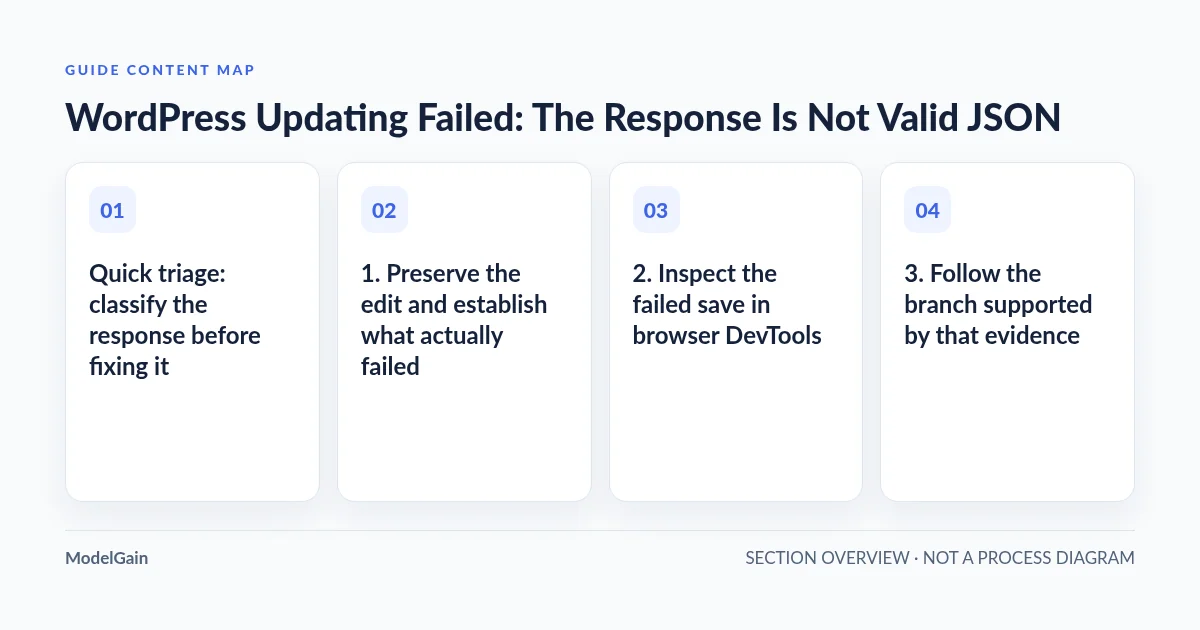
Quick triage: classify the response before fixing it
| Evidence in Network | What it suggests | Next safe check |
|---|---|---|
| 403 with HTML or a challenge page | A security or proxy layer may have intercepted the request | Match its timestamp and request ID to firewall logs |
| 403 with valid JSON and an authentication error code | A session, nonce, or permission problem | Record the code; check login state and affected user role |
| 404 with HTML or a missing-route JSON error | Rewrite handling or an unavailable endpoint | Compare the exact route with the base REST index |
| 500, truncated output, or warnings before JSON | A PHP, database, or application failure | Correlate the request with private server logs |
| 200 with a login page or other HTML | A redirect or incorrect cache response, not a successful JSON save | Inspect the final URL, redirect chain, and body |
1. Preserve the edit and establish what actually failed
Copy unsaved text to a local document before refreshing or signing out. Record whether the failure occurs on every post, only one post, only media uploads, or only content containing a particular block. Note the approximate time, user role, browser, and last known successful save. These details separate a site-wide outage from a route-specific or content-specific problem.
Open the post list or a separate editor tab without overwriting the original tab. Check the saved revision and modified time. A server can commit a change and then fail while constructing its reply, so repeated Update clicks are not a reliable recovery strategy. Do not assume that an error banner means every preceding operation was rolled back.
If this began after an update, write down the plugin and version rather than immediately downgrading everything. A recent change is a useful lead, not proof of responsibility.
2. Inspect the failed save in browser DevTools
- Open the browser’s developer tools and select Network. Filter to Fetch/XHR if the list is noisy.
- On a disposable draft or staging copy, reproduce one save. Saving is a write operation; passive inspection of the already-failed request is the read-only starting point.
- Find the request associated with the failure. Typical post saves use a REST route under
/wp-json/wp/v2/, but autosaves, custom post types, and plugin endpoints can differ. - Record the method, path, status, content type, final URL, and any redirect. Read the Response panel, not only the Preview panel.
- Identify whether the body is a JSON object, an HTML document, empty output, or JSON preceded by a warning or database error.
A JSON response containing an error is still valid JSON. For example, WordPress’s cookie authentication handler returns rest_cookie_invalid_nonce with status 403 when the REST nonce fails validation. That evidence calls for session and nonce investigation, not a permalink reset.
Do not paste a complete HAR export into a public forum. It can contain cookies, nonces, authorization headers, private draft text, and personal data. Share a redacted path, error code, short body excerpt, and timestamp instead.
3. Follow the branch supported by that evidence
HTML security or login response
Ask the host or security administrator to find the matching event. Was the request challenged, denied by a rule, redirected to login, or routed to a maintenance page? For a confirmed false positive, scope any adjustment to the necessary route, method, and authenticated workflow. Do not globally disable the WAF or expose all REST endpoints. Our REST API 403 diagnostic guide explains how to separate WordPress permissions from an upstream block.
If the browser followed a redirect, compare the hostname and scheme with the editor’s origin. Domain migrations, mixed HTTP/HTTPS settings, and authentication proxies deserve investigation when the evidence points there. Avoid changing site URLs speculatively: that can also disrupt login.
A missing REST route
Read the public REST index as a limited comparison. A working /wp-json/ index does not prove that an authenticated post update or a plugin route works. Conversely, an index returning 404 may indicate server rewrite handling. Use our wp-json 404 guide to distinguish a missing route from an incorrectly routed request before editing server configuration.
PHP or database output
Ask for the PHP/application log entries covering the exact failure time. Follow the first relevant error and its stack trace, not whichever core file finally prints the message. Our plugin ownership guide for fatal-error traces helps interpret that distinction.
The official WordPress debugging guide explains logging and error-display settings. Prefer staging and existing protected server logs. If temporary diagnostic logging is necessary, have an administrator configure it without exposing errors to visitors, restrict access, and remove the temporary setup afterward. Hiding a warning can restore parseable output without fixing the underlying defect.
A documented case: the REST index worked, saving did not
In this WordPress.org AIOSEO support case, the reporter said the base REST index responded normally while post updates failed after an upgrade. Plugin support identified an incomplete database upgrade: missing columns caused database errors to contaminate the editor response.
That is evidence for inspecting the save response and upgrade logs, not a recommendation to reactivate every plugin. The support instructions concerned that particular plugin and version. Schema recovery on another installation should follow its maintainer’s current procedure, tested against a backup or staging copy.
4. Apply one focused correction and verify the outcome
Test the identified change in staging where possible: a supported plugin fix, corrected rewrite rule, session/cache correction, or narrowly adjusted security rule. Keep a record of the previous setting and a practical rollback. Plugin-conflict isolation should not disrupt a live checkout or membership workflow just to diagnose an editorial save.
A verified outcome requires more than a disappearing banner. Save a controlled draft, reload it, and confirm its title and body persisted. Inspect the save response again: it should be appropriate JSON without injected output. Check that preview and the intended user role still work. If media was the failing operation, verify that separately. Recheck logs for the original error and remove temporary diagnostics.
What not to do
- Do not edit WordPress core, remove authentication checks, or globally bypass security.
- Do not treat a successful anonymous REST GET as proof an authenticated write works.
- Do not repeatedly resave important content without checking whether earlier writes persisted.
- Do not publish raw logs or HAR files containing credentials or private content.
FAQ
Will saving permalinks fix invalid JSON?
Only if rewrite handling is the relevant failure. It will not repair a failed nonce, HTML firewall challenge, or plugin database error. Inspect the request first.
Does switching to the classic editor fix the cause?
It may avoid the failing REST workflow, but that does not establish that the REST route or plugin is healthy. Treat it as a temporary workflow decision, not diagnostic proof.
Should I increase PHP memory?
Only when a matching log shows memory exhaustion. A 403 challenge or login redirect will not be corrected by a larger limit.
When should a developer take over?
Escalate when the evidence identifies application code, database migration, or an integration-specific route. Provide the sanitized request and matching logs. For scoped REST and integration work, see ModelGain WordPress development; no generic plugin can infer every cause from this banner alone.