WORDPRESS
WordPress Database Connection Error Comes and Goes: How to Diagnose It
WordPress database connection error comes and goes? Check MySQL availability, connection limits, slow queries and server logs before changing credentials.
If WordPress intermittently shows “Error establishing a database connection” but works again after a refresh, investigate the database server at the exact failure time before changing your WordPress password or running a repair. A connection that succeeds on the next request often points toward temporary database unavailability, exhausted connection capacity, or work that leaves database connections waiting. A recent migration or host configuration change can also be relevant. The screen alone cannot tell you which one occurred.
Fastest practical path: record when the failure happened, determine whether it affects public pages and /wp-admin/, ask your host to correlate MySQL or MariaDB connection errors, restarts and connection limits at that time, and investigate recurring jobs or slow database work only if the evidence points there. Don’t publish database credentials, repeatedly restart services, or run bulk optimization against a live store.
Triage an intermittent WordPress database connection error
Applies when: WordPress sometimes displays Error establishing a database connection and later works again.
Quick answer
Record the failure time, correlate it with database availability and connection-limit evidence, then isolate credentials, hosting conditions or an observed slow/blocked workload before making changes.
What to do
-
Record exact failure time, affected URLs, public/admin impact, recent changes and any relevant scheduled tasks. A successful refresh is not a diagnosis.
-
Ask the host to check restarts, connection refusals, limits, peak load and slow or waiting statements at that same time.
-
After the responsible operator fixes a documented cause, watch the same recurrence window and test important workflows. Do not bulk-repair or clean production tables blindly.
Which pattern best matches the failure?
All paths are listed below. Select a symptom to focus on the most relevant path.
Verify the active database connection configuration
Have the authorized site/host operator securely verify DB_HOST, DB_NAME, DB_USER and the configured secret on every relevant application host. Do not disclose credentials.
Collect database outage and limit evidence
Request exact-time records of server restarts, refused connections, connection peaks, host resource limits and network disruptions. Do not assume raising max_connections is sufficient.
Identify the actual waiting or expensive work
Correlate slow-query and lock evidence with scheduled tasks, content saves and import windows. Change only the confirmed workload with a safe recovery plan.
Did this help?
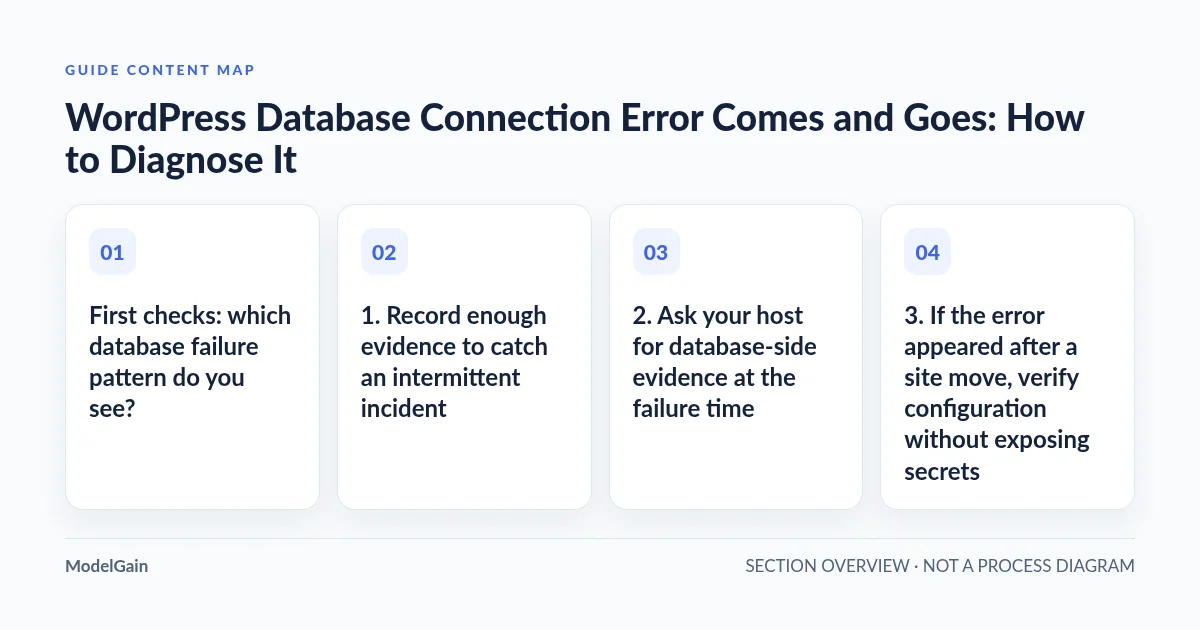
First checks: which database failure pattern do you see?
| Observed pattern | What to verify first | Avoid assuming |
|---|---|---|
| Fails briefly, then works on refresh | Database availability, connection limits, restarts and load spikes during the failure | That the saved database password is suddenly wrong |
| Fails every time after a migration or credential change | DB_HOST, DB_NAME, DB_USER, password and host connectivity |
That a plugin or cron job caused the failure |
| Fails during posting, imports or scheduled tasks | Slow statements, table waits, connection saturation, jobs running at that time | That every Action Scheduler job or plugin is faulty |
| Only some visitors see an error while others see a page | Origin versus CDN/page-cache responses, multiple application servers, and request timestamps | That a cached working page proves the database is healthy |
| Database connection is healthy, but a page still errors | The exact new error message and application log | That database table repair will resolve an unrelated PHP error |
1. Record enough evidence to catch an intermittent incident
Before attempting a fix, capture a short incident record. Note the time and time zone, the affected URL, whether a public page or the WordPress dashboard failed, what the page actually displayed, how long the outage lasted, and what changed recently. Record whether a host backup, deployment, import, scheduled task, plugin update, traffic spike or database maintenance occurred around the same time. If you have a load balancer, CDN or multiple origins, identify which route returned the error.
A successful refresh only means that request succeeded. It does not distinguish a recovered database restart from a traffic spike or a stale response served by an intermediary. Check an uncached origin request through your normal authorized diagnostic path when needed, but do not expose a private origin address publicly or turn off all caching site-wide merely to troubleshoot.
WordPress’s official common-errors guide lists database configuration and hosting failures among possible causes. Its wpdb::db_connect() implementation shows that this error can be emitted when WordPress cannot establish the connection to its configured database server. The screen is a symptom, not a diagnosis of a corrupted table.
2. Ask your host for database-side evidence at the failure time
If you’re on managed or shared hosting, send the provider the exact failure timestamp and ask them to check the relevant MySQL/MariaDB instance and database user. Request a focused report of:
- Any database restart, crash, failover, connection refusal, or upstream network disruption.
- The current and peak connection counts, any per-user limits, and whether connection limits were reached during the incident.
- Long-running queries, locking or waiting sessions, transaction contention and relevant slow-query log entries.
- CPU, memory, disk I/O, storage limits and host process constraints near the same time.
- Whether a scheduled backup, import, cron task or application worker coincided with the failure.
For a self-managed MySQL or MariaDB instance, an authorized administrator can inspect read-only counters such as:
SHOW GLOBAL VARIABLES LIKE 'max_connections';
SHOW GLOBAL STATUS LIKE 'Threads_connected';
SHOW GLOBAL STATUS LIKE 'Max_used_connections';
These are **examples for a privileged administrator**, not commands to paste into the WordPress editor. The counters reflect their own collection/reset period and a healthy reading later does not rule out a brief earlier spike. On a managed service, request the host’s historical graphs instead. Some platforms also enforce per-user connection limits that are different from the global setting. MySQL documents connection exhaustion; MariaDB explains why peak usage can be more useful than a single current reading in its connection-limit guidance.
Do not immediately increase max_connections. If connections are backing up behind slow queries or table locks, allowing more of them can increase memory pressure without correcting the bottleneck. Have the database operator identify the workload and capacity constraints first.
3. If the error appeared after a site move, verify configuration without exposing secrets
WordPress normally reads database connection settings from wp-config.php. If the problem began immediately after a restore, migration, hosting transfer, rotation of credentials or DNS/database failover, ask the host or deployment owner to confirm DB_HOST, DB_NAME, DB_USER and the secret supplied for DB_PASSWORD against the current database service. Also verify the correct application environment is using the intended database and that the database grants are valid.
Be careful with the distinction: persistently incorrect credentials often produce a persistent failure, while an intermittent error after a migration might involve a rotating endpoint, multiple application hosts with inconsistent config or transient connectivity. Do not assume either explanation without evidence. WordPress’s configuration handbook documents the database constants and cautions about editing the file.
Do not post your wp-config.php file in a ticket, log screenshots containing passwords, create a world-readable database diagnostic script in the webroot, or switch localhost to a different hostname based on a generic forum answer. Each environment has its own connection routing and socket configuration.
4. Look for slow or blocked database work if outages line up with activity
Short outages that repeat when someone publishes a post, imports data, runs an automated backup or executes a large queue may be secondary to expensive database work. For example, a long write can leave other requests waiting; enough overlapping requests may consume the available connections. That is a possible causal chain, not proof that a specific plugin is responsible.
Compare the timestamps of the site error, host’s slow queries/locking evidence and background processing. Find the actual waiting statements and their owners before touching production. A recent WordPress.org support discussion describes a site with a very large options table and host-reported table locking. It is a useful case study, not a general reason to drop options, force a table-engine conversion or blame every forum plugin.
If your own logs indicate Action Scheduler tasks are accumulating or repeatedly running near the incident, use our WP-Cron versus Action Scheduler guide to distinguish the real trigger, and Action Scheduler queue concurrency guide to reason about active workers. If one task is stuck in progress, consult our in-progress action investigation. These articles diagnose task behavior; none proves that the queue caused a database connection outage.
The ModelGain Queue Health for Action Scheduler plugin can help surface certain queue symptoms when WordPress admin access and the queue are working. It does not test MySQL credentials, measure all database server connections, repair tables or restore a failed database service. Consider it only after evidence connects the incident to scheduled tasks—not as the first action while the site is unavailable.
5. Know what a WordPress database check can and cannot prove
Once the application can connect and the database host is stable, an authorized operator may use the wp db check command from the correct WordPress installation to check table status. It uses mysqlcheck under the hood, so choose an appropriate maintenance window and discuss possible operational impact with your database administrator on large or busy databases. A check that succeeds now does not rule out a connection limit, restart or network problem that happened ten minutes earlier.
Do not run wp db repair or enable WordPress’s unauthenticated repair interface just because the connection failed. Repair is intended for evidenced table problems and may involve changes, locks and storage requirements. The official repair command is not a generic treatment for database saturation. If a qualified administrator identifies corruption, first secure a verified backup, define the scope and choose a safe repair/restore plan.
Similarly, avoid bulk transient deletion, blanket plugin deactivation, table-engine conversion, schema rewrites, or restarting MySQL whenever a single page fails. Each can affect unrelated workloads and obscure the original evidence. A WooCommerce site can lose revenue if a careless recovery replays live payment activity or restores an out-of-date orders database.
6. Verify recovery rather than accepting one successful refresh
- Confirm that the original database-side event is gone, or the responsible host has made a documented correction.
- Check a public page and an authenticated WordPress dashboard request through the intended origin.
- Monitor the same time window in which the failures used to recur, including scheduled jobs and predictable traffic peaks.
- Compare current/peak connection utilization and relevant database/host errors against the pre-fix incident. A single successful
wp db checkis not sufficient. - Test a representative content save and the site’s business-critical workflows without replaying real transactions.
- Retain sanitized incident notes, the diagnosed owner/cause, the change made and a rollback plan.
For a recurring production incident where the database owner and WordPress operator need to coordinate, ModelGain WordPress Development is an optional escalation route. Supply timestamps, redacted host logs, failure patterns and the steps already tested. Most short-lived database incidents should start with the hosting/database provider, not a newly installed WordPress plugin.
Frequently asked questions
Why does the database connection error disappear after I refresh?
A later request may encounter a responsive database after an earlier restart, connection spike, resource limit or temporary network interruption. It might also take a different route or reach a cached page. The refresh is evidence of intermittent behavior, not identification of its cause.
Should I change DB_PASSWORD in wp-config.php?
Not without evidence. If a credential was rotated or restored incorrectly, the authorized operator should verify it securely. Randomly changing live credentials can make the outage permanent.
Does “Error establishing a database connection” prove tables are corrupted?
No. The message indicates WordPress could not establish its configured database connection. Table corruption requires separate evidence; repair operations are not the default first step.
Can WP-Cron or Action Scheduler cause the error?
Background work can contribute to database pressure when expensive queries, concurrency or waits are involved, but a queue backlog by itself does not establish causation. Match timestamps and database evidence before changing workers or jobs.
Will increasing max_connections stop the outages?
Sometimes capacity is genuinely too low. But if the root issue is a slow or locked workload, raising the limit alone may worsen pressure. Diagnose connection peaks, memory headroom and query waits before changing server limits.