WORDPRESS
Hundreds of Past-Due WooCommerce Actions: Find the Dominant Hook
Hundreds of past-due WooCommerce actions? Find the dominant hook, compare backlog trends, and diagnose stalled jobs without destructive bulk retries.
FREE WORDPRESS PLUGIN
Queue Health for Action Scheduler
Inspect overdue and failed Action Scheduler jobs, runner signals, and likely hook ownership before changing the queue.
- Install the diagnostic plugin
- Open Tools → Action Scheduler Health
- Review runner and hook evidence
Requires active Action Scheduler. Read-only: cannot rerun/delete tasks or repair missing tables. Queue signals alone do not prove a business outcome.
WooCommerce shows hundreds—or thousands—of past-due Scheduled Actions. Which job is actually responsible? Don’t start by clearing the queue or increasing the runner’s concurrency. First determine whether the backlog is concentrated in one hook, is growing across unrelated hooks, or consists of repeated failures. Those three patterns lead to different fixes.
This guide is for store administrators and developers facing a large, persistent Action Scheduler backlog. The goal is to identify the dominant hook or group, collect enough evidence to contact the owning plugin or hosting provider, and verify recovery without blindly replaying order, renewal, email, or webhook jobs. For basic status definitions, start with our past-due versus failed actions guide. If the queue never starts even though WP-Cron appears enabled, see the cron and runner diagnostic instead.
Quick answer: isolate the dominant backlog source
| Pattern you observe | Most useful first question | Evidence to collect |
|---|---|---|
| One hook or group owns most overdue actions | What produces these jobs, and why are they arriving faster than they finish? | Hook/group, counts by status, oldest due time, completion trend, owning callback |
| Unrelated hooks are all becoming overdue; nothing completes | Is the runner or its trigger working at all? | Last completion, cron and loopback health, runner errors, host logs |
| Jobs from one hook repeatedly fail | What specific callback, dependency or input fails? | First meaningful failure log, error class, plugin/version, affected business workflow |
| Jobs continue completing but the total overdue count rises | Is creation rate greater than processing rate? | Counts and oldest age at two timestamps, worker resources, recurring hook frequency |
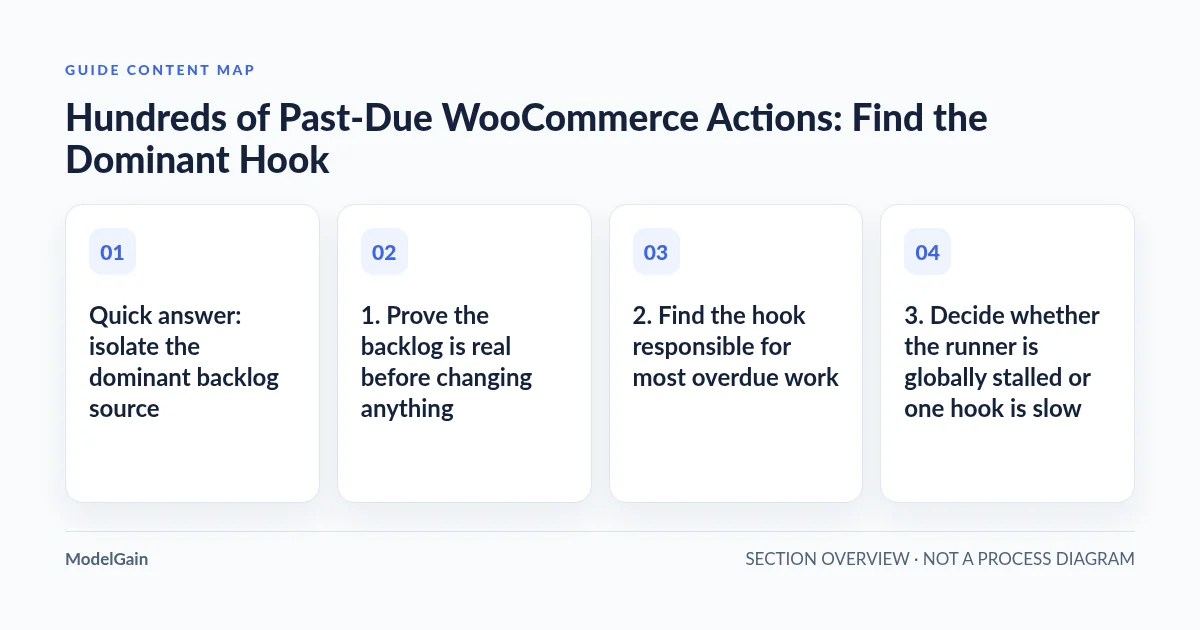
1. Prove the backlog is real before changing anything
In WordPress admin, go to WooCommerce → Status → Scheduled Actions (some installations expose Tools → Scheduled Actions). Filter Pending and compare each scheduled time with the current time and site timezone. A future-dated action is supposed to wait. A past-due action is a pending action whose scheduled time has passed; a Failed action is a different state with its own history.
Make two read-only observations five to fifteen minutes apart. Record the oldest overdue time, pending/past-due/failed counts, newest completed time, and the first few recurring hook names. A sample observation table is enough; you do not need to export customer-related arguments.
| Signal | Observation A | Observation B | Interpretation |
|---|---|---|---|
| Overdue pending count | 650 | 720 | Growth indicates more arrivals than completions over this window, not necessarily a stalled runner |
| Newest completion | 8 minutes ago | 2 minutes ago | Some work is progressing; investigate throughput and specific hooks |
| Oldest overdue age | 4 hours | 4 hours 15 minutes | The oldest action is not clearing; investigate its hook and logs |
The WooCommerce Subscriptions scheduled-action guidance notes that some overdue jobs are normal with traffic-triggered WP-Cron. In a store handling subscriptions or payment webhooks, however, even a smaller backlog may deserve urgent attention when a business-critical operation has failed. Prioritize the consequence as well as the count.
2. Find the hook responsible for most overdue work
In the Scheduled Actions screen, narrow the list to overdue Pending entries, then inspect the Hook and Group columns. Search for a repeating hook to isolate its actions and compare their oldest due times. Do the same for Failed actions. Do not assume the first or longest hook name owns the failure—look for concentration and a consistent pattern.
- Group identical hooks. Count how many overdue actions are associated with each hook. For a small queue, the admin filters may be sufficient. For a very large queue, use an existing approved reporting tool or a bounded, read-only database query prepared by an administrator familiar with the live schema.
- Compare old and new. Is that hook creating many duplicate-looking jobs on every request? Is it a legitimately high-volume integration? Do actions complete eventually or do they continually age?
- Check the group and registered callback. The hook may point toward an extension, but wrapper callbacks, shared libraries, and absent registrations can make ownership ambiguous. A likely owner is a diagnostic lead, not proof of fault.
- Read one representative log. Choose an old pending action and one relevant failed action without executing them. Check what initiated the job, whether it ever started, and what error was recorded.
- Connect it to a business outcome. Does the hook relate to subscription renewal, an order update, a payment integration, a CRM sync, stock reconciliation, or a noncritical housekeeping task? This determines urgency and who can safely authorize recovery.
A WordPress.org support discussion about over half a million pending actions illustrates the underlying problem: huge queue totals alone do not identify which plugin or process keeps adding work. The practical first move is to isolate high-volume hooks. This is an example of user-reported symptoms, not a benchmark for normal WooCommerce stores.
3. Decide whether the runner is globally stalled or one hook is slow
If many unrelated hooks are overdue and no actions have completed recently, stop investigating individual hooks as the primary explanation. Examine the triggering and execution chain: WP-Cron, loopback requests, Action Scheduler’s runner, then action callbacks. A server cron replacement can be healthy even when `DISABLE_WP_CRON` is enabled; the variable alone is not a functional test.
If other hooks finish normally but one group continues to grow, inspect that group’s callback execution duration, retry behavior, external API dependencies, and recent code/plugin updates. If one job fails repeatedly, the right fix may be an external API credential, exhausted quota, missing table, invalid payload or plugin bug—not a faster global queue.
For targeted investigation, use our four-gate WP-Cron/Action Scheduler troubleshooting guide and, when relevant, the WordPress loopback timeout guide. These describe how to separate blocked server-to-self HTTP from a callback that started but failed.
4. Measure backlog pressure, not just the total
Over a fixed interval, compare how many new due actions arrive with how many actions reach Complete. If completions continue but arrival rate stays higher, the queue is falling behind. If completed actions are scarce or zero, verify that the correct runner is actually starting before changing throughput settings. A count can grow because a high-volume integration is busy—not necessarily because every job is broken.
The official Action Scheduler performance documentation describes conservative web-request processing limits and explains why a well-managed WP-CLI runner can help genuinely large workloads. Treat capacity adjustments as an after-diagnosis option. Blindly raising concurrency may increase database contention; selective hook/group runners can also disrupt dependent ordering if configured carelessly, as the Action Scheduler WP-CLI reference warns.
5. Safely inspect using built-in tools and WordPress CLI
These commands list information rather than execute queued business work. Availability depends on your host and the installed plugin set. Use the correct site path and approved operator account; do not expose a WordPress database or credentials in a support ticket.
wp cron event list --fields=hook,next_run_relative,recurrence --format=tableUse that output to see WordPress-level scheduled events. It is not an inventory of all Action Scheduler jobs; the two systems have different storage and screens. For Action Scheduler job details, the native Scheduled Actions administration screen and its own logs are the more direct starting points. You can use the official Action Scheduler CLI documentation to review version-supported commands, but note that wp action-scheduler run executes jobs and is not a read-only diagnosis.
Do not run wp cron event run --due-now, wp action-scheduler run, manual bulk retry, or bulk delete as a first-line investigation. Those actions can re-trigger emails, orders, payment attempts and external synchronizations. Avoid writing direct SQL to the Action Scheduler tables to “repair” status or claims.
Which backlog pattern do you have?
The following on-page triage aid helps you choose the next observation. It does not connect to WordPress, inspect real logs, or repair scheduled actions.
Find the first useful signal in a large backlog
Applies when: Hundreds or thousands of past-due WooCommerce Action Scheduler jobs need a read-only triage before any rerun or cleanup.
Quick answer
Prioritize the hooks that dominate overdue work, but distinguish a concentrated source from an across-the-board runner failure. Record counts, oldest age, completions and logs before changing the queue.
What to do
-
Record overdue count, oldest due time, newest completion and recurring hooks at two timestamps without running jobs.
-
Check whether only one hook ages while others complete, or whether all unrelated hooks have stopped completing.
-
Inspect one representative action log and the business effect before considering a targeted fix or authorized retry.
Which pattern matches your store?
All paths are listed below. Select a symptom to focus on the most relevant path.
Investigate the dominant hook and throughput
Filter by Hook and Group. Check arrival rate versus completions, callback duration, integration owner and whether duplicate work is being enqueued. Avoid speculative global concurrency changes.
Check runner and triggering before plugins
Compare recent completed jobs, WP-Cron events, loopback behavior and host errors. A shared execution failure may affect many unrelated hooks.
Read the first meaningful callback error
Identify the affected integration, test a repair with side effects isolated, and confirm whether an external payment, email or sync attempt already succeeded before retrying.
Did this help?
6. Fix the cause, then verify the downstream workflow
| Verified cause | Scoped recovery direction | Success evidence |
|---|---|---|
| Unreliable WP-Cron trigger or blocked loopback | Repair the actual server/HTTP trigger; use a supported server cron where appropriate | Newly due jobs start automatically and complete without admin visits |
| One plugin continuously enqueues work but cannot finish it | Work with its maintainer; fix configuration, dependency or code, and control new enqueueing if safe | That hook’s oldest age falls and legitimate new work completes |
| Specific callback produces errors | Address the error and test on staging with outbound side effects isolated | No repeat of the same error on an authorized test; correct business outcome verified |
| Healthy but undersized runner | Benchmark workload and host limits; plan a controlled WP-CLI/throughput change | Sustained completion rate exceeds arrivals without increasing errors or resource saturation |
Before any potentially destructive fix, preserve the ordinary site recovery point and capture the affected hook and logs. A payment job that appears failed might already have performed an external side effect. Coordinate retry behavior with the plugin or payment provider instead of equating an internal status change with a safe business retry.
Where ModelGain Queue Health helps
ModelGain Queue Health for Action Scheduler can shorten the evidence-gathering part of this investigation. On a site with an active Action Scheduler runtime, its read-only dashboard summarizes overdue/failed counts, the age of the oldest overdue action, runner signals, and hooks contributing heavily to the warning. Where a callback is currently registered, it can suggest the likely owning component and provide a support-oriented report without Action Scheduler arguments.
It does not process, rerun, cancel, delete, reschedule or fix actions. It does not work as a generic WP-Cron inspector when Action Scheduler is absent. A hook ownership hint or dashboard status is not conclusive root-cause evidence. Read the official WordPress.org listing for installation and current requirements, and review the ModelGain product page to see whether it fits your site.
Frequently asked questions
Can I safely delete hundreds of past-due WooCommerce actions?
Not based on the count alone. The backlog may include important renewal, order, email, webhook or inventory work. Identify hooks, dependencies and original side effects, then use the owning application’s documented recovery procedure rather than bulk deletion.
What if one hook accounts for 90% of the backlog?
That is a strong prioritization signal, not final proof the plugin owning that hook is defective. Investigate whether the hook is legitimately high volume, generating work too fast, waiting on a remote service or failing after execution starts.
Does moving to server cron automatically clear a large backlog?
No. More reliable triggering can help a traffic-starved scheduler, but it will not repair a failing callback, broken database or capacity-constrained queue. Verify the actual failed stage and process legitimate work in a controlled way.
Can Action Scheduler work without WooCommerce?
Yes. Action Scheduler can be bundled by other plugins. The WordPress.org Action Scheduler description documents its independent job-queue role, and ModelGain Queue Health only requires an active Action Scheduler runtime.
Related ModelGain guides and authoritative references
- Action Scheduler past-due vs failed: read the statuses first
- WooCommerce scheduled actions stuck pending: check the runner
- Action Scheduler not running while WP-Cron is enabled
- WordPress Missed Schedule: a different, core cron problem
- WooCommerce: Scheduled Actions documentation
- Action Scheduler: processing lifecycle and logs
- Action Scheduler: CLI commands and dependency-order cautions
- WordPress.org community: large pending-action backlog
Bottom line: when WooCommerce lists hundreds of overdue actions, first locate the dominant hook, then determine whether that hook is failing, falling behind, or merely waiting on a globally stalled runner. Make one verified change at the responsible layer and confirm the actual order, renewal or integration outcome—not just that a warning disappeared.