ANDROID
What NetBox Data Can You Actually Access Offline on Android?
Find out what Field Companion for NetBox caches offline on Android, how to prepare device details before a site visit, and when to reconnect.
The ticket names a device in a basement rack, but the phone has no reliable signal inside the room. Can you still find its NetBox record, check its rack position, and inspect the hardware identifiers? The answer depends on what you actually loaded before losing connectivity. An offline-capable field client is not a copy of the entire NetBox database.
This guide answers one operational question: What can a technician inspect offline using Field Companion for NetBox, and how should they prepare for a no-signal visit? It is based on the reviewed Android app’s local-cache implementation and NetBox’s documented API model. The app is an independent, read-only Android client, not an official NetBox Labs product. No part of the procedure grants permission to modify equipment.
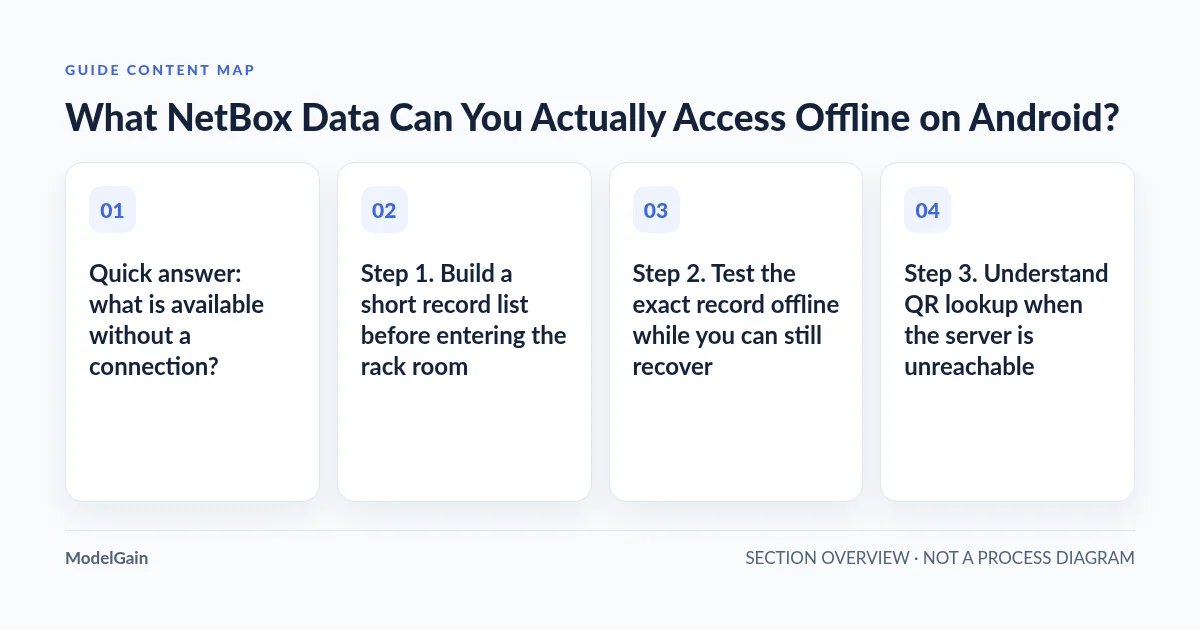
Quick answer: what is available without a connection?
Field Companion for NetBox can reuse previously retrieved search summaries and individual details successfully opened while online. It does not run an automatic full-device download, continuously synchronize inventory, or make uncached server objects available offline. The exact result also depends on the active NetBox server profile and the available cached content.
| Field task | What is available offline? | What you must do first |
|---|---|---|
| View an already returned search result | A saved summary may appear if the online search fails and its title/subtitle matches the local query. | Search while connected; don’t expect the same query to find every NetBox field. |
| Read a Device, Rack or IP Address detail | Previously stored detail fields can open on a failed network request, only if that object’s details were successfully inspected before. | Open each exact record and check its fields while online. |
| Use the Home screen’s Recent list | Previously inspected objects can appear from local storage without a new server request. | Actually open the specific records; a search result alone is not a recently inspected detail. |
| Scan a device-URL QR label | A recognized Device URL may resolve through a cached device ID after failed network access; its details still need prior caching. | Use the correct NetBox instance and open that Device’s details before the visit. |
| Find a never-seen device or pull every device in a rack | No guaranteed offline inventory lookup. The app cannot fetch new uncached objects without NetBox access. | Use approved site-specific preparation or a separately controlled export/report. |
| Update a rack, status, cable or ticket | Not supported. Field Companion is read-only online and offline. | Use the organization’s separate approved process after live verification. |
The distinction is easy to miss: a query can store an object’s name, type and brief summary in the local cache. That does not automatically store its Site, Rack, Position, serial number, asset tag, VRF or other detail fields. To prepare for an offline inspection, the technician must open the specific detail view while online. The upstream NetBox REST API provides separate list and detail endpoints; the mobile app uses both rather than mirroring the database.
Step 1. Build a short record list before entering the rack room
Do this on a trusted connection where your organization permits access to NetBox. Don’t assume that saving a change ticket, running one broad search, or scanning a label automatically populates all related inventory records.
- Confirm the correct server. Open the app’s Settings and verify the intended NetBox URL. Cache entries are associated with the configured server, object type and NetBox object ID; records from another instance are not interchangeable.
- List the equipment explicitly. Identify the Device and Rack names from the authorized work order, plus any relevant documented IP records. If the work order contains only an address, use the IP-to-assignment guide to establish its VRF and correct equipment context while online.
- Search each intended item. The current app queries Devices, Racks and IP Addresses with up to eight results per type. A partial or missing match is not evidence that a device does not exist; use the full NetBox web UI when search coverage is insufficient.
- Open the Device detail. Inspect the actual fields available for that record—Site, Location, Rack, Position/face, device type, serial or asset tag, where maintained. This successful detail lookup is the step that stores the fields for later offline fallback.
- Open the Rack detail separately. A cached Device’s Rack label is not a substitute for a cached Rack record. Verify the site’s cabinet identity, Location, Facility ID and height when those fields are populated.
- Open any necessary IP Address detail separately. If your field task depends on a management IP, VRF or interface assignment, cache that IP detail too. Do not assume a Device’s primary IP text makes the complete IP object available offline.
- Check the physical reference. Compare the intended Site, Rack and serial/asset identifiers with the work order before leaving connectivity. If those do not agree, resolve the discrepancy rather than carrying uncertain inventory into the field.
For equipment-first identification, see Find the Right Device in a Data Center Rack Using a Phone. For printed labels, follow Scan and Verify NetBox Device QR Labels. These are alternative starting points, not different offline synchronization systems.
Step 2. Test the exact record offline while you can still recover
Do not discover in a shielded room that the record was only present in a search list. Perform one controlled rehearsal on your own authorized phone before entering the area. If organizational policy does not permit offline local storage of inventory, use the approved alternative instead.
- While connected, choose one permitted Device and one Rack with known, non-sensitive test identifiers. Open both detail views and note which fields were actually visible.
- Temporarily enable Android airplane mode and ensure both Wi-Fi and mobile data are off. Depending on the device, airplane mode alone may leave Wi-Fi active.
- Return to Home → Recent. Select the previously inspected object. The app may attempt a live refresh and then show an Offline notice and cached details when the network request fails.
- Open Search and re-enter a term from the cached object’s title or subtitle. If the network lookup fails, observe whether the saved summary appears. Look for the cached-results banner and relative cached time; do not interpret them as a live update.
- Try a different, never-opened record from a previous search. You may find its summary but not a usable detail screen. This is expected: summary caching and detail caching are different.
- Re-enable connectivity and inspect the authoritative NetBox details again before a task that depends on current configuration, asset assignment or safety controls.
The application does not have a switch that forces every search to use a complete offline database. In its currently reviewed implementation, it first tries an online search; if that fails, it searches local cached title/subtitle text and returns up to 25 cached matches. This is a bounded fallback, not a complete offline filter over custom fields, interfaces or rack members. The Home screen shows only the most recent subset of previously inspected objects; it is not a browsable inventory export.
Step 3. Understand QR lookup when the server is unreachable
A printed QR label can make an offline field visit more convenient, but its encoded content matters. A recognized NetBox Device URL path such as /dcim/devices/393/ lets Field Companion extract the Device ID and look it up against the currently configured NetBox server. If the live lookup fails, the app can try a locally cached Device summary with that ID. The details still need to have been opened and cached previously.
A label containing a hostname, serial string, plain text or another non-device URL follows the normal search path rather than a guaranteed direct Device lookup. It may fail to find a local match even when an object exists upstream. A device URL from the wrong NetBox instance can refer to a different device with the same numeric ID, so compare the actual Site, Rack and hardware label regardless of whether a cached record opens. The QR workflow is explained in the dedicated scanning guide.
Step 4. Treat a cached timestamp as a clue, not proof of freshness
The cached record can be correct as of the last successful retrieval and still be wrong now. A chassis may have moved, an IP assignment may have changed, or an asset record may have been edited while the phone was offline. NetBox documents intended/current inventory; the app has no live hardware telemetry to independently validate that state. NetBox’s source-of-truth model and its API are the online authorities for checking the record.
There is also an implementation detail worth knowing: a later online search can refresh a cached summary timestamp while preserving older detail fields from an earlier inspection. Therefore even a recent-looking “Cached…” age must not be taken as a guarantee that the complete detail was freshly validated. No automatic time-to-live, expiry gate, background synchronization or conflict reconciliation is promised by the current client.
| Use case | Offline record as a reference? | Required confidence check |
|---|---|---|
| Find the labeled rack from a prepared, read-only list | Potentially useful as a reference. | Compare Site/Rack against the physical cabinet and approved work order. |
| Read a previously retrieved serial or asset tag | Potentially useful for cross-checking identity. | Confirm the actual hardware label; do not infer current ownership solely from cached text. |
| Decide which cable or power lead to disconnect | Insufficient by itself. | Current authorized records, physical tracing and change approval are required. |
| Confirm a changed IP/VRF, active state or replacement chassis | Not authoritative offline. | Reconnect and verify against live NetBox and other required operational evidence. |
| Sign off a maintenance or incident record | No write-back through this app. | Use the team’s separate authorized workflow and record the source of evidence. |
Step 5. Clear offline data before reassigning a phone
Cached Device/Rack/IP details may contain infrastructure identifiers that your organization treats as sensitive. The app stores the connection token using Android Keystore-backed encryption, but that is a different mechanism from the Room database used for cached inventory. The reviewed Room code does not implement database-level encryption or automatic cache expiry; do not advertise “fully encrypted offline inventory” on that basis. Android’s device-level protections may separately apply depending on device configuration and policy.
Two Settings actions have different effects:
| Action | Effect in current app | What it does not do |
|---|---|---|
| Local cache → Clear offline data | Deletes cached objects for the currently configured NetBox server from the app’s local cache database. | Does not revoke a NetBox API token or delete inventory records on the server. |
| Remove saved connection | Removes the saved server URL and local encrypted API token. | Does not automatically clear the locally cached inventory. |
| Revoke the token in NetBox | Stops future requests authenticated by that revoked token. | Does not remotely delete any previously cached records on an offline phone. |
For a lost or stolen phone, have an authorized NetBox administrator revoke the affected token and follow the organization’s managed-device lock/wipe process. Do not assume that server-side revocation removes offline copies. The actual Field Companion privacy policy should be consulted for current data handling and scanner-related disclosures; do not assume that token encryption means the app has zero third-party diagnostics.
What if you need an entire rack or site available offline?
Do not try to “preload” an entire location by expecting broad mobile searches to synchronize every object. Field Companion’s current ordinary search retrieves a bounded set of candidates, and the cache only contains records actually encountered and inspected. The app does not enumerate all devices in a Rack or background-sync the NetBox instance.
If the field job requires dozens of devices, complex cable paths, a full rack elevation or a signed change pack, prepare an approved, scoped NetBox export or maintenance report through your organization’s existing controlled tooling. A static report can be easier to audit, but it still has a snapshot timestamp and sensitivity/retention obligations. The first-party NetBox REST API supports controlled, paginated reads for authorized integrations; building a custom export is not a feature of Field Companion.
Other independently developed Android NetBox clients take different approaches. For example, the open-source Nyetbox project documents an offline-first inventory browser and background sync. Those features belong to that separate project; their security, coverage, distribution and fit have not been tested here. Compare actual needs and organizational security requirements rather than assuming all “NetBox mobile” apps offer identical offline behavior.
Which offline preparation step applies to you?
This interactive checklist uses only your selected answers in the current page. It does not contact your NetBox instance, inspect phone storage or tell the app to download any inventory.
Can you safely use this record offline?
Applies when: A local, read-only decision guide for field preparation. It does not query NetBox, read your Android cache or confirm a live device. Use only authorized inventory on a managed phone.
Quick answer
Search summaries alone are not cached details. Open the exact Device, Rack or IP details online, test the specific record after disabling connectivity, treat cached information as a stale-prone reference, and clear it separately from removing the saved connection.
What to do
-
Confirm the intended NetBox instance, select the exact Device/Rack/IP and successfully open its detail while online. An online search list by itself saves only summary fields.
-
Disable both mobile data and Wi-Fi. Open the previously inspected record from Recent or a cached search and confirm the Offline notice and required fields. An uncached detail may not open.
-
Treat cache timestamps as clues, not proof of current device state. The cached summary can have a newer timestamp than an older saved detail. Compare equipment identity and use live NetBox for change-critical information.
-
Before transferring a device, clear cached inventory for the configured NetBox server, then remove the connection/token as required. Revocation upstream prevents future API access but does not delete offline data.
What is your immediate situation?
All paths are listed below. Select a symptom to focus on the most relevant path.
Open the exact detail before disconnecting
A search can store just a name/summary. While online, open the selected Device, Rack and any needed IP Address details separately, then rehearse an offline lookup. Do not assume the search result caches all fields.
Verify a usable offline snapshot
Disable Wi-Fi and mobile data; open the previously inspected object and confirm its expected fields and Offline indicator. The record may still become stale, so a later safety-critical action requires live verification.
Check cached-field search scope
Offline fallback matches only cached title/subtitle summaries, capped at 25 results. The Recent list contains previously inspected records, not an entire downloaded site. Restore access and open the exact record if permitted.
Do not use cached values as live change evidence
Reconnect and compare with the authoritative NetBox record and physical identifier. A summary refresh may update an age label while older detail fields remain saved; do not infer detailed freshness from one timestamp.
Prepare an approved scoped report
The app does not automatically mirror the NetBox instance or every rack device. Use a governed, time-stamped NetBox export or maintenance pack if broader offline inventory is needed, with explicit access and retention controls.
Clear data and credentials separately
Use Settings → Local cache → Clear offline data for the connected server before reassigning the phone. Remove saved connection deletes saved token/server but retains cached objects. Revoke the token in NetBox independently when access should end.
Did this help?
Field acceptance checklist: six synthetic test cases
Before relying on this workflow for a real maintenance visit, run a small nonproduction synthetic acceptance exercise on the actual installed Android version. Use a test NetBox instance and dummy labels; never put working API tokens, internal hostnames or customer network data in public test evidence.
- Detail prepared: Search Device A, open its detail online, then remove Wi-Fi/mobile data. Open A from Recent and check for the cached fields and an Offline notice.
- Summary only: Let Device B appear in online results but do not open it. Offline, find B’s summary and verify that missing detail is not mistaken for a successfully cached record.
- Never seen: Create Device C in the synthetic fixture without searching it from the phone. Confirm that the offline search cannot fetch it from NetBox.
- QR direct lookup: Use a QR containing Device A’s known Device URL, then try a different unprepared ID. Compare actual behavior; do not generalize from one label format.
- Stale detail: After caching A, change a harmless synthetic field on the test server. Recheck offline and then online, recording the discrepancy and age labeling.
- Clear versus remove: While on the synthetic profile, clear cached data and test the result. Separately test removing the saved connection, confirming that this is not equivalent to deleting cached inventory.
These are a test plan, not a claim of having passed a hardware field trial. Record the app version, NetBox version, connectivity conditions, displayed values and pass/fail evidence. A source-code review or emulator unit test alone cannot prove behavior in every Play-distributed build and physical network.
For a read-only field lookup that fits these limits, see the Field Companion product page and the current Google Play installation listing. If you are still setting up the app, use the first-connection guide; for other tools and release states, browse the ModelGain Android directory. Report sanitized, reproducible issues via Field Companion support, without disclosing real NetBox tokens or inventory.