ANDROID
Scan a QR Label to Identify a NetBox Device on Android
Scan NetBox QR and barcode labels on Android. Check device URL vs text lookup, confirm the right server and equipment, and troubleshoot wrong matches.
You are in front of a rack. A device has a QR label, but the actual task is not merely to decode the square. You need to find the correct device record in the correct NetBox installation, compare it with the physical equipment, and know when a mismatch means you must stop rather than touch the wrong port or server.
Field Companion for NetBox is a third-party read-only Android client that can scan supported QR and barcode labels, look up existing NetBox records, and inspect selected details. Its current Android implementation has two important paths: a QR containing a NetBox device detail URL can resolve by device ID; other decoded values enter the standard search workflow. A decoded code is not automatically a verified hardware identity. This tutorial shows a practical, safe acceptance test for both routes.
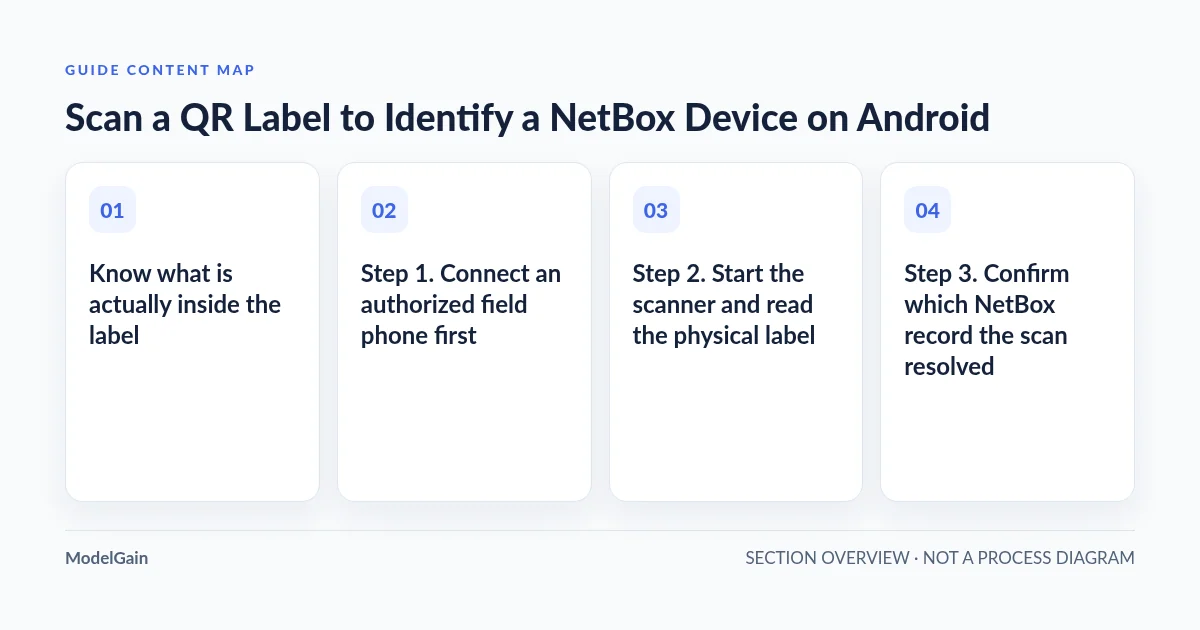
Know what is actually inside the label
Before printing a hundred labels, examine the decoded value from a test label. QR is a visual encoding format, not a NetBox object reference by itself. The content might be a device URL, a serial number, an asset tag, a hostname, a rack URL, or a general website link. Those are not interchangeable.
| Example decoded payload | Current app lookup route | Field check |
|---|---|---|
https://netbox.example.org/dcim/devices/393/ |
The device path can be recognized and resolved by device ID 393 against the connected NetBox server. |
Check the server identity and the returned device’s serial, asset tag and rack before acting. |
edge-sw-01 or LAB-0042 |
Decoded text is used as a normal NetBox search term. | Verify the term is searchable in your actual NetBox version and that the result is unique. |
SN123456789 |
Text search, not guaranteed serial-number lookup. | Confirm search returns the intended device; otherwise use NetBox’s authorized record view and a reliable identifier. |
https://netbox.example.org/dcim/racks/17/ |
Not a recognized device URL. It falls to the generic search route; direct rack-URL resolution is not established. | Search for the rack by its name or supported field instead; do not assume QR URL navigation. |
| An external URL or unrelated encoded string | Not a trusted device reference; generic search may find zero or multiple records. | Do not open an unexpected link or infer a successful identity match from decoding alone. |
Important server-boundary detail: the current device-URL parser extracts the numeric ID from the path. The lookup then uses the NetBox server configured in Field Companion, not a guarantee that the hostname written inside the printed QR matches your chosen instance. Device ID 393 on server A may represent an entirely different asset on server B. When technicians operate across multiple sites or NetBox installations, explicitly verify the connected server and returned device identity every time.
Step 1. Connect an authorized field phone first
Have your NetBox base URL, a dedicated read-only API token and object-level View permissions ready. Confirm the Android phone can reach the intended HTTPS API through your approved LAN or VPN and successfully open one known Device record. The Android NetBox first-connection guide covers token format, 401/403 results, server reachability and known-record validation in detail.
Do not test new QR labeling in production with an administrator token. For a first pilot, use a synthetic or non-sensitive device with a clearly known site, rack, asset tag and serial. Keep the app support documentation available for version-specific questions.
Step 2. Start the scanner and read the physical label
- Open Field Companion on Android and choose Scan equipment label from the main screen.
- If Android asks for camera access, grant it only for the approved equipment-scanning task. Keep other camera/security policies intact. On a device without camera permission, the app shows a permission-request state rather than bypassing Android’s restriction.
- Center the printed label inside the scanner frame. Use adequate light, avoid reflections and keep the camera stable long enough to focus. Where the phone has a flash unit, the scanner interface offers a flashlight control.
- Wait for detection and examine the resulting lookup. A QR’s successful decode is only the beginning: compare the result with the label and the actual hardware.
The source implementation uses CameraX and Google’s on-device ML Kit barcode scanner, configured for QR Code, Code 128, Code 39 and Data Matrix. ML Kit as a library supports additional formats, but that does not mean this particular app enables them. Likewise, detecting a Code 128 asset label does not guarantee that a NetBox q search will match its serial or asset-tag field in every environment. Test your own payloads before rollout.
Step 3. Confirm which NetBox record the scan resolved
When a scanned value contains a recognized device detail path such as /dcim/devices/393/, the app’s current routing requests the corresponding Device record from the configured server and opens its details when available. Other values are submitted to ordinary search across Devices, Racks and IP Addresses; a single found result can open automatically. Multiple results still require human selection. A failed network lookup may fall back to a previously cached record, which is a historical snapshot rather than live confirmation.
Do not accept a match by device ID alone. Check the fields actually visible in the result against your planned work order and the equipment in front of you:
- Site and rack: confirm the physical location and the NetBox installation you intended to query.
- Hostname/device name: corroborate with the printed label or maintenance ticket. Some NetBox Devices are unnamed, so a name alone is insufficient.
- Serial number and asset tag: compare at least one reliable, independently observed identifier where your inventory records it.
- Rack position, device type and role: check the returned context for consistency before unplugging, moving or servicing equipment.
- Cached versus live: if the UI identifies an offline/cached result, reconnect and review the authoritative record before a change.
NetBox models the Device with serial, asset tag, Site, Location, Rack, rack face and Position fields; whether each field is populated depends on your organization’s data hygiene. The Android client displays a useful subset of existing fields, but it does not conduct independent hardware discovery or validate physical serials automatically.
Step 4. Test the label you plan to print—not only the scanner
On the NetBox side, the maintained netbox-qrcode plugin generates and prints labels for NetBox objects, with configurable layouts and different object-type designs. It is separate from Field Companion: the Android app does not create or print these labels. The plugin’s label examples illustrate text-plus-QR and QR-only layouts, with variable sizes. The plugin’s supported NetBox versions, template configuration and printing requirements must be checked independently.
Before deploying labels across an equipment room, perform this small acceptance exercise:
- Choose a stable identifier. For an initial pilot, use a test device with a known device detail URL and a visible human-readable hostname or asset tag. If your labeling generator uses a different URL or raw text payload, test that exact format.
- Print one physical sample. Include readable text alongside the machine code so a technician can still identify the device if the camera fails. Use enough white margin (quiet zone), legible contrast and practical label material for the rack environment.
- Scan using the intended Android hardware. Confirm the configured NetBox server, actual resolved record and at least one independent physical identifier.
- Deliberately test a failure. Try a wrong-instance or stale printed label in a synthetic environment, and verify the technician can stop and switch to manual lookup without making a physical change.
- Record the operating rule. Define which label formats are supported, who replaces out-of-date labels, how to report mismatches, and what the team should do offline.
The netbox-qrcode issue requesting multi-label printing highlights how printing and maintaining labels can be a separate operational workload from mobile scanning. The label generator’s latest documentation covers printing and templates; do not treat its availability as a built-in Android capability.
When scanning fails, find the failure boundary
| Observed result | Likely next check | Safe fallback |
|---|---|---|
| Camera access denied or unavailable | Android permission state, device camera policy, app version. | Use the normal read-only search by a verified label identifier. |
| No code is decoded | Check focus, glare, label damage, quiet zone, size and one of the four configured barcode formats. | Read the printed text and search manually. |
| Code decodes, but no NetBox result | Inspect payload type: device URL vs plain text vs rack URL. Confirm server, access rights and NetBox’s q matching rules. |
Use a known device name or other supported lookup term; do not fabricate a match. |
| Results show more than one record | Check for duplicated/ambiguous identifiers, name collisions and different object classes. | Cross-check Site, Rack, serial and work-order context. |
| The scan opens the wrong device | Check connected NetBox instance, the numeric device ID in the QR, re-used labels and the actual physical serial. | Stop the field action; verify in the authoritative NetBox web interface and replace the label through approved maintenance. |
| Only an offline cached record appears | Confirm connectivity and cache age; look for changes to the physical inventory since last retrieval. | Reconnect and compare against live NetBox before changes. |
For physical access work, a wrong positive match is often more dangerous than a failed lookup. A scan that returns a Device does not verify that the printed tag has stayed on the same chassis after an equipment swap. Maintain a simple relabeling rule whenever asset tags move, devices are retired, or physical work changes the inventory.
What the scanner does not promise
Field Companion is a read-only NetBox viewer and scanner, not a label generator, rack cabling editor or hardware discovery engine. QR strings can encode arbitrary data; the app has a defined lookup behavior rather than universal support for every organization’s custom URL/CSV/JSON/asset-tag scheme. Neither Google ML Kit’s full format list nor a third-party NetBox plugin’s object coverage proves the Android app can resolve every corresponding object.
Scanning uses Google’s ML Kit on the device, but the published privacy policy notes that the SDK may send limited telemetry/diagnostics to Google. The selected NetBox host receives authorized lookup requests. Avoid putting credentials, sensitive topology, or token-bearing URLs inside QR labels; anyone able to photograph the label might read its content. Never place real client secrets in example screenshots.
Choose the correct next step after a QR scan
This short checklist is a local guide to deciding whether to inspect, search manually, reconnect or stop. It does not access your camera, query NetBox or perform inventory writes.
What happened when you scanned the label?
Applies when: You are inspecting a physical NetBox-managed device with Field Companion for NetBox on an authorized Android phone. No camera access or API calls occur in this checklist.
Quick answer
Treat scanning, record lookup and physical identification as separate checks. A recognized device URL can resolve an ID, while other scan text uses regular search. Verify the connected server, Site/Rack and independent identifiers before any equipment change.
What to do
-
Connect with a read-only API token to the correct installation before scanning. A numeric ID copied from a QR path can identify different equipment on different NetBox servers.
-
The current scanner is configured for QR, Code 128, Code 39 and Data Matrix. Confirm actual printing, permission, focus and payload compatibility on the installed Android release.
-
A device detail URL ending in /dcim/devices/<id>/ can request that ID on the connected server. Plain asset tags, serial strings and rack URLs follow general search rather than a guaranteed direct record link.
-
Cross-check the Site, Rack, visible serial/asset tag and work order. A cached or ambiguous result is not sufficient authorization for a physical change.
Which result do you see?
All paths are listed below. Select a symptom to focus on the most relevant path.
Use manual lookup while checking the scanner
Check camera permission, focus, print contrast, quiet zone and whether the label uses one of QR/Code128/Code39/Data Matrix. Use a human-readable identifier and NetBox search instead of repeatedly rescanning a damaged label.
Inspect what was actually encoded
A supported device detail URL can be parsed into a device ID, but raw serials, labels and rack URLs go to a normal search. Confirm the right server and a valid query term; do not assume any decoded code is searchable in your NetBox deployment.
Disambiguate before selecting equipment
Compare Site, Rack, device name, physical serial/asset tag and work-order context. If you cannot establish a unique match, stop and have the inventory owner clarify the label or assignment.
Stop: check the connected server and physical label
A device ID inside a QR path is queried against the selected NetBox server; a label generated from another instance may resolve to a different device with the same ID. Inspect the canonical record and physical chassis before any action. Arrange relabeling through the approved process.
Reconnect and compare with live NetBox
Previously viewed records may be cached locally after a network failure. Cached data can be outdated or incomplete. Reconnect and inspect the current authoritative record before servicing hardware.
Proceed only within the authorized work order
Confirm two independent physical and NetBox identifiers, the correct Site/Rack and a live record. A match supports identification; it does not grant permission to change cables, inventory or access policies. Follow your organization's change authorization.
Did this help?
Field acceptance checklist
- The Android phone is connected to the intended NetBox server with a dedicated read-only token; see the first-connection tutorial.
- The label uses a tested payload: a valid device detail path or a confirmed searchable identifier, not an unverified rack URL or arbitrary data.
- The printed label includes useful human-readable context and can be decoded on the actual device in the real rack lighting.
- The returned record matches the Site and Rack and at least one other physical or work-order identifier; device ID alone is not accepted across instances.
- Any mismatch, ambiguous result, absent record or stale offline data results in stop, verify and escalate, not a physical change.
- The team has an owner for label replacement and inventory correction through its existing NetBox change procedure.
For a product overview and verified install path, see Field Companion for NetBox, the ModelGain Android directory and the Google Play release listing. Start with one real-world test label and a non-sensitive permitted Device record before rolling out QR stickers to an entire rack room.