ANDROID
Look Up an IP Address in NetBox and Trace Its Assigned Device
Look up an IP address in NetBox, check VRF and interface assignments, and trace the recorded device without confusing duplicate or virtual IPs.
You have an IP address from an incident ticket, but not the hostname or rack. The next useful question is not “Which device answers this IP right now?” It is “Which object does our existing NetBox inventory associate with this IP, in which routing context, and can that record be tied to physical equipment?” NetBox is a source of truth for documented infrastructure; it is not a live network scanner.
This guide follows one actionable path: IP address → VRF → assigned object → device or VM → verified physical context. It also shows where the path ends. An unassigned address, a virtual IP, a duplicate address in another VRF, and an out-of-date interface record can all make “the device behind this IP” an unsafe assumption.
Start with the right kind of lookup
If you are on site with an Android phone, Field Companion for NetBox provides read-only searches against your authorized NetBox server for Devices, Racks and IP Addresses. It can open an IP record and show its status, role, VRF, DNS name and assignment when those fields exist. It does not interrogate the network, discover the active MAC address, trace cables or automatically walk from an assigned interface to the owning physical device.
For an exhaustive inventory investigation, use your organization’s authenticated NetBox web UI. The two interfaces complement each other: use the phone to find a candidate IP record in the field and the full NetBox IPAM view to resolve ambiguity or follow additional relationships. For phone connection prerequisites, see Connect Field Companion to Your NetBox Server.
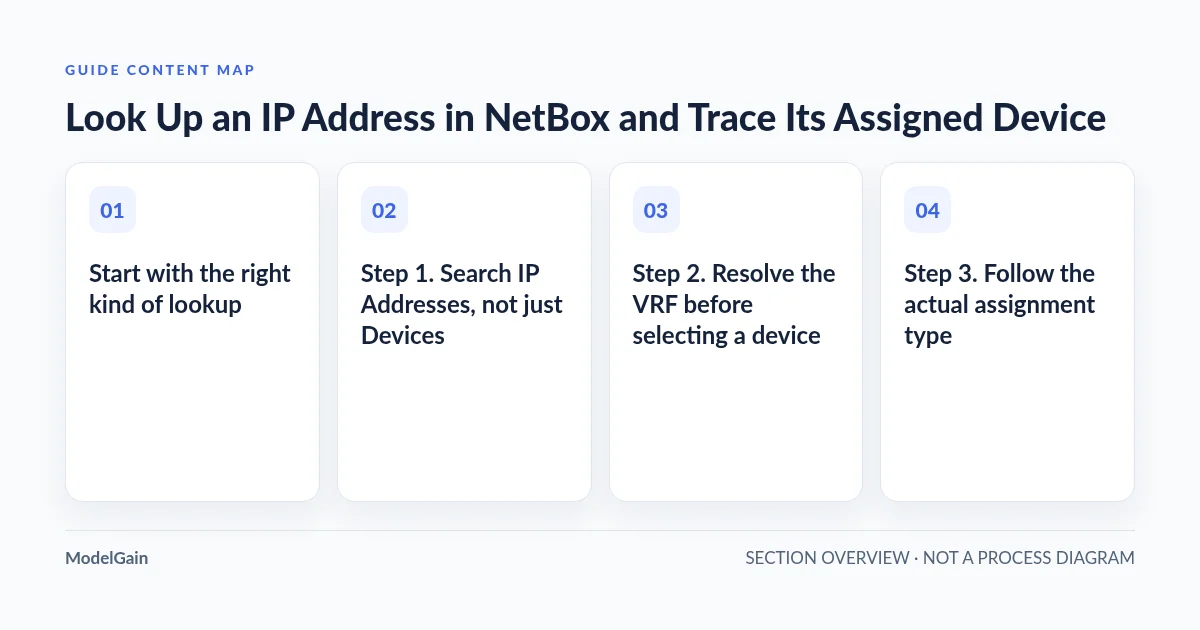
Step 1. Search IP Addresses, not just Devices
- Confirm you are looking at the correct NetBox instance and have permission to view the relevant IPAM and device records. Identically numbered objects on separate NetBox installations are not interchangeable.
- Open IPAM → IP Addresses in the NetBox web UI. Search for the address from the ticket, such as
192.0.2.17. This address is an illustrative documentation example, not an actual organization or server. - Inspect all plausible matches, including prefix length, VRF and any recorded tenant or assigned object. Do not assume that a search string or the first row returns one exact, globally unique IP.
- Open the matching IP object to read its assignment and other metadata. If the search is too broad, use the filters supported by your deployed NetBox version, or inspect the documented REST API response and pagination.
Why start here? NetBox assigns IP addresses to interfaces or other supported IP objects, not directly to a physical rack. A Device’s primary IPv4 address is a separate designation drawn from assigned interface addresses. A matching Device search may therefore be less useful than examining the IP Address record and following its actual assignment. NetBox community users have also raised the practical difficulty of finding a device by IP using general search (NetBox issue #20074).
Step 2. Resolve the VRF before selecting a device
NetBox can store the same IP in multiple virtual routing and forwarding instances (VRFs). An IP with no VRF belongs to the global table; a named VRF represents a separate routing context. Even within a VRF, duplicate address objects may be permitted depending on its uniqueness settings. The IP string alone is not a safe device identity. See the official VRF model and IP Address model.
| NetBox candidate | Recorded routing context | Safe interpretation |
|---|---|---|
192.0.2.17/24 |
Global (VRF is empty/null) | A candidate in the global address table, not necessarily your ticket’s target. |
192.0.2.17/24 |
customer-a VRF |
A separate IP object in a different routing table; trace its own assignment. |
192.0.2.17/27 |
customer-b VRF |
The host string matches, but both the prefix length and routing context differ. |
If the ticket does not specify a VRF, compare site, tenant, environment, circuit or other authoritative contextual identifiers. If several candidates remain possible, ask the network/inventory owner for the intended routing context. Do not guess based on row order, DNS name or a familiar interface label.
Step 3. Follow the actual assignment type
Once you have a credible IP and VRF pair, the next step depends on the object’s assignment. NetBox’s REST API documentation distinguishes generic assignment relations using assigned_object_type, assigned_object_id and the corresponding assigned_object data. The details vary with version and object type, so interpret the live record rather than assuming every assignment is a device.
| Recorded assignment | What you can conclude | Next lookup |
|---|---|---|
Device interface (dcim.interface) |
The IP is documented on a particular interface of a NetBox Device. | Open the interface and its parent Device; inspect Site, Rack, Position and physical identifiers. |
VM interface (virtualization.vminterface) |
The IP is documented on a virtual machine’s interface, not directly on one chassis. | Open the VM. Its cluster, assigned host or site may provide context, but do not infer a physical server without confirming the modeled relationship. |
FHRP group (ipam.fhrpgroup) |
The IP represents a virtual address/group rather than one unique endpoint. | Inspect the group, membership and operational context; no single physical owner is established by the IP alone. |
| Unassigned (no assigned object) | NetBox has an IP record but does not record its interface or group owner. | Check inventory quality and the approved reconciliation process. Do not invent a device association. |
Two cases merit special care. First, a primary IP on a Device is an explicitly designated management address; it does not mean that other assigned interface addresses cannot identify that device. Second, VRRP/HSRP or other shared virtual addresses should not be treated as exclusive ownership by one physical unit. NetBox’s IP Address documentation describes roles, FHRP groups and NAT relations; NAT does not by itself reveal every live translation or physical endpoint.
Step 4. From a device interface to a physical chassis
If and only if the IP is attached to a device interface, follow that interface to its parent Device record. Check the Device’s Site, optional Location, Rack, rack position and face, hardware type, serial number and asset tag, where populated. Compare at least one independent physical identifier against the actual chassis and the work order.
- Match the intended NetBox instance, address, prefix length and VRF.
- Verify that the assignment explicitly references the right interface and parent Device; a matching interface name such as
eth0is not unique across equipment. - Open the Device’s detail page in NetBox. Record the named Site/Rack and check whether Position and face are present, rather than filling missing values with assumptions.
- At the rack, compare the live record with the serial or asset label physically visible on the equipment. A device may have moved, been replaced, or kept an old hostname.
- Only then follow your team’s separately approved maintenance procedure. A successful IP lookup does not authorize disconnecting equipment.
The related rack-side device identification guide covers rack Facility ID, front/rear face, multi-U position and ambiguous hardware labels. If the equipment already carries a NetBox QR/device label, scan and verify that label as an independent identification route.
How to do the first lookup in Field Companion on Android
Field Companion’s currently reviewed Android source sends the entered query as q to three read-only NetBox collections: Devices, Racks and IP Addresses. It requests up to eight results from each collection. Search result chips filter only those returned matches; they do not perform exhaustive, paginated discovery.
- Connect to the correct authorized NetBox server using a permitted token. In the app’s Search screen, enter the IP address from the ticket.
- Select an IP address result, rather than assuming a similar Device or Rack result is the answer. The IP row shows the address plus DNS name or description when present; the row does not expose VRF for safe disambiguation.
- Open the IP detail. The current client can show VRF and Assigned to when NetBox returns readable nested values, along with status, role and other stored attributes. If the VRF is absent from the mobile view, resolve the intended global/named routing context in the full NetBox interface.
- Do not infer the parent Device from an interface display label alone. The app does not automatically traverse IP → interface → device and may not display enough parent context to resolve the assignment. Complete that lookup in authenticated NetBox.
- If a result is missing, refine your search or check the full NetBox IPAM list and pagination. If the app shows an offline cache state, the result is previously saved data rather than a newly verified server response.
This is a record lookup, not an IP scanner or a connectivity test. Field Companion does not perform ping/ARP/SNMP/LLDP discovery, identify the switch port or MAC currently serving an address, update NetBox, or guarantee that an inventory record reflects present physical wiring. If you need to test actual network state, use your organization’s approved network tools and procedures separately.
For NetBox API users: inspect more than the first search result
Authorized automation can begin with GET /api/ipam/ip-addresses/?q=192.0.2.17. The URL illustrates a read-only query; supply authentication through your normal secure API client, not in a shareable URL, screenshot or published command. General search with q is not guaranteed to return an exact unique record, so compare the returned address/prefix, vrf, assigned_object_type and assignment data.
NetBox list responses are paginated: check count, results and next, and follow subsequent pages when complete coverage is required. Do not silently select the first candidate in an API client or mobile workflow. For endpoints, supported filters and authentication semantics, consult the current official REST API guide and filtering reference for your installed version.
Why a lookup may stop without a physical device
| What you observe | Likely explanation to check | Safe next action |
|---|---|---|
| No IP record found | The inventory may be incomplete, your user may lack view rights, or search/pagination may exclude a match. | Check appropriate instance, NetBox IPAM filters and permissions; do not call the address unused. |
| Multiple identical IP strings | Different VRFs, global table, prefix lengths or permitted duplicates. | Compare all candidates against authoritative routing/work-order context; never choose the first row. |
| Only an interface display name | The client shows an assignment label, not the full parent device hierarchy. | Open the interface and Device in NetBox’s full web UI. |
| Assigned to a VM or FHRP group | Virtual or shared network identity does not designate one physical chassis. | Inspect modeled VM/host or group/member relations; escalate if the physical owner cannot be established. |
| Record has no Rack or Position | Valid equipment may be unracked, unpositioned or have incomplete data. | Use physical asset identifiers and inventory owner review; do not invent a location. |
| Cached result differs from current operations | Previously viewed inventory may be stale or the equipment has moved. | Reconnect and confirm the live record before using it for maintenance decisions. |
Choose the next safe lookup
Use this local checklist when you have an address but no confirmed equipment. It does not query a server, inspect your phone or change records.
What did your IP lookup establish?
Applies when: Use this decision checklist after an authorized NetBox lookup. It does not access the network, verify hardware, or update NetBox records.
Quick answer
Confirm the NetBox instance, exact IP and VRF before following any assignment. An assigned device interface can lead to a Device record; VM interfaces and FHRP groups need different checks, while unassigned or ambiguous records do not establish one physical device.
What to do
-
Look in NetBox IPAM, not solely in Devices. Inspect all relevant address/prefix matches, search coverage and pagination before concluding that only one record exists.
-
Compare named VRFs and the global table explicitly. If more than one IP record may match, use trusted routing or ticket context rather than silently choosing the first candidate.
-
A device interface can identify a NetBox Device. A VM interface leads to a VM; an FHRP group is shared; an unassigned object has no documented owner. The Android result may not show all parent relationships.
-
Use the current NetBox web record to check Site, Rack, Position and asset/serial when populated; physically verify a chassis identifier. Cached inventory, partial search or a conflicting work order requires further review.
What is the first uncertainty you need to resolve?
All paths are listed below. Select a symptom to focus on the most relevant path.
Disambiguate global and named VRFs
Record the intended VRF from a trusted source. Treat global as distinct from every named VRF. Open each candidate; prefix length and VRF are meaningful, and duplicates may still exist. Never select by search order.
Open the interface's parent Device
In full NetBox, follow the assigned device interface to its Device record and compare Site, Rack, Position, serial or asset tag against the real chassis. A matching IP is not an equipment-change authorization.
Do not equate VM with a physical host
Inspect the virtual machine record and its modeled cluster/host relationships, if any. A VM interface identifies the virtual endpoint; physical host inference needs separate verified inventory context.
Treat shared addresses as shared
An FHRP group records a virtual address rather than an exclusive endpoint. Review group members and the operational context in NetBox; do not choose a single chassis from the IP alone.
Investigate incomplete NetBox evidence
Verify permissions, the correct instance, search filters and additional pages. An unassigned or missing inventory record does not show whether a live device is active or inactive; refer discrepancies to the inventory owner.
Complete the chain in the full NetBox UI
Field Companion's search is limited to eight results per object type; result rows omit VRF and IP details do not automatically traverse to the parent Device. Cached results may be old. Use current authorized NetBox details before a physical operation.
Did this help?
Test the workflow before relying on it in a rack
For a controlled pilot, create synthetic nonproduction NetBox records rather than exporting live network credentials or customer inventory. Compare the full NetBox response to the actual Android app’s UI, especially where the UI does not display the full assignment hierarchy.
- Same IP in a named VRF and the global table: confirm neither a technician nor an API automation selects one without routing context.
- Same IP across two named VRFs: confirm both candidates are distinguished by inspecting detail, not by trusting the first result row.
- IP assigned to a Device interface: verify the intended parent Device and physical asset using the full UI.
- IP assigned to a VM interface, FHRP group, or nothing: confirm the operator does not infer one physical chassis.
- More than eight matching IP results: confirm that the mobile subset is not mistaken for a complete inventory search.
- Stale/offline record or missing rack information: confirm the operator stops and uses a current authorized source before physical work.
These are proposed acceptance cases, not a claim that the released Play build was physically tested against every condition. Current source inspection establishes the app’s query and display behavior; the user’s specific NetBox version, permissions and physical asset data remain to be verified.
If the read-only mobile lookup matches your field workflow, begin at the Field Companion product page or its Google Play listing. Field Companion is independently developed and is not affiliated with or endorsed by NetBox Labs. For additional Android utilities and documented availability, see the ModelGain Android directory. Report reproducible, sanitized issues through the app support page without including API tokens or confidential infrastructure details.