ANDROID
Switch Between Multiple NetBox Instances on Android
Switch between authorized NetBox servers on Android with saved Field Pro profiles. Compare Free and Pro, verify server identity, and avoid mixed records.
Two customer sites. Two NetBox servers. The same switch name on both. If your next job is at a different data center, you need to open the right inventory without replacing your saved connection or accidentally looking at another customer’s records.
Field Companion for NetBox gives Android technicians a focused way to scan labels, find devices and inspect racks or IP records. Free works with one saved NetBox connection for online lookup. Field Pro adds multiple saved connections, with one active at a time, and access to eligible previously loaded offline records. Install free from Google Play and test a real lookup before deciding whether you need Pro.
Do you need multiple connections or just multiple sites?
A multi-site organization may have a single NetBox instance with different sites, locations and tenants. You do not need another app connection simply because you visit another building. NetBox’s tenancy documentation explains how ownership is represented within one deployment. Your NetBox administrator still controls object visibility and permissions.
Multiple saved connections are useful when you already have separate deployments: for example, two customers’ inventories, a lab and production environment, or separate business-unit servers. Community discussions about MSP inventory separation and a mobile client with an instance switcher show that this is a real workflow, although neither demonstrates demand for a particular paid app.
| Situation | What to use |
|---|---|
| One server, many racks or sites | Free online lookup can be sufficient |
| Separate customer or lab and production servers | Field Pro saved connections; select the intended server |
| Previously inspected records needed without signal | Field Pro; open the exact records online first |
| Cross-server inventory search or synchronization | A separate integration; not a Field Companion feature |
Set up two authorized connections once
Start with the NetBox HTTPS address and a token issued for the intended server and your own authorized account. Do not copy one customer’s token into another customer’s connection. NetBox’s REST API documentation explains token authentication; our read-only token guide covers the field technician’s permissions.
- Connect to your first server and open a known Device record while online. Confirm that its site and asset identifiers match your work order.
- With an active Field Pro entitlement, open Settings and find Saved connections. Choose Add another connection.
- Enter the second NetBox server and its own authorized API token. Connect to NetBox; check a known record before relying on the profile.
- For the next job, return to Saved connections and choose Switch beside the intended profile. Check which connection is marked Active before you scan or search.
These controls are based on the reviewed commercial v1.0 implementation. Availability depends on the version delivered to your phone; check Google Play for updates. The app is read-only and works with one selected connection at a time; it does not combine inventories, provision server access, grant tenant permissions or establish a VPN for you. See the initial Android connection guide if the server is not yet reachable.
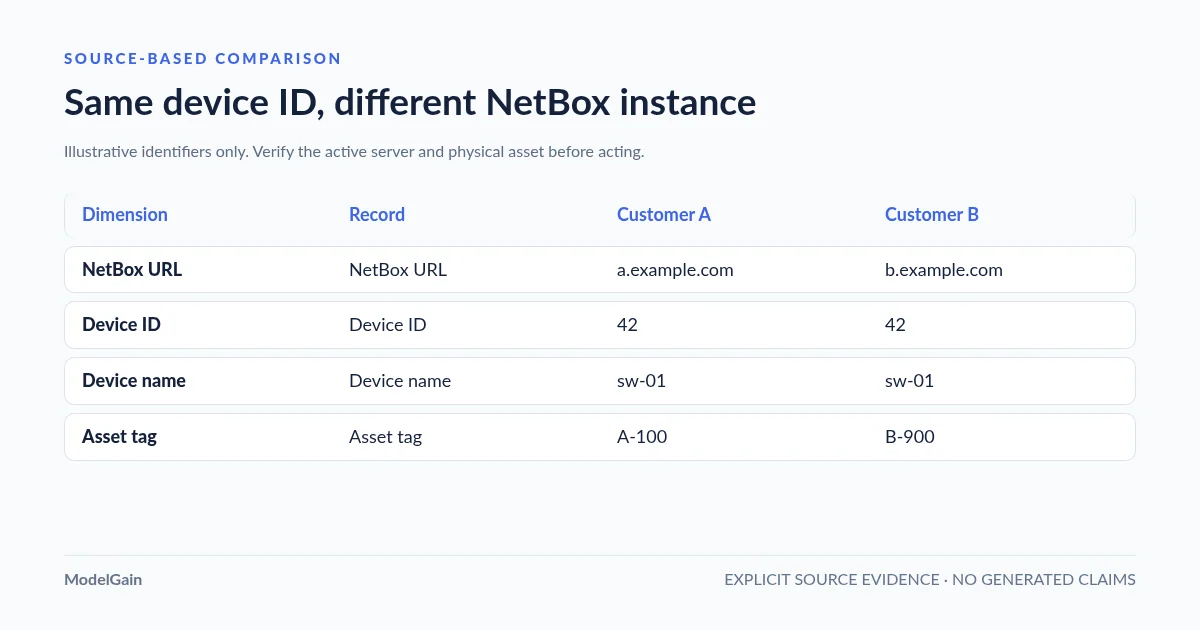
Why the active server matters more than a matching device name
Consider this illustrative example, not a customer deployment:
| Record | Customer A | Customer B |
|---|---|---|
| NetBox URL | https://a.example.com | https://b.example.com |
| Device ID | 42 | 42 |
| Device name | sw-01 | sw-01 |
| Asset tag | A-100 | B-900 |
Device ID 42 is meaningful within its own NetBox instance, not a universal hardware identifier. Even a matching hostname or rack label is not proof that you have the intended record. On each visit, verify the server, site, rack and available serial or asset identifier against the work order. If they disagree, stop and resolve the mismatch before acting.
When using QR labels, follow the NetBox QR verification guide. Do not treat a label from a different instance as authorization to switch credentials or assume that a cached record is live.
Run a two-profile acceptance check before field use
- Use two approved test instances with distinct asset identifiers; open one known record on each.
- Switch from A to B while online and search for the known B record. Confirm its server and physical identifiers; do not proceed if the previous record remains on screen.
- Switch back to A and check the intended A record. Repeat the test after restarting the app.
- If offline work is required, open each exact detail while connected, then test the intended active profile without network access. A cached summary alone is not enough. Follow the offline preparation guide.
This is a suggested acceptance test, not a claim that a particular customer’s servers have been tested. The commercial implementation scopes persisted records to the authorized profile, and switching does not constitute permission to access any other server. Respect your organization’s local-storage policy; use NetBox’s own access controls to revoke tokens when needed.
Is Field Pro worth it for this workflow?
If you work with one server and remain online, keep using Free. It includes the core scan, search and inspection workflow, with no timed trial. If you repeatedly change between independently authorized NetBox servers, Field Pro lets you keep the connection profiles rather than re-entering the server and token for each change. It also adds persistent Recents, local Field Session Lists and eligible offline records.
Field Pro is not a team licensing system, a multi-tenant security boundary on the server or a database federation service. Each profile requires its own authorized access; only one is active. Other paid records are not a Free-tier shortcut after entitlement loss. Read the Free vs Pro pricing and feature comparison for current US reference pricing and local Google Play billing details.
Try your first connection for free. Get Field Companion on Google Play, or see the product and supported workflows. Field Companion is an independent Android client, not an official NetBox Labs application.