ANDROID
How to Create a Read-Only NetBox API Token for Field Technicians
Create a read-only NetBox API token for Android field technicians: choose v2, disable writes, assign View permissions, verify searches, and revoke access.
A field technician needs to find the right rack and device on an Android phone—but should not be able to edit NetBox inventory. The safest setup is not simply “generate an API key.” You need an appropriately scoped NetBox user, the right View permissions, a token with writing disabled, and a way to verify the exact searches the technician will perform.
This guide explains how to create and verify a read-only NetBox API token for field work, using Field Companion for NetBox as a concrete example. The app is an independent Android client, not an official NetBox Labs product. You do not need to give the app a NetBox superuser credential or permission to update records. The instructions describe the NetBox access model and a reviewable deployment procedure; they are not evidence that a particular organization’s server or an installed Play build has passed acceptance.
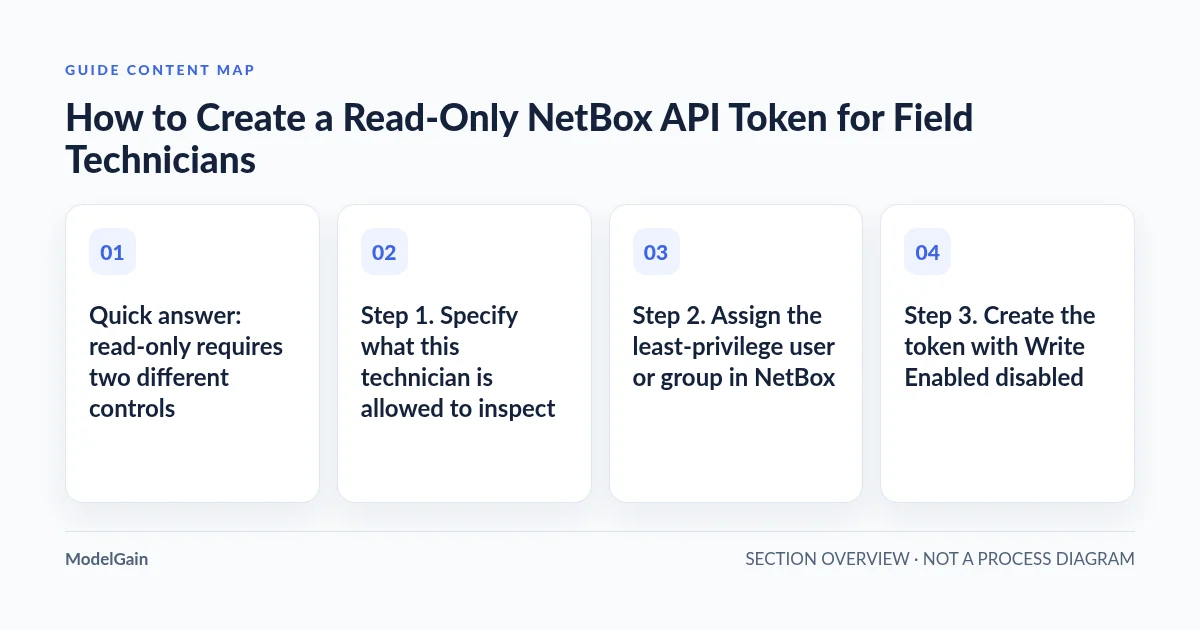
Quick answer: read-only requires two different controls
Control 1: token restrictions. Turn off Write Enabled on the API token. NetBox then rejects mutation requests using that credential, even if the account has broader privileges. Control 2: user object permissions. Give the token’s associated user or group only the View actions needed to inspect the permitted Device, Rack and IP Address records. Disabling token writes does not grant View permission, and giving a token to a broadly privileged account does not remove that account’s privileges in the web UI. See NetBox’s official token model and object-based permissions documentation.
| Control | What it limits | What it does not solve |
|---|---|---|
| Dedicated field user or group | Separates a field workflow from a NetBox administrator’s account. | Does not automatically grant any specific object View action. |
| View permission on the required object types | Allows authorized records to be returned by applicable NetBox API reads; optional constraints can narrow the visible subset. | Does not disable a token’s write capability by itself. |
| Token: Write Enabled off | Prevents writes made with that token. | Does not grant missing View actions or restrict the same user’s other credentials. |
| Expiration / disable / revocation | Limits how long or whether the token can authenticate future API requests. | Does not erase copies of previously cached records on a field phone. |
| Allowed source IPs (optional) | Restricts token use by the client IP address NetBox actually observes. | May block legitimate mobile traffic when carrier NAT, VPN exit or proxy routing changes the perceived source. |
Step 1. Specify what this technician is allowed to inspect
Start with the work assignment, not the token form. Is the technician checking a named device and cabinet at one site, viewing management IPs, or performing a broader approved inventory audit? Record the allowed site or asset scope and the exact tasks. Avoid copying the full permissions of an administrative or automation service account merely because it is convenient.
For Field Companion, the current Android source performs read-only GET requests against three NetBox API collections when a user submits a search. The app currently requests a bounded q search with limit=8 per collection and then retrieves a selected object’s detail separately:
| What the app searches | NetBox API resource | Corresponding View action |
|---|---|---|
| Devices, including a selected Device detail | /api/dcim/devices/ |
dcim.view_device |
| Racks, including a selected Rack detail | /api/dcim/racks/ |
dcim.view_rack |
| IP addresses, including a selected IP detail | /api/ipam/ip-addresses/ |
ipam.view_ipaddress |
Important app-specific detail: the current Search flow requests all three collections in sequence. It is not three isolated searches with independently handled permission errors. A forbidden Rack or IP Address request can interrupt an otherwise permitted Device search. For a field profile intended to use this Search screen reliably, review all three View actions, even if the technician primarily looks up devices. That does not mean exposing every record: NetBox object-based permission constraints can limit which devices, racks or IP addresses the account sees.
NetBox enforces model actions and object constraints on queries. If a user lacks the View action for a collection, an API request may return 403; if a user has a restricted View action, a query may omit out-of-scope records without reporting “you lack permission to see this object.” A missing item is therefore not proof that the device no longer exists. Consult the current official permissions documentation when building those constraints.
Step 2. Assign the least-privilege user or group in NetBox
- Choose the identity model. Prefer a dedicated field user or a managed group whose permissions match the field assignment. Where feasible, make it attributable to the actual person rather than handing everyone the same administrator token.
- Grant only necessary View actions. In the administrator-managed permission settings, choose the Device, Rack and IP Address object types as needed, and select View, not Add, Change or Delete.
- Constrain records if appropriate. A site-specific team can be limited to its permitted locations or objects using supported NetBox object-constraint filters. Test the constraint against real, non-sensitive fixtures; a typo can silently hide the needed records.
- Check inherited permissions. Review direct assignments, group memberships and pre-existing permissions on that account. A read-only token does not retroactively convert a privileged user into a web UI read-only user.
- Document ownership. Record which operational role owns the account, who may issue/revoke tokens, and when access will be reviewed. Do not record token plaintext in the work ticket.
Exact administration menu labels can differ by NetBox release and deployment. The decision that matters is the resulting authorized object actions and constraints, not a screenshot from another organization’s UI. NetBox documents both permission assignments and the token’s owning user.
Step 3. Create the token with Write Enabled disabled
Have the authorized user or administrator open the instance’s own token-creation interface. On supported NetBox versions, users can normally manage their own API tokens, although a deployment may limit token creation; issuing tokens for another user may require separate privilege. Use the instance’s supported permissions and approval process rather than bypassing it.
- Choose a meaningful description. Identify the assignment and intended device or client, for example
field-android-site-a-2026. The description is not a secret. - Choose the modern version. On NetBox 4.5 and later, prefer a v2 token. Its full plaintext secret is displayed once at creation and cannot later be retrieved from NetBox. Legacy v1 tokens are deprecated and are planned for removal in NetBox 5.0. An older NetBox deployment may not support v2.
- Turn off Write Enabled. This is essential even if the owning account currently appears to have only View rights: it adds a token-level safeguard against future permission changes.
- Set a reviewable expiry. Use a short, practical expiration for temporary field assignments and record the rotation owner. A never-expiring token is not required for ordinary equipment lookups.
- Apply source IP restrictions only when tested. If the phone uses a stable, authorized VPN or proxy egress, your administrator may be able to restrict the token to an observed range. Verify what NetBox actually sees. A phone’s local Wi-Fi IP address, mobile carrier address or VPN interface address may not be the source address presented to NetBox.
- Securely hand off the secret once. Use an approved secret-sharing or MDM procedure. Never put a real token in email examples, issue screenshots, web analytics, support tickets, QR labels, URL parameters or this article.
Per the official NetBox REST API authentication reference, modern v2 API requests use an Authorization: Bearer header, while legacy v1 uses Authorization: Token. Those are HTTP header formats; the Field Companion app’s form asks for the token value itself, not a manually constructed header. The current reviewed Android code chooses Bearer for a complete token starting nbt_ and legacy Token otherwise. Paste the full value exactly once in the private app input. No production credential is needed to follow this guide.
Step 4. Connect on the actual phone, then test the three kinds of inventory
With the authorized device on its intended network or organizational VPN, install Field Companion for NetBox from Google Play. The connection screen in the reviewed app has two fields: NetBox server and API token. Enter the base server URL (for example https://netbox.example.com) and the full token. Avoid adding /api/status/, an HTTP authorization header prefix, a token in the URL, or a browser-only SSO login link. Use HTTPS with a correctly trusted certificate; do not bypass TLS verification or expose an internal admin service to the public Internet to make a test pass.
Tap Connect to NetBox. The app tests the /api/status/ endpoint and, upon successful parsing and credential storage, shows a connected state and reported NetBox version. That is a connection check, not evidence of access to all Device/Rack/IP endpoints. Continue with these read-only acceptance checks:
| Test | Expected observable result | What a failure means |
|---|---|---|
| Connected state | The app reports the intended NetBox instance and version. | Routing, TLS, token parsing, authentication or credential save may have failed; inspect the specific error. |
| Search for known authorized Device A | A matching Device appears; opening it retrieves the expected Device details. | May indicate missing model View permission, object constraint, query mismatch or a failure in one of the other two collection requests. |
| Search for known authorized Rack R01 | The correct Rack appears and its detail opens. | Check dcim.view_rack and any site/tenant constraints; do not expand rights blindly. |
| Search for known authorized IP Address | A relevant IP record appears and the detail fields can be inspected. | Check ipam.view_ipaddress, applicable VRF context and NetBox’s exact query/filter behavior. |
| Attempt to view a deliberately out-of-scope object in an approved test fixture | The object is not exposed beyond the designed scope. | Unexpected visibility requires reviewing the actual account’s group/direct permission grants and constraint rules. |
| Review token policy in NetBox | Write Enabled remains off; expiry and source-IP restrictions match the ticket. | A successful GET cannot by itself prove the token cannot write. Check its actual administrative configuration rather than deliberately mutating production data. |
Search limits matter: a result that is absent from the phone’s first eight candidates for a model may still exist in the full NetBox UI. NetBox’s permission constraints may also filter records. Validate expected data against an authoritative, approved account, then escalate a discrepancy instead of treating “no results” as an asset deletion instruction. For practical next steps, see the rack identity guide and IP assignment guide.
What if it says 401, 403, or connected but nothing appears?
Keep authorization troubleshooting separate from credential issuance. An invalid, expired or disabled token, an incorrect v1/v2 header or a gateway that strips the Authorization header can produce an authentication failure. A missing View action can produce a permission denial. Do not assume that 401 always means one exact cause or that every 403 is an account-permission failure. NetBox may return 403 for a request without credentials; proxies and access gateways can return their own 401/403 responses. Read the response message and check the authorized server-side logs before changing roles. The NetBox authentication documentation describes token formats and missing-credential handling.
A connected app with missing inventory has another potential explanation: the app checks /api/status/ first, but searches all three inventory collections as separate requests. One denied endpoint can interrupt the combined search. An approved administrator should compare the user account’s actual Device/Rack/IP View rights and any object constraints; do not generate an administrator token as an indiscriminate workaround. For general mobile network setup, use the first-connection guide and the app support page.
Which permission or token decision comes next?
This on-page decision guide does not ask for, store, transmit, or test a real NetBox token. It is a local reference for selecting the next authorized check.
Is this NetBox field token ready?
Applies when: A local, non-interactive security decision aid. No real API token, password, endpoint, user account or device record is collected, verified or transmitted.
Quick answer
Use a dedicated authorized user or group with the minimum required Device, Rack and IP Address View permissions; disable Write Enabled on the token; verify a scoped read on the intended phone; plan expiry, revocation and cache removal separately.
What to do
-
Confirm the field assignment and the View rights on Devices, Racks and IP Addresses. Current Field Companion Search queries all three types; one forbidden endpoint may interrupt the combined search.
-
Prefer a modern v2 token on NetBox 4.5+, disable Write Enabled, set an appropriate expiration and confirm any allowed-IP rule against the egress address seen by NetBox. Keep the plaintext secret out of tickets and screenshots.
-
A successful /api/status/ connection is not proof of Device/Rack/IP permissions. Find and inspect authorized synthetic objects and verify an out-of-scope negative control.
-
Revoke the NetBox token when access ends, clear offline inventory in app Settings, and only then remove the saved connection if the device is reassigned.
What is the next check you need?
All paths are listed below. Select a symptom to focus on the most relevant path.
Review three object View actions and constraints
Ask an authorized NetBox administrator to verify dcim.view_device, dcim.view_rack and ipam.view_ipaddress on the actual user or group. Confirm the permitted objects and test an out-of-scope record; do not assign superuser privileges to fix a limited search.
Disable token-level mutations
Turn off Write Enabled for that API token and independently review the account's group/direct permissions. The token restriction prevents writes through this credential; it does not make other credentials or the user's NetBox web session read-only.
Paste only the complete token value into the app
On supported NetBox 4.5+ instances, copy the full nbt_-prefixed v2 token at creation time using an approved secret handoff. Current Field Companion source adds the Bearer authorization scheme automatically. Do not prepend the scheme in the token field or disclose the secret in support messages.
Verify the source IP NetBox actually sees
Check the authorized VPN, proxy or gateway egress path with your administrator before enforcing allowed-IP prefixes. Mobile carrier NAT and Wi-Fi/VPN switching can change the observed client IP; never guess the phone's internal address.
Connection is not inventory authorization
The app tests /api/status/ first but Search queries Devices, Racks and IP Addresses. Review all three model permissions, object constraints, token format and any proxy rejection. The first eight matches are not proof that additional objects are absent.
Revoke the token and separately remove cached records
Disable/revoke the credential in NetBox. On the phone, clear offline data for the selected NetBox server before removing its saved connection. Revoking the token does not erase previously cached field records.
Did this help?
Step 5. Revoke access and clear the phone when the assignment ends
Token management is a lifecycle, not a one-time setup. When a technician changes role, a shared device is reassigned, a token is suspected to be exposed, or the assignment ends, have the appropriate NetBox administrator disable or revoke that token and review other active credentials. Revocation prevents future authenticated API access; it does not remotely delete already stored offline inventory.
On Field Companion, the Remove saved connection control deletes the saved server/token profile, but the existing offline cache remains on the handset until separately cleared. For reassignment, use Settings → Local cache → Clear offline data while the relevant server profile is still selected, then remove the connection and follow any MDM or device-retention policy. The token is stored using an Android Keystore-backed mechanism, but that is not a claim that the separate offline inventory database has app-level database encryption. See the offline data preparation and retention guide and the current app privacy policy.
Field-ready sign-off: what to record without exposing secrets
- The approved field role and which Device/Rack/IP object types and constraints it is intended to see.
- The selected NetBox release range, whether this is a v2 token, its expiration date, whether Write Enabled is off, and the named rotation/revocation owner. Do not attach the plaintext token.
- The actual phone’s authorized network path and whether optional source-IP restrictions were tested behind the deployed proxy or VPN.
- Results of the synthetic Device, Rack, IP and negative-scope tests: expected/observed records, date, app version and sanitized failure notes. Do not label a green connection status as the entire acceptance result.
- The offboarding procedure for both NetBox token revocation and local cached data deletion.
For a field workflow that fits this least-privilege model, review the Field Companion product page, its current Google Play listing and the broader ModelGain Android tools directory. The client does not grant permission on behalf of a NetBox administrator, does not modify inventory and cannot replace a server-side access review.