ANDROID
NetBox Mobile App Cannot Connect? A Field Network Troubleshooting Checklist
Troubleshoot NetBox mobile connection failures on Android: check DNS, VPN, HTTPS certificates, SSO proxy, API tokens, and live inventory permissions.
You can open NetBox at your desk, but the Android field app says it cannot connect. Replacing the API token at random, turning off certificate checks, or opening a private server to the internet is not a useful first response. A phone can fail to reach a perfectly healthy NetBox deployment because its DNS, VPN route, certificate trust, reverse proxy, API authentication or object permissions differ from those of your desktop.
This is a symptom-first NetBox mobile connection checklist for field technicians and the administrators who support them. It uses the currently reviewed behavior of Field Companion for NetBox, an independent read-only Android client, as a worked example. You do not need to disclose a token, weaken TLS, alter NetBox records or connect the app to an external troubleshooting service. If you are connecting for the first time, start with the first-connection guide; if you need to issue an appropriately scoped credential, use the read-only API token guide.
Start with the failure boundary, not a new token
Note the exact wording shown in the app, the NetBox base URL’s hostname (not its private address), whether the phone uses office Wi-Fi, cellular data or an authorized VPN, and which action failed: Connect to NetBox, a Search query, or opening a particular Device/Rack/IP Address detail. These fail at different steps. Record the app and NetBox version where available, but never copy the token or a raw authorization header into a support ticket.
| Observed phone symptom | Investigate first | Do not assume |
|---|---|---|
| Couldn’t reach this NetBox server. | Correct hostname, DNS on this phone, phone’s VPN route, firewall or refused TCP connection. | The API token is invalid; the app may not have reached a server at all. |
| The server didn’t respond in time. | VPN instability, packet loss, slow service or proxy/backend response, versus the app’s request timeouts. | Increasing permissions or repeatedly issuing tokens will change the network path. |
| The server certificate couldn’t be verified. | Hostname, certificate validity, intermediate chain, organizational trusted CA and HTTPS interception. | Disabling certificate verification is a valid fix. |
| The API token was rejected. | Actual HTTP response details, token format/expiry and whether an authorized proxy forwarded the Authorization header. | Every 401 originates from NetBox rather than an upstream gateway. |
| Connected, but this token doesn’t have permission for that request. | Which endpoint returned 403: NetBox permissions, missing credentials, allowed source IP, WAF/SSO or proxy policy. | Every 403 proves the owning user lacks View permission. |
| Connect succeeds, Search fails. | Separate Device, Rack and IP Address API read permissions and the actual response on each endpoint. | A green connection test verified inventory access. |
| Cached or Offline result appears during failure. | Connectivity and whether a previously opened local record was used as fallback. | The displayed inventory is fresh from the server. |
| HTML, login portal or JSON parse error. | Wrong URL, reverse proxy rewriting, SSO redirect, captive portal or API request not reaching a JSON endpoint. | A successful website login proves the native app has an authenticated API session. |
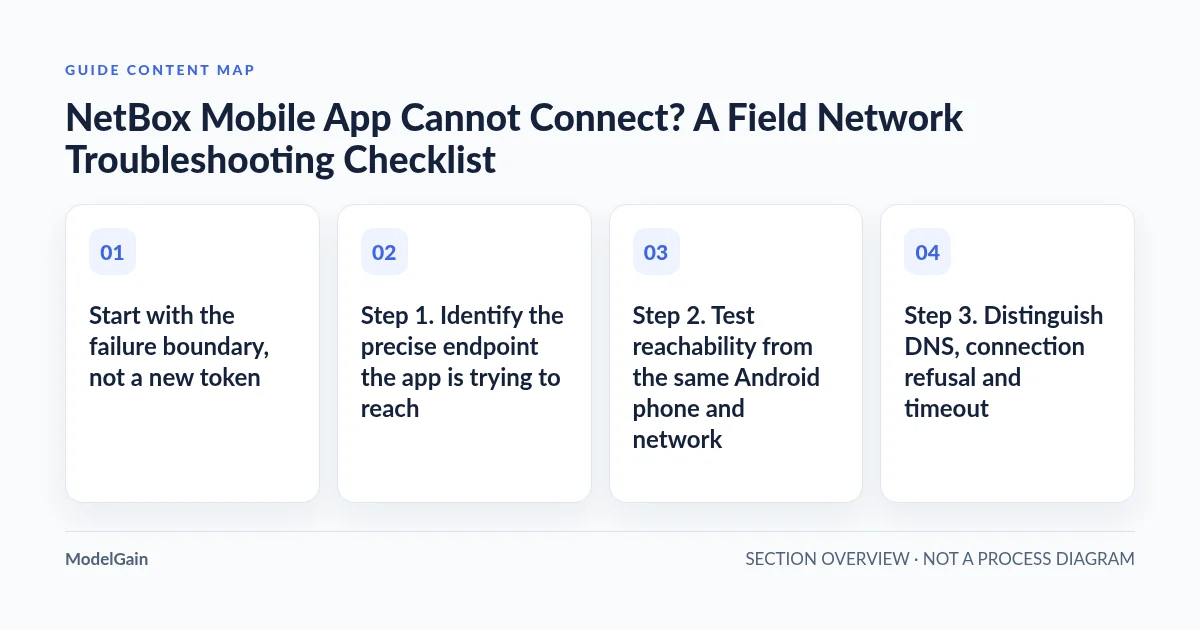
Step 1. Identify the precise endpoint the app is trying to reach
In the currently reviewed Android build, Connect to NetBox sends an authenticated GET request to the /api/status/ path under the configured NetBox base URL and parses a JSON response. The app’s server field expects an origin such as https://netbox.example.com, not a deep link ending in /login/, /api/status/ or a user-interface path. Check whether the instance is actually hosted behind a required path prefix; do not guess that every reverse-proxy deployment supports a bare root URL.
A separate error after you enter Search is not proof that the original connection test failed. The app then requests three different endpoints: /api/dcim/devices/?q=…&limit=8, /api/dcim/racks/?q=…&limit=8 and /api/ipam/ip-addresses/?q=…&limit=8, followed by a record-detail GET when an item is opened. The sequence is not isolated per collection: failure of one request can interrupt the combined Search results. See NetBox’s official REST API documentation for the authoritative endpoint model.
The native client sends the API token in the HTTP Authorization header. A NetBox v2 value beginning nbt_ is sent using the Bearer scheme, while a legacy token is sent using Token. The application adds the scheme; the user enters only the token value. Don’t prepend an entire Authorization header in the app input, paste a browser session cookie, or put the credential in the URL. Token version and rollout details are covered in the dedicated least-privilege token guide and NetBox’s token model.
Step 2. Test reachability from the same Android phone and network
A working NetBox desktop browser may reach the server through corporate DNS, an office-only private network, a desktop VPN or a proxy that is not available on the field phone. The diagnostic question is not “Does NetBox work somewhere?” but “Can this actual phone reach the intended HTTPS host through the authorized route?”
- Confirm the base hostname. Compare it with your organization’s approved NetBox endpoint, including the scheme, custom port if any, and any documented prefix. Avoid copying an internal IP address or a localhost URL from another computer.
- Record the active connection. Is the phone on authorized office Wi-Fi, guest Wi-Fi, cellular data, or a connected organizational VPN? Some guest and captive-portal networks allow ordinary browsing but block internal DNS or private routes.
- Check the approved VPN path. On a private NetBox instance, have the network administrator verify that the handset’s VPN is actually connected and routes the NetBox subnet, rather than assuming a VPN icon establishes the right split-tunnel route.
- Open the approved HTTPS NetBox origin in the phone’s browser. If the hostname fails to resolve or a connection is refused, investigate DNS/routing first. If a login page loads, that proves only partial web reachability, not API access from the app.
- Try the same approved endpoint on the intended operational network. Compare phone Wi-Fi and managed VPN observations only where policy permits. A change in result can isolate the access path; do not turn a private NetBox endpoint into a public internet endpoint to troubleshoot.
Do not post an internal hostname, VPN profile, carrier public IP, gateway logs or live tokens publicly. Instead, report a redacted issue with the stage and error category, such as “Android, VPN active, DNS resolution failure before TLS negotiation.”
Step 3. Distinguish DNS, connection refusal and timeout
The Android client reports “Couldn’t reach this NetBox server” for certain DNS failures and refused connections. A “The server didn’t respond in time” message maps to a socket timeout. The reviewed source sets an 8-second connection timeout and a 12-second read timeout for an individual HTTP request; this is not a universal end-to-end SLA or a guarantee that every overall search completes in those durations.
Ask the administrator to check whether the phone can resolve the host through the intended DNS server, reach the authorized NetBox port over the VPN, and receive a timely HTTPS/API response. A reverse proxy can be reachable while its upstream NetBox service is overloaded or unavailable. Distinguish an upstream-generated 502/503/504 from an Android-side timeout; the same user-visible complaint can have different owners.
Do not fix a timeout by expanding API privileges, disabling transport security, increasing proxy exposure or indefinitely raising timeouts without identifying the bottleneck. A measured, reproducible route or service problem belongs with the network/service owner.
Step 4. Fix certificate trust without bypassing HTTPS
The message “The server certificate couldn’t be verified” indicates an SSL handshake trust problem. Common possibilities include a certificate issued for a different hostname, an expired certificate, missing intermediate certificates, the wrong internal CA trust deployment or an HTTPS-inspecting gateway that changes the certificate seen by the phone.
Compare the certificate name, validity period, chain and organizational trust policy against the exact hostname configured in the app. Android application trust behavior can differ from the desktop browser or from the browser on the same phone, especially for enterprise and user-installed CAs. An administrator should supply a correctly configured, verifiable HTTPS endpoint and approved trust roots as appropriate for the deployed app; the field technician should not be asked to accept invalid TLS or install an arbitrary root certificate.
The current client accepts both http:// and https:// syntactically in its base-URL parser. That implementation detail is not a recommendation to send API credentials without TLS: use trusted HTTPS for real deployments. There is no supported “ignore certificate errors” switch in the reviewed client. For official Android trust guidance, see Android Developers: Security with HTTPS and SSL.
Step 5. Identify a browser login or reverse-proxy response masquerading as an API response
Field Companion is an API-token client, not an embedded interactive browser for your organization’s SSO portal. A successful human login through SAML/OIDC in a web browser does not automatically give the native client an API token or permission to pass an SSO-only reverse proxy.
A gateway may redirect the intended /api/status/ call to an HTML sign-in page, produce a gateway access-denied page, strip the Authorization header, rewrite the API route, or return a normal 200 with HTML rather than the JSON the app expects. The client calls the JSON parser after a nominally successful HTTP response; HTML returned with status 200 can therefore appear as a parsing error rather than a textbook 401/403. This is a reason to inspect the sanitized response type and routing, not to replace credentials blindly.
Have an authorized administrator confirm how the reverse proxy routes /api/, what source-IP and identity policies apply, and whether required headers reach NetBox. Preserve existing access controls and authentication boundaries; do not disable the gateway or bypass organizational SSO restrictions simply to make a third-party app work. See NetBox REST API authentication and the object-permissions model for what the API itself expects.
Step 6. Treat 401 and 403 as leads, not universal diagnoses
The reviewed app currently renders HTTP 401 as “The API token was rejected” and HTTP 403 as “Connected, but this token doesn’t have permission for that request.” These are helpful shorthand messages, not authoritative classification of which system generated the response.
NetBox can return 403 for a request missing required authentication, even though other systems might use 401 for that case. A permission denied by NetBox can also produce 403, as can an upstream reverse proxy, an SSO gateway, a WAF, or an IP allowlist. A rejected or incorrectly formatted token might similarly fail before an object permission check. Your team should correlate the attempted endpoint, the response content/type and approved server/proxy logs. Never paste the literal Authorization header into analytics, tickets or chat.
Once the problem is positively isolated to authentication or permissions, use the read-only token setup and verification guide to check the correct owning account, its View actions, v1/v2 format, expiry and allowed source addresses. Keep deep endpoint-by-endpoint HTTP status forensics separate from this first-line network checklist. No recommendation here requires a privileged test token.
Step 7. Verify that “Connected” means usable inventory—not only a green status
The app’s Connect to NetBox action verifies /api/status/ and saves the server/token profile after success. It does not validate all of the actual search endpoints or their per-object permissions. A green “Connected” state can therefore coexist with a failed first inventory search.
Using an approved synthetic/test dataset, search for one known Device, Rack and IP Address, open the intended detail and compare it with the authoritative NetBox web UI. The owning field user normally needs View access to the three collections used by this combined Search; a denied Rack query can prevent otherwise visible Device results from completing. Object constraints may also hide an unauthorized record without implying that it was deleted. Because the client asks for at most eight matches per collection, absence from the first response is not a complete-inventory search. These limitations are described in the field permission guide and the IP lookup and VRF disambiguation guide.
One more trap: when live Search fails, the app can display previously cached matches and show an Offline or Cached indicator. Do not interpret old information as evidence that the API, DNS or object permissions have recovered. The offline access guide explains which summaries and detail fields are stored and how to validate cache freshness.
Choose the next safe check for your symptom
The following on-page decision helper does not run a network test, contact NetBox, read your phone or collect credentials. It only points to the next relevant, authorized diagnostic step.
Where does your NetBox connection fail?
Applies when: A local, static troubleshooting guide. No credentials, phone details, NetBox responses, server addresses or diagnostics are collected or sent.
Quick answer
Identify the exact action and error, isolate Android DNS/VPN/route, verify HTTPS trust, distinguish a JSON API response from a browser SSO/proxy page, then check token and model permissions. A cached record is not a successful live connection.
What to do
-
Note whether Connect to NetBox, Search or an object Detail failed; preserve only the sanitized message, installed version and approved network context.
-
Verify the intended base HTTPS hostname from the actual managed phone. Compare approved DNS/VPN routing and TLS trust before changing credentials.
-
Differentiate NetBox JSON API results from an SSO HTML redirect, captive portal, reverse proxy or WAF response. 401 and 403 are not universal classifications.
-
After /api/status/ succeeds, check known allowed Device/Rack/IP searches and details on a nonproduction fixture. Watch for an Offline or Cached notice.
What best describes the first failing action?
All paths are listed below. Select a symptom to focus on the most relevant path.
Investigate phone DNS and the authorized route
Confirm the intended NetBox base HTTPS hostname, active corporate Wi-Fi or VPN, DNS resolution and TCP reachability from the actual phone. A desktop-only success is insufficient; do not publish a private NetBox server to the internet to solve a route problem.
Identify which request phase is slow
The reviewed client has 8-second connect and 12-second read timeouts per request. Check the approved route, proxy and backend health. Reissuing an API token does not fix packet loss or an overloaded upstream.
Repair the certificate chain without bypassing verification
Review the server name, certificate expiry, intermediate chain and organizational CA trust as seen by the app. Have an administrator provide a correctly trusted HTTPS endpoint; never disable verification or switch real token traffic to unencrypted HTTP.
Verify an API JSON route, not a browser SSO session
A native API-token client needs NetBox JSON, not an HTML sign-in form or captive-portal page. Ask an authorized gateway owner to inspect redacted route, redirect, content-type and Authorization forwarding. Preserve the gateway's security controls.
Attribute the rejection to its source
A 401 or 403 may be emitted by NetBox, a proxy or an SSO/WAF layer. NetBox can also use 403 when credentials are missing. Review the sanitized response and approved logs before concluding a token or View permission is wrong.
Test the three collection reads separately
Connect only tests /api/status/. Search calls the Device, Rack and IP Address collections in sequence. A denied collection can fail the combined Search; verify the three View permissions, object constraints and known allowed test records.
Distinguish a saved snapshot from live NetBox
The app may fall back to previously cached search summaries or details when the online request fails. Look for Cached or Offline labels. Reconnect and confirm current server inventory before relying on it for maintenance.
Did this help?
Field acceptance plan: reproduce the issue without exposing infrastructure
Before declaring the phone ready for a real rack-room visit, have the authorized app and NetBox owners test the installed Play version against a nonproduction fixture. A source-code review alone is not a substitute for this check.
| Synthetic test case | Expected observable evidence | Failure condition |
|---|---|---|
| 1. Correct origin and approved phone VPN | Connect receives the intended NetBox status response, version visible. | Host resolves to the wrong place, route absent, or unexpected proxy response. |
| 2. Simulated unreachable host | App shows a reachability error without disclosing any credentials. | Wrongly presented as a permission-only error. |
| 3. Deliberate slow test backend | Timeout is visible; failure can be attributed to the request phase. | UI remains misleadingly in a connected/busy success state. |
| 4. Trusted versus untrusted synthetic certificate | Trusted valid HTTPS succeeds; invalid trust causes a certificate error. | Untrusted certificate silently accepted or user must disable TLS. |
| 5. Test SSO redirect returns HTML | Non-JSON or redirect is distinguishable from valid NetBox JSON after diagnostics. | HTML login reported as a successful inventory connection. |
| 6. Wrong or expired synthetic token | A recoverable authentication error, no token value in log/report. | Token or header exposed in user-visible diagnostics. |
| 7. Block one of the three inventory collections | Status check may still succeed, but Search failure is visible and attributable to the denied endpoint. | Green Connect falsely taken as full authorization. |
| 8. Change fixture data after caching | Cached results visibly labeled and not mistaken for fresh server data. | Stale record used as live change authorization. |
If the team needs product-specific assistance, use Field Companion support with a sanitized symptom and reproduction stage. For the actual installer and release requirements, see the Google Play listing; for similar mobile tools, see the ModelGain Android directory. Field Companion provides read-only lookup of already recorded inventory. It does not manage your organization’s DNS, VPN, SSO, certificate authorities, NetBox permissions or physical network.