DEVELOPER TOOLS
How to Enable One Contact Form 7 Form for AI Agents
Enable WebMCP for one Contact Form 7 form: review fields, opt in securely, verify tool registration and keep other forms disabled.
FREE WORDPRESS PLUGIN
ModelGain WebMCP Forms
Let a WebMCP-capable browser agent fill approved Contact Form 7 fields, while the visitor stays in control of submission.
- Install alongside Contact Form 7
- Enable one compatible form
- Let the visitor review and submit
Requires Contact Form 7, WordPress 6.9+, PHP 7.4+ and a browser exposing WebMCP. Explicit opt-in; only supported visible fields. Never submits forms or bypasses validation and anti-spam safeguards.
Quick answer: In ModelGain WebMCP Forms 0.1.0, you enable one Contact Form 7 form for browser AI agents in WordPress admin → Tools → WebMCP Forms. Find the exact form ID, read its Status / reason, Supported fields and Blocked fields, then tick that row’s Enable → Expose checkbox and click Save settings. Leave other forms unchecked unless you already intend to expose them. New CF7 forms are disabled by default, and any incompatible form is blocked even if you try to enable it. The plugin fills approved visible fields; it never submits the form. For installation and full prerequisites, see our Contact Form 7 integration guide.
Before enabling: Test on a WordPress site you control. Confirm the published ModelGain WebMCP Forms plugin, Contact Form 7, WordPress 6.9+ and PHP 7.4+ are active and suitable for your environment. This guide is specifically about administrator control over individual forms—not about enabling Chrome’s experimental browser API for every visitor. A browser must separately implement the imperative document.modelContext API. Check Chrome WebMCP setup here.
What per-form opt-in actually controls
ModelGain WebMCP Forms uses an allowlist, not a switch that exposes every Contact Form 7 form. Only a compatible form with a saved, explicit Expose setting is eligible for this plugin’s frontend WebMCP tool registration. The exact form identity is its WordPress Contact Form 7 form ID—not the visible heading on a page, a form’s shortcode text, or the URL alone. WordPress.org’s official plugin instructions document the required per-form review.
| Form state | ModelGain tool behavior in v0.1.0 | Human Contact Form 7 form |
|---|---|---|
| New or never exposed | Disabled by default; not registered by this plugin | Continues working normally |
| Compatible, explicitly exposed and uniquely named | Eligible to register a fill-only tool on the page containing the exact form in a compatible browser | Continues working normally |
| Incompatible because a form-tag is unsupported | Blocked for the whole form, even if some other fields are supported | Continues working normally |
| Enabled, but its tool name conflicts with another enabled form | Conflicting tools are blocked until names are unique | Continues working normally |
| Previously enabled, now unchecked and saved | Excluded from new page configurations; refresh open pages and check caches before claiming the old registration is gone | Continues working normally |
Enabling one form does not install an AI agent, expose an MCP server, grant permission to send contact requests, or prohibit another independently authorized browser tool from interacting with a normal human form. The plugin is a progressive enhancement: visitors without native WebMCP support still see and use the ordinary CF7 form.
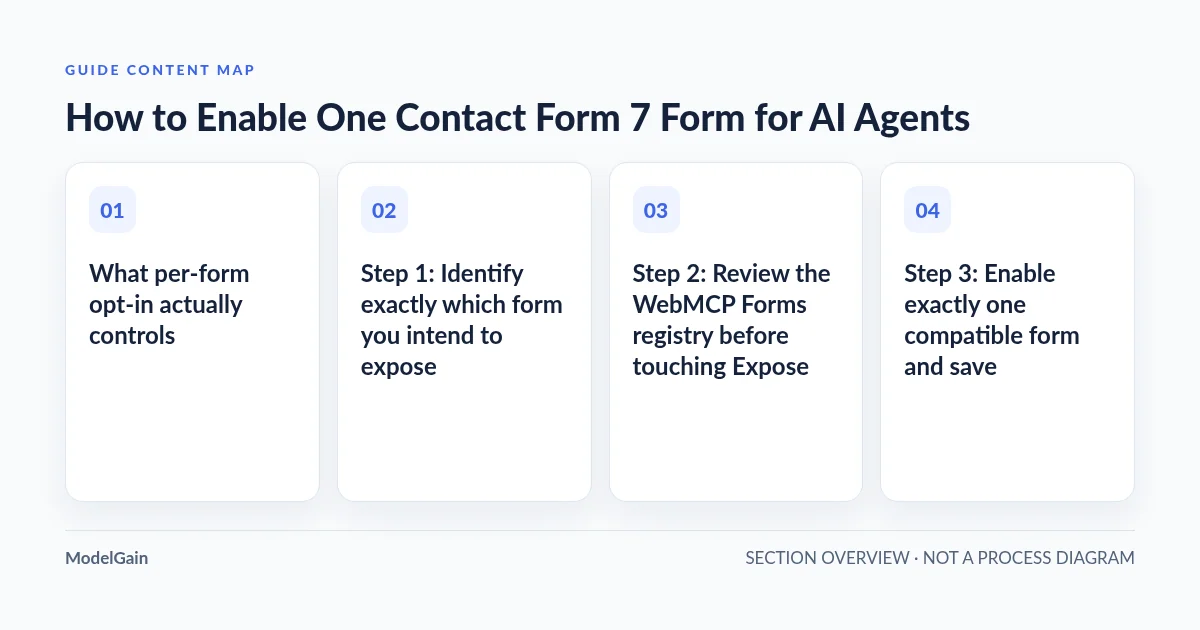
Step 1: Identify exactly which form you intend to expose
- In WordPress admin, open Contact → Contact Forms. Select the intended form and record its numerical Contact Form 7 ID. If several forms have similar names, use the ID rather than relying on the title.
- Inspect the form-tags in the CF7 editor. For a minimal staging test, create a separate form containing only supported controls, such as
[text* your-name],[email* your-email],[textarea your-message]and a normal[submit "Send"]button. - Check whether the form includes
checkbox,acceptance,file, multiple-select, CAPTCHA, quiz, sensitive or custom tags. In v0.1.0, one blocked user form-tag makes the whole form incompatible. Do not remove real consent, upload or anti-spam controls just to qualify for agent assistance. - Place the test form on one HTTPS staging page, using the usual Contact Form 7 shortcode or block. Avoid rendering multiple identical instances of the same form ID on that page; the runtime rejects ambiguous duplicate instances.
See Which Contact Form 7 Field Types Work with WebMCP? for the complete type matrix. Contact Form 7’s official documentation remains the source for the form builder’s normal behavior. Being a valid CF7 form does not automatically mean the WebMCP adapter supports it.
Step 2: Review the WebMCP Forms registry before touching Expose
Open Tools → WebMCP Forms while logged in as an administrator with the WordPress manage_options capability. Each row in the released 0.1.0 admin interface includes:
| Admin column | How to review it |
|---|---|
| Form | Match the title and numeric ID against the target CF7 form |
| Status / reason | Look for Compatible or an explicit blocked reason |
| Supported fields | Review the exact allowlisted field names and types |
| Blocked fields | Do not proceed if required controls or security-sensitive fields are reported |
| Tool name | Review the resolved tool name; keep it unique across enabled forms, changing it only when necessary |
| Description | States the fill-for-human-review intent and that the tool does not submit |
| Enable → Expose | Check only for deliberately approved compatible forms |
Important when saving: Save settings processes all currently discovered form rows together. An unchecked Expose box saves as disabled for that row, including forms you previously exposed. That is a useful fail-closed behavior, but also means a careless save can disable an older approved tool. Before clicking Save, compare the whole list with your intended exposure inventory. A form with blocked fields has its Expose checkbox disabled and cannot be enabled by this setting.
Step 3: Enable exactly one compatible form and save
- Find the row with the exact target form ID and confirm that its status is Compatible.
- Review any already exposed forms. Decide whether each should stay exposed; do not unintentionally toggle unrelated rows.
- Leave the Tool name at its generated default unless you have a documented reason to change it. If customizing, use a unique name consistent with the input’s permitted pattern: letters, numbers, underscore, hyphen and period.
- Check the target row’s Expose checkbox, then select Save settings.
- Confirm the WordPress settings-saved notice, then revisit the form registry. The target row should remain checked and show a compatible, non-conflicting status.
If two enabled forms share the same resolved tool name, the plugin displays a duplicate-name error and refuses to expose the conflicting tools. Resolve the conflict by giving each deliberately enabled form a unique name and saving again. Do not fix conflicts by automatically exposing all rows.
Find the per-form WebMCP opt-in problem
Applies when: ModelGain WebMCP Forms v0.1.0 Contact Form 7 administrator opt-in, compatibility, registration and disable/revocation verification.
Quick answer
Only compatible Contact Form 7 forms explicitly checked as Expose in Tools → WebMCP Forms and saved are eligible for ModelGain's fill-only tool registration. New forms default off, conflicting names fail closed, and a fresh page/browser check is required after disabling exposure.
What to do
-
Identify the intended form in Contact → Contact Forms and compare the numerical ID with the Tools → WebMCP Forms row.
-
Confirm Compatible, inspect all supported and blocked field names, then tick Expose only for approved forms. Save settings processes the entire currently discovered form list, so preserve other deliberate selections.
-
In a supported browser's secure staging page, check the exact tool via document.modelContext.getTools and the ModelGain frontend diagnostics. Confirm unexposed form IDs do not register tools on their pages.
Which opt-in result or problem do you see?
All paths are listed below. Select a symptom to focus on the most relevant path.
Enable only the reviewed form
In Tools → WebMCP Forms verify the ID and complete compatibility, tick that row's Expose checkbox, preserve any other intended selections and click Save settings. Confirm the saved state.
Treat compatibility as a hard gate
Read the blocked-field report. In v0.1.0 any unsupported user form-tag prevents the full form from being exposed. Do not delete production consent, security or upload controls.
Use a unique name per enabled form
The released admin registry detects duplicate enabled tool names and excludes the conflicting tools until each name is unique. Correct the names, save and recheck.
Separate browser API and form presence
Confirm that a supported HTTPS document has document.modelContext.registerTool, the target form ID appears exactly once on the page, the opt-in is saved and the runtime diagnostics show registered.
Verify the change in a fresh document
Saving Expose off affects newly rendered configuration. An old browser tab or cached page can retain an earlier registration. Reload/open a fresh session, inspect caches and check the exact tool name; do not presume immediate live-tab revocation.
Test both allowed and excluded form IDs
On the target staging page verify the exact registered tool. Then inspect a distinct page that renders an unexposed form and confirm its tool is absent. Normal human CF7 forms must still work.
Did this help?
Step 4: Verify the right form is registered—and the others are not
In a browser build supporting the experimental Chrome imperative WebMCP API, open the staging page that renders your enabled CF7 form. Make sure it is in a secure context. In DevTools Console, check the native browser capability:
typeof document.modelContext?.registerTool
// Expect "function" in a supported testing browser
Then inspect ModelGain’s own frontend diagnostics and the browser’s currently discoverable tools. These are read-only checks, not form submissions:
window.ModelGainWebMCPFormsDiagnostics?.tools
// Inspect your expected tool name and status: "registered"
const tools = await document.modelContext.getTools();
console.table(tools.map(({ name, description }) => ({ name, description })));
// Verify the target form's exact registered name, not just any toolgetTools() returns tool metadata that the current document is authorized to discover; its result is not a list of all WordPress forms. With the ModelGain runtime, a tool is registered only when the matching enabled form is present exactly once on the page. An enabled form that is absent from the current page is not registered there. A disabled form will not be offered by this plugin, although unrelated tools or browser automation could still exist.
Inspect a second staging page containing an unexposed CF7 form. Confirm that the disabled form’s tool name is absent. If the page also embeds the enabled form or another independently registered tool, distinguish those from the disabled form. Do not infer that a missing WebMCP tool means the normal human form is inaccessible.
For a non-submitting positive test, use the CF7 AI fill-only test procedure, with synthetic inputs. The current plugin reports submitted: false and requiresHumanReview: true; the human reviews and uses the original CF7 submit mechanism. Never run a real email/lead submission just to prove the opt-in setting.
How to disable one form safely
- In Tools → WebMCP Forms, identify the exact enabled form ID and uncheck Expose.
- Keep other intentionally enabled rows checked, then click Save settings.
- Reload the staging form page in a fresh browser document. Inspect
getTools()and the page’s runtime configuration again; the removed form should not be newly registered by ModelGain. - Review any page/CDN/server caches that could serve older serialized frontend configuration. Recheck a new unauthenticated session. The fact that settings were saved does not instantly cancel the tool in an already open browser tab with old configuration.
- Recheck the ordinary Contact Form 7 UI: disabling WebMCP exposure should not disable the human form.
This is an operational disable-and-verify workflow, not a guarantee of immediate server-driven revocation in every already loaded tab. In v0.1.0, the frontend configuration is generated during page rendering and the registered tool belongs to the page’s browser lifecycle. If urgent revocation is required, assess caches, existing sessions and independently authorized agents rather than trusting the saved checkbox alone.
Troubleshooting: why does the Expose setting not work?
| Observed symptom | Check first | Next action |
|---|---|---|
| Form has no Expose option or is disabled | Is it compatible? Look at Blocked fields and Status / reason | Use the field compatibility guide; create a separate safe staging form if needed |
| Forms registry is empty | Is Contact Form 7 active and does it contain saved forms? | Verify prerequisites and the base setup |
| Settings page is inaccessible | Does your WordPress account have manage_options? |
Ask the authorized site administrator to review the setting; do not bypass roles or nonces |
| Form was checked but tool is not visible | Was Save settings clicked, did the form remain compatible, and does its exact ID appear once on this page? | Check frontend diagnostics and browser support |
| Warning about duplicate tool name | Two enabled forms have the same resolved name | Assign distinct tool names; save and recheck |
Diagnostics show not_present |
The enabled form is not rendered on this URL | Open the page with that exact CF7 form |
Diagnostics show ambiguous |
More than one instance of the same enabled form ID | Use one instance on the test page |
| Browser API is undefined or registration failed | Experimental WebMCP support and correct secure page | Check current Chrome implementation and DevTools; don’t assume plugin configuration is the issue |
| Disabled form’s old tool still appears | Old page tab, cached HTML/config or another tool provider | Open a fresh page, verify cache invalidation and compare exact tool names; do not claim instant revocation |
Security and privacy boundaries worth preserving
Per-form opt-in is a product-specific exposure decision, not visitor consent. It tells the ModelGain adapter which eligible CF7 forms to describe to a capable browser, not which visitor has consented to send data. The supported schema includes only deliberately allowed human-visible input definitions; it is not a guarantee of confidentiality from every site script, browser agent or extension. Do not place credentials, payment details, anti-spam tokens, hidden implementation fields or other sensitive values into a staging test.
Do not remove necessary controls to make an existing production form compatible. A form containing acceptance, checkbox, CAPTCHA, upload or unsupported custom user fields is intentionally rejected by this release. The ordinary Contact Form 7 form remains the correct path where those controls are required. ModelGain v0.1.0 does not send emails, automatically submit leads, bypass validation, or configure cross-site AI permissions. For the difference between safe field preparation and consequential submission, read Why Agents Should Fill but Never Submit.
Chrome’s official WebMCP API documentation separately explains secure contexts, tool registration, same-origin discovery and, for cross-origin iframes, explicit origin restrictions and permission delegation. Do not equate an admin’s Expose checkbox with an unrestricted cross-origin tool grant.
Frequently asked questions about opt-in
Will a new Contact Form 7 form automatically become available to agents?
No. New forms are disabled by default. An authorized administrator must inspect compatibility and explicitly enable each intended form in Tools → WebMCP Forms. A valid CF7 shortcode or an active plugin is not sufficient.
Can I enable a Contact Form 7 form with consent, CAPTCHA or file upload?
Not through the v0.1.0 adapter’s current compatibility gate. It rejects the entire form when a blocked user form-tag is detected. Keep the original human controls; do not delete them to obtain a green WebMCP status.
Does turning off Expose remove an already registered tool immediately?
Do not assume so. The settings save changes future rendered frontend configuration, but a previously opened page may retain its old tool until its lifecycle ends or it is reloaded. Verify new sessions and invalidate stale page caches where applicable. The plugin is not a universal remote session revocation service.
Can a visitor use the regular Contact Form 7 form when WebMCP is disabled?
Yes. The form builder’s normal HTML interface and validation remain separate from the optional ModelGain agent-facing tool. Form delivery and spam handling must be tested on their own merits.
Finish with a bounded rollout
Start with one compatible Contact Form 7 form on staging. Record the form ID, the saved Expose state, unique WebMCP tool name, allowed fields, tested Chrome build and successful no-submit result. Verify unrelated forms remain unexposed. When you have clear evidence for this exact form, decide whether its real site context and visitor privacy needs justify exposure.
Use the ModelGain WebMCP Forms product page for the current scope, WordPress.org for the released plugin, the general integration guide for installation and the fill-only acceptance guide for test evidence. The deployment goal is straightforward: the intended approved form appears as a fill-only tool; every other form stays outside this plugin’s exposed tool set.