WORDPRESS
How to Make Contact Form 7 Forms Available to WebMCP AI Agents
Make Contact Form 7 forms available to WebMCP-capable AI agents for controlled, opt-in field filling without automatic form submission.
FREE WORDPRESS PLUGIN
ModelGain WebMCP Forms
Let a WebMCP-capable browser agent fill approved Contact Form 7 fields, while the visitor stays in control of submission.
- Install alongside Contact Form 7
- Enable one compatible form
- Let the visitor review and submit
Requires Contact Form 7, WordPress 6.9+, PHP 7.4+ and a browser exposing WebMCP. Explicit opt-in; only supported visible fields. Never submits forms or bypasses validation and anti-spam safeguards.
Quick answer: You can make a Contact Form 7 form available to a WebMCP-capable browser agent without allowing the agent to send it. Install a compatible form adapter on the WordPress site, review and explicitly enable one safe form, then let the agent fill approved fields. The visitor reviews and submits the original Contact Form 7 form. Unsupported fields and browser environments must fail closed.
Get started: ModelGain WebMCP Forms is a free Contact Form 7 adapter with per-form opt-in and a fill-only safety boundary. See its verified WordPress.org download and support page. First confirm that your browser actually supports the experimental imperative WebMCP API; installing a WordPress plugin does not add WebMCP support to browsers.
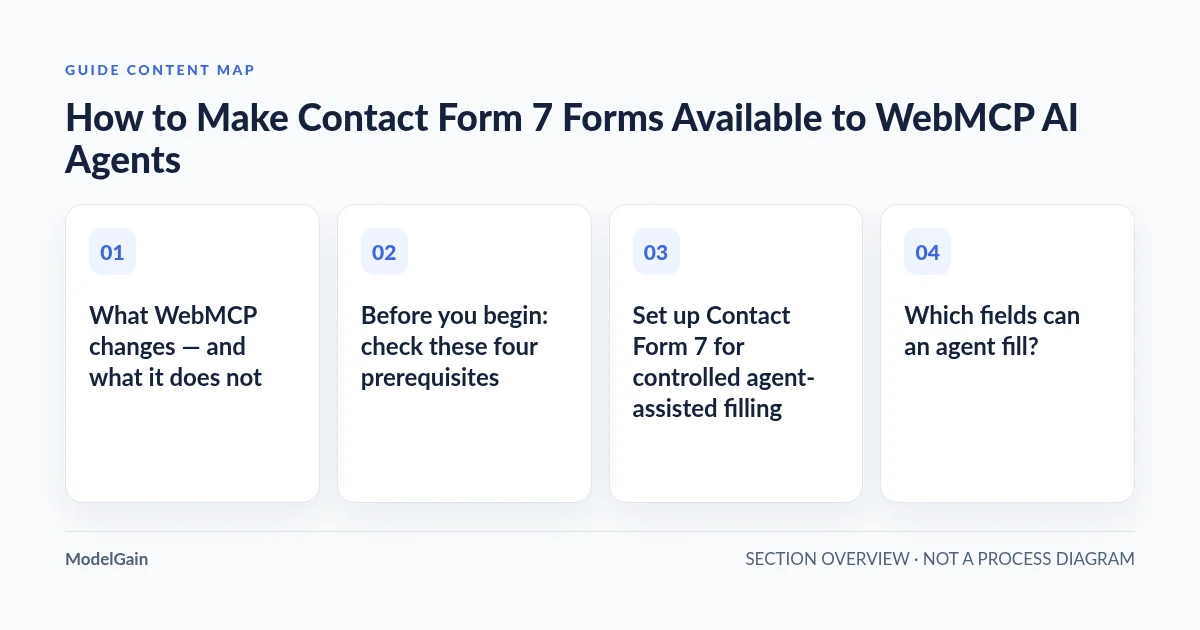
What WebMCP changes — and what it does not
WebMCP allows a website to publish structured client-side tools to a compatible browser. With the imperative API, the page registers a tool name, description, input schema and execution function via document.modelContext.registerTool(). A capable browser agent can use that explicit field contract rather than guessing at DOM selectors. Chrome describes the API as experimental; consult the current imperative WebMCP documentation rather than assuming a specific Chrome release includes it by default.
WebMCP does not make the website a backend MCP server. This plugin does not bundle an AI agent, replace Contact Form 7, authorize form submission, or make browser APIs universally available. The ordinary form must still work when WebMCP is unavailable.
Before you begin: check these four prerequisites
- WordPress: version 6.9 or newer, with PHP 7.4 or newer, per the plugin’s first public release requirements.
- Form builder: Contact Form 7 installed and activated, with a working form you can test. Version 0.1.0 does not include adapters for WPForms, Gravity Forms or other form builders.
- Browser: a browser environment that actually exposes the experimental imperative
document.modelContext.registerTool()API. Depending on your browser build, this may require developer-preview enablement. Do not assume all Chrome or Edge visitors have it. - Safe test context: use HTTPS and a non-production form with dummy values. Never use passwords, payment fields, production contact data, or a real lead/quote workflow to confirm registration.
Find the next safe step for your form
Applies when: You own a WordPress site using Contact Form 7 and want a human-reviewed, browser-side WebMCP form-filling workflow.
Quick answer
Confirm Contact Form 7, HTTPS and an actually supported WebMCP browser. Enable only a reviewed compatible form. An agent may fill permitted visible fields, but the human visitor must inspect and submit the original form.
What to do
-
Check WordPress 6.9+, PHP 7.4+, active Contact Form 7, HTTPS and actual browser exposure of document.modelContext.registerTool. Do not assume every Chrome build supports the experiment.
-
In Tools > WebMCP Forms, inspect allowed and blocked fields and opt in to one safe, non-sensitive form. Newly discovered forms stay disabled by default.
-
Ask a WebMCP-capable agent to fill harmless values. Confirm only intended visible fields changed, nothing was submitted, and the human submission button still controls the final action.
Which result do you see?
All paths are listed below. Select a symptom to focus on the most relevant path.
Use the standard form or a supported browser preview
Feature-detect document.modelContext?.registerTool on the actual HTTPS form page. Without that API, this plugin leaves Contact Form 7 usable by humans. Consult Chrome's current experimental availability guidance before retesting; installing a WordPress plugin cannot add browser APIs.
Keep blocked controls blocked
Check the admin registry compatibility reasons. Version 0.1.0 excludes files, checkboxes, acceptance controls, quizzes, hidden/sensitive inputs, multiple selects and anti-spam/CAPTCHA fields. Use a separate harmless test form composed of supported fields; never remove protection from a live form.
Check opt-in and browser registration diagnostics
Verify that this specific form is enabled, has a valid resolved tool name, and is rendered on the tested page. Check the plugin's registration diagnostics and the agent's WebMCP support. API presence alone does not prove a tool was registered or discovered.
Validate human control before rolling out
Inspect each filled value and confirm there was no network submission. Leave Contact Form 7's validation, nonce, CAPTCHA and spam safeguards intact. The visitor must submit the form personally after review; an automated send is not a feature of v0.1.0.
Did this help?
Set up Contact Form 7 for controlled agent-assisted filling
- Inspect the form first. Open the existing form in Contact Form 7 and identify the human-visible fields. Note checkboxes, file uploads, CAPTCHA, acceptance controls and hidden values, which are not supported by the initial WebMCP contract. Do not weaken security controls to make a live form eligible.
- Install on the WordPress site that hosts the form. Install Contact Form 7 if it is absent, then install ModelGain WebMCP Forms from WordPress.org.
- Review the registry. Open Tools → WebMCP Forms in WordPress admin. Check the compatibility result, supported and blocked fields, and the resolved tool name for the exact form you want to expose. A newly discovered form is disabled by default.
- Enable only that form. Explicitly opt in after reviewing its fields. Do not enable a form containing sensitive, unsupported or consequential controls just to make an AI test appear to pass.
- Test in a compatible browser. Open the actual HTTPS page containing the form and check
typeof document.modelContext?.registerTool === 'function'in the developer console. Atrueresult confirms only that the API exists; check the admin registration diagnostics and agent-side discovery separately. Afalseresult is a browser compatibility stop, not a plugin failure. - Verify fill-only behavior. Ask a WebMCP-capable agent to populate harmless test values. Confirm that only approved visible fields changed and that no submission or email was triggered. The visitor must review and choose the normal Contact Form 7 submit button; do not automate this step.
Acceptance checklist: what a safe test must prove
- Explicit opt-in: the intended form is enabled; unrelated and newly discovered forms remain disabled.
- Field boundary: the tool schema includes only supported, human-visible controls. Hidden/nonces/CAPTCHA and unsupported input types are not exposed.
- Browser boundary: the tool registers only when the target browser supports the required WebMCP interface. The normal Contact Form 7 form still works without that interface.
- Submission boundary: agent execution populates fields for review but performs no submission. Standard CF7 validation, anti-spam and human submission are preserved.
Which fields can an agent fill?
The initial 0.1.0 release supports a bounded set of human-visible controls. The actual compatibility of each form is determined by the plugin’s admin registry, not by its form builder name alone.
Supported for controlled filling
- Text, email, URL and telephone
- Number, date and textarea
- Single select and radio
Excluded or unsupported in v0.1.0
- Hidden inputs, credentials, sensitive values and anti-spam tokens
- File uploads, CAPTCHA and anti-spam controls
- Checkboxes, acceptance, quizzes, multiple selects and unknown controls
Never remove consent, anti-spam, nonce or verification controls from a production form just to include it in an agent tool. Use a separate representative test form if those controls are essential to the live workflow.
Why is submission always a human step?
Filling fields and sending a message are different actions. Contact forms can create leads, request quotes, expose personal details or trigger downstream workflows. The plugin deliberately does not call submit() or requestSubmit(); it does not bypass Contact Form 7 validation, spam protection, CAPTCHA, nonces or submission hooks. A human must review and submit through the existing form.
This boundary is a product design decision, not a claim that all AI-generated text is accurate. Visitors still need to inspect names, addresses, consent choices and any content they plan to send.
When a form tool does not appear
- Browser does not expose WebMCP: stop the agent trial and use the ordinary form; check the browser vendor’s current WebMCP preview documentation. No WordPress plugin can enable missing native browser APIs.
- Form not enabled: review the site’s Tools → WebMCP Forms registry. A new form remains off until explicitly enabled.
- Unsupported fields: check the blocked-fields diagnostics and simplify the test form if necessary. Do not remove real security controls just to gain compatibility.
- No tool after form changes: reconfirm form compatibility, tool name, form rendering and the registration diagnostics before assuming agent-side discovery is broken.
What to do next
If the no-send test passes, document the supported controls and move forward incrementally. Review ModelGain WebMCP Forms and its limitations, then use the official WordPress.org plugin page for the download, current requirements and support. If your production workflow relies on another form builder or on excluded controls, wait for a verified compatible release rather than assuming the plugin provides general WebMCP form support.