DEVELOPER TOOLS
How to Enable WebMCP in Chrome for Local Testing
Enable experimental WebMCP in Chrome, check the browser API and registered tools, then troubleshoot missing Contact Form 7 WebMCP integrations safely.
FREE WORDPRESS PLUGIN
ModelGain WebMCP Forms
Let a WebMCP-capable browser agent fill approved Contact Form 7 fields, while the visitor stays in control of submission.
- Install alongside Contact Form 7
- Enable one compatible form
- Let the visitor review and submit
Requires Contact Form 7, WordPress 6.9+, PHP 7.4+ and a browser exposing WebMCP. Explicit opt-in; only supported visible fields. Never submits forms or bypasses validation and anti-spam safeguards.
Quick answer: To enable WebMCP in Chrome for local testing, open chrome://flags/#enable-webmcp-testing, set WebMCP testing to Enabled, and relaunch Chrome. On the HTTPS page you intend to test, open DevTools → Console and check typeof document.modelContext?.registerTool. A result of "function" confirms that the browser exposes the imperative registration API; it does not prove that a website has registered a tool or that an agent can use it. Chrome describes WebMCP as experimental, so confirm your current browser build and the official WebMCP setup instructions before testing.
Using WordPress and Contact Form 7? Once Chrome passes the browser check, ModelGain WebMCP Forms can expose explicitly enabled, compatible Contact Form 7 forms for agent-assisted field filling. Get the plugin from WordPress.org and follow our Contact Form 7 setup guide. The plugin does not provide an agent, submit forms or turn unsupported browsers into WebMCP browsers.
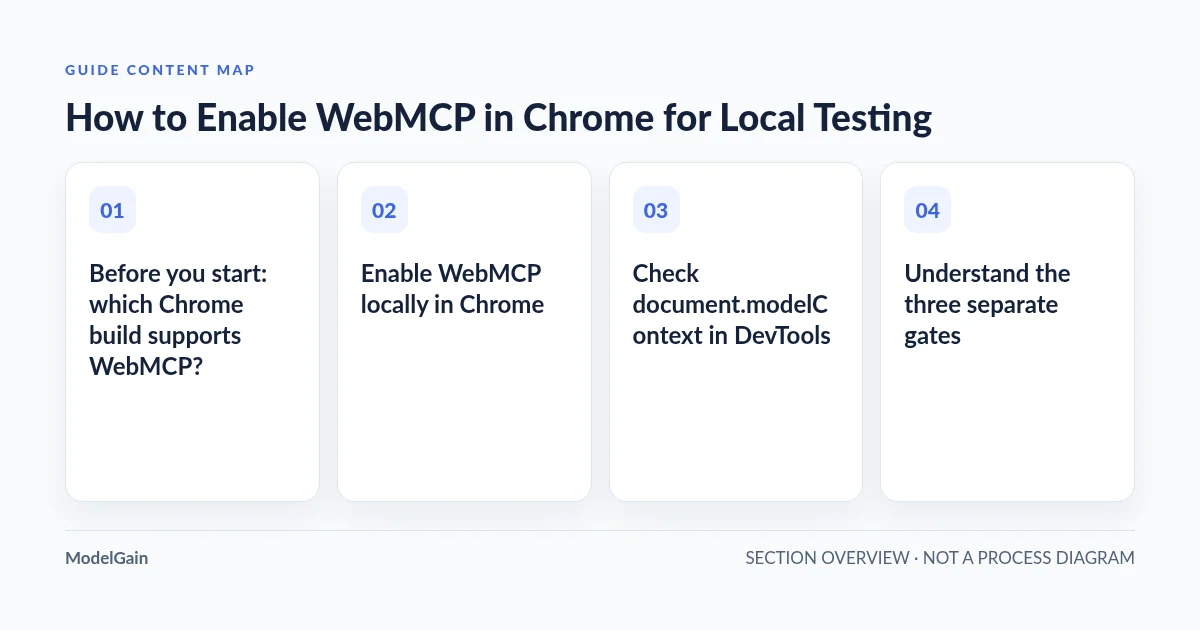
Before you start: which Chrome build supports WebMCP?
As of the October 2026 Chrome documentation, WebMCP remains an experimental browser API, not a universally enabled Chrome feature. Google documents an origin trial beginning with Chrome 149 for website owners and an independent local testing flag. Those are different enablement paths: an origin trial lets an enrolled origin test the capability with eligible visitors, while the local flag enables experimentation in your own browser. Chrome 149 is an origin-trial milestone, not a guarantee that every Chrome 149-or-later installation exposes the API by default.
Check your installed build at chrome://settings/help, then compare it with Google’s current WebMCP overview and the browser implementation status. Development and enterprise-managed builds may behave differently. Do not downgrade Chrome or disable security controls just to make a demonstration work. If your browser does not offer the flag, use a supported test build rather than assuming a WordPress plugin can add native browser support.
Enable WebMCP locally in Chrome
- Open the exact flag. Enter
chrome://flags/#enable-webmcp-testingin the Chrome address bar. Do not paste it into a website search box. - Set the experiment to Enabled. Find the WebMCP testing flag, change its dropdown to Enabled, and apply Chrome’s relaunch prompt. Merely changing the dropdown without relaunching can leave the old browser process in use.
- Open a secure, representative test page. Use an HTTPS page that actually registers a WebMCP tool. A regular webpage that has no WebMCP implementation will not suddenly expose tools after the flag changes.
- Check the API, then the tools. Use the console checks below. Treat an available browser API and a registered website tool as two separate results.
The Chrome 149 DevTools announcement also documents an experimental chrome://flags/#devtools-webmcp-support switch for the DevTools WebMCP panel. If your build lacks the panel, confirm the current DevTools instructions and that separate flag. Enabling a debugging panel is not a substitute for enabling the WebMCP browser API.
Find the WebMCP setup gate that is failing
Applies when: Chrome WebMCP local testing: experimental flag, browser API, website tool registration, and optional Contact Form 7 integration.
Quick answer
Enable the documented experimental flag and relaunch Chrome, then check the API in the correct HTTPS page before testing tool discovery. Browser capability, registered tools and agent execution are separate checkpoints.
What to do
-
In a supported test build, set chrome://flags/#enable-webmcp-testing to Enabled and relaunch. Verify the current Chrome documentation.
-
In DevTools Console, evaluate typeof document.modelContext?.registerTool on the intended HTTPS page. The result must be function to pass the browser API gate.
-
If getTools is available, inspect the accessible registered tool names. No tools means you still need to inspect the page implementation or plugin configuration.
Which result do you see on the page you are testing?
All paths are listed below. Select a symptom to focus on the most relevant path.
Check the browser release and local experiment
Open chrome://settings/help to confirm your build. Compare it with the current Chrome WebMCP documentation; a WordPress plugin cannot add a missing native browser API.
Retest after a full relaunch
Confirm the flag was applied, reload a secure HTTPS page, select the correct document in DevTools and rerun the read-only API check. Do not confuse a browser API failure with a form plugin failure.
Inspect website-level registration
A supported browser does not create tools automatically. Inspect whether this page registers an imperative WebMCP tool and whether same-origin discovery can see it.
Review the exact form in WordPress admin
With ModelGain WebMCP Forms, use Tools → WebMCP Forms to inspect compatibility and explicitly opt in the intended Contact Form 7 form. Unsupported and unapproved forms stay disabled.
Check agent discovery and safe execution separately
Inspect registered tool schemas and errors in the supported Chrome DevTools WebMCP panel, then attempt only a harmless staging test with an actual WebMCP-capable agent. Tool visibility alone does not authorize submission.
Did this help?
Check document.modelContext in DevTools
With your intended test page open, press F12 or use Chrome’s menu to open Developer Tools, then select Console. Chrome may ask you to explicitly allow console pasting; type the small read-only check below yourself if necessary. The optional chaining makes the expression safe when the API is absent.
typeof document.modelContext?.registerToolIf the result is "function", this page has access to the browser’s imperative WebMCP registration method. If it returns "undefined", do not troubleshoot the WordPress plugin yet: first check the flag, relaunch, browser build, frame context and HTTPS requirement. The Chrome imperative documentation uses document.modelContext; old examples using navigator.modelContext describe an earlier interface and should not be copied into new troubleshooting instructions.
For a more explicit, still read-only preflight, enter:
console.table({
  secureContext: window.isSecureContext,
  modelContextAvailable: Boolean(document.modelContext),
  registrationAPI: typeof document.modelContext?.registerTool,
  discoveryAPI: typeof document.modelContext?.getTools
});
When discoveryAPI is "function", you may inspect the tools visible to the current document:
const tools = await document.modelContext.getTools();
console.table(tools.map(({ name, origin }) => ({ name, origin })));
Important: Run the discovery command only after confirming getTools exists. It inspects available tools but does not invoke them. An empty list means no accessible tools were discovered in this page context; it is not evidence that Chrome’s WebMCP capability is broken. Same-origin rules and cross-origin frame permissions may restrict what the current document can discover. See the imperative API reference.
Understand the three separate gates
| Gate | Positive evidence | What it does not prove |
|---|---|---|
| 1. Browser capability | registerTool is a function in the correct page context |
That any tool is registered |
| 2. Website registration | The expected tool name appears in getTools() or the WebMCP DevTools panel |
That a specific agent has permission or can execute it successfully |
| 3. Safe workflow result | An explicitly approved test tool completes its intended low-risk action on a staging page | That real submissions, transactions or external integrations are safe |
You can also open DevTools → Application → WebMCP on supported experimental builds to inspect available tools, their schemas and invocation history. Google documents this workflow in Debug WebMCP tools. The panel is a development aid; it does not turn an ordinary site into a WebMCP-enabled site.
Try a controlled Contact Form 7 test
Chrome’s flag enables a browser experiment. To make an actual WordPress form discoverable, the site also needs code that registers a tool. ModelGain WebMCP Forms v0.1.0 is one narrowly scoped option for Contact Form 7—not WPForms, Gravity Forms or every HTML form on the internet.
- Use a staging form. Confirm WordPress 6.9+, PHP 7.4+, Contact Form 7 and a browser with the imperative WebMCP API. Use an HTTPS test page and harmless dummy values.
- Install from the official listing. Install ModelGain WebMCP Forms alongside Contact Form 7. Under Tools → WebMCP Forms, inspect the specific form’s compatibility and blocked-field report.
- Opt in only a compatible form. New forms are off by default. The first release supports common visible text, email, URL, telephone, number, date, textarea, single-select and radio controls. File inputs, checkboxes, acceptance, CAPTCHA/anti-spam, hidden values, sensitive controls and unknown types are not supported.
- Verify registration on that form page. Rerun the browser/API check, then inspect the registered tool names. If the API is present but the expected form tool is missing, verify the per-form opt-in, field compatibility and actual frontend rendering before changing browser flags again.
- Test filling only. In a compatible agent test environment, populate non-sensitive sample data. Verify the visible fields changed and that nothing was submitted. A person reviews and uses the ordinary Contact Form 7 Submit button when appropriate.
Do not disable CAPTCHA, consent, validation or anti-spam protections on a live form to force compatibility. If a production form has excluded controls, test a separate simplified staging form or use the normal human workflow. Our full Contact Form 7 WebMCP guide covers per-form opt-in, supported fields and the human-submission safety boundary.
Troubleshoot Chrome WebMCP that is missing or not working
The WebMCP flag is not in chrome://flags
Confirm you opened Chrome rather than a differently branded Chromium browser, check chrome://settings/help, and compare the build/channel with current Google documentation. Enterprise policies or release differences may affect experiments. A missing flag is a browser-environment question, not a Contact Form 7 error.
The flag is Enabled, but document.modelContext is undefined
Relaunch Chrome fully, open the target HTTPS page, and rerun the check in the intended document/frame rather than on a chrome:// internal page. Check the browser build and whether WebMCP is available in that context. Do not attempt to polyfill the API and then present that stub as proof of native Chrome compatibility.
The API is present, but getTools() is empty
The browser has passed gate one. Confirm that your website or plugin actually registered a tool after the page loaded, that you are inspecting the right document, and that your agent is permitted to access the relevant origin. A site without WebMCP tools will have nothing to discover. An actual community report of missing tools in Chrome and Edge was resolved after enabling the experimental flag, but that fix does not explain every empty registry.
The form exists, but no Contact Form 7 tool appears
Open Tools → WebMCP Forms and inspect whether that precise form is enabled and compatible. Check that the live test page renders the form, then refresh it and inspect registration diagnostics. Unsupported fields or an unapproved form must remain off by default; the safe response is to adjust your test form, not remove safeguards on a production form.
The tool is listed, but my agent cannot use it
Check whether the agent environment actually supports WebMCP tool discovery and invocation. A browser flag alone does not install an AI agent or grant arbitrary execution permission. Use Chrome’s WebMCP debugging tools to inspect input schemas and errors; use harmless data on staging. For browser-native client APIs, do not replace this diagnosis with backend MCP server or WordPress REST troubleshooting: they are different integration layers.
Frequently asked questions
Do I need Chrome 149 or a newer version?
Chrome 149 is the documented origin-trial start, not a universal promise about the local flag on every distribution. Consult the current WebMCP overview and your installed build. Test for the actual document.modelContext capability rather than assuming a version number is sufficient.
Can WebMCP work without a WordPress plugin?
Yes. A website can implement the browser’s imperative API directly or use the separate declarative HTML form annotations. ModelGain WebMCP Forms exists specifically to bridge supported Contact Form 7 forms to the imperative API; it is not a requirement for WebMCP generally.
Does WebMCP automatically submit a form or bypass CAPTCHA?
No. WebMCP is a browser tool interface whose behavior depends on each implementation. In particular, ModelGain WebMCP Forms intentionally supports controlled filling only, never automatic submission or CAPTCHA/anti-spam bypass. Always review the tool’s actual contract before allowing consequential actions.
Next step: verify before deploying
The useful acceptance test is explicit: the correct Chrome test build exposes the API; the intended site registers one appropriate tool; and a harmless staging test proves the expected action without unintended submission. If you use Contact Form 7, start with ModelGain WebMCP Forms and its feature limits, install via the official WordPress.org listing, then follow the form-specific setup guide. If you only want to understand browser support, the Chrome WebMCP overview remains the authority as the experiment evolves.