WORDPRESS
WordPress White Screen After PHP 8: Diagnose the Blank Page
Diagnose a blank WordPress page after a PHP 8 update by checking HTTP status, private server logs and reversible recovery options.
A white WordPress page after a PHP version switch is a symptom, not a diagnosis. First identify whether the affected request returns empty HTML with HTTP 200, a server error such as 500, or an upstream error such as 502. Then correlate that request with private web-server and PHP logs before changing plugins or configuration.
This guide covers a homepage or wp-admin that is completely white, without a WordPress notice. If WordPress already displays “There has been a critical error,” follow the critical-error recovery guide. A blank screen can occur before WordPress has enough working infrastructure to display that message.
Choose the next check for a blank WordPress page
Applies when: A homepage or wp-admin is completely white after a PHP version switch, without a WordPress error notice.
Quick answer
Preserve the switch time, old and new runtime assignments and a usable recovery point. Inspect the document status and body, then correlate private web-server and PHP logs before changing application code.
What to do
-
Ask hosting about a reversible return to the previous working domain runtime. Preserve current transactions; do not restore an older store database casually.
-
Save the main document's final URL, status, body, cache indicators and timestamp with timezone. Compare public and admin scope without submitting business actions.
-
Read host logs first. Use representative staging for WordPress debugging; never display production errors or expose a debug log.
Which observation best matches the actual document request?
All paths are listed below. Select a symptom to focus on the most relevant path.
Separate cached emptiness from origin output
Record the cache indicators and ask hosting to compare the exact URL with an authorized fresh origin request. Correlate origin PHP and web logs. Do not assume HTTP 200 proves WordPress completed successfully or purge every site's cache.
Correlate the request with private error logs
Compare web-server and PHP errors at the recorded time. Separate PHP startup from WordPress bootstrap failures. Reproduce the identified failure on protected staging, then test one reversible correction rather than disabling every live-store plugin.
Have hosting inspect the domain's PHP connection
Ask the host to verify the selected handler, FPM pool or equivalent backend, startup errors and upstream mapping. WordPress Recovery Mode cannot repair an unreachable runtime. Avoid speculative socket edits or restarting unrelated services.
Investigate the delivered HTML and presentation
Preserve the response source and relevant browser errors. Confirm it is the intended page, not a challenge response, and compare frontend and admin scope. Reproduce presentation or incomplete-rendering problems on staging before modifying production.
Did this help?
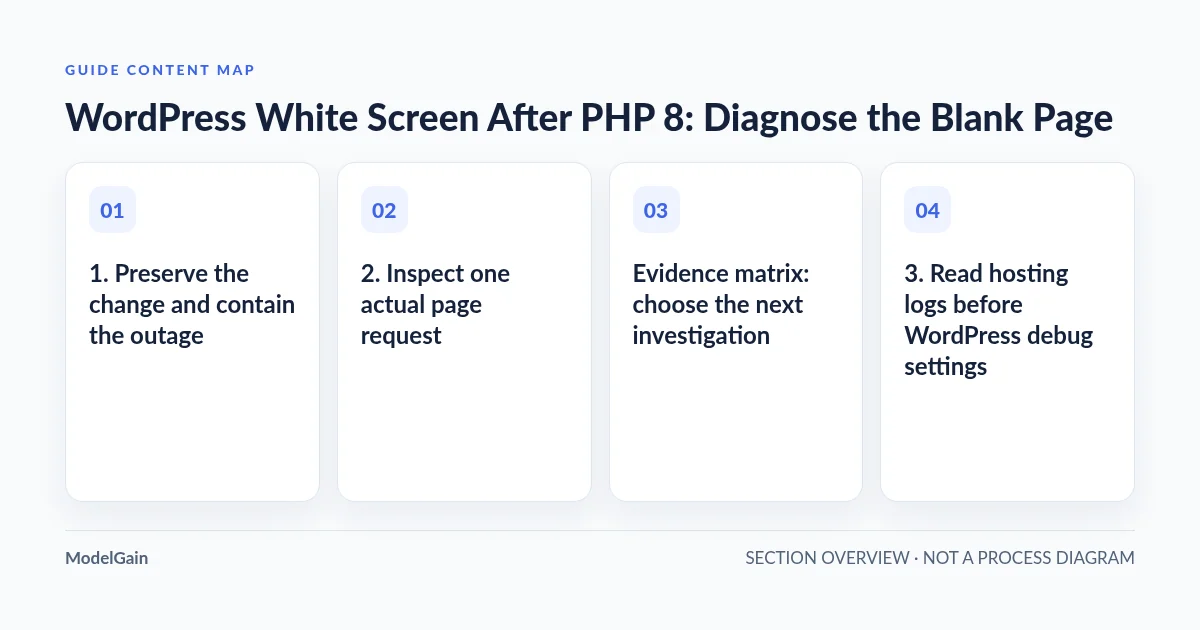
1. Preserve the change and contain the outage
Record when the PHP switch happened, including timezone, the previous and selected versions, the exact hostname and whether the host changed its handler or extension configuration too. Preserve the hosting change record and relevant logs. “After PHP 8” is less useful than a timestamp tied to one domain and one runtime assignment.
If this is a paying store, contact the host promptly about returning the affected domain to its previous working runtime configuration. Confirm that a usable snapshot exists before further changes. A runtime rollback is different from restoring the database: restoring an older store database can discard new orders. Agree on containment that preserves transactions and does not replay payments.
The official WooCommerce PHP update guidance recommends a full files-and-database backup and preparation before switching. During an incident, preserve the current state as well as the pre-change recovery point. An obsolete PHP branch is temporary containment, not a permanent maintenance plan.
2. Inspect one actual page request
Open the browser’s developer tools, select Network, reload the affected URL once and inspect the main document request. Record its final URL, status, response headers and response body. A favicon or background request can fail while the document succeeds; make sure you are examining the page itself.
Compare the Response view or page source with what the browser displays. An empty or whitespace-only response is different from HTML containing content hidden by styling. A response containing a security challenge or an unexpected redirect is another case. Do not treat every white viewport as a PHP fatal error.
Record any cache indicator supplied by your host or CDN. A cached empty response can survive after the origin is repaired, while a cached working homepage can conceal a broken origin. Disabling the browser cache does not necessarily bypass server caches. Ask the host to compare the exact request with a fresh origin response through its authorized diagnostic path; do not expose the origin publicly.
Evidence matrix: choose the next investigation
| Observed evidence | What it suggests | Next safe check |
|---|---|---|
| HTTP 200 with empty or whitespace HTML | Empty application output or an empty cached response; success status does not prove a healthy page | Compare cache state, origin body and the matching request logs |
| HTTP 500 with a blank body | A server-side failure whose details are not public | Read web-server and PHP errors at the request time |
| HTTP 502 or another upstream failure | The web server may not reach or receive a valid response from its PHP upstream | Ask the host to inspect handler mapping, FPM health and upstream logs |
| HTML exists but the visible page is white | The problem may involve presentation or incomplete rendering rather than absent output | Preserve source and browser errors; reproduce safely on staging |
3. Read hosting logs before WordPress debug settings
Ask the host for the affected virtual host’s error log and its corresponding PHP handler logs. On PHP-FPM hosting, this includes the relevant pool or service logs, not merely a server-wide default. Correlate the timestamp, requested path and a request identifier where available. Record the timezone each log uses before comparing entries.
An upstream connection error calls for checking the domain’s configured socket or backend and the relevant service state. A PHP startup error calls for runtime configuration and module investigation. An uncaught PHP error after WordPress begins loading calls for application diagnosis. These are different layers; restarting every PHP service or editing a socket path speculatively can affect other sites.
A command-line PHP version is not proof of the web runtime. Hosting panels can assign different versions and extension sets per domain. If the log points to unavailable capabilities, continue with the web-handler and missing-extension guide. Do not install modules simply because a recommendation appears elsewhere.
4. Compare frontend and admin scope
Check the public homepage and the ordinary login or admin entry separately, without repeatedly submitting forms. Record whether both fail, only public pages fail, or admin alone fails. Also note whether the symptom affects one template or every tested public page. Avoid destructive or payment-related requests as diagnostic probes.
If admin works, Tools → Site Health → Info can identify the PHP version and server interface WordPress actually sees. Copy only relevant fields privately. If admin cannot load, do not install a diagnostic plugin into the broken site just to obtain this inventory.
Frontend-only failure can narrow attention to template execution or frontend-specific code, but a cached admin or public response can distort that comparison. Both surfaces failing can implicate shared bootstrap code or the runtime. Treat scope as evidence to correlate with logs, not permission to blame or replace the theme.
5. Understand Recovery Mode’s limits
WordPress Recovery Mode handles certain detected fatal errors during regular page loads, not cron or background tasks. Its administrator link can help access a session with the failing component paused. It cannot repair an unreachable PHP upstream or guarantee that every early startup failure produces a usable notice.
No email does not prove no fatal error. Delivery can fail, including when the normal mail plugin never loads. Check the legitimate administrator mailbox and spam folder, but do not wait indefinitely for email while the host has relevant logs. Keep any recovery link private; it is not material for a public support ticket.
6. Reproduce and make one reversible correction
Use a representative staging copy with the intended web PHP version and extension configuration. Prevent real payments, customer email and external integrations from running there. Reproduce the same request and compare its log entry before changing anything. A staging copy using a different handler does not isolate the production failure reliably.
The official WordPress debugging documentation places debug tools in local or staging work, not normal live operation. If a developer needs WP_DEBUG, configure private logging there with error display disabled and a protected log destination. Never enable public display_errors or leave an accessible debug.log to make a blank production page explain itself.
When a log identifies application code, preserve the full private error and use the fatal-error file-path workflow to assess ownership. Do not blanket-disable every plugin on a live store. Test one supported update or narrowly scoped correction on staging, retain its rollback and compare the same request afterward.
Close the incident with evidence
Verify the canonical URL without diagnostic query strings, then admin and the originally failing page type. Confirm fresh dynamic responses, expected HTML and no matching new errors. If the origin is repaired but an empty cached response persists, refresh only the affected URL through the host’s supported cache controls.
Use the PHP staging checklist before rescheduling the upgrade. Record the cause, correction and verified runtime rather than “white screen fixed.” The incident is resolved when the intended requests work through the real public path, not merely when the version selector changes.
PHP Upgrade Risk Audit inspects plugin and theme code for compatibility risks. It is not a runtime repair tool: it cannot restore a PHP handler, restart FPM or prove that a particular cached response is fresh. Consider compatibility inspection once WordPress or a representative staging copy can run, not instead of hosting diagnosis during the outage.
Source evidence reviewed: 2026-10-25. Hosting interfaces and runtime assignments vary; this workflow does not assume a particular control panel.