WORDPRESS
WordPress Stuck in Maintenance Mode After an Update: How to Fix It Safely
WordPress stuck in maintenance mode after an update? Check the active updater, remove a leftover .maintenance file safely, and verify your site.
If WordPress is stuck on “Briefly unavailable for scheduled maintenance. Check back in a minute,” first confirm that no update is still running. Once the updater has stopped, inspect the hidden .maintenance file in the WordPress installation root. Removing a leftover file can restore access, but it does not finish an interrupted update. Check the actual update state and site functionality before declaring the incident resolved.
This guide is for the standard WordPress core maintenance screen after a core, plugin, or theme update. A maintenance-mode plugin, hosting-provider outage page, or cached error may look similar and needs a different investigation.
Find the safe next step for a stuck maintenance screen
Applies when: WordPress shows the standard scheduled-maintenance message after an update.
Quick answer
Confirm the update has stopped before changing the root .maintenance file. Clear a stale marker only when safe, then separately verify update completion and critical workflows.
What to do
-
Ask the current operator or hosting control panel whether a core, plugin, theme, or CLI update is still running. Do not interrupt active file replacement.
-
Use SFTP, file manager, or SSH to locate the hidden .maintenance file beside wp-admin and wp-includes; never assume the document root.
-
When the update has stopped, remove the stale marker if present, check public pages and wp-admin, review versions and logs, and test critical site workflows.
What do you know about the update and the maintenance marker?
All paths are listed below. Select a symptom to focus on the most relevant path.
Do not delete the active marker
Wait for the operator's updater to finish. Inspect update progress and private logs before any recovery action.
Clear only the leftover file
In the correct WordPress root, remove or rename the precise .maintenance file after confirming the update stopped. Then check whether the upgrade actually completed.
Identify a different maintenance source
The standard core marker may not be the cause. Investigate caching, a maintenance plugin or custom page, and hosting or proxy behavior without weakening site security.
Did this help?
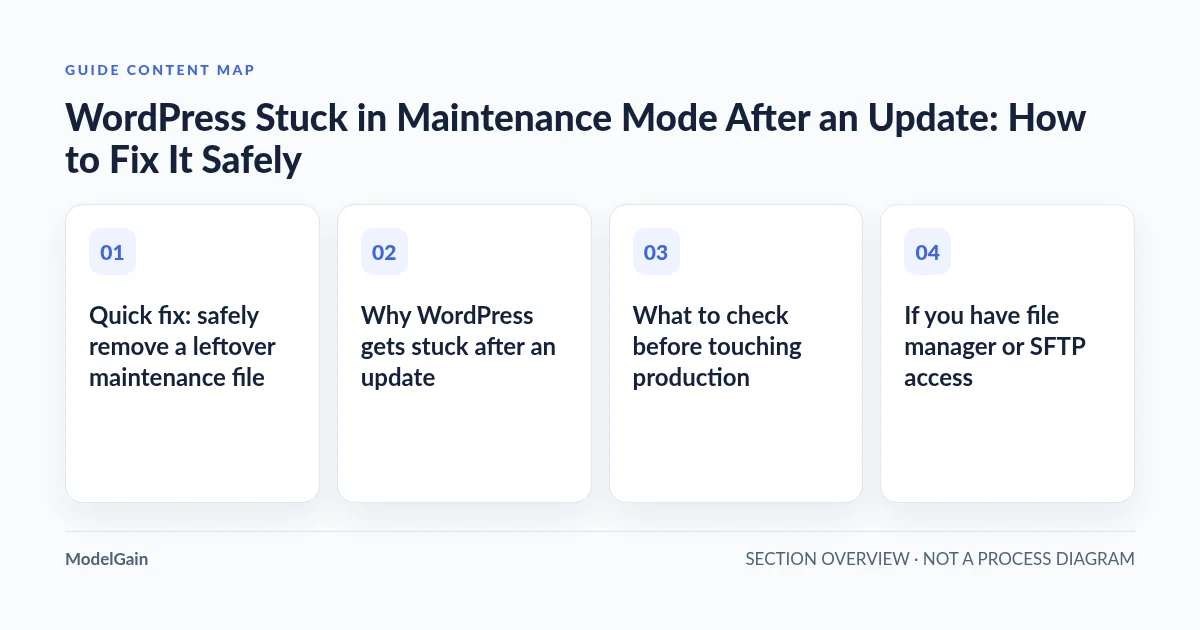
Quick fix: safely remove a leftover maintenance file
- Check for an active update. Confirm that no administrator, WP-CLI command, deployment process, or hosting-panel update is still working. If an update is still running, do not interrupt it or remove its maintenance marker.
- Open the WordPress installation directory with your host’s file manager, SFTP, or SSH. It is the directory containing
wp-admin,wp-includes, and oftenwp-config.php. Your web hosting account may contain multiple installations. - Show hidden files (also called dotfiles) and look for the file named exactly
.maintenance. Do not confuse it with a folder, a plugin, or a custommaintenance.phppage. - Only after verifying the update is no longer running, remove or temporarily rename that specific leftover file. Do not delete neighboring files or disable security controls.
- Test the site immediately: load an uncached public page and
/wp-admin/, then review Updates and the update/error logs. If WordPress still shows maintenance mode, follow the branches below instead of deleting other files.
WordPress’s official common-errors guide documents removal of a leftover root .maintenance file. Its troubleshooting FAQ also advises completing an automatic upgrade again if it failed. For a live shop, take care not to replay a transaction, restore an outdated order database, or restart a deployment you do not own.
Why WordPress gets stuck after an update
During a normal update, WordPress places an .maintenance file in its installation root and removes it when the update completes normally. A PHP fatal error, process termination, failed file operation, or other interrupted upgrade can leave that file behind. The root cause is not always the file itself: the file may simply be evidence that the update did not reach its cleanup phase.
There is an important timing detail. The WordPress core wp_is_maintenance_mode() implementation checks the $upgrading timestamp recorded inside the file. Under that standard core path, a timestamp at least ten minutes old no longer activates maintenance mode. The file does not have to be automatically deleted at ten minutes. If the same maintenance screen persists after that threshold, consider a fresh marker, a custom maintenance handler, page caching, or another layer; do not assume the old file is still responsible.
What to check before touching production
| Observed symptom | Likely investigation | Safe next action |
|---|---|---|
| Update still active | Normal temporary maintenance window | Let it finish; inspect the operator’s update progress |
Stopped update; recent root .maintenance file |
Interrupted cleanup or update | After confirming inactivity, remove only the leftover marker |
| Maintenance message persists; marker is absent or old | Cache, custom handler, or hosting/plugin maintenance mode | Identify which layer serves the response |
| Site returns, but update or admin functions fail | Incomplete core/plugin/theme update or PHP/application error | Review update status and protected logs; plan a backed-up repair |
| Every subsequent update repeats the incident | Recurring failure during updating or cleanup | Correlate logs, permissions, resources, and the changed component |
If you have file manager or SFTP access
Use the hosting dashboard to open the document root of the affected installation. In many setups this is public_html, but managed hosting, subdirectories, multisite arrangements, and separate vhosts can use different paths. Match the path to the actual WordPress files rather than guessing from the domain name.
Enable the file manager’s option to display hidden files. Inspect .maintenance. If there is no active update, remove just this file and reload an uncached URL. If the file returns immediately, check whether a different process is updating the site. Do not keep deleting it in a loop.
If you have SSH access
Confirm the correct WordPress path and that no updater is running. The following read-only checks help an administrator inspect the marker before any change. Replace the example path with the verified installation root:
cd /path/to/wordpress
pwd
ls -la .maintenance
ls -ld wp-admin wp-includes
The ls command may report that the file does not exist; that is useful evidence, not permission to search-and-delete maintenance files across the server. The file timestamp seen in ls is not necessarily the $upgrading value WordPress checks. If the update is definitely stopped and this is the stale marker belonging to the affected site, an administrator can remove that exact file through their normal file-management process.
Never run recursive delete commands against a WordPress root to solve a maintenance page. Avoid executing copied scripts from unknown forums with site-owner privileges.
What if deleting the marker did not fix the site?
1. Identify who serves the maintenance response
Compare a fresh private-browser request with an origin request or hosting-panel preview where available. Check the response status, caching headers, and logs. The default core maintenance handler sends HTTP 503, but a caching proxy or custom page can change what visitors see. A stale edge cache should be addressed with the relevant specific cached URL, not a global WAF bypass or arbitrary WordPress database edit. The core maintenance handler also allows a custom wp-content/maintenance.php drop-in, which is a different file with a different purpose.
2. Determine whether the update was incomplete
After access returns, inspect Dashboard → Updates and the exact component version that was being updated. Check relevant administrative flows and any available update history. A visible site does not prove files, database changes, scheduled tasks, or integrations are healthy. If a core upgrade was interrupted, arrange an appropriate backup and follow the official WP-CLI core-update procedure or your host’s documented update route. Never launch two competing updaters. On multisite or WooCommerce, plan for downtime and preserve data created after the latest backup.
3. Investigate a recurring PHP or server error
Review the protected PHP/application error log for the precise update time. Look for the first relevant fatal error, file permission failure, disk capacity issue, or update-specific message. These are candidates, not a diagnosis until the logs corroborate them. A WordPress.org support discussion describes recurring maintenance lockouts after plugin updates and recommends checking PHP errors; it is one reported case, not a universal cause. If a PHP version change also occurred, use our PHP-upgrade critical-error guide to identify the affected code before reverting unrelated settings.
4. Distinguish maintenance mode from block-editor errors
When the public site is working but the editor says the response is not valid JSON, this is a different request path and usually demands direct inspection of the failed save response. See WordPress Updating Failed: Invalid JSON. Do not treat all 403, 500, or REST errors as evidence that .maintenance is present.
Recovery checklist after the maintenance screen disappears
- Confirm the public homepage and one representative internal URL work without a stale cached maintenance response.
- Confirm an administrator can sign in and open the dashboard.
- Check the intended WordPress core, plugin, or theme version is actually installed and active.
- Review protected logs for ongoing fatal errors; verify that a new update is not unexpectedly running.
- On a business site, test a representative form, user login, and critical integration. For WooCommerce, use a safe, controlled checkout test rather than replaying live orders.
- Document the failed component, corrective action, and rollback state so the next update is less risky.
How to reduce the chance of another update lockout
Maintain recoverable backups of both WordPress files and the database, test risky updates on staging, update components in controlled batches, and retain a quick rollback plan. For PHP-related upgrades, start with the WordPress PHP staging checklist. You can use ModelGain PHP Upgrade Risk Audit to examine certain source-level compatibility risks before a future PHP change, but it is read-only: it will not clear maintenance mode, complete an upgrade, or diagnose every update failure.
If the failure recurs or recovery affects a production business workflow, collect redacted error evidence and the changed component/version before escalating. ModelGain WordPress Development Services can help scope a reproducible update or integration problem; a one-off leftover maintenance file usually does not require a paid service.
Frequently asked questions
Where is the WordPress .maintenance file?
It is normally in the installation root, alongside wp-admin and wp-includes. Show hidden files in your file manager. Do not assume that every site uses the hosting account’s top-level public_html directory.
Does WordPress automatically remove the file after ten minutes?
No. In standard core, a marker timestamp that is at least ten minutes old no longer triggers that maintenance check. The file can still exist on disk. An ongoing or newly started update may create a fresh marker.
Can I delete .maintenance during a plugin update?
Not safely while the update is active. Determine whether the updater has stopped before changing the file. Removing the gate during a live file replacement risks exposing a partially updated installation to visitors.
Will removing .maintenance fix a broken WordPress upgrade?
Not necessarily. It may clear the visible maintenance page, but it does not validate installed files, database migrations, or compatibility. Check versions, logs, and real site workflows after removing the marker.