WORDPRESS
WordPress Page Looks Fine but Initial HTML Has No Content
WordPress page visible in a browser but missing from initial HTML? Compare raw source, rendered DOM, cache and access before fixing SEO.
If a WordPress page looks complete in your browser but its initial HTML response contains almost no article content, determine where the missing text is rendered before changing SEO settings. A browser can construct a visible page with JavaScript, cached application data or authenticated requests that are absent from the raw HTTP response. Some crawlers can render JavaScript; others cannot. A visually correct page alone is insufficient evidence of a useful public machine-readable document.
This is not the same as a 403 firewall block, missing sitemap entry, or site-wide noindex. The target here is a deliberately public, 200-status article whose initial server response is different from its browser DOM. First compare the two representations; do not rewrite the entire website or install another SEO plugin on the basis of a guess.
Visible WordPress page, missing initial HTML: where to inspect
Applies when: An intentionally public WordPress article is visible after browser rendering but lacks substantive text in its initial server HTML response.
Quick answer
Compare the same anonymous canonical URL as initial HTML, post-JavaScript browser DOM and a supported crawler render. Find the confirmed layer before changing SEO or the template.
What to do
-
Record status, final hostname, raw HTML and browser DOM. Search for one unique paragraph, not only the site title.
-
Compare logged-out responses and deliberate personalization. Do not open private APIs or disable a WAF just to expose more content.
-
Prefer server-visible core text and crawlable links; keep optional interactions progressive. Verify raw HTML and no-JavaScript views.
What differs between the initial HTML and the visible browser page?
All paths are listed below. Select a symptom to focus on the most relevant path.
Inspect the rendering owner
Trace the public script/data fetch that inserts the main text, then consider server-side or build-time delivery for editorial content. Preserve real fallback and canonical URLs.
Inspect the approved access layer
Correlate one legitimate request with WAF/CDN evidence. Do not bypass security controls or make private routes public for indexing.
Confirm the intended public disclosure
Identify which text should be public and whether the anonymous view is correct. Authentication-dependent content should not be exposed to crawlers by accident.
Verify actual machine-visible content
Check meaningful body text and links in raw response, then use Google's URL Inspection where relevant. A generic tool warning is not itself a rendering defect.
Did this help?
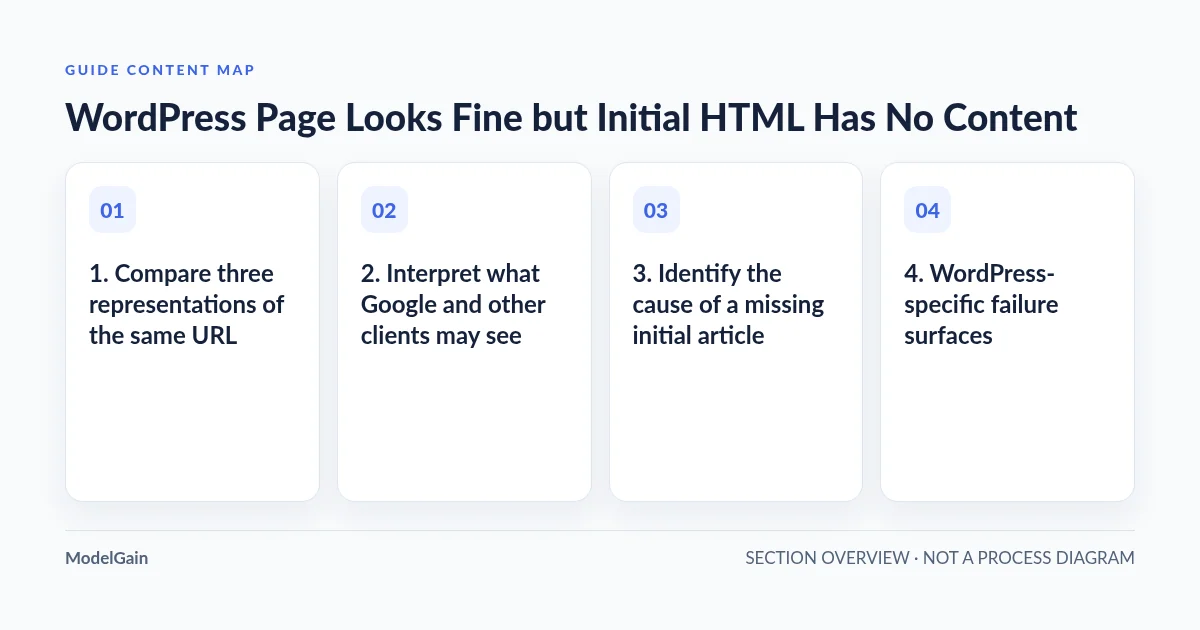
1. Compare three representations of the same URL
Use one public canonical article and record its final URL, content type, HTTP status and redirect path. Inspect (a) the initial HTML returned by the server, (b) the DOM seen after JavaScript has executed in an ordinary browser, and (c) any available crawler-specific render or inspection evidence. Avoid testing while logged into WordPress unless you explicitly mean to inspect an authenticated view.
A browser’s View Page Source generally represents the HTML document initially received; browser developer tools’ Elements view reflects the live DOM after JavaScript and browser modifications. Those may legitimately differ. They can also differ because of caching, consent, locale, device or authentication. Do not treat a DOM difference alone as a search-engine defect. First search the initial response for a unique, meaningful sentence from the public article, not just its title or site navigation.
For an authorized command-line check, a basic fetch can be a starting point:
curl -L -I https://example.com/public-guide/
curl -L --compressed https://example.com/public-guide/ -o /tmp/public-guide.html
Inspect the saved file locally for a distinctive article sentence and normal links. These commands make ordinary HTTP requests; they do not impersonate Googlebot, ChatGPT or authenticated visitors, and they do not prove what another provider retrieved. Use the real public hostname and keep any resulting logs free of private tokens.
2. Interpret what Google and other clients may see
Google Search Central’s JavaScript SEO guide explains that Google may queue successful HTML pages for rendering and use the rendered HTML for indexing. It also recommends server-side or pre-rendering when appropriate, since not all bots execute JavaScript. A page containing only a client-side shell is therefore not automatically invisible to Google, but it depends on rendering and available resources.
Google’s JavaScript troubleshooting guidance recommends the URL Inspection and Rich Results tools to compare what Google renders, including console errors and blocked resources. A browser screenshot from your own computer is not an equivalent test. For AI and other clients, consult the provider’s documented retrieval abilities instead of assuming every client has a headless browser.
Do not state that a blank initial HTML response necessarily causes deindexing, nor that an all-green Lighthouse result certifies search visibility. The decision depends on real content, HTTP behavior and the client being considered.
3. Identify the cause of a missing initial article
| Observed comparison | Possible source | Safe verification |
|---|---|---|
| Raw HTML contains an app root and scripts but no body text | Client-side rendered application shell | Trace which script/data call inserts article text |
| Raw HTML includes a challenge or consent wall | WAF/edge policy or deliberate user gating | Compare real public requests and trusted edge logs |
| Browser logged in shows more content than anonymous fetch | Authorization, session or personalization | Compare authorized public and authenticated paths separately |
| Article is present in origin response but not cached public response | Stale or misconfigured CDN/page cache | Compare bounded cache evidence and exact canonical key |
| Visible article is in HTML but headings are absent from an SEO tool | Parsing or tool implementation differences | Check actual HTML and structured accessibility, not the tool’s score alone |
4. WordPress-specific failure surfaces
Ordinary WordPress themes, including server-rendered templates and blocks, can deliver usable HTML without browser JavaScript for the main text. However, a custom builder element, embedding framework, AJAX-loaded post body, remote personalization layer or client-side hydration component may defer important content. Inspect the specific template and data flow rather than blaming WordPress or a theme by name.
Look for a server template that outputs only a placeholder while JavaScript fetches the substantive article after page load. Check the endpoint’s public access policy, cache behavior and errors using appropriate authorized read-only inspection. REST API endpoints that require authentication are not automatically bugs; a public article should not depend on an undisclosed private endpoint for its main content.
Also distinguish the article body from interactions. A client-side calculator or CEE decision aid can enhance an otherwise complete HTML page. Its interactive widget need not have every transient state in initial source. The important question is whether the primary explanation, headings, links and fallback content remain useful without JavaScript.
5. Prefer a narrow structural fix
If a public article genuinely depends on JavaScript to reveal its core text, prefer rendering the principal editorial HTML on the server or during an approved build, then progressively enhancing optional interactions. Keep canonical URLs stable. Avoid adding an entire duplicate hidden article for crawlers: it can confuse users, accessibility tools and maintenance.
If a CDN sends stale content, correct the confirmed cache configuration and purge only the affected URL. If a WAF serves a challenge, investigate the access-control layer through the public AI crawler access diagnosis rather than attempting to bypass it. If robots or sitemap configuration is the issue, use the crawler policy and sitemap audit. These are distinct remediation tracks.
Make the actual document useful: server-visible headline, substantive body, meaningful image alternatives and crawlable editorial anchors. A sitemap entry or extra JSON-LD object cannot replace missing human-readable content. For important routes, compare both anonymous initial response and a browser with JavaScript disabled after the fix.
6. Verify the same user task across clients
After a bounded change, repeat raw HTML retrieval and a normal desktop/mobile browser visit at the canonical URL. Confirm the expected sentence and links are present in the initial response and remain readable without JavaScript, with no unintended private information exposed. Use Google Search Console URL Inspection for Google-specific rendered output, then monitor subsequent impressions rather than promising same-day indexing. A successful crawler test does not guarantee citations or recommendations.
For sites requiring custom server rendering or stable Bricks/WordPress templates, ModelGain WordPress Development is a possible implementation path once the specific failure is established. The site’s AI fetchability overview remains the broader triage entry point. Fix the smallest verified delivery or rendering defect instead of treating every absent search result as a rendering problem.