WORDPRESS
How to Check Broken Links in WordPress Pages and Custom Post Types
Check broken links in WordPress Pages and public custom post types. Verify stored content, scanner coverage, source IDs, and rendered template blind spots.
FREE WORDPRESS PLUGIN
Content Link Health Check
Find links in stored WordPress content, locate their source pages, and distinguish broken URLs from redirects or retryable responses.
- Install the link checker
- Scan stored post and page links
- Inspect the source and status
Read-only scanner for anchor links stored in published public WordPress post_content. It does not crawl rendered Bricks/Elementor templates, ACF metadata, menus, private posts or assets; verify scan coverage before declaring links healthy.
Need to check broken links in WordPress Pages or custom post types—not just blog Posts? Start by identifying which content types are public, where their links are stored, and which of those locations your scanner actually reads. A WordPress link checker can report “no broken links” while still missing a URL in a Bricks template, ACF field, navigation menu, or draft. That is a coverage gap, not evidence that every link on your website works.
Fast path: verify the content type in WordPress → run a source-aware scan of published public content → inspect a known Page and a known public custom post type → check the scan’s source record for each → separately review rendered builder/template links. If the scanner sees the expected links, classify their responses before editing. Do not bulk replace URLs based on a single automated status code.
Use the released plugin: Install Upaccn Content Link Health Check from WordPress.org to inspect HTTP/HTTPS anchor links stored in published WordPress Posts, Pages, and other public post types. The plugin is local and read-only with respect to the content it scans. It does not repair links, crawl the rendered site, inspect every custom field, or certify an entire website as link-error-free. See the ModelGain product overview and limitations.
Where is the missing WordPress link?
Applies when: A site owner wants to scan links in Pages and public custom post types, or an expected link is missing from the scanner results.
Quick answer
Start by identifying the actual public post type and whether its anchor is in stored post_content. A link checker that scans stored anchors cannot certify builder templates, postmeta, menus, private content or all rendered URLs.
What to do
-
List registered public types and choose known published Posts, Pages and public custom post type entries with stored anchors.
-
Complete the browser-driven batches in Tools → Content Link Health. Match actual Page and custom-type IDs to their destination URL entries.
-
Record which links were scanned, which live in other storage, and which HTTP results need human re-verification before any scoped edit.
Where is the link you need to audit?
All paths are listed below. Select a symptom to focus on the most relevant path.
Confirm the Page's stored anchor
Check the page's post_content for an HTTP/HTTPS anchor, complete the scan and match the correct Page source ID. If only a rendered builder button exists, use the template branch.
Verify registration and source ID
Confirm the custom type is registered public, the item is published, and the link lives in post_content. Compare scan results with that exact WordPress object; attachments are excluded.
Use the actual source editor
This plugin does not crawl arbitrary ACF postmeta, rendered builder DOM, navigation menus or assets. Locate the responsible field/template and audit its public output separately.
Preserve editorial access boundaries
Do not publish private or draft content just to make a link checker include it. Use an authorized private editorial review for content outside the public scan scope.
Verify before replacing
404/410 can be strong not-found evidence; 403/429 and network failures need separate verification, while a redirect requires checking the final intended destination.
Did this help?
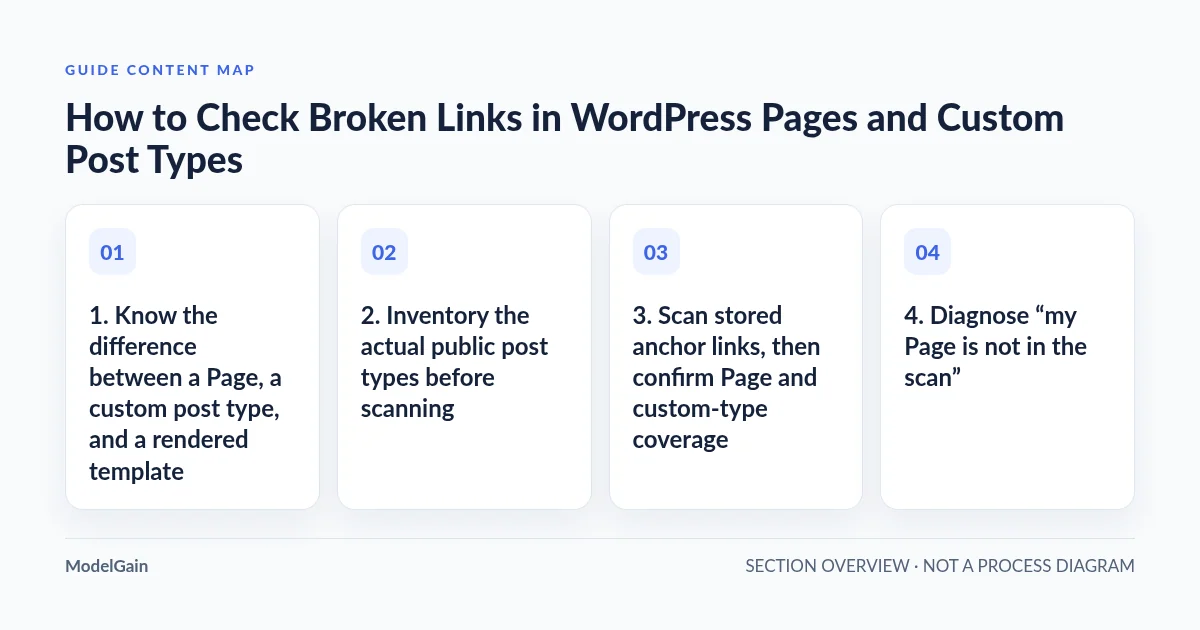
1. Know the difference between a Page, a custom post type, and a rendered template
WordPress stores ordinary Posts and Pages as different post types. A plugin or theme may also register public custom post types for case studies, portfolios, courses, products, or other structured content. The WordPress post-type reference defines public, publicly_queryable, exclude_from_search and related registration settings; they affect visibility but are not interchangeable. A “Portfolio” section visible on a website might be a public WordPress post type, a page-builder loop over another data store, or a template with hardcoded links.
The question is not simply “Is the item visible on my site?” It is “Which stored object owns the hyperlink that a visitor can click?” For example, an external citation in the main editor body of a published case study is different from a button URL stored in that case study’s ACF metadata, even when both render on the same page.
| Link location | Covered by Content Link Health Check v0.1.0? | How to verify the gap |
|---|---|---|
Published blog Post body: <a href> |
Yes, when in stored post_content |
Confirm the source Post appears in results |
| Published WordPress Page body | Yes, for stored href anchors |
Check a known Page with an outbound link |
| Published public custom post type body | Yes, if the type is registered as public and link is in stored post_content |
Compare type registration, publication state and source ID |
| Unpublished or private content | No; scan scope is published public content | Use authorized editorial review separately |
ACF or other standalone postmeta link field |
No general custom-field crawl | Inspect field settings and associated content in its editor |
| Bricks/Elementor template, menu or widget URL | Not automatically; rendered DOM is outside this scan | Review template owner and rendered page separately |
| Image, script or stylesheet resource URL | No; v0.1.0 targets anchor href links |
Use an appropriate asset/network inspection |
2. Inventory the actual public post types before scanning
Open WordPress Admin and inspect the content menus that correspond to the site’s public sections. Verify at least one published Post, Page and relevant custom post type record, each with a known external link in its main editor content. If authorized WP-CLI is available, the official post-type list command lets you inspect the registered public types without changing data:
# Read-only: list types WordPress currently registers as public.
wp post-type list --public=1 --fields=name,public,hierarchical --format=table

# Read-only: inspect a known candidate from a specific registered type.
wp post list --post_type=your_public_type --post_status=publish \
  --fields=ID,post_title,post_type --format=table
Replace your_public_type with an actual type name returned by WordPress. Do not assume that the admin label equals its machine name. Note that WordPress also treats attachments as a public post type in some contexts; this link checker deliberately excludes attachments. The WordPress get_post_types() reference is useful when custom registration or site configuration changes the expected inventory.
A public custom post type does not automatically mean every record is publicly visible. A draft, password-protected entry or record with application-level access rules may need a different, authorized review path. Do not temporarily publish private customer content to get it into a scanner. Verify the exact post ID and its published status; the checker is not a permission-bypass tool.
3. Scan stored anchor links, then confirm Page and custom-type coverage
Install the currently released Upaccn Content Link Health Check on a compatible, functioning WordPress installation. In Tools → Content Link Health, start a fresh scan and keep the admin browser page open while the tool processes short batches. Version 0.1.0 does not silently crawl in the background on a schedule. It discovers HTTP/HTTPS <a href> values from post_content in published public post types and associates each discovered destination with the relevant source records.
Choose a known published Page containing a normal outbound link and one known published custom post type entry with a different outbound link. Record their WordPress IDs and the exact stored target URLs. Locate the resulting destinations in the scan and check whether the source IDs match the actual Page and custom item. If either is missing, first compare whether the hyperlink lives in post_content or only appears after a builder renders its dynamic fields. A link visible in the browser is not proof that it exists as an anchor in the stored body.
Source-list limitation: the v0.1.0 results interface previews up to five source records per destination, with a +N more indicator when additional sources are recorded. It deduplicates target URLs for checking, not for declaring that only one Page links to them. Do not treat the visible preview as a complete export of all source records. For a single destination that appears across many posts, follow the source-post attribution workflow and perform a separately scoped content search as necessary.
4. Diagnose “my Page is not in the scan”
When an expected link is absent, use this order before calling the plugin broken:
- Confirm the object type and status. Is it a published WordPress
pageor public custom post type, rather than a draft, attachment, private record or external CMS item? - Look at the exact stored editor body. Is the target in a real
<a href="...">anchor insidepost_content? Plain-text URLs, custom field values, JavaScript click handlers and template options are different locations. - Check the scan completion. Did the browser-driven batches finish? A closed tab or interrupted session is not proof the target was absent from a completed inventory.
- Compare the normalized target. The checker can normalize relative links and fragment identifiers; find the destination by actual URL path and source identity rather than an exact raw-string match only.
- Inspect the rendered owner separately. A footer, reusable Bricks element, Elementor template or ACF field may produce the link even if no normal post body stores it.
If the visible link appears only in a page-builder template, use the builder’s editor and a browser/network review to locate that template. The same template can appear on many public URLs while being a single source record. Do not infer that hundreds of pages each need an identical edit. For sites moved between domains, our migration link-source guide covers old-domain URLs and differentiates source changes from WordPress rewrite failures.
5. Classify a reported failure before changing published content
A comprehensive content-type inventory does not make every HTTP result an equally actionable problem. The released plugin reserves Broken for hard 404/410 observations; 3xx responses are labelled Redirect, while authentication errors, rate limits, server errors and network failures are generally labelled Retry. It makes an initial HEAD request, with a bounded GET fallback for certain HEAD 403/405 results. An external site’s bot rules, shared outgoing IP or temporary outage can produce a different response than a human browser visit.
Read the 403 false-positive troubleshooting guide before deleting a link that still opens for its intended readers. A 429 or 5xx is not evidence of a permanently removed page. For a 301/302, confirm the intended final destination before replacing the source; the plugin’s numeric 3xx grouping can also include a non-navigation 304, and it does not follow the chain to certify the final target. See the redirect verification guide for that separate decision.
Do not use aggressive retries, security-control bypass or large concurrent requests to force a checker to report success. Where a scanned URL contains sensitive query parameters, redact those details in screenshots and reports. The scanner checks links; it does not gain permission to visit restricted endpoints, repair third-party websites or guarantee future uptime.
6. Make a bounded repair plan, not a blanket database replacement
After checking content types and source ownership, create an audit sheet with the actual source ID, post type, public URL, stored target, observed HTTP state, verification method, action owner and final outcome. Prioritize important user journeys and confirmed missing resources. Use our broken-link repair priority guide to separate truly harmful references from inconclusive scanner responses. An old redirect can still be functional, whereas a 404 on a critical product-documentation link may deserve immediate attention.
For a small set of mixed Pages and custom post type records, edit the correct source in its owner editor and verify the public page after saving. Upaccn Content Link Health Check is diagnostic only; it does not perform replacements, bulk edits or create redirects. Avoid an unreviewed global SQL substitution, which could alter serialized builder configuration, custom fields, and unrelated URLs. If a domain migration genuinely warrants bulk replacement, follow the WP-CLI documentation, verified backup, scoped table/column review and --dry-run procedure first. Do not remove the dry-run flag as a troubleshooting experiment.
Recheck one representative WordPress Post, Page and public custom type from an unauthenticated browser. Confirm their links lead to the intended content, that rendered builder links were separately checked, and that the final audit explains what was not scanned. A reader-facing result is more valuable than a zero-error badge with unknown coverage.
Frequently asked questions
Can a WordPress broken-link scanner include WooCommerce products?
A WooCommerce product may be a public custom post type, but inclusion still depends on the site’s registration and the scanner’s implementation. For this plugin, stored anchors in published public post bodies are in scope. Product metadata, dynamic buttons, private order records and rendered template links are not automatically covered. Verify one known product source before interpreting the results as complete.
Why can I click a link on a Bricks or Elementor page but the scan does not see it?
The link may be generated by template or element metadata rather than stored as an anchor in the page’s post_content. Inspect the builder source and current rendered output separately. Do not modify global templates blindly when a single page has a problem.
Does a report of zero broken links mean all website links are healthy?
No. It means no hard not-found responses were recorded within the completed scan’s defined input and request conditions. Unscanned content, hidden fields, redirects, transient errors and later destination changes remain separate risks.
Acceptance checklist: know the tested universe
- Inventory the site’s relevant public WordPress post types and choose known published examples.
- Complete a stored-anchor scan, verifying at least one Page and one relevant public custom post type source ID.
- Record exclusions: drafts/private records, standalone metadata, menus, builder templates and image/script resources.
- Classify 404/410, 3xx and retryable responses appropriately; verify the destination before editorial changes.
- Make scoped source edits, check the public results and retain an evidence-backed repair list.
Next, use the Content Link Health Check product page to review current features and access the official download. If a site’s problems live mainly in Bricks/Elementor custom storage, the right next action is a targeted source audit—not installing more plugins and expecting a whole-site crawler. Official background reading: WordPress custom post types and WP-CLI public type inventory.