WORDPRESS
Another Update Is Currently in Progress in WordPress: Check the Core Lock
WordPress says another update is currently in progress? Check the core update lock, wait safely or clear a confirmed stale lock with WP-CLI.
If WordPress says “Another update is currently in progress,” first check whether a WordPress core update is genuinely running. If someone else started an update, let it finish. If an attempt was interrupted, WordPress normally stops honoring its core_updater.lock after 15 minutes, and you can retry without deleting anything. Only when you have established that no update is active should you consider removing a leftover lock using wp option delete core_updater.lock.
This particular message belongs to the WordPress core updater. It is not the same as a public site showing “Briefly unavailable for scheduled maintenance,” which involves a separate .maintenance file. Nor does it mean that a plugin, theme or your database has already been repaired. Use the steps below to determine which state you are actually in before making changes.
Diagnose a WordPress core update lock
Applies when: WordPress displays “Another update is currently in progress” during a core update attempt.
Quick answer
Confirm whether a core update is active. If none is active, wait for the standard 15-minute lock validity to expire, or inspect and clear a confirmed stale core_updater.lock option using WP-CLI. Never clear a live lock.
What to do
-
Check other administrators, update screens, deployment jobs and host logs. Do not remove a lock while an update is running.
-
Check the installed version, then retry one core update after the 15-minute lock validity window if no process is active.
-
Authorized operators may read wp option get core_updater.lock and delete only a confirmed stale lock, then verify update completion and site health.
What situation are you seeing?
All paths are listed below. Select a symptom to focus on the most relevant path.
Protect the current update
Do not remove any lock or maintenance marker. Verify the updater status with the responsible administrator or host and allow the operation to finish.
Let the core lock expire
WordPress normally respects the core lock for 15 minutes from creation and can reclaim an expired row on the next attempt. Check core version first.
Inspect the specific option
With authorized WP-CLI access and confirmed updater inactivity, inspect core_updater.lock and remove only that option if stale. Then verify that WordPress core is fully updated and functional.
Did this help?
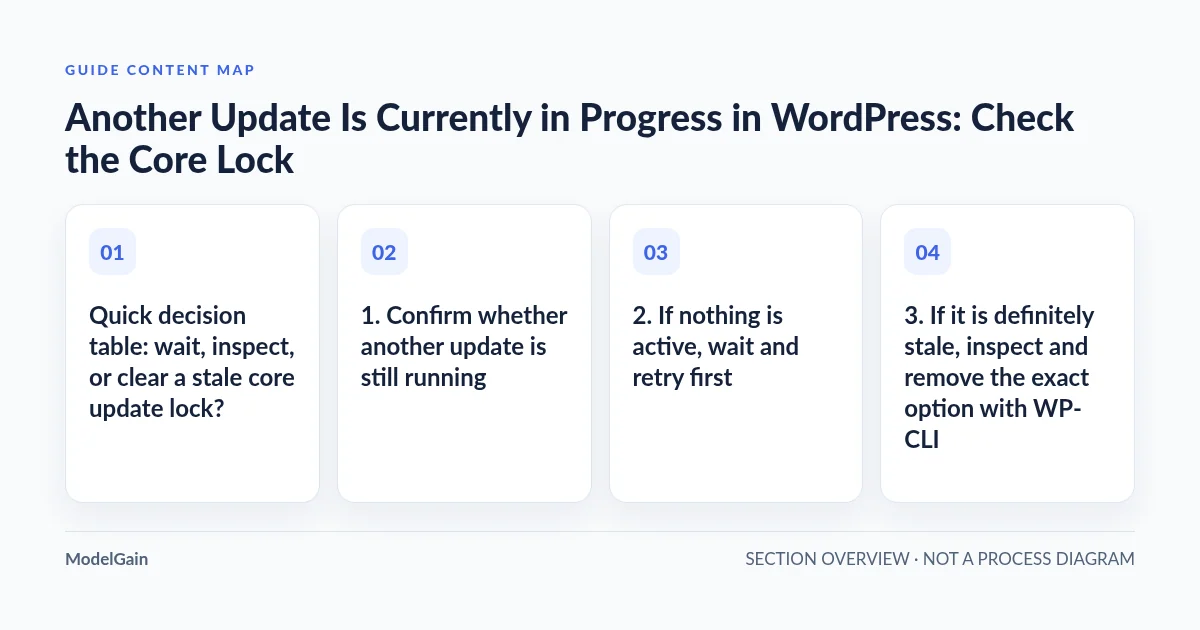
Quick decision table: wait, inspect, or clear a stale core update lock?
| What you observe | Next action | Why |
|---|---|---|
| An update is running in another tab, WP-CLI, your host’s dashboard or a deployment job | Wait and monitor. Do not remove the lock. | The lock prevents two core updates from overlapping. |
| You saw this message recently; the site otherwise works | Wait about 15 minutes from the failed attempt, then check the installed version and retry. | The core updater treats a normally timestamped lock older than 15 minutes as expired. |
| No updater is active; the message persists and you have authorized WP-CLI access | Inspect wp option get core_updater.lock; only after confirming inactivity consider deleting that exact option. |
It may be a stale core updater lock, not a live operation. |
| Visitors see a maintenance message, but the update screen is accessible | Diagnose the root .maintenance file separately. |
That file is distinct from the core_updater.lock database option. |
| Database cannot be reached, WordPress files are missing or an update failed midway | Preserve logs and a recoverable backup; escalate the actual installation failure. | Deleting a lock will not fix corrupted files or a failed database operation. |
1. Confirm whether another update is still running
Ask anyone with administrator access whether they launched a core update. Check other browser tabs, WP-CLI sessions, hosting control panels and deployment automation for active updater processes. Inspect the WordPress Dashboard → Updates page and note the version it says is installed. If the intended version is already installed, you may not need another update.
Do not interpret a browser request timing out as proof the corresponding server-side update has stopped. A long-running PHP process or hosting job may continue after your browser disconnects. If you administer the server, correlate the update timestamp with its process and error logs; on a shared host, ask the hosting provider. Keep the existing lock until the active operation is known to be finished or terminated.
The lock exists for a reason. WordPress’s Core_Upgrader implementation requests a lock before performing a core update. Its update messages define the exact string “Another update is currently in progress.”
2. If nothing is active, wait and retry first
The core updater creates a lock with a 15-minute validity window. If it cannot obtain the lock because a recent one exists, it returns this error instead of starting a second core update. If the first attempt ended unexpectedly, a later update attempt can recognize a normally dated lock as expired and reclaim it.
15 minutes is the lock’s validity window, not a promise that a background timer deletes the row at exactly minute 15. WordPress’s WP_Upgrader::create_lock() source checks lock age and releases an expired lock when the updater next tries to acquire it. That distinction matters when you inspect an options table and still see an old row.
- Do not retry the core update in multiple tabs.
- If you don’t know the original update start time, allow a full 15 minutes after you first observed the error, while confirming there is no active update.
- Open Dashboard → Updates again, verify the current core version and retry once if the update is still required.
- If the message returns, record its exact wording, the update time and any relevant protected PHP or hosting error before making changes.
A lock that repeatedly reappears may reflect a new updater attempt, a failed write, unusual server clock configuration, or another process that keeps starting updates. Do not assume every recurrence is the same abandoned row.
3. If it is definitely stale, inspect and remove the exact option with WP-CLI
For site operators with authorized shell access and a restorable backup, WP-CLI is preferable to broad database edits. Work in the correct WordPress installation directory or supply the appropriate --path flag; hosts often contain several sites. Before the change, verify the current core version and read the lock if present:
wp core version
wp option get core_updater.lock
The value is ordinarily a Unix timestamp representing when the updater acquired the lock. The option may be missing if a recent update finished, or its lock has already been reclaimed. A number alone does not prove the owning process is no longer active. Check the operation’s real state, especially if a scheduled update or another administrator could be working.
When you have confirmed that no core update is running and the lock is demonstrably stale, you may remove only that option:
wp option delete core_updater.lock
This exact command is documented in the official wp core update reference, which also warns to verify that an update is not actually running. The object is a WordPress option called core_updater.lock. Do not replace the command with wp transient delete core_updater.lock, delete every transient, flush an entire cache, or modify unrelated lock names.
After removing the stale option, reopen Dashboard → Updates, run a single controlled update if necessary and check the result. Deleting the option merely releases an update gate; it does not complete the interrupted update, repair damaged files, or verify the core installation. If WP-CLI reports a separate download, filesystem or database failure, investigate that specific error rather than repeatedly clearing the lock.
4. If you do not have WP-CLI, do not rush into phpMyAdmin
For a normal site owner, waiting and asking the host to verify the updater state is the lowest-risk route. A hosting provider can identify the installation, confirm no update is active and remove the isolated option under a backed-up, change-controlled procedure. If the host’s technical staff uses database administration tools, the row is named core_updater.lock in that installation’s options table, which may not use the default wp_ prefix.
Don’t delete entire options tables, run generic “cleanup” SQL copied from an unrelated site, modify the lock on another installation or use a new plugin that requires an update to install. A database editor is not an inherently safer way to fix a single core updater message.
5. Distinguish this update lock from the maintenance screen
The two WordPress symptoms are often confused because they can occur after an interrupted update:
- “Another update is currently in progress.” This is a core update refusal associated with the
core_updater.lockoption. Its standard validity window is 15 minutes. - “Briefly unavailable for scheduled maintenance. Check back in a minute.” This is the standard front-end maintenance notice associated with a separate hidden
.maintenancefile in the WordPress root. WordPress’s ordinary maintenance check uses its own timestamp logic.
If the public site is the one showing a maintenance notice, follow our separate WordPress stuck in maintenance mode after an update guide. Do not delete the .maintenance file just to fix a core updater lock message, or assume that removing either artifact repaired the underlying update.
Similarly, WordPress plugin and theme updates have different execution paths. A plugin installation failure, file-permission error, or stuck WooCommerce scheduled action is not sufficient evidence that the core’s core_updater.lock is the cause. For delayed background tasks, use the Action Scheduler versus WP-Cron diagnostic rather than deleting core update options.
6. Verify WordPress is actually healthy after the update
- Check the current WordPress core version matches the version you intended to install.
- Confirm a public page and an authenticated admin page both load correctly.
- Review dashboard warnings and protected error/update logs for incomplete file replacement, permissions problems, disk exhaustion or timeouts.
- If the update had been interrupted, verify relevant core files and complete the update through the supported updater path; do not assume removing a lock repaired a partially updated installation.
- Test important business workflows such as login, an inquiry form and—on an e-commerce site—an authorized controlled checkout. Avoid replaying real orders or payment webhooks.
- Record the reason for the update interruption and make sure both database and file backups can be restored before attempting another risky change.
If a core update is associated with a PHP fatal error, our critical error after a PHP upgrade guide can help isolate the actual affected component. For planned future compatibility work, ModelGain PHP Upgrade Risk Audit is a read-only preflight tool for certain source-level PHP issues; it does not release a core updater lock, repair WordPress core files, or complete updates. A recurring, reproducible incident may justify WordPress Development assistance with sanitized logs and a documented recovery plan.
Frequently asked questions
How long does “Another update is currently in progress” last?
The standard WordPress core lock validity is 15 minutes from its recorded creation time. Once the existing lock is expired, a later update attempt can reclaim it. This does not mean a timer guarantees deletion at the fifteen-minute mark.
Is core_updater.lock a transient or a file?
It is an option stored through the WordPress options system. WordPress core uses WP_Upgrader::create_lock( 'core_updater', ... ) to create it. The official WP-CLI removal command is wp option delete core_updater.lock, not a transient deletion command.
Can I delete core_updater.lock immediately?
No. First establish that there is no active updater. Deleting a live lock can allow concurrent core updates and increase the risk of an inconsistent installation. Waiting is often sufficient.
Will this fix a plugin update that failed to copy a file?
Not necessarily. This exact message is associated with the WordPress core updater. A plugin update that fails because a file cannot be copied requires investigation of its own filesystem, permissions, disk or hosting error.
Why do I still see the message after waiting?
Another update may be starting, a lock may have an unexpected timestamp, or the underlying updater/database operation may be failing again. Check the actual state and logs. If the cause is not clear, request hosting support rather than clearing options repeatedly.