WORDPRESS
WooCommerce Webhook Jobs Stuck: Trace the Failure
Troubleshoot WooCommerce webhook actions stuck or failed. Trace queue jobs, payload errors, HTTP delivery and receiver logs without unsafe retries.
FREE WORDPRESS PLUGIN
Queue Health for Action Scheduler
Inspect overdue and failed Action Scheduler jobs, runner signals, and likely hook ownership before changing the queue.
- Install the diagnostic plugin
- Open Tools → Action Scheduler Health
- Review runner and hook evidence
Requires active Action Scheduler. Read-only: cannot rerun/delete tasks or repair missing tables. Queue signals alone do not prove a business outcome.
Are WooCommerce webhooks not arriving while woocommerce_deliver_webhook_async appears Pending, Past-due or Failed under Scheduled Actions? Do not delete the jobs or switch off asynchronous delivery yet. The same hook can fail at three different points: (1) the background queue never runs; (2) WooCommerce starts the job but crashes while building the webhook payload; or (3) WooCommerce sends the HTTP request but the receiving endpoint rejects it or cannot process it. There is also a fourth trap: an action can be marked Complete while the destination has not successfully processed the business event.
Fast diagnostic path: Note one recent action ID and its hook → match any webhook_id to the configured WooCommerce webhook → read that action’s log → inspect the WooCommerce webhook delivery log and the receiving service’s evidence → choose the responsible layer before retrying anything. If the failing action concerns orders, fulfillment, payments or customer records, confirm whether the external system already processed it before considering another delivery.
For a working WordPress site, ModelGain Queue Health for Action Scheduler can summarize overdue and failed jobs, runner signals and likely callback ownership without modifying the queue. It does not send webhooks, replay jobs, inspect your external receiver or prove successful order synchronization. The steps below locate the actual failure using official WooCommerce logs and source evidence.
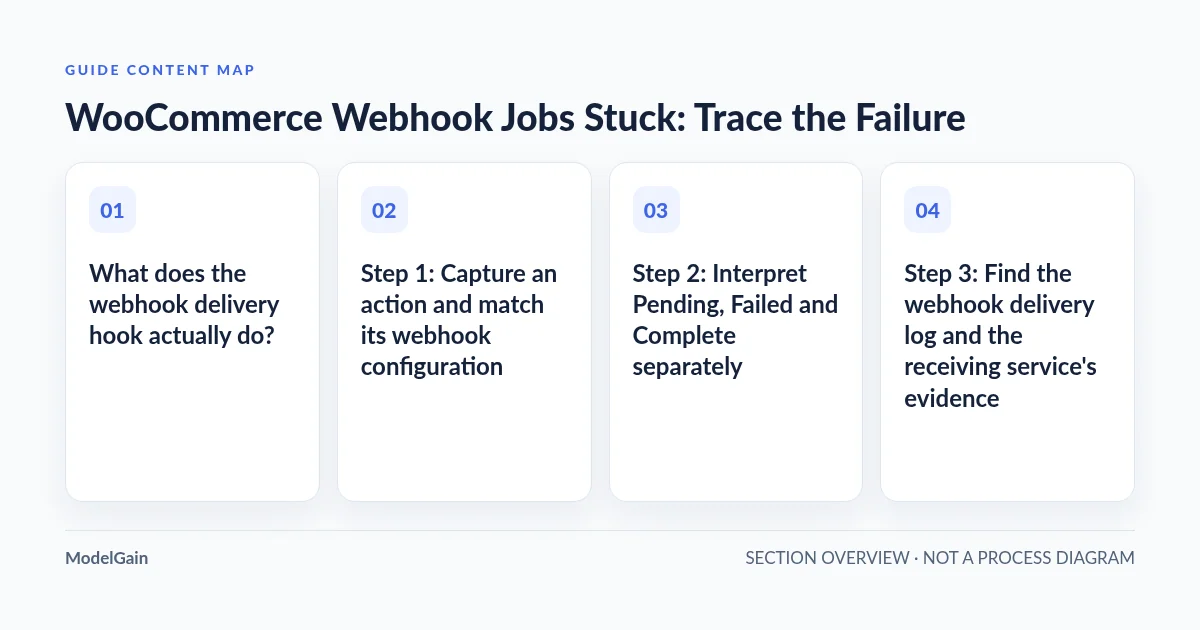
What does the webhook delivery hook actually do?
WooCommerce sends configured event notifications (for example, order.created or product.updated) as HTTP POST requests to a delivery URL. Webhooks are configured under WooCommerce → Settings → Advanced → Webhooks. The official WooCommerce Webhooks guide documents the statuses Active, Paused and Disabled, event topics, delivery URLs and logs. An enabled webhook normally schedules the delivery in the background using Action Scheduler rather than making the storefront wait for a remote service.
The hook woocommerce_deliver_webhook_async is a specific WooCommerce delivery callback. In a common scheduled-action entry, the arguments contain a webhook_id linking to its WooCommerce webhook configuration. The official WooCommerce Zapier integration documentation describes how these queued actions correspond to outgoing data for Zapier. However, the hook’s name does not by itself identify which endpoint failed, whether a request was sent, or whether a receiver committed the event.
For broader Action Scheduler problems unrelated to webhook delivery, see our failed-action root-cause guide. For a queue that never processes any hooks, use WooCommerce Pending actions troubleshooting. This guide focuses on tracing the same webhook ID and business event through scheduling, payload construction, transport and receiver acknowledgement.
Step 1: Capture an action and match its webhook configuration
Open WooCommerce → Status → Scheduled Actions (some installations expose the same Action Scheduler screen under Tools). Search for the exact hook woocommerce_deliver_webhook_async, filter recent Pending or Failed entries, and open one representative action’s details and log. Record the action ID, status, scheduled date, last log entry and error text. Inspect any webhook_id privately; then go to WooCommerce → Settings → Advanced → Webhooks and find that matching ID.
Check the configured Topic, Delivery URL and status. Active is configured to deliver, Paused is administratively stopped, and Disabled can follow repeated failures. A webhook might not have any newly due actions because its topic is not firing or it has been disabled; that is different from a growing queue. A saved webhook may also send a test ping, which is not the same event payload as a later order or product notification.
Do not paste webhook secrets, full customer order JSON, authorization headers or private callback URLs into a public issue. Keep a private incident record with sanitized webhook and action identifiers, timestamps, event topic and receiving system. For a support handoff, a redacted action log is safer than a full export of action arguments or body.
Step 2: Interpret Pending, Failed and Complete separately
| What the admin shows | Likely layer | What to verify before acting |
|---|---|---|
| Many recently scheduled Pending webhook jobs that are not becoming Complete | Runner or backlog capacity, possibly high event production | Oldest due time, last completed other hook, WP-Cron/system cron, runner status and backlog growth |
| A Failed job with PHP fatal/exception before outbound request | Payload-building plugin, WooCommerce REST field or custom callback | Exact stack-trace file and line, installed versions and whether any outbound delivery was actually attempted |
| A Failed delivery with 401, 403, 404, 429, 5xx or timeout from receiver | HTTP/network/receiver policy, credentials, URL or rate limit | Matching webhooks-delivery log, time, response details and receiving system logs |
| Action Complete, but external system has no expected update | Could be event mismatch, asynchronous processing by receiver, accepted-but-ignored payload or separate downstream failure | Actual delivery log and receiver’s deduplication/processing acknowledgement; never assume Complete equals business success |
| Large volumes of the same hook/events recur | Real repeated events, integration retry/re-enqueue, or feedback loop | Webhook ID, resource/event identity, timestamps, HPOS/extension history and receiver deduplication evidence |
WooCommerce’s Scheduled Actions documentation explains the pending/completed/failed admin filters and how the runner interacts with WP-Cron. A job delayed for seconds is different from a backlog growing for hours. Track the age and rate of new work alongside the number of completions. Another plugin’s successful actions prove the queue executes some work, but they do not prove this webhook’s callback or endpoint is healthy.
Where did your WooCommerce webhook stop?
Applies when: A WooCommerce webhook-related woocommerce_deliver_webhook_async scheduled action is Pending, Past-due, Failed or Complete without the expected receiver result.
Quick answer
Trace the scheduled action and webhook ID through queue execution, payload generation, HTTP delivery and receiver processing. Do not replay or delete jobs before checking external business side effects.
What to do
-
Record one scheduled action ID, status, last log, webhook ID, topic and time; redact customer and secret data.
-
Compare the Scheduled Action log with WooCommerce webhooks-delivery and the receiver's ingestion/processing evidence.
-
Change only the confirmed runner, payload, transport or receiver layer, then test one synthetic event and guard against duplicate processing.
Which evidence do you see for this webhook event?
All paths are listed below. Select a symptom to focus on the most relevant path.
Investigate queue triggering and capacity
Compare oldest due action, recent successful callbacks, WP-Cron or the configured system trigger, and current queue growth. Do not bulk-run or delete callbacks.
Inspect the actual PHP stack before sending
Find the failing file and symbol, compare installed plugin and WooCommerce versions, and reproduce under the background scheduler context. A vendor REST-field fatal can stop payload generation before a POST occurs.
Correlate delivery status with receiver logs
Review the WooCommerce webhooks-delivery log and matching destination receipt. 4xx, 5xx and timeouts have different fixes; a timeout may occur after the receiver processed an event. Do not retry blindly.
Confirm the business event was applied
HTTP success or Action Scheduler Complete alone does not prove receiver processing. Match a redacted event identity, topic, signature validation and receiver deduplication/processing record before resending.
Find the event source before cleanup
Check webhook ID, event topic, resource identity and installed integration versions; distinguish normal multiple webhooks, test pings, resends and an actual re-enqueue feedback loop. Avoid deleting live queue work.
Did this help?
Step 3: Find the webhook delivery log and the receiving service’s evidence
Navigate to WooCommerce → Status → Logs and select the webhooks-delivery source when available. Look for the same webhook/event and time as the Action Scheduler entry, then inspect its result without exposing request bodies publicly. The official Webhooks guide documents that WooCommerce can retain delivery logs with the receiving HTTP response. If you see no matching delivery entry, investigate the payload-creation or runner path before assuming an outbound HTTP failure. Logging availability and retention can vary by version and configuration; absence of a log alone is not proof that no request was sent.
Compare the WooCommerce log with the destination platform’s ingestion log (for example, a fulfillment platform or a marketing automation service), using the webhook ID, topic, timestamp and a safely redacted event identifier. WooCommerce may treat some 3xx responses as successful, but a redirect or HTTP 2xx only confirms the HTTP-layer response; it does not guarantee that the receiver accepted and applied the correct business record. The receiving side should use the X-WC-Webhook-Signature HMAC verification provided by WooCommerce, plus appropriate idempotency/deduplication checks. Do not disable signing to make a request appear successful.
Failure example: a receiver returns HTTP 429 for rate limiting, or HTTP 401 because its credentials changed. Fix its authentication or backoff contract with the receiver first; running hundreds of queued jobs immediately may accelerate throttling or create duplicates. An HTTP timeout has a different risk: the receiver may already have processed the event before WooCommerce recorded a failure.
Step 4: When a PHP error occurs before the webhook is sent
Not every failed woocommerce_deliver_webhook_async action has reached the network. WooCommerce may construct a REST-style order or product payload by calling registered REST fields and filters. If one integration throws during this process, the action can fail before the POST request is made. Identify the actual fatal file, symbol, line and component version; use a staging replica to reproduce the background execution path.
A concrete WordPress.org support case from October 2026 reported a product webhook whose Action Scheduler log showed Call to a member function output() on null in the All in One SEO REST controller. The reported environment involved WooCommerce 11.2.1 and AIOSEO 5.0.4. The failure happened while generating the payload before a request to the fulfillment receiver. The report also noted that a manual admin-context run could behave differently from a WP-Cron background run.
This is an observed, version-specific incident, not evidence that AIOSEO always breaks WooCommerce webhooks. Check the installed versions and the vendor’s latest supported fix. A support-thread workaround that changes REST-field behavior is not a universally safe remedy: test it in staging, evaluate SEO/API side effects, and remove any temporary workaround once a verified upstream repair is deployed. Do not publish or blindly paste a filter snippet into production to address an unrelated failure.
Step 5: If the queue is not advancing, diagnose WP-Cron and the runner
If many webhook actions are due but no meaningful work is completing, look beyond the receiving endpoint. Verify the last successful queue run, whether WP-Cron is triggered as expected, the active system-cron alternative (if configured), application resource constraints and whether Action Scheduler is already processing other jobs. The WooCommerce queue guide describes how scheduled processing is initiated. A busy store can enqueue webhook actions faster than one runner drains them; raising concurrency blindly can worsen an existing bottleneck.
For a dedicated queue diagnosis, use Action Scheduler not running with WP-Cron enabled or the general Pending-actions flow. ModelGain Queue Health can report the oldest overdue action, recent failures, dominant hooks, next runner and registered callback ownership where detectable. These are useful clues. The tool never reruns, cancels, deletes or repairs jobs, and it cannot see whether the receiving service actually processed the webhook.
Step 6: Investigate repeated events without bulk deleting jobs
If thousands of woocommerce_deliver_webhook_async jobs recur, compare the triggering event and webhook ID rather than assuming every Pending row is a broken action. One order update can legitimately trigger several configured webhooks. Repeated events for the same resource, webhook and event need additional investigation: is another integration repeatedly updating the order, is the receiver replaying changes back into WooCommerce, or does a specific plugin version have a feedback loop?
A WooCommerce GitHub issue from December 2025 recorded a suspected HPOS compatibility-mode read/sync interaction causing repeated order.updated webhooks. The reported site’s queue backlog and CPU load improved with a diagnostic mitigation, but the project’s source issue should be treated as a version-specific incident, not a reason to disable HPOS synchronization globally. Another October 2026 upstream issue reports extra test pings when a receiver does not answer the initial ping with exact HTTP 200. A ping and a business-event POST are different payloads; correlate both before calling them duplicate orders.
A WordPress.org thread about thousands of queued webhook actions also contains suggestions to delete actions or make webhook delivery synchronous. Those interventions are not safe default troubleshooting: deletion can discard legitimate notifications, and synchronous delivery can delay checkout or page responses while waiting for external endpoints. Neither resolves a corrupt payload or the receiving service’s error. First identify dominant hooks, queue growth and the receiver’s event history before attempting cleanup.
Step 7: Repair the responsible layer and verify end-to-end
Apply the smallest supported fix on staging first: a documented extension update for a payload fatal; a corrected destination URL/authentication contract for a remote rejection; a repaired WP-Cron/Action Scheduler trigger for overdue jobs; or a reviewed integration fix for repeated event generation. Preserve the original queue/action evidence and a suitable backup. Do not try to solve a store’s missing order notifications by globally disabling the queue or resetting all WooCommerce webhooks.
To validate without duplicating real customer actions, use a staging webhook directed at a controlled receiver with synthetic order/product data and a dedicated secret. Confirm the intended event generates exactly the expected Action Scheduler entry, progresses to completion, produces a WooCommerce delivery log, reaches the receiver and results in one valid processed event. For production, correlate an existing approved event and the receiver’s evidence; never blindly rerun already-delivered fulfillment, CRM, subscription or payment-related jobs.
WooCommerce may automatically disable a webhook after repeated delivery failures. When the root cause is fixed, review whether it is Active again and whether the integration needs a carefully controlled resynchronization. Restoring the queue does not retroactively guarantee delivery of every event that was missed while the webhook was Paused or Disabled. Coordinate any replay with the receiving system’s idempotency and reconciliation policy.
Frequently asked questions
Does Failed mean the destination never received the webhook?
No. The PHP process may fail before sending, the HTTP call may fail, or it may time out after the receiver processed the event. Match the action log, WooCommerce delivery record and receiver processing log before attempting a retry.
Can an Action Scheduler job say Complete while the integration remains broken?
Yes. Completion is not proof that the destination created or updated the right business record. Check the HTTP response, receiver application log, signature validation and a unique processed-event record.
Should I manually click Run for every Pending webhook?
No. That executes side effects and may duplicate a delivery when the receiver already processed it. A manual admin invocation can also differ from the scheduled WP-Cron context. Use a controlled test environment and reconcile each business event first.
Should I set synchronous delivery to avoid stuck actions?
Not as a generic fix. It moves remote HTTP latency and failures into the request that triggers the webhook, potentially affecting user-facing performance. Identify why the background process or payload fails before changing delivery architecture.
Does Queue Health inspect webhook credentials and destination logs?
No. It is read-only and operates on local Action Scheduler status, runner and hook evidence. It does not call external services, inspect secrets or confirm remote receipts. Use WooCommerce’s webhook configuration/logs and your receiver’s records for those facts.
The acceptance test is a correctly processed event, not an empty queue
Before closing the incident, document a recent representative action ID, the webhook ID and topic, exact error and responsible component, the confirmed cause, the bounded correction, the real destination acknowledgement, and any recovery/replay decision. If the issue is primarily a failing WooCommerce scheduler, see the generic failed-action guide; if you need a privacy-conscious report for a developer or hosting team, follow our Action Scheduler support-report checklist and the Queue Health product page. A green queue indicator is one diagnostic signal—not proof that orders, fulfillment and customer notifications have synchronized.