WORDPRESS
WooCommerce Orders Stuck Processing? Check Before Blaming the Queue
Learn when WooCommerce Processing is normal and how to link a genuine completion failure to scheduled actions without replaying payments.
A WooCommerce order remaining in Processing is usually not evidence of a broken queue. Processing normally means payment has been received and the order awaits fulfillment. Physical orders and virtual-only orders generally stay there until the merchant fulfills them and marks them Completed. Investigate Action Scheduler only when a documented automation should have acted and you can connect that automation to a particular scheduled task.
Do not repeat checkout, capture payment again, issue a refund or change the order status just to make a queue warning disappear. First establish what the order should do, what actually happened and which system owns the missing step.
Is Processing a queue failure?
Applies when: An order remains Processing and the merchant is considering Action Scheduler troubleshooting.
Quick answer
Processing normally means paid and awaiting fulfillment. Physical and virtual-only orders generally require merchant completion. Only orders whose every item is both virtual and downloadable normally auto-complete by default, subject to extensions and configuration.
What to do
-
Check item flags and documented merchant completion rules. Establish whether fulfillment has occurred and who owns the next step.
-
Read order notes and the existing provider transaction privately. Do not repeat capture, checkout or refund to test a status.
-
If the expected integration uses scheduled actions, compare its specific hook, action ID, timing and logs. Preserve sanitized evidence before considering changes.
Which situation matches this order?
All paths are listed below. Select a symptom to focus on the most relevant path.
Follow fulfillment, not queue repair
Processing is generally expected. Confirm payment and route the order to the merchant's fulfillment procedure. Do not change status or rerun jobs merely to remove the label.
Review the default-completion exception
Verify every item's relevant flags, payment notes and completion customizations. An unexpected status does not prove a scheduled action is involved. Do not alter product flags or replay payment as a diagnostic.
Establish the integration's actual trigger
Check the installed rule and documentation. Investigate a scheduled action only when the integration is linked to it. Inspect status and logs read-only; a rerun can duplicate emails, webhooks or fulfillment even after a failed attempt.
Keep reporting separate from fulfillment
Investigate report data freshness without changing a correctly recorded order. A reporting task does not certify shipment, payment reconciliation or customer access.
Did this help?
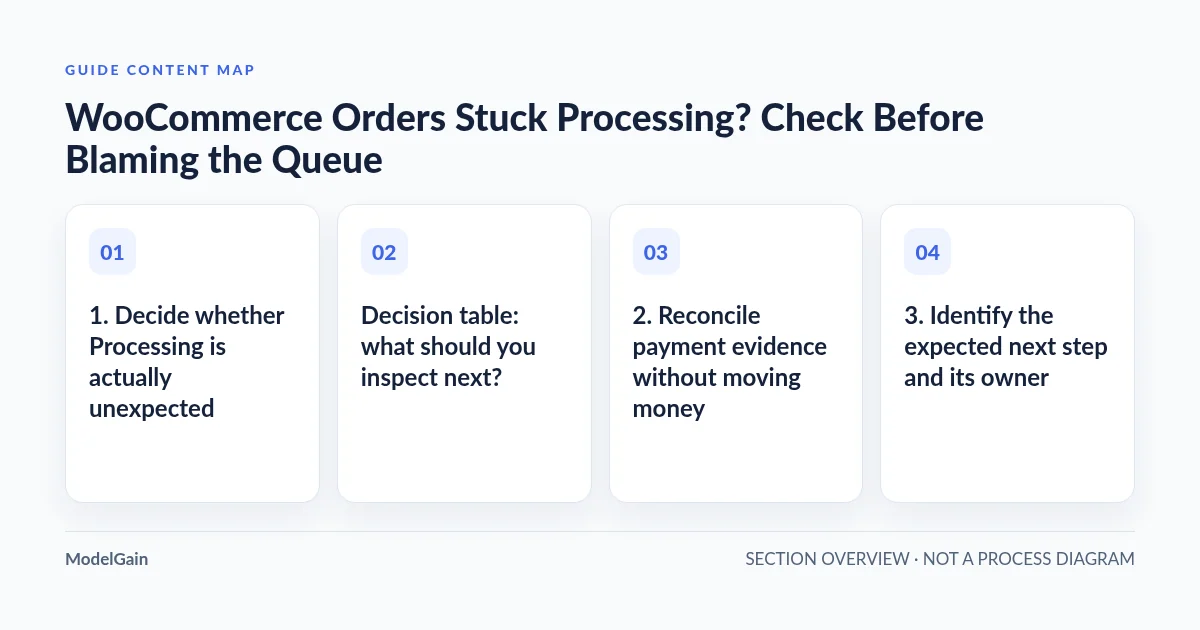
1. Decide whether Processing is actually unexpected
The official WooCommerce order-status reference describes Processing as paid and awaiting fulfillment. Completed means fulfilled and complete. The order troubleshooting guide explicitly explains that orders do not normally change from Processing to Completed automatically; the merchant is responsible for fulfillment and completion.
There is an important default exception: an order containing only products that are both virtual and downloadable normally skips Processing and goes directly to Completed after payment. Virtual alone is not enough. Downloadable alone is not enough. A mixed cart containing a physical item or a virtual-only service generally still requires processing.
The virtual and downloadable product documentation explains these separate flags. For variable products, inspect the relevant variation rather than assuming the parent product’s label settles the question. Do not change product flags just to force old orders through a status transition: those flags describe delivery requirements, not a queue repair switch.
Extensions and custom code can change default completion behavior. That makes the store’s configuration part of the diagnosis, but does not establish that Action Scheduler performs the change. For example, the documented Order Status Control extension can auto-complete selected types of paid orders. Its presence is an example of a configurable completion rule, not evidence that every store has it or that it runs through a queued job.
Decision table: what should you inspect next?
| Observation | Likely interpretation | Read-only next step |
|---|---|---|
| Paid physical order, shipment not fulfilled | Processing is expected | Check the merchant’s fulfillment procedure, not queue retries |
| Paid virtual-only service order | Manual processing is normally still required | Verify whether a completion extension changes that rule |
| Every item is both virtual and downloadable | Default automatic completion is normally expected | Review payment notes, item flags and completion customizations |
| Configured automation should complete this order | A specific integration may have missed its step | Identify its trigger and whether it uses a scheduled action |
| Unrelated failed actions appear in the queue | Correlation is not established | Compare hook purpose, timestamps and private object references |
| Order is correct, Analytics is stale | Reporting freshness is a separate issue | Investigate report processing without changing the order |
2. Reconcile payment evidence without moving money
Open the order and read its existing notes, payment method, transaction reference and status history. Record the relevant timestamps and timezone. In the payment provider’s authorized dashboard, compare the existing transaction and its state with the order. Distinguish an authorization from a captured payment using that gateway’s terminology and documentation.
Processing generally represents a paid order in WooCommerce, but custom code, manual edits and gateway-specific flows mean it should not replace payment reconciliation. A customer’s bank screenshot or an order-status label alone is insufficient evidence to repeat a financial operation. If records disagree, pause and involve the payment administrator or gateway support.
Keep transaction details private. Do not include card details, names, billing addresses, customer email addresses, access tokens or unredacted order exports in a public report. An internal order reference and a sanitized sequence of events are usually enough for the first diagnostic handoff.
If an order is actually Pending payment or On hold, follow that status’s payment-confirmation path instead. The word “stuck” does not make all statuses interchangeable. A delayed payment notification is a different problem from an already-paid order awaiting fulfillment.
3. Identify the expected next step and its owner
Ask a concrete question: who or what is supposed to mark this order Completed? For a physical shipment, it may be a warehouse operator. For a service, it may be the person delivering it. For a configured integration, it may be a documented fulfillment callback. Establish whether fulfillment has occurred before discussing a status change.
Read the installed completion or fulfillment extension’s settings without saving changes. Check which products, payment methods and order conditions its rule covers. The Order Status Control documentation, for example, distinguishes all paid orders, virtual orders and virtual-plus-downloadable orders, and requires a payment method that marks the order paid. Do not infer an extension’s behavior from its name.
A subscription-related task or webhook can coexist with a Processing order without being responsible for completion. Require evidence from the installed integration’s documentation, logs or source that the missing transition belongs to that task. If the automation is synchronous or manually triggered, queue investigation may be irrelevant.
Also separate completion from customer access. Download permissions, membership access and notification behavior can depend on settings or extensions. An order being Processing does not by itself prove access is broken, and marking it Completed is not a harmless access diagnostic. Inspect the documented entitlement path with a synthetic staging account when a test is needed.
4. Correlate a scheduled action only when the link exists
Once you have independent evidence that the expected automation uses Action Scheduler, open WooCommerce → Status → Scheduled Actions. The official Scheduled Actions guide describes status filters, hook/group searches and failed-action log entries. Stay with those read-only views.
Find the documented hook or group and narrow the time window around the order event. Record the specific action ID, status, scheduled time and log messages. Privately compare any documented order reference in the arguments; do not assume a nearby integer is an order ID. A failed action created on the same day is not enough to connect it to this order.
If the relevant action is pending and not yet due, it may be behaving as designed. If overdue, check runner evidence. If failed, preserve the error before any repair. If complete, determine what the callback actually promises: completing a webhook delivery or report update does not necessarily mean completing an order.
No matching action is also a result. It can mean the workflow did not enqueue, the wrong hook was searched, records were cleaned up or the integration does not use this queue. It is not permission to invent a missing job or enqueue a hook manually.
5. Choose the next diagnosis without replaying side effects
For an identified failed callback, use the failed scheduled actions guide to investigate its error and owner. For a relevant overdue task with evidence of runner trouble, use Action Scheduler not running despite WP-Cron. Avoid increasing concurrency or clearing queue records to change an order label.
For an already-correct order missing only from reports, use WooCommerce Analytics freshness diagnosis. Order fulfillment and report data freshness are separate outcomes. A reporting action completing successfully is not evidence that a package shipped.
Before any future rerun, the responsible operator must understand whether the operation is idempotent and whether its first attempt partly succeeded. Post-order emails, webhook sends and third-party fulfillment requests can produce duplicates even when an action is marked failed. Do not call hooks, replay captures, refund transactions, resend checkout or cancel financial work as troubleshooting experiments.
Stop/go checklist for a safe resolution
- Stop queue remediation when Processing matches an unfulfilled physical or virtual-only order. Route it to the normal fulfillment owner.
- Continue read-only diagnosis when documented completion behavior is unmet, payment evidence is reconciled and the relevant configuration is known.
- Investigate the queue only when the expected integration is linked to a specific task or a documented failure to schedule it.
- Stop before changing status or replaying work until fulfillment, payment, customer-access effects and duplicate-operation risks have been reviewed.
Build a sanitized handoff with the expected rule, actual order timeline, installed integration version, action reference if relevant and the first unmet checkpoint. Retest any proposed repair in isolated staging with synthetic orders and sandbox payments. The production change should follow the merchant’s approved procedure, not a generic “complete all orders” snippet.
Queue Health offers read-only queue monitoring. It does not fulfill orders, reconcile payments or automatically fix completion rules. Use it to observe relevant queue conditions after you have established that the queue belongs in this diagnosis.