WORDPRESS
WooCommerce Analytics Not Updating: Check Imports and Scheduled Actions
Check WooCommerce Analytics update schedules, date filters, import actions, and report errors before blaming cron or rebuilding data.
WooCommerce Analytics not updating does not immediately mean Action Scheduler is broken. First check the report period, Date Type, filters, and configured update schedule. From WooCommerce 10.5, Analytics includes Scheduled updates every 12 hours, an Immediately option, and a data status indicator with Update Now. Older versions differ. A report waiting for its configured refresh is not the same as a stalled import.
Keep three layers separate: the actual orders, the analytics reporting data and cache, and the browser displaying the report. A stale chart alone proves neither missing orders nor lost revenue. This guide starts with reporting freshness before moving to background execution.
Check analytics freshness before the queue
Applies when: WooCommerce orders exist but Analytics appears delayed, inconsistent or unable to load.
Quick answer
Check version, update mode, last refresh, Date Type and filters before diagnosing cron. WooCommerce 10.5 introduced Scheduled 12-hour updates and Immediately mode. Inspect related import actions only when the expected refresh is overdue.
What to do
-
Note WooCommerce version, report period, time zone, update mode and available data status. Older versions have different controls.
-
Use the same Date Type and status filters. An order without a paid date may be absent from Date Paid reports without a queue fault.
-
Read relevant action logs and browser errors. Do not bulk retry, delete analytics data or trigger historical imports as a diagnostic shortcut.
Which evidence best matches the report?
All paths are listed below. Select a symptom to focus on the most relevant path.
Scheduled update is not yet due
Wait for the indicated update and processing time, then compare the same report. Do not label the configured 12-hour schedule a cron outage.
Dates or order inclusion do not match
Compare Date Paid, Date Created or Date Completed with the actual order dates and report filters before investigating imports.
Refresh is overdue and related actions fail
Preserve the exact hook, action ID, timestamps and sanitized log. Investigate the importer or dependency; avoid retrying unrelated transactional work.
Unrelated overdue actions also stop completing
Investigate runner triggering, background requests and host errors. A configured cron flag alone does not prove successful execution.
Report is blank or browser requests fail
Inspect sanitized REST status and JavaScript errors. A display failure does not establish that orders or reporting data are missing.
Did this help?
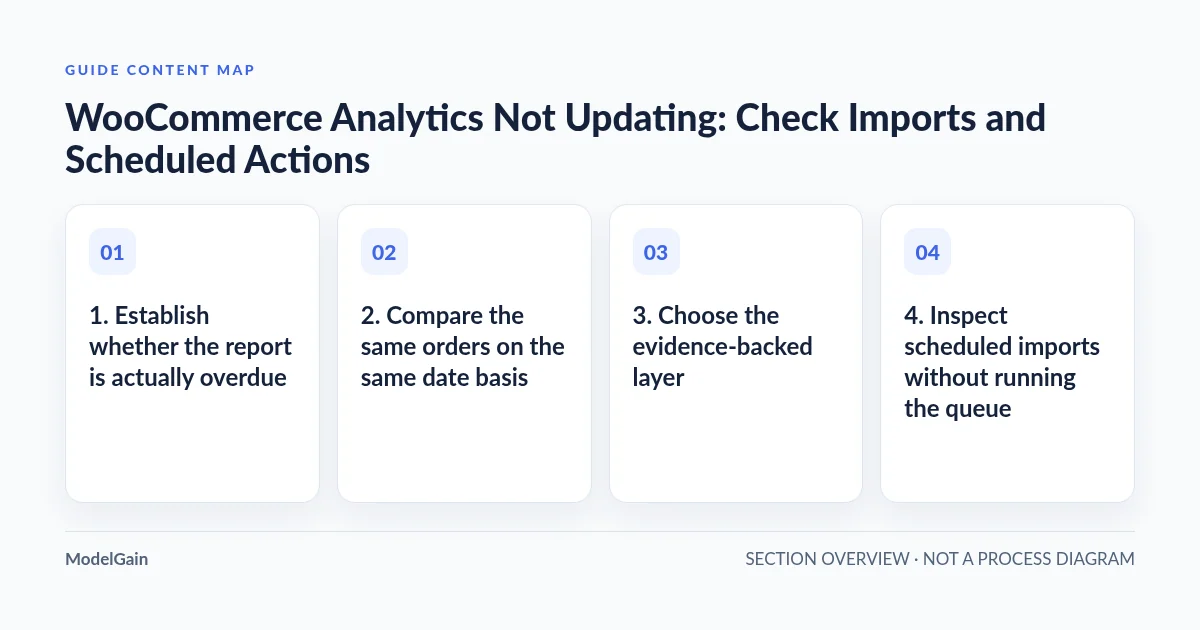
1. Establish whether the report is actually overdue
Record the WooCommerce version, current store time zone, report name, selected date range, and the last update shown where available. Check Analytics > Settings for the installed version’s update controls. The official Analytics documentation describes the 10.5 update behavior:
- Scheduled: analytics data updates every 12 hours, with lower performance impact.
- Immediately: imports process as new data becomes available, potentially increasing load on busy stores.
- Data status and Update Now: show freshness and provide an on-demand import control. The button starts work; it is not proof that the work completed.
Do not switch to Immediately merely to make a screenshot look current. First decide whether the observed age exceeds the configured expectation. On an older installation without these controls, use that version’s documentation rather than diagnosing a missing button as a malfunction.
If an authorized operator chooses Update Now, record the start time and watch the resulting status rather than repeatedly clicking it. This is an import-triggering operation, not a read-only diagnostic step. The initial checks in this guide require no import, retry, or configuration change.
2. Compare the same orders on the same date basis
Check Date Type in Analytics settings. The documented default is Date Paid, with Date Created and Date Completed as alternatives for relevant reports. An order created yesterday but paid today belongs to different reporting periods under those choices. An order without a paid date can be absent from a Date Paid comparison without any queue failure.
Inspect date filters, comparison periods, included or excluded order statuses, and product or category filters. Resetting your mental comparison is safer than resetting settings: first record the current configuration and compare a known order against it. Different report definitions can produce different totals even when every import completed.
Privately inspect a small sample of existing orders using authorized access. Record only pseudonymous references, status, relevant dates, currency, and the expected reporting treatment. Do not circulate full order screenshots, customer names, addresses, or payment details. You do not need to create a live order to investigate an existing reporting discrepancy.
3. Choose the evidence-backed layer
| Observation | Likely investigation | Next check |
|---|---|---|
| Recent order, Scheduled mode, refresh not yet due | Expected reporting delay | Recheck after the indicated update and processing time |
| Order exists but has no paid date | Date basis or order lifecycle | Compare Date Type and legitimate order status |
| Refresh is overdue and related actions fail | Import callback or dependency | Read the exact action log and matching server error |
| Many unrelated overdue hooks also stop completing | Queue runner or hosting path | Check execution history and cron triggering |
| Report is blank or spins while requests fail | REST, permissions, or JavaScript display path | Inspect the failing request before rebuilding data |
4. Inspect scheduled imports without running the queue
Open WooCommerce > Status > Scheduled Actions. Inspect pending, in-progress, failed, and completed records around the expected update. The scheduled-actions documentation describes the screen and log access. Search by the actual hook or group associated with the installed reporting importer; do not assume that every action with “WooCommerce” in its name imports analytics.
Record the action ID, hook, scheduled time, start and completion evidence, and sanitized error. Pending work scheduled for the future is normal. A historical failed action alongside later successful processing does not prove a current outage. Conversely, “completed” confirms callback execution, not necessarily that every report includes the expected order.
If one analytics-related hook repeatedly fails while other hooks finish, investigate that callback and its dependencies. Use the failed-action diagnosis guide. Do not select every failed action and retry it: this queue may also contain payments, webhooks, and notifications with external effects.
5. Investigate the runner only when execution evidence points there
If unrelated overdue actions accumulate and nothing completes, examine the runner and host logs. The Action Scheduler FAQ explains that the default runner works with WP-Cron and admin-request shutdown processing, while alternative initiation methods are possible. A cron-related configuration flag alone does not prove that the queue executes successfully.
Ask the host whether the intended trigger runs, whether loopback/background requests are blocked, and whether PHP failures or resource constraints interrupt processing. Match timestamps to queue history. Do not add a second cron job or increase concurrency simply because a chart is stale.
For that wider symptom, continue with pending actions not processing or Action Scheduler not running despite WP-Cron being enabled. Those guides address execution; neither replaces the date and freshness checks above.
6. Separate the reporting pipeline from the report view
If the queue runs but totals remain inconsistent, compare the known sample with reporting data under identical filters. Review WooCommerce logs for import errors and have a developer inspect reporting lookup consistency on staging if necessary. Do not directly edit analytics tables or order records to force agreement.
For a blank or endlessly loading report, inspect browser Console and Network privately. Record a sanitized request path, status, and application error. Authentication failures, blocked REST requests, or JavaScript exceptions can prevent display even when data is current. Do not export raw browser sessions into public support threads.
The System Tools reference includes analytics cache and reporting maintenance tools. These change state. Clearing Analytics Cache is not the same as deleting imported data or rebuilding historical reports. Do not run every tool in sequence. Before any historical re-import, establish backup, load impact, affected periods, and a supported recovery procedure.
7. Verify with a small, defined comparison
After the responsible operator addresses a confirmed cause, compare the same sample, date basis, statuses, and report period again. Verify that the update timestamp advances where available, relevant import actions finish, and the report can load. Allow processing time appropriate to the store; repeatedly starting imports makes the timeline harder to interpret.
Queue Health offers read-only queue insights, not automatic analytics repair or proof of revenue accuracy. Keep reporting verification separate from checkout monitoring. If payment state itself is wrong, treat that as a different incident rather than inferring it from a delayed chart.
Frequently asked questions
Is a 12-hour delay always normal?
Only when the installed version and configured Scheduled mode explain it. An overdue update, repeated import errors, or an unchanged report after processing needs investigation.
Will clearing caches recover missing sales?
A cache refresh may affect displayed results, but cannot establish whether an order exists or an import failed. Confirm the underlying order and reporting pipeline first.
Should I delete analytics data and import everything again?
Not as an initial diagnostic. That is a material maintenance operation requiring a verified reason, backup, impact review, and supported procedure.