WORDPRESS
Find Exactly Which WordPress Post Contains a Broken Outbound URL
Find which WordPress post contains a broken URL. Locate its source with a link checker, admin search or WP-CLI; verify before editing.
Have a broken external URL but cannot find which WordPress post links to it? Start with the link checker’s source posts or referring pages, not the destination URL itself. Record the affected post or page ID, open its editor, locate the exact outgoing href, and verify the public page before making a targeted change. If your report contains only a list of destination URLs, search stored content for a distinctive part of the address. If the link still does not appear, check menus, templates, custom fields and page-builder output separately.
This matters because “the URL is broken” and “this WordPress page contains the link” are different findings. One external URL might be cited by a dozen articles; conversely, a scanner may have seen a link in the rendered site but have no reliable reference to the editable source. The aim is to build a precise destination URL → WordPress source → link location → verified action record, not to mass-replace strings across your database.
Where is this outbound link stored?
Applies when: You have a broken or suspicious external URL but need the WordPress post, page or component that owns the outgoing hyperlink.
Quick answer
First inspect the checker report for source-post references; otherwise search stored post bodies and verify the exact href. If the link appears only on a rendered page, check menus, builder templates and custom fields. Confirm the destination before editing each source.
What to do
-
Record the exact external URL, HTTP result and check date without sharing private parameters.
-
Collect all source post IDs or use a read-only WordPress search. Distinguish post content from rendered menu or template links.
-
Inspect the stored anchor, verify the destination, then update one source and recheck the public page.
What information can you see about the problematic URL?
All paths are listed below. Select a symptom to focus on the most relevant path.
Review sources; watch for +N more
Inspect the scanner's source-post preview; v0.1.0 shows up to five entries plus a count of more sources. Supplement truncated lists with read-only searches, then inspect each owned href before editing.
Search Posts and Pages for URL fragments
Use the hostname or a distinctive path to find candidate content, then inspect each matching anchor in its own editor. A WordPress keyword search is not an exhaustive href audit.
Use read-only WP-CLI search
Filter published post/page records with wp post list –s and inspect candidate post_content. Search parsing and post-type coverage have limits; do not run a replacement command to locate sources.
Check the rendered owner
A visible link may come from a menu, template, builder widget, shortcode or custom field. Inspect the public markup and locate the owning component rather than assuming it lives in a post body.
Build a per-source edit list
Deduplicated target URLs are not the same as unique content owners. Record all source IDs and update each verified editorial context separately.
Did this help?
First identify the source, not just the failed destination
Consider a post that cites https://docs.example.org/old-reference. The target is the external documentation URL; the source is the specific WordPress article, page or content item containing that anchor. An HTTP 404 on the target does not tell you which source should be edited, whether the citation has a relevant replacement, or how many distinct WordPress sources share it.
Write down a simple audit record: the exact destination URL, observed status and check date, the source post ID and public URL, the link text, the stored versus rendered location, and your intended action. Repeat for every relevant source. A scanner that deduplicates destination URLs can still have multiple source posts for the same URL.
| What you have | What it proves | What to do next |
|---|---|---|
| Failed outbound destination URL only | A check observed a potential problem with the target. | Look for referring pages or search stored WordPress content. |
| Source post ID and title | The scanner associated that target with a content record. | Open the editor and inspect the exact outbound anchor. |
| Source page URL from a crawl | The rendered page contained or exposed the link when crawled. | Find whether its owner is a post, builder template, menu or custom field. |
| URL is absent from the expected editor | The link may not be in that editor’s stored body. | Check other content stores and current rendered HTML before concluding it is gone. |
A five-step workflow to locate and safely fix the source
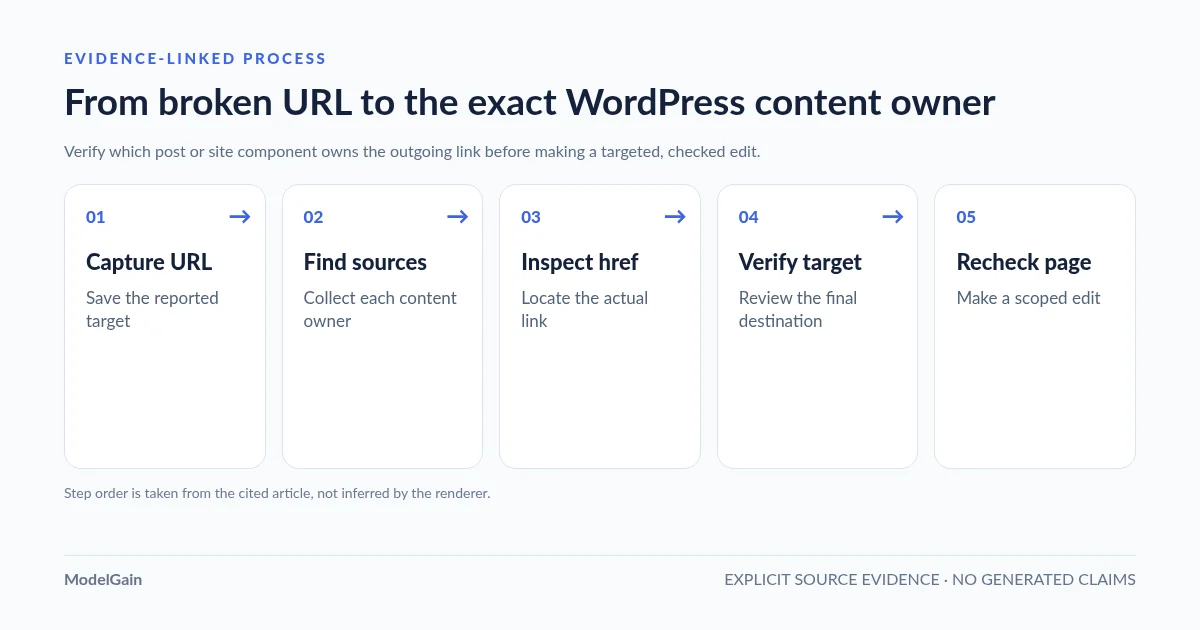
Capture the target → Enumerate source posts → Inspect the stored link → Verify the destination → Edit one source and recheck. Keep this sequence for a single problem URL before making changes to dozens of posts.
- Capture the target. Copy the exact HTTP(S) URL, including its path, slash and meaningful query parameters. Record the checker status and date; redact confidential query tokens in exported reports.
- Enumerate source posts. Look for every listed post or page ID behind that URL, not just the first result. If the report shows only the destination, use WordPress search or the read-only CLI method below to find candidate stored sources.
- Inspect the stored link. Open each source in the appropriate editor. Locate the anchor text and its actual
href, including whether the link lives in the post body or an external component. - Verify the destination. Check whether the target is truly missing, redirecting to the correct replacement, or just blocking the scanner. Validate editorial relevance before choosing to update, keep or remove the citation.
- Edit one source and recheck. Change only the verified reference, publish or update that content item, check the public page, then revisit the scanner result. Repeat for each additional source.
Method 1: use a link checker that exposes source posts
If you use ModelGain Content Link Health Check, install the publicly listed Upaccn Content Link Health Check plugin and open WordPress Admin → Tools → Content Link Health. Start a fresh scan and keep the administrator page open while the small batches run. Its current version, 0.1.0, discovers HTTP/HTTPS anchor href values in the stored post_content of published posts, pages and other public post types (excluding attachments), deduplicates checked URLs and retains their associated source posts. Its URL normalization also resolves relative links against the site address and removes fragment identifiers; a normalized result may therefore not exactly match the stored href.
Find the problematic destination in the scan results and review its recorded source-content references. Write down each visible source post ID/title so you can open the proper WordPress editor. Version 0.1.0 shows up to five source entries per checked URL in its results interface, with a +N more indicator when additional sources are recorded. That summary is not a full export of every source: if it is truncated, supplement it with a source-content search before claiming you have found every owner. If the result is Broken, it reflects hard not-found responses such as 404/410; Redirect describes any observed 3xx (including non-navigation 304) without following the destination; and Retry indicates evidence such as bot restrictions, throttling or network errors that is not sufficient to declare the target deleted. Manually recheck a questionable URL before altering a published citation.
Product boundary: this plugin is local, read-only with respect to your article and link content: it does not rewrite source posts or href values. Running a scan does update its own small local diagnostic tables and scan state. It does not render or inspect builder output, navigation menu settings, image URLs, scripts, or custom-field data that lives outside the scanned post body. A source reference in its results means the URL was discovered in its defined scan scope; absence from the list does not mean no visible page on your site contains it. Follow the official version-specific description for current capabilities rather than assuming this tool provides a complete external crawl.
Method 2: search WordPress posts and pages without a plugin
In WordPress Admin, open Posts → All Posts and search for a distinctive part of the external URL, such as docs.example.org or old-reference. Repeat under Pages → All Pages. Some sites’ installed themes, search plugins and editors customize these results; the admin keyword search is a useful candidate finder, not a guaranteed byte-for-byte URL locator.
If you find a candidate, inspect its body in the Block Editor or Classic Editor. In a supported block, select the linked text and use the link controls to inspect or edit the actual URL. WordPress’s link-editing guide explains these steps and explicitly notes that its URL-format validation does not prove that the destination actually loads.
Try both the hostname and a distinctive path segment. The source might use http:// rather than https://, a trailing slash, HTML-escaped query parameters or an older redirecting URL. Even when the report displays one normalized destination, the stored anchor in a post might not be identical. Do not use the browser’s search box to assume the HTML source has the same spelling.
Method 3: narrow candidate posts with read-only WP-CLI
For editors who have authorized server or WP-CLI access, WP-CLI’s wp post list accepts the WordPress WP_Query search parameter --s. The following example runs from the WordPress installation on a WordPress version supporting search_columns (WordPress 6.2+) and searches published posts and pages only:
# Read-only: find likely stored-content references.
wp post list \
  --post_type=post,page \
  --post_status=publish \
  --s='docs.example.org/old-reference' \
  --search_columns=post_content \
  --fields=ID,post_title,post_type,post_status \
  --format=table

# Inspect a candidate post by its returned ID (replace 123).
wp post get 123 --field=post_content
These commands read WordPress records; they do not change the database. The search is based on WordPress query parsing and its configured filters, however, so it is not an exact href parser. A result containing a substring may be a plain-text mention rather than an anchor; a query that returns nothing can miss differently encoded URLs, custom field values, templates or plugin-managed content. Confirm each matching item in the editor and on the live page. Use --post_type=your_public_type separately if your link may be stored in a supported custom post type.
Do not run wp search-replace without --dry-run as a discovery shortcut: that command is a database replacement tool, not a source-page report. Even its documented dry-run mode summarizes prospective replacements rather than proving which visible anchors are wrong. Bulk edits require separately reviewed mapping, backups and editor-level checks.
If WordPress search returns nothing: check where the link is rendered
Some external links never live in a normal post’s post_content. A page builder may store design or link settings in its own structures; a navigation menu may add the same destination to every page; a footer or shared template may generate the link; and WooCommerce may use product metadata or specialized fields. These sources require their own editor or a crawler with appropriate coverage.
Check the publicly rendered page in a browser and inspect the actual outbound anchor. If the link appears on several unrelated URLs, look for a shared header, footer, navigation item, reusable pattern or builder template before searching hundreds of posts. If it appears only on a product page, check the product’s main content, short description and structured custom fields individually. A crawler’s “referring page URL” identifies where the link appeared, but not necessarily which WordPress editor owns it.
In one WordPress.org support thread, a site owner traced an unwanted outgoing link to a purchased theme. Plugin support identified a hidden theme widget that appeared to generate the same link on more than 50,000 rendered page locations, and recommended fixing the widget instead of individually unlinking thousands of apparent sources. The reported count was a support estimate, not an independent measurement; the transferable lesson is to separate rendered appearances from editable owners.
A WordPress.org user review reported that a broken-link tool’s cloud results did not explain which URLs were scanned while the user expected WooCommerce product pages to be covered. That report reflects one user’s observed coverage problem, not a verified defect in every scanner. Taken with the shared-widget case above, it illustrates why an actionable report needs both status evidence and a clear explanation of what was scanned and who owns the reference.
One destination URL can appear in several articles
Do not stop after finding the first post. A source-aware checker may group ten copies of the same destination under one checked URL, yet show only the first five owner references in its admin summary; a site-wide navigation link can appear on hundreds of rendered pages while being owned by one menu item. These are two different kinds of repetition. When you see a +N more counter, continue the discovery process rather than marking the audit complete. Build your edit list by unique content owner, not by repeated crawl observations.
A practical work log needs only six columns: target URL, source owner or post ID, location/context, verification result, chosen action, and public-page recheck. This is more reliable than replacing matching strings across the whole database. If another article cites the same external page for a different reason, it may need different anchor text or a different replacement resource.
A reported failure may not require removing the link
A 404 or 410 is stronger evidence of a missing target than a 403, 429 or transient server error. But even after confirming a 404, you still need to decide whether there is a legitimate replacement, whether the citation should be removed, or whether to preserve an archived reference with clear context. Automated status classification cannot make that editorial judgment for you.
If your original problem is a link that works in your browser but the checker reports 403, see our 403 false-positive diagnostic guide. If you find a 301, see when a redirected WordPress link should be updated. Both guides help classify the destination after you have located its source. You can also browse the ModelGain WordPress tools for related maintenance utilities.
Frequently asked questions
How do I find which WordPress post links to an external URL?
Check the scan report’s source-post list first. If no source is provided, search Posts and Pages for a distinctive hostname or path, then inspect candidates in the WordPress editor. For site owners with CLI access, a read-only wp post list --s search can narrow stored-content candidates.
Why can I see the link on my site but cannot find it in a post?
It may come from a menu, template, builder widget, shortcode output, custom field or plugin-managed component. View the rendered HTML, determine which shared element owns it, and use that element’s actual editor. A database search limited to post bodies will not cover every rendering source.
What if the same broken outbound URL is used in multiple WordPress posts?
Record all discoverable source IDs and verify the link’s purpose in each context. A single URL-check result may correspond to many independently editable posts, some omitted from the plugin’s five-item UI preview. Update one post at a time and test each public page; do not treat a deduplicated target count as a count of content edits.
Does a broken-link plugin edit the affected source post automatically?
Not necessarily. Upaccn Content Link Health Check v0.1.0 deliberately does not rewrite posts. It groups checked URLs and source references for administrator review. Other plugins have different features; verify your actual plugin and version before assuming automatic fixes exist.
Is the admin post search an exhaustive link audit?
No. It can find useful candidates in searchable WordPress records but may miss alternative URL spellings, rendered-only components, menus, custom fields and inaccessible/private content. The absence of search results is not proof that the destination never appears in your site’s output.
Sources and scope
- Upaccn Content Link Health Check: version-specific scanning scope and source references.
- WP-CLI reference: post list and search arguments.
- WordPress Developer Resources: WP_Query search parameters.
- WordPress.org: inspect and edit links in the Block Editor.
- WP-CLI search-replace: replacement semantics and dry-run.
- WordPress.org community: uncertainty about WooCommerce scanning coverage.
- WordPress.org support: an outgoing link owned by a shared theme widget.