WORDPRESS
IndexNow 403 Forbidden in WordPress: Check the Key File
IndexNow 403 in WordPress? Find whether the API or key URL failed, check key and host verification, and safely retest before changing settings.
An IndexNow 403 Forbidden response usually means the search engine cannot verify the submitted key, but not every 403 you see in WordPress comes from the IndexNow API. First locate the exact request that returned 403. An IndexNow endpoint rejecting a notification, a public key-file URL blocked by your server, and a WordPress administration page returning 403 are three different failures.
If you have an IndexNow error in Rank Math, Bing’s IndexNow WordPress plugin, or another SEO integration, start with the submitting plugin’s response history. The IndexNow protocol defines an endpoint HTTP 403 as a key-validation failure, such as a missing key file or a file whose contents do not match the supplied key. It defines HTTP 422 separately for invalid host or URL/key-location relationships. A generic WordPress 403 message is not enough to tell which layer failed.
Identify which IndexNow request returned 403
Applies when: A WordPress IndexNow integration reports a 403 and the failing request is not yet confirmed.
Quick answer
First distinguish an IndexNow API response from a 403 at your site's public key-file URL or WordPress admin endpoint. Then test the exact key address, matching key text, host and keyLocation. A shared status code does not establish a shared cause.
What to do
-
Use the sender's submission history and available response logs. Do not assume the status came from your public key route.
-
Fetch the exact advertised key-file address as an anonymous visitor and examine both response status and body.
-
Retest one legitimate URL after the key, routing or access problem is fixed; avoid repeated blind submissions.
Where did the 403 occur?
All paths are listed below. Select a symptom to focus on the most relevant path.
Verify the sender's ownership key
Compare the submitted key, keyLocation, host and the public text file; follow the official protocol when the key is outside the web root.
Investigate site-side access control
A 403 or browser challenge when fetching your key URL may come from a WAF, security plugin or origin rule. Identify the layer in logs before narrowing an exception.
Treat this as a different HTTP request
Inspect the failed WordPress operation and security logs. A wp-admin 403 is not evidence that the search engine rejected an IndexNow ownership key.
Did this help?
Identify the source of the 403 before changing anything
| Where you see HTTP 403 | What it means | First investigation |
|---|---|---|
IndexNow submission history or HTTP response from api.indexnow.org |
IndexNow API 403: the endpoint did not validate the key. | Check the advertised key location, its public response and exact text contents |
Browser or curl GET to your site’s /<key>.txt address |
Public key URL 403: your website refuses the key-file request. | Check web-server routing, cache, CDN or WAF logs for that URL |
wp-admin or another WordPress admin URL |
WordPress admin 403: access or application security is blocking the admin request. | Investigate session, capability, security-plugin and host access controls before blaming IndexNow |
Rank Math’s IndexNow history documentation describes submission-status codes and links 403 to key verification. Its separate 403 troubleshooting guide focuses on the publicly accessible key location. These explain related but distinct views of the same verification chain.
The safe diagnostic order
Follow this order: identify the failing request → fetch the public key route → compare the key and host → retest a legitimate URL after correction. Do not rotate the key, disable security controls, or repeatedly submit unchanged URLs before completing the read-only checks.
1. Confirm which component submitted the URL
Record exactly which integration submitted the notification and where its response was logged. Check Rank Math SEO → Instant Indexing → History when applicable, or the official IndexNow plugin’s recent submissions screen. Other SEO plugins may show a different navigation path. Note the response status, timestamp, URL and configured host; do not assume that the plugin displaying an error is the only IndexNow sender on the site.
Multiple IndexNow-capable plugins or a host-level integration can independently generate submissions and keys. Identify the active sender first; otherwise you can successfully repair one plugin’s key while the other continues producing 403 responses. The official IndexNow WordPress plugin submits changed URLs automatically and exposes recent success and failure records.
2. Fetch the public key route using a real GET request
Read the configured public key-file URL and note its response status, redirects and actual response body. In the common root-file configuration, IndexNow expects a UTF-8 text file called <key>.txt whose body contains the same key. The URL is based on the website hostname being verified, not necessarily on the WordPress installation directory. Some WordPress integrations serve a virtual route without creating a physical file; inspect the public HTTP response rather than just searching the filesystem.
Find the key location using the submitting plugin’s own settings. In Rank Math, use Rank Math SEO → Instant Indexing → Settings → Check Key (labels may vary by version). For a command-line read-only check, replace the placeholder with your plugin’s actual published key URL:
curl -sS -D - -o /dev/null 'https://example.com/YOUR-KEY.txt'
curl -sS 'https://example.com/YOUR-KEY.txt'
The first command shows response headers; the second fetches the body. A public GET should return the expected text, not your homepage HTML, a CDN challenge, a sign-in page, an HTTP 404, or an HTTP 403. A HEAD request alone is insufficient because some application routes treat HEAD differently from GET. The IndexNow verification key is public by design, not a WordPress password. Avoid sharing its value unnecessarily in support material and redact it when the support report does not need it.
A 301/302 redirect to a different host or scheme also warrants inspection: the search engine must be able to retrieve the correct key on the expected host. Check both the originally configured URL and the redirect target before changing rewrite rules.
3. Match the returned key to the submission and hostname
Compare the text returned by the key URL to the exact key used by the active submission plugin, and verify the target URL’s hostname. The file content must match the submitted key; a stale cache or a changed API key can leave the old key file in place. Check www.example.com versus example.com, whether the key-location path covers the submitted URL, and any explicitly configured keyLocation. Inspect URL schemes and redirects as separate reachability checks; a scheme difference is not itself the protocol’s definition of a 422 failure.
For a root-based key, the protocol’s default location is the website root. For a non-root key, the sender must include the corresponding keyLocation value in the notification. The protocol’s host/key-location rules explain this relationship. Do not “fix” every 403 by modifying robots.txt: indexing directives and key ownership are separate questions, although an inaccessible key can be caused by an intermediary’s blocking policy.
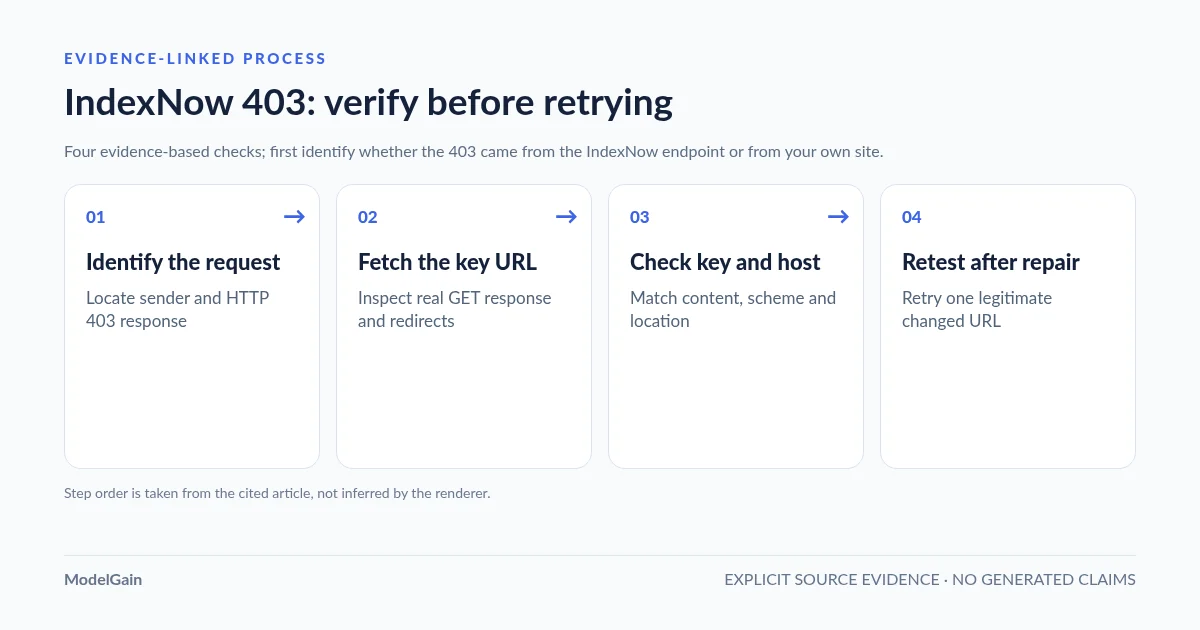
4. Repair only the confirmed failing layer
Apply the smallest correction that makes the advertised key URL publicly readable with the matching key body. Use the evidence table to choose a fix:
| Evidence | Likely repair area | Verify after change |
|---|---|---|
| Key URL returns 404 | Missing physical key file, broken WordPress virtual route, wrong document root or rewrite configuration | Public GET returns 200 and correct plain-text value |
| Key URL returns 403 or a challenge page | Scoped WAF, security plugin, server deny rule or access policy for the key route | Check actual access logs; confirm a normal unauthenticated GET works without disabling global protection |
| Key URL returns 200 but body is wrong | Stale CDN/page cache, wrong key, HTML fallback, encoding/whitespace or duplicate sender | Compare bytes of the body and key expected by the active integration; purge only that route if stale |
| Key works but endpoint returns 422 | Host, submitted URL or key-location path relationship is invalid; also inspect scheme and redirects if retrieval differs | Match the submitted URL’s host and allowed path to the key location; separately check scheme and redirects |
| Key works but endpoint still returns 403 | Wrong key in the submitted request, stale or inconsistent key-location response, or another endpoint-side validation failure | Inspect the actual outgoing key and keyLocation, endpoint response and public GET behavior |
Do not disable the CDN or the entire WAF to resolve an IndexNow key problem. If a security rule is involved, use request logs to identify the exact route and narrowly adjust that rule; our Wordfence and Cloudflare key-URL block diagnosis explains how to prove the request was intercepted before considering an exception. A global bypass creates a much larger security exposure than the original SEO issue. If the submitting plugin offers a key-regeneration option, treat it as a later controlled action: changing the key can invalidate the existing location and historical configuration until all senders agree.
A real WordPress.org support case describes a plugin regenerating a key after settings changes, leaving the formerly correct text file out of sync. Another Rank Math support case asks the user to confirm that its “Check Key” URL returns the expected value without redirecting. These are evidence of failure modes, not proof that either issue affects every plugin or WordPress version.
Retest once, and interpret the IndexNow response correctly
Retest one genuinely added, updated, or deleted URL only after the relevant key fault is fixed. Use the active SEO plugin’s normal submission interface so its real configuration is exercised. The protocol response codes mean:
| Endpoint response | Meaning | What to do |
|---|---|---|
200 OK |
Submission received successfully | Stop retrying; monitor indexing separately |
202 Accepted |
Notification received, key validation pending | Allow verification time; inspect key route if the status persists |
400 Bad Request |
Malformed notification | Validate request shape and URL encoding |
403 Forbidden |
Key invalid or not verifiable | Return to key/host verification; don’t spam retries |
422 Unprocessable Entity |
Submitted URL, host or key-location relationship is invalid | Inspect host, URL path, keyLocation scope and protocol fields; separately verify redirects |
429 Too Many Requests |
Submission rate limited | Stop repeated submissions and respect the endpoint’s limits |
The authoritative definitions are in IndexNow’s HTTP response specification and the Yandex IndexNow API reference. An accepted IndexNow notification does not establish crawling, indexing, rankings or traffic. Monitor those outcomes independently in the relevant search engine webmaster tools.
Where Upaccn Health Check for IndexNow fits
If the normal SEO plugin gives only a generic failure message, Upaccn Health Check for IndexNow is an independent diagnostic companion. Its current WordPress.org release adds Tools → IndexNow Health; it can verify a separate, plugin-owned diagnostic key route, check visible indexability signals, and interpret a deliberately initiated live IndexNow test. It does not replace the site’s SEO plugin or automatically submit changed content.
Scope matters: the diagnostic plugin uses its own key and does not read, change, or fix a third-party plugin’s key. If its independent test succeeds while Rank Math continues showing 403, the result narrows the investigation toward Rank Math’s sender-specific configuration; it does not prove Rank Math is defective. The plugin does not contact IndexNow merely because an administrator opened the dashboard; its live test requires an explicit click and sends a test notification for the public homepage. Read the current WordPress.org listing for version and compatibility details.
Questions people ask after an IndexNow 403
Should I change the IndexNow API key immediately?
No. First GET the existing public key URL and compare its content with the active sender’s configured key. Rotation can create a second mismatch if caching, another submitting plugin or the host still uses the previous key. Rank Math documents a change-key option, but it is not the first step for every 403.
Why is my key file visible in the browser but IndexNow still returns 403?
The browser may be reaching a different hostname, scheme or cached response than the search engine; the plugin may submit another key or keyLocation. Check the actual outgoing request, not only a manually guessed URL. Public reachability is necessary but not always sufficient.
Can robots.txt or noindex cause an IndexNow 403?
IndexNow 403 is defined primarily around key verification. Robots or noindex settings may affect crawling, eligibility or the behavior of a specific plugin, but neither should be assumed to be the root cause of an endpoint-level invalid-key response. Diagnose the key and request first.
Does 200 OK mean my WordPress page is indexed?
No. HTTP 200 from the IndexNow endpoint confirms it received the notification. Search engines independently decide whether and when to crawl and index the URL. Do not confuse an API acceptance result with a search-performance outcome.