WORDPRESS
WooCommerce Checkout Fails After a PHP 8 Upgrade: Diagnose Safely
Diagnose WooCommerce checkout errors after a PHP 8 upgrade using request stages, safe logs, staging tests, and payment-state checks.
If WooCommerce checkout fails after a PHP 8 upgrade, first identify where the customer journey stops and whether an order or payment already exists. Then correlate that request with WooCommerce and PHP-FPM logs. A working homepage does not verify checkout, and an error after Place order does not prove that payment failed. Do not ask customers to keep trying while the transaction outcome is unknown.
This guide separates checkout rendering, shipping and tax calculation, order submission, and gateway confirmation. It is not a recommendation to switch off payment plugins on a live store. If the entire site is unavailable, begin with the WordPress critical-error containment guide instead.
Find the failing checkout stage safely
Applies when: A WooCommerce checkout problem appeared after changing the web PHP runtime.
Quick answer
Reconcile any existing order and gateway outcome before retrying. Then identify the failing request stage and correlate it with WooCommerce and PHP-FPM logs; reproduce only on isolated staging with sandbox integrations.
What to do
-
Check existing order notes and authorized gateway records privately. Unknown outcomes mean stop retries, not assume failure.
-
Record checkout type, failing stage, timestamp, exact web PHP version and installed integration releases.
-
Use isolated staging, documented sandbox payments and protected logs. Verify the original path, not only the homepage.
Where does the observed checkout path stop?
All paths are listed below. Select a symptom to focus on the most relevant path.
Page fails before checkout fields load
Match the page request to a fresh PHP fatal. Identify the responsible component and runtime on staging before proposing changes.
Shipping, tax or totals stop updating
Inspect the calculation request and relevant shipping or tax integration logs on staging. Do not assume the gateway caused the failure.
Place order was clicked or payment outcome is unclear
Stop resubmission. Reconcile the existing order, gateway record and callback timeline privately; escalate uncertainty to the integration owner.
Fields load but a browser request or script fails
Distinguish Checkout blocks from classic checkout. Inspect sanitized Console and Network evidence on staging and correlate server errors with PHP logs.
Did this help?
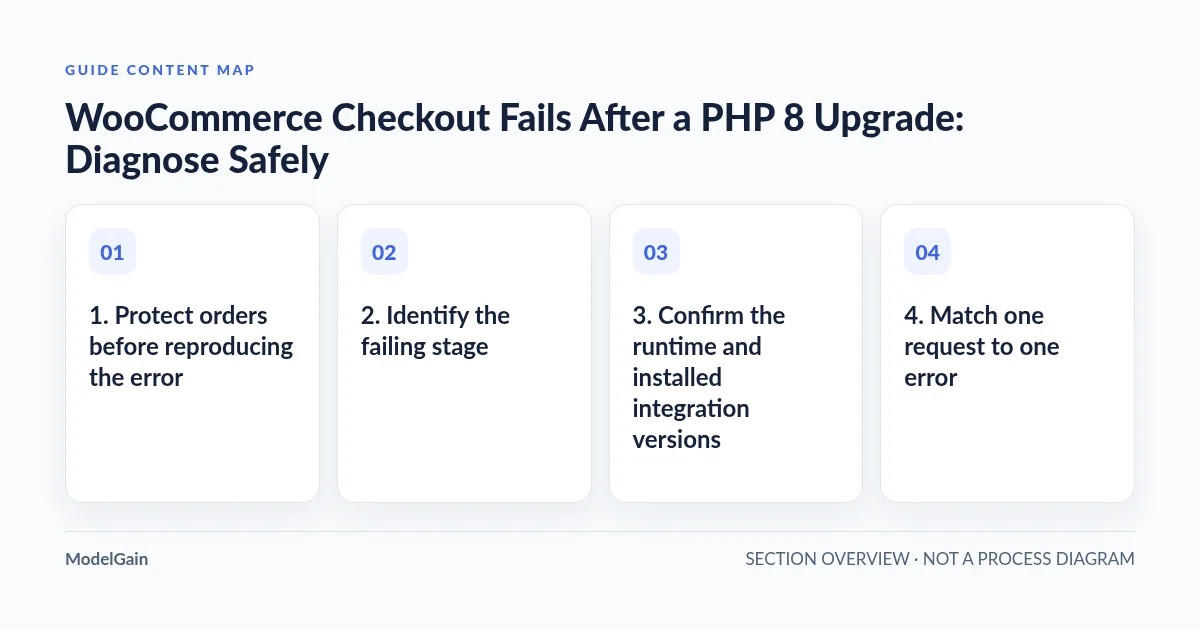
1. Protect orders before reproducing the error
Record the incident time and time zone, the old and new web PHP versions, and the last known working checkout. Note any simultaneous extension, theme, hosting, or cache changes. “It started after PHP changed” is a useful hypothesis, not proof of incompatibility.
If someone already submitted an order, privately inspect its order notes and the gateway’s transaction record using existing authorized access. Establish whether it was authorized, captured, declined, or remains uncertain. A missing thank-you page can coexist with a successful charge. Do not request card details, cookies, checkout payloads, or full customer screenshots in a support thread.
Where outcomes disagree, stop retries and escalate to the payment integration owner. Use the store’s incident process for customer communication and containment; do not improvise duplicate orders, refunds, or manual payment attempts. A reporting mismatch alone does not authorize a financial operation.
2. Identify the failing stage
| Observed symptom | Evidence to inspect | Do not assume |
|---|---|---|
| Checkout page is blank or shows a critical error | The page request and matching PHP fatal | That the gateway has been called |
| Fields load, but totals or shipping fail | The calculation request, response, and shipping/tax extension logs | That payment processing is the failing component |
| Place order returns an error | Existing order state, submission response, and gateway records | That there was no order or charge |
| Payment succeeds remotely, order stays unpaid locally | Gateway callback delivery and WooCommerce order notes | That another customer payment will repair confirmation |
Determine whether the assigned Checkout page uses the Checkout block or the classic checkout shortcode. Their browser requests and extension integration requirements differ. A gateway supporting classic checkout is not automatically verified for Checkout blocks. Record the actual page configuration rather than changing checkout type as an untested production workaround.
3. Confirm the runtime and installed integration versions
In WooCommerce > Status, inspect the PHP version under Server environment, WooCommerce version, theme, and relevant extensions. Ask the host to confirm which PHP-FPM pool serves this domain. Command-line PHP can differ from the web handler; a successful shell command does not establish checkout’s runtime.
Check the gateway, tax service, shipping integration, checkout customizations, and bundled dependencies against their maintainers’ requirements for the exact installed releases. WooCommerce’s PHP and WordPress update guidance and PHP upgrade procedure provide preparation steps, not a certificate for every integration.
As reviewed on October 25, 2026, the announced PHP 8.1 minimum applies to WooCommerce 11.6, planned for February 2027. The 11.3 notice is advisory about that future requirement, not evidence that all checkout plugins support a chosen PHP release. Recheck current requirements before a later upgrade.
4. Match one request to one error
Open WooCommerce > Status > Logs and inspect available fatal-error and integration logs around the incident. Logging availability depends on the extension and configuration. Ask the host for the corresponding PHP-FPM error event if WooCommerce has no useful record. Preserve the timestamp, error type, relative file path, and relevant stack frames.
A PHP TypeError, undefined function, or uncaught exception can explain a failed server request. A deprecation notice nearby is not necessarily the stopping event. Follow the plugin file-path attribution guide before assigning responsibility from one filename.
If additional diagnostics are necessary, use controlled staging and the WordPress debugging documentation. Keep error display off for visitors and logs protected. Do not publish a debug file, configuration file, or raw gateway response. Enabling verbose payment logs in production can expose sensitive information and needs separate operational review.
5. Separate browser failures from server failures
On an isolated staging copy, open browser developer tools before reproducing. Inspect Console and Network for the request associated with the failure. Checkout blocks commonly involve Store API requests; classic checkout commonly uses WooCommerce AJAX requests. Read the actual request path rather than guessing from the visual design.
A JavaScript exception before submission points toward the browser integration path. A server error requires correlation with server logs. A successful HTTP response can still contain an application error, while an HTML error page where JSON was expected can create a secondary JavaScript parsing error. The last console message is not always the first cause.
Shipping and tax failures may depend on destination rules, product types, or an external service rather than payment. Use synthetic staging addresses and a representative test cart. Never share a HAR export without careful sanitization; it can contain session credentials and personal data.
6. Reproduce safely, then narrow the conflict
Build a staging copy with matching code and the intended PHP runtime. Prevent outbound production email and other live side effects. Use only a gateway’s documented sandbox credentials and test mode, with staging callbacks configured for staging. Copying a database does not automatically isolate stored payment tokens or external integrations.
Follow the official plugin and theme conflict-testing procedure on that isolated copy. Compare one change at a time and preserve the failure evidence. Do not disable live gateway, security, shipping, or other critical plugins as an exploratory shortcut.
For a broader compatibility investigation, use the PHP 8 plugin isolation guide. The separate PHP Upgrade Risk Audit provides read-only static compatibility scanning; it does not run checkout, verify callback delivery, or certify successful payments.
7. Define verification before changing production
On staging, verify page rendering, address updates, shipping and tax calculation, sandbox order creation, gateway outcome, callback handling, order notes, and confirmation output. Cover the checkout type and payment methods actually affected. A sandbox success is necessary evidence for that tested path, not a guarantee about every live configuration.
The release owner should preserve code and configuration rollback options and agree on post-release observation using genuine authorized business activity, not ad hoc live test payments. Never restore an old database over new orders merely to reverse PHP. If reverting the runtime is considered, the host must confirm software compatibility and security implications first.
Frequently asked questions
Should I click Place order again after an error?
Not until the existing order and gateway outcome are reconciled. A timeout or failed redirect does not establish that no charge occurred.
Does WooCommerce supporting PHP 8 mean my checkout is compatible?
No. The installed gateway, checkout type, extensions, theme, and custom code form a separate integration that needs evidence and testing.
What should a private support report include?
Include sanitized versions, runtime, checkout type, failing stage, timestamps, one relevant error, and reconciled transaction status. Exclude shopper details, authentication material, and full payment payloads.