WORDPRESS
Bricks Header Not Showing on Your WordPress Site? Check Template Conditions
Bricks header missing on live pages? Verify Header template status, default settings, Conditions, page-level Disable header and mobile visibility.
Your Bricks header looks correct in the builder, but the published WordPress page has no header—or a different one appears. Before rebuilding it, check how Bricks selected the header template for the actual frontend request. A published Header template can be valid and still not apply to the URL you are testing. The relevant causes include template type, publication status, default-template settings, include/exclude conditions, another matching Header, and the current page’s Disable header setting.
Fast check: open Bricks → Templates, verify the affected item is a published Header template, then open Settings → Template Settings → Conditions and compare the intended rules with one URL where the header is absent. Next inspect that page’s Page Settings → General → Disable header, and check whether a second Header template has a more specific matching condition. If the header HTML exists but is visually hidden, switch to element/CSS troubleshooting rather than changing the template assignment.
For a complex live site where header visibility affects navigation or leads, ModelGain WordPress Development is an optional scoped troubleshooting service. It is not a Bricks header-fixer plugin, and ordinary template conditions can usually be checked without installing anything.
1. Is the missing header a template-selection issue or a rendering issue?
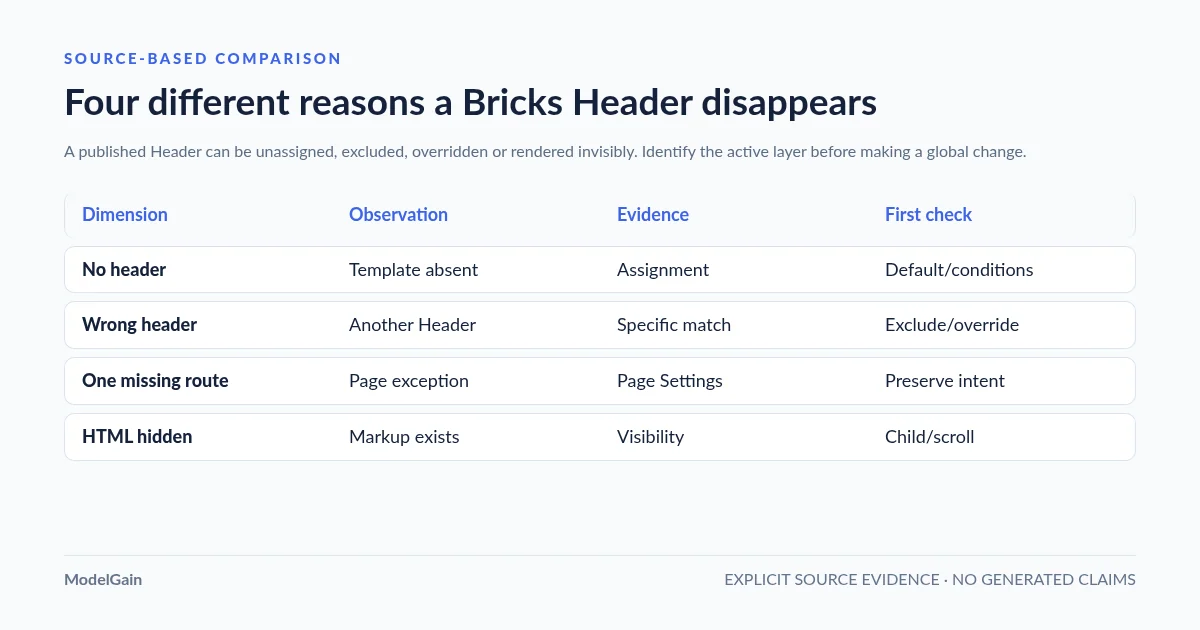
Open the actual published URL as a logged-out visitor and inspect the header area. Determine whether the header is entirely absent, the wrong Header template is displayed, or only its logo/menu elements are missing. These outcomes point to different layers:
- Header template not present at all: start with type, published status, global defaults, template Conditions and Page Settings that suppress the header.
- Another header is displayed: compare every published Header template that matches the current request, including more specific page conditions and exclusions.
- Header exists in page HTML but cannot be seen: inspect responsive display settings, CSS visibility, positioning, sticky behavior, overlap and z-index. Changing global template rules may make the problem worse.
- Only a menu, logo or CTA is missing: look at the affected element’s own conditions, responsive visibility and dynamic data. A header container can render while a child is suppressed.
- Only the logged-in or builder preview looks correct: confirm the anonymous frontend request and selected template; preview context and current visitor identity are different.
The Bricks Academy template workflow explicitly separates a template’s Populate Content preview selection from the Conditions that decide where it renders on the frontend. A convincing canvas preview is not an assignment or an acceptance test.
2. Verify the published template and its type
In Bricks → Templates, locate the intended header. Confirm its WordPress status is Published, and its Bricks Template type is Header, not Section, Single or Footer. A Section template is a reusable content block; it does not automatically take the role of the global site header merely because its contents look like navigation.
If the intended Header was recently duplicated or imported, verify which copy is published and which one you have been editing. Multiple similar template names invite mistakes. Use a distinct, descriptive name for the active candidate, and record its existing type, status and conditions before making changes. Do not delete a second template until you have established whether another page still uses it.
Bricks Academy’s documented creation sequence is create Header type → publish → edit → set relevant Conditions → save → test the frontend. If the Header still appears only in the builder, do not spend time redoing the logo and nav elements until this publication and assignment chain is verified.
3. Check default-template behavior before adding conditions
One source of confusion is the statement “Bricks headers always need an Entire Website condition.” That is not universally correct. The current official Bricks documentation says a published Header with no conditions can be used by default when default templates are enabled. The setting is under Bricks → Settings → Templates → Disable default templates.
The rule is conditional:
- Default templates enabled: a published header without conditions can supply the site’s default Header. You do not have to add an include rule solely to make this default possible.
- Default templates disabled: a header without matching Conditions does not automatically render. Add the intended positive condition, such as Entire website, or narrower page-specific include rules.
- Multiple Header templates: a more specific matching template may take precedence over a broad condition. Exclusions can also disqualify a candidate. Inspect every matching template instead of assuming the one currently open in the builder is active.
For maintainable production behavior, explicit Conditions are often easier to audit than implicit defaults, especially when you have landing pages, WooCommerce routes, a mobile-only variant or different headers by section. But do not toggle the global defaults setting on a production site just to fix one page without first identifying the other templates that depend on its current state.
4. Confirm include, exclude and more specific matches
Within the Header template, open Settings → Template Settings → Conditions. Evaluate the actual frontend URL as Bricks sees it: homepage, page, post, archive, search or a specific route. A condition for all posts is not the same as a condition for all pages; a special homepage might be configured with different content than the ordinary page list.
Use a narrow comparison. For example, if a Header should appear on all ordinary pages but not the standalone checkout landing page, first record the existing general include and the checkout exception. An Entire website include alongside an explicit exclusion is different from an incorrectly selected “specific page” condition that matches only your builder preview page.
If the wrong Header appears, look for more specific templates matching that URL. The official Bricks template guide notes that individual-page conditions can outrank a broad Entire website condition; a template’s exclude conditions also affect selection. Bricks staff provide a concrete forum example of using one global header and a separate header for a specific page. It does not prove that your own site has the same configuration.
Resolve a conflict on a staging copy or through a single reviewed condition change, then verify the expected header on both the targeted URL and a URL that should retain the old header. Do not mass-reset conditions, clone whole templates to random locations or assume every page has identical context.
5. Check the current page’s Disable header option
If a Header works across most of the website but disappears on one landing page, start with that page itself. Open the page in Bricks, then Settings → Page Settings → General → Disable header. Bricks provides this setting so landing pages and campaign pages can intentionally omit the site-wide header.
The official Page Settings reference makes an important distinction: Disable header controls the rendering of the active Header for this page. It does not delete, unpublish or modify the Header template. If the setting is intentionally enabled on a conversion-focused landing page, treat that as an approved design decision. Do not remove it merely to make the page resemble the main website.
For a missing header on a blog post or archive, verify whether you are inspecting the actual page/route or only its content template preview. Be explicit about which saved document owns the setting: page-level General settings are not the same as a Header template’s own Template Settings.
6. A header can exist but still be visually invisible
Use browser Developer Tools on the actual frontend URL to identify the header container and affected child. If its markup exists, inspect computed styles rather than immediately changing global Conditions. A responsive breakpoint may set an element to display: none, a sticky header may have been translated offscreen by scroll behavior, or a negative stacking context may place it behind a hero section.
Check at a normal mobile width, a desktop width, and after scrolling. Verify both the initial and sticky states. If the container exists but menu links do not, examine element-level visibility and Bricks Element Conditions. The official documentation states that element conditions can omit the affected element HTML from the frontend even though the builder continues to show it for editing. That is not the same as a whole-header template selection problem.
If the website has a responsive menu button, also test keyboard navigation and whether opening the menu exposes links without moving the document or trapping focus incorrectly. A header that renders but cannot be navigated is not a completed repair. Avoid replacing all site navigation JavaScript as a first response to one missing element.
7. Why saving and clearing cache may not resolve the real defect
Cache should enter the investigation after the template’s effective settings have been checked. A stale page-cache or CDN variant can serve earlier markup after a valid template edit. Compare a logged-out frontend request with the current builder state and, when authorized, inspect origin response versus the edge cache for a single affected URL.
If template conditions were correct and the change has been saved, refresh only the necessary cached route(s) or generated assets according to the site’s current cache owner and hosting procedure. Retest the same route anonymously. Do not disable all caching, clear the whole site’s CDN or delete generated CSS directories as an exploratory first move; these actions can hide a condition error while affecting unrelated visitors.
Similarly, a “Save” button that reports an actual 403 is a separate editor-write problem, not evidence of a Header condition failure. Our WordPress editor 403 troubleshooting guide explains how to classify REST permissions and security-layer responses before changing firewall rules. A successful save confirms persistence, not correct frontend template selection.
Which Bricks header symptom are you observing?
Use this decision tool to select a read-only verification path. It does not access your Bricks database, execute builder operations, install plugins or modify template conditions.
Why is the Bricks Header not visible?
Applies when: A published Bricks Header template visible in the builder but missing, replaced or partially hidden on the actual public WordPress page. This tool does not change templates or site settings.
Quick answer
First separate frontend template selection from CSS/element visibility. A Header can render by default when published with no conditions and default templates are enabled. If defaults are disabled, explicit include rules are needed. A specific matching Header, an exclude, or a page's Disable header can also change the result.
What to do
-
Open Bricks → Templates and verify that the intended candidate is a published Header, not a Section or unpublished duplicate.
-
Compare template Conditions and the Bricks → Settings → Templates → Disable default templates setting against the actual public URL, not just Populate Content in the builder.
-
Look for a more specific matching Header, an exclude condition or Page Settings → General → Disable header on the affected page.
-
If the Header container exists on the public page, inspect responsive display, element conditions, sticky behavior and stacking before editing template assignment.
-
Check homepage, ordinary page, blog post and intended exception as a logged-out visitor on mobile and desktop. Preserve a revision and keep other active Headers intact.
Which live frontend observation best describes your header?
All paths are listed below. Select a symptom to focus on the most relevant path.
Make the assignment explicit
When Bricks default templates are disabled, a published Header without matching Conditions will not automatically render. Review the intended routes and add a deliberate include rule such as Entire website or a narrower target. Do not toggle global defaults without checking other templates.
Compare matching template priority and exclusions
List all published Header templates that include the URL. A more specific page condition may outrank Entire website, and exclusions can disqualify templates. Verify which Header should apply, change one rule and check both affected and unaffected pages.
Check page-level Disable header
Open the affected page and inspect Settings → Page Settings → General → Disable header. If enabled intentionally for a campaign page, do not turn it off simply to make all pages look alike. Also check specific exclude conditions.
Inspect the request and template identity first
Record the actual published URL, logged-out rendering, Header template status/type and Bricks default-template setting. Compare the builder preview with frontend HTML, then inspect template include/exclude and page-level Disable header. Preserve existing settings before any change.
Did this help?
Verify the correction across the intended pages
Before editing a production Header, write down its current template ID or name, type, publication state, include/exclude conditions, and any affected page-level Disable header switch. Preserve a WordPress/Bricks revision or owner-managed backup, and test the smallest proposed change in staging when navigation and inquiry paths are business-critical.
After a change, check at least these realistic destinations: a normal homepage, one ordinary page, one blog post, and the specific exception (such as a landing page or archive). Check the frontend while logged out, at approximately 390px mobile and 1440px desktop, and at initial load and after scrolling. Confirm the correct Header appears where intended, remains absent where explicitly excluded, and that its links and mobile menu remain usable.
The acceptance condition is not “the template looks right in the builder.” It is the right header renders on the right public routes, with no unintended change to exceptions or navigation behavior. If the wrong Header persists, return to the matching template inventory and compare the actual route; do not repeat the same cache purge without a different hypothesis.
A short support request that helps identify the real conflict
Our Bricks Header template [name / internal ID] is Published and appears in the builder, but the public page [URL or route class] shows [no header / another header / an invisible header]. We checked the global Disable default templates setting, the Header template’s include/exclude Conditions, the affected page’s Page Settings → General → Disable header, and any other matching Header templates.
The issue occurs for [logged-out/logged-in] visitors at [desktop/mobile], and the header [does / does not] appear in the rendered page HTML. Please help identify the effective template selection or element visibility rule. We can provide redacted configuration screenshots or revisions through a secure support channel; no credentials or private site exports are included.
When WordPress Development support is appropriate
Most missing Bricks headers can be diagnosed by reviewing the published template, Conditions and Page Settings. If the configuration is correct but frontend output is inconsistent, or a production site has complex custom conditions, caching layers and multiple active headers, ModelGain WordPress Development can be used as a scoped investigation and implementation service. Include the specific affected URLs, expected versus actual Header, saved configuration and any redacted browser evidence so the work begins with a testable hypothesis.
ModelGain does not currently sell a plugin that automatically diagnoses all Bricks template assignments. Do not install PHP Security Monitor, Queue Health or Agent Readiness Audit merely to fix a missing Bricks header; those tools address different problems. For a different Bricks issue in which the Header renders but a loop is empty, our Bricks Query Loop no-posts guide focuses on query context rather than template assignment.
Frequently asked questions
Does a Bricks Header template always need an Entire website condition?
No. A published Header without explicit conditions can be used as a default when default templates are enabled. If Bricks → Settings → Templates → Disable default templates is enabled, explicit matching Conditions are needed. Multiple matching headers can change which one is selected.
Why does the Header show in the builder but not to logged-out visitors?
The builder preview’s Populate Content is not an assignment. Compare the real frontend route, matching/excluding templates, page-level Disable header, element conditions and responsive visibility. The gap can reflect selection, rendering or cache, and needs the actual evidence to distinguish them.
Can I remove other Header templates to make mine show?
Not as a blind fix. Another template may be intentionally used on a checkout or account page. First document which template applies where and change one relevant condition; verify both the target page and an unaffected control page before retiring any template.
What if the Header is in HTML but invisible on mobile?
Inspect responsive display rules, element conditions, sticky/scroll behavior and CSS stacking before modifying template conditions. Verify the menu opens, keyboard focus reaches links and the mobile navigation does not overlap important page content.
Official Bricks references and related diagnostics
- Bricks Academy — create and publish a Header template
- Bricks Academy — Template Settings, Conditions and Populate Content
- Bricks Academy — Page Settings and Disable header
- Bricks Academy — Element Conditions and frontend visibility
- Bricks Community Forum — main Header and page-specific exceptions
- ModelGain — Bricks Query Loop renders no posts
- ModelGain — WordPress Development service
Bottom line: a missing live Bricks Header is usually first a question of which published template should render on this request, not whether the builder canvas contains a good design. Verify default-template settings, Conditions, page-level Disable header, matching alternatives and frontend HTML in that order; only then move to CSS or cache and validate the affected public routes.