WORDPRESS
WordPress Critical Error After a PHP Upgrade: Where to Look First
WordPress critical error after upgrading PHP? Read the fatal log, restore access safely, identify failing plugins or themes, and test the fix on staging.
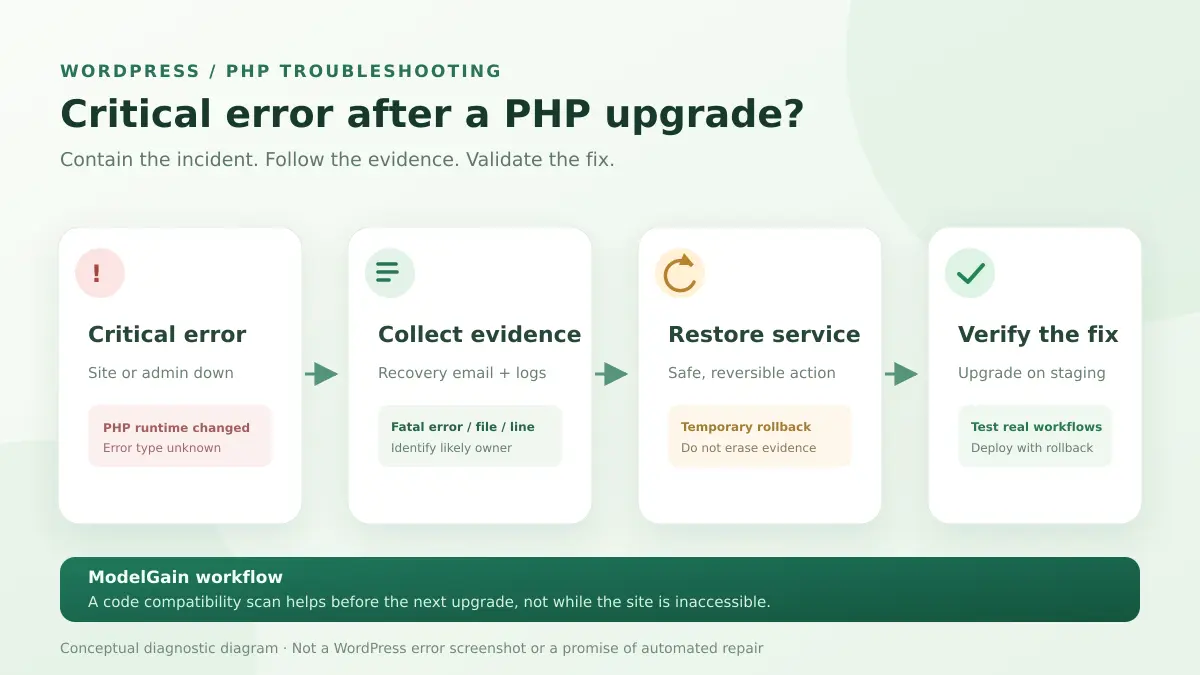
“There has been a critical error on this website” immediately after a PHP version change is an incident, not proof that WordPress core is incompatible. First preserve the error evidence and a recovery path. If your host can safely switch the site’s PHP runtime back, a temporary rollback may restore access while you identify the failing plugin, theme, or dependency. Then use the first useful fatal-error stack frame to choose a targeted fix and retest the newer PHP version on staging.
The message itself does not name the culprit. A WordPress.org discussion about moving from PHP 7.4 to 8.3 includes owners who regained access after their host temporarily reverted PHP, alongside a concrete call_user_func_array() callback error. Another support case reports that disabling a gallery plugin brought the site back. These are reports from other sites, not evidence that either component causes every PHP upgrade failure.
Recover from a critical error after changing PHP
Applies when: WordPress reports a critical error or an inaccessible page immediately after a PHP runtime change.
Quick answer
Preserve the error evidence and a recovery path first. Inspect the earliest relevant PHP fatal error and identify the responsible file or component before deactivating plugins or replacing code. A PHP rollback may restore service while you investigate.
What to do
-
Confirm a verified backup and whether the hosting panel can restore the previous PHP runtime.
-
Capture the first relevant fatal error, timestamp and stack trace without exposing private paths or credentials publicly.
-
After a focused correction, test public pages, wp-admin and whichever action originally failed.
Where does the error occur?
All paths are listed below. Select a symptom to focus on the most relevant path.
Prioritize safe service restoration
Use your hosting recovery tools or a confirmed PHP runtime rollback if available, then inspect fatal logs. Do not bulk delete plugins or reset the database.
Check whether public routes still work
Compare admin and public HTTP responses and relevant log entries. Use WordPress Recovery Mode or hosting access to isolate a verified cause rather than changing the whole installation blindly.
Investigate the affected execution path
Record the exact action that triggers the error and inspect its stack trace. Limit fixes to the responsible plugin, theme or custom code, and retest the original operation.
Did this help?
Do these five things first
- Stop changing multiple things. Record when the error started, which PHP version you selected, and whether both the site and
/wp-admin/are affected. - Preserve a recovery point. Confirm a database backup and a copy of the site’s files are usable. Do not overwrite your only pre-incident backup with a broken-state backup.
- Read the error evidence. Check WordPress’s Recovery Mode email and your host’s PHP-FPM, PHP, or web-server logs. Keep the full stack trace privately.
- Restore service cautiously. If your host still offers the previous PHP version, a temporary runtime rollback can be an appropriate containment measure. Verify both frontend and admin access afterward.
- Investigate on staging. Reproduce the failure, identify the component, apply a supported fix, and test before switching production forward again.
Important: do not start by deleting plugins, resetting the database, or disabling every plugin on a live WooCommerce store. Those changes can interrupt payment, security, email, and subscription workflows while also destroying valuable evidence.
1. Is the error happening everywhere or only on one route?
Answering this question prevents an entire-site intervention for a route-specific failure. Note the exact behavior instead of relying on the generic critical-error screen.
| Symptom | Where to investigate first | What not to assume |
|---|---|---|
| All frontend pages and wp-admin fail | PHP fatal log, bootstrap-time plugins/themes, runtime and extensions | That your content database is corrupted |
| Frontend works; wp-admin fails | Admin-only plugin hooks, dashboard code, the failing request’s stack trace | That a successful homepage means PHP is compatible |
| Only checkout, a form, or one plugin page fails | That workflow’s callback, integration, request and logs | That every plugin needs to be deactivated |
| The browser shows HTTP 500 without a WordPress screen | PHP-FPM and web-server error logs, origin health, then WordPress | That the response definitely came from WordPress |
When a host says “PHP changed,” verify that the web-server PHP runtime changed. The output of php -v on an SSH terminal may be from a different command-line PHP binary and cannot by itself prove which PHP-FPM pool handles site traffic.
2. Find the fatal error without exposing it to visitors
Check the WordPress Recovery Mode email
WordPress’s built-in Recovery Mode can send the site administrator an email with a recovery link when a fatal PHP error occurs during a normal page load. Look in the configured admin mailbox and spam folder. Follow the link only if it matches your own site’s address and you recognize the incident.
Recovery Mode does not cover every crash. In particular, it does not necessarily activate for cron jobs and background tasks. No email does not prove that PHP is fine; email delivery might fail before the mail plugin loads.
Use logs from your host, or temporary WordPress debugging
Start with the hosting panel’s PHP error log or PHP-FPM log when available. If you can safely modify configuration and have a verified backup, the following illustrative settings show how WordPress debugging is normally configured:
define( 'WP_DEBUG', true );
define( 'WP_DEBUG_LOG', true );
define( 'WP_DEBUG_DISPLAY', false );
@ini_set( 'display_errors', 0 );
These belong in wp-config.php before the WordPress “stop editing” comment and must replace rather than duplicate any existing constant definitions. They may write errors to wp-content/debug.log; on a production host, prefer an access-controlled log location outside the public web root when practical. Disable temporary debug logging after the investigation, rotate or remove sensitive logs according to your site’s policy, and never copy private paths or tokens into a public support thread. See the WordPress debugging handbook.
3. Read the stack trace: which line matters?
Start with the fatal error type and message, then follow the stack frames to the first relevant plugin, theme, or custom-code path. A stack frame inside wp-includes/class-wp-hook.php may be where WordPress invoked a callback; it is not necessarily where the invalid callback was registered.
The following is a synthetic example for learning how to read a log. It does not describe a ModelGain incident:
PHP Fatal error: Uncaught TypeError:
call_user_func_array(): Argument #1 ($callback)
must be a valid callback
in /site/wp-includes/class-wp-hook.php:324
Stack trace:
#0 /site/wp-includes/plugin.php(...): WP_Hook->apply_filters()
#1 /site/wp-content/plugins/example-addon/includes/hooks.php:42
#2 {main}
Here, example-addon is a placeholder, not a real implicated product. Investigate the plugin file and the callback registration before editing WordPress core. The PHP 8.0 backward-incompatible changes document explains several removed APIs and stricter callback behaviors that can surface when legacy code meets a newer runtime.
Do not treat every Deprecated notice as a crash. A notice can signal future maintenance work without causing the current fatal error. Conversely, Uncaught Error, TypeError, and some Composer platform-check failures can stop a request. Different failures call for different remediation.
4. Restore access without losing the evidence
If a reversible PHP rollback is available
Record the target version and errors before making the switch. Use the hosting provider’s supported PHP version selector or ask their support team to restore the previous site runtime, not merely the CLI interpreter. Do this as short-term incident containment: an older, unsupported PHP branch may expose other security risks and should not become the permanent solution.
After rollback, test a public page, admin login, the failing route and any business-critical workflow. Keep the error trace and compare the configured extensions between the two PHP versions. A rollback that gets the homepage working but leaves checkout or scheduled tasks broken is not a complete recovery.
If the old runtime is unavailable
Use Recovery Mode if available. It can let an administrator temporarily isolate a plugin or theme involved in the fatal error. If you instead have host file-manager, SFTP or SSH access, first take a current backup, then isolate the particular component identified by the log. On a staging site, deactivating one suspected plugin through WP-CLI can be more controlled than renaming the whole plugins directory:
wp plugin list --fields=name,status,version --format=table
wp plugin deactivate example-addon
Replace example-addon with the actual installed slug. The second command changes plugin state; it is not a read-only diagnostic, and you should not run it indiscriminately on production. WP-CLI also loads WordPress, so it may fail when a fatal error interrupts bootstrap. Special handling may be required for must-use plugins, multisite, custom drop-ins, or a broken theme. Follow the official WP-CLI deactivate documentation and your host’s incident runbook.
5. Test the real fix before upgrading PHP again
- Clone the live site’s current database and files into a private staging environment. Match its active plugins, premium extensions, theme and relevant PHP extensions.
- Reproduce the fatal error on the intended PHP target and save the log and failing request.
- Upgrade or replace the implicated plugin or theme using the vendor’s supported release; for custom code, review and test the exact affected path.
- Check the homepage, wp-admin, forms, logins, REST API, cron callbacks, and—where relevant—checkout and payment callbacks in sandbox mode.
- Only after staging passes, plan the production change with backup verification, a rollback procedure, log monitoring, and an agreed deployment window.
Remember that a static scan of installed files detects known compatibility patterns, but not every runtime condition, extension mismatch, network failure, or business-specific integration. Real-path testing is mandatory for critical systems.
Where ModelGain’s PHP Upgrade Risk Audit fits
ModelGain PHP Upgrade Risk Audit helps investigate compatibility risks once the site is accessible again—or from an equivalent working staging copy. The public release (currently listed as Upaccn PHP Upgrade Risk Audit) is a read-only local static analyzer for installed plugins and themes. It reports Ready, Review or Blocked findings with file, line and rule-level evidence against a selected PHP 8.x target. Version 0.1.0 requires WordPress 6.9+ and cannot be installed on every legacy site.
It does not repair a currently crashed WordPress site, change the server PHP version, disable a problematic plugin, or guarantee that a future upgrade will work. If wp-admin cannot run at all, use hosting logs, a rollback, Recovery Mode or an existing backup first. After recovering, follow the separate WordPress PHP 8 pre-upgrade compatibility checklist for inventory, scanning and staging verification.
Frequently asked questions
Why did my site fail on PHP 8.3 if WordPress says that version is supported?
WordPress core’s compatibility matrix does not certify every third-party plugin, premium theme, custom snippet, PHP extension or Composer dependency. Check the specific stack trace.
Can switching back to PHP 7.4 fix the error?
It might temporarily restore service if the error was introduced by that runtime change, but this is neither proof of root cause nor a long-term fix. PHP 7.4 is end-of-life. Use the working interval to update and validate dependencies.
Should I delete and reinstall every plugin?
No. Start from the logs, identify the affected component and keep backups. Reinstalling broadly can discard settings, licensing state, customizations or the evidence needed to diagnose the incident.
Is a blank white screen the same as WordPress’s critical-error message?
Both can accompany PHP failures, but a blank response can also reflect server, caching or upstream problems. Verify the HTTP status and origin-side logs before assuming an identical cause.
Official references and real incident reports
- WordPress Recovery Mode — what triggers it and why the recovery email might not arrive.
- WordPress debugging documentation — WP_DEBUG_LOG, WP_DEBUG_DISPLAY and log-handling guidance.
- WP-CLI plugin deactivate command — exact command behavior and operational parameters.
- PHP manual: backward-incompatible changes in PHP 8.0 — removed APIs and changed behavior.
- WordPress.org: website crashes when changing PHP 7.4 to 8.3 — real site-owner reports and callback error evidence.
- WordPress.org: critical error after upgrading PHP — one reported plugin-related incident.
- WordPress.org: Upaccn PHP Upgrade Risk Audit — actual product capabilities and limits.