WORDPRESS
Find Which WordPress Plugin May Break After Switching to PHP 8
Find which installed WordPress plugin may fail after PHP 8. Inspect source-level findings, identify the owner and confirm compatibility on staging.
Which installed WordPress plugin is most likely to break when you switch to PHP 8? You cannot answer that reliably from a plugin’s age, its update date or the WordPress core PHP compatibility table alone. Instead, check the actual installed plugin and theme source code against the PHP version you intend to use, inspect the specific finding and test the affected feature in staging. The result is a prioritized list of components to investigate—not a prediction that a particular plugin will certainly crash.
This is a component-identification guide: it shows how to move from a suspected WordPress PHP 8 incompatibility to an exact plugin name, file, line and next action. For the complete pre-upgrade site checklist, read How to Check WordPress Plugins Before a PHP 8 Upgrade. If your live site already shows a critical error after a switch, use the fatal-error recovery and stack-trace workflow first.
What have you found in your PHP 8 plugin check?
Applies when: Before switching the PHP version on WordPress, identify installed plugin/theme compatibility risks and choose the next test using evidence rather than the age of plugins or a generic WordPress support badge.
Quick answer
Check actual installed component source against the exact target PHP 8.x version, review file- and line-specific Blocked/Review findings, and test critical workflows in staging. Ready is not proof of runtime safety. If the live site has already crashed, use PHP logs and WordPress Recovery Mode rather than expecting a static scan to repair it.
What to do
-
Record the production web runtime, target PHP version and WordPress core version separately.
-
Review each selected plugin/theme's verdict, file, line, rule and whether a vendor library owns that code.
-
Update or isolate the component on staging, run the affected business workflow and inspect PHP logs.
Which situation best describes your WordPress PHP 8 upgrade?
All paths are listed below. Select a symptom to focus on the most relevant path.
Check whether Blocked has a source-level finding
If Blocked has a compatibility ERROR with a file, line and rule, investigate and retest the affected feature in staging. A separate scanner failure may also surface as Blocked; resolve the scan error rather than declaring PHP code incompatible.
Determine whether the affected path matters
Review means the source needs contextual interpretation. Identify whether a dependency or unused code owns the finding, check vendor updates and confirm relevant features on staging.
Continue with staging despite a clean result
Ready means no known blocking pattern was found within the selected scanned files. It cannot guarantee extension availability, actual runtime paths, checkout behavior or background tasks.
Inspect installed readable code and its maintainer
Read-only source checks can include installed readable premium and custom components, but vendor libraries and custom themes need separate ownership and remediation review.
Restore access and use the fatal stack trace
A source scan cannot fix an already crashed wp-admin. Preserve logs, use available Recovery Mode or an authorized temporary hosting PHP rollback, then identify the first actionable stack frame.
Do not bypass the minimum WordPress requirement
Upaccn PHP Upgrade Risk Audit v0.1.0 requires WordPress 6.9+ and PHP 7.4+ to run. Test on a supported staging installation or use an appropriate alternative analyzer; do not force install on unsupported production.
Did this help?
A plugin’s name or WordPress compatibility badge cannot prove PHP 8 safety
Three separate compatibility questions can have three different answers: Does your WordPress core release support the new PHP version? Does the installed plugin or theme include code incompatible with that target? Does your real site execute a failing path under that runtime? The official WordPress/PHP compatibility matrix addresses the first question, not every third-party plugin or custom theme. A WordPress.org “tested up to” declaration similarly does not execute your installed version under your site’s configuration.
A real WordPress.org support report about switching from PHP 7.4 to 8.3 describes an immediate blank page and investigation of the site’s theme compatibility. It does not establish that theme incompatibility causes every blank page after a PHP upgrade; it illustrates why a component-specific investigation is necessary.
An especially useful WordPress.org PHP 8 support case involving Weaver II illustrates the distinction: the error trace identified a theme widget file, while a separate compatibility scan also noted findings inside a different plugin’s bundled vendor code. A report flag and the component responsible for the actual request failure are different kinds of evidence. A WooCommerce PayPal Payments PHP 8 support thread records a plugin-specific undefined constant problem followed by a fix. These are individual historical incidents, not a claim that those currently updated products are incompatible.
Find the likely owner in five steps
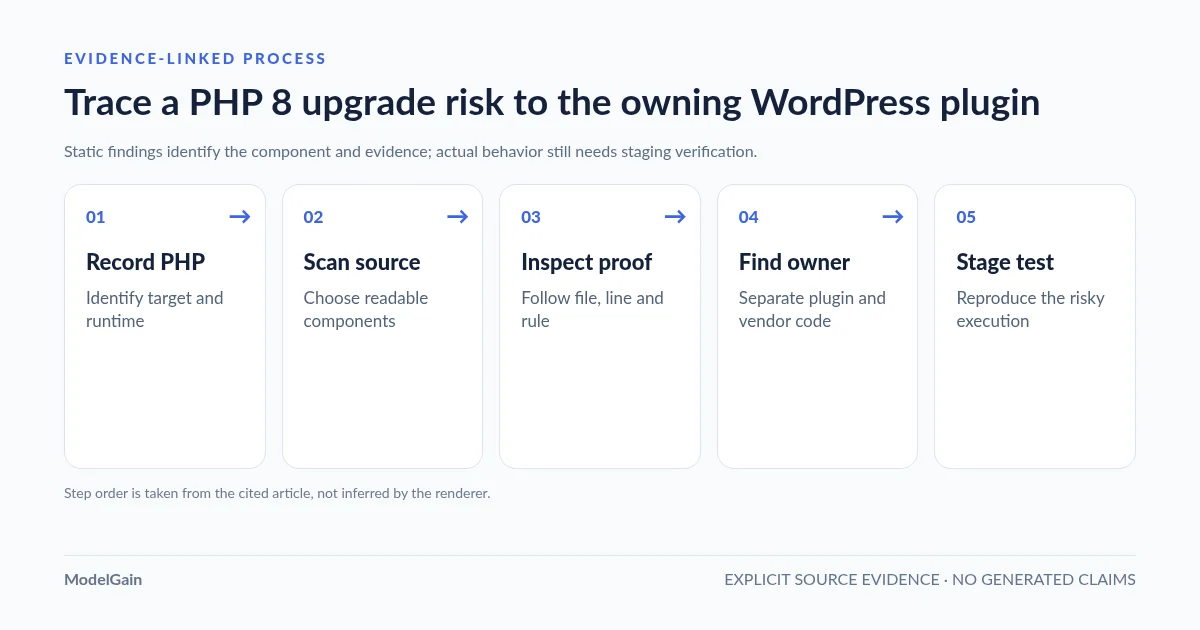
Record your target → Scan installed components → Inspect the exact finding → Verify who owns the code → Reproduce on staging. Keep each step as evidence so the final decision is auditable.
- Record your target. Note the web server’s current PHP version, the proposed PHP 8.x version and the actual WordPress release. Do not confuse the SSH command-line PHP interpreter with PHP-FPM used by website visitors.
- Scan installed components. Select the actual premium, custom and directory-installed plugins and themes you need to assess, then run a local read-only source scan against that exact target version.
- Inspect the exact finding. Capture the component name, path, line, PHP compatibility rule, severity and message. A summary badge without a supporting file and line is not enough to schedule a fix.
- Verify who owns the code. Distinguish your own custom plugin, a commercial plugin, an active theme and an included vendor library. Identify a supported upstream update or replacement without editing production files blindly.
- Reproduce on staging. Switch an equivalent staging site’s PHP runtime and test the particular feature that loads the code, then check PHP logs. Only actual execution can confirm the site behavior a static analysis predicts or misses.
Get a per-plugin report without changing production PHP
ModelGain PHP Upgrade Risk Audit is published on WordPress.org as Upaccn PHP Upgrade Risk Audit. Version 0.1.0 supports target versions PHP 8.0 through 8.5 and offers a local, source-based assessment of selected installed plugins and themes. It runs inside WordPress with bounded AJAX work, requires no shell-execution functions, does not upload source code and does not modify plugin files or switch the site’s PHP runtime.
Before installing, check the plugin’s published minimum requirements: version 0.1.0 requires WordPress 6.9 or later and PHP 7.4 or later to run the diagnostic itself. It cannot be assumed installable on an older WordPress installation; in such cases assess an updated staging copy or use an appropriate external/static-analysis workflow rather than forcing the plugin onto an unsupported site.
- In WordPress admin, go to Tools → Upaccn PHP Upgrade Risk Audit.
- Choose the exact PHP version your host proposes, not merely “PHP 8” as a generic family.
- Select the relevant readable installed plugins and themes. The tool intentionally excludes itself from scan targets to avoid its own bundled analysis engine appearing as a site’s plugin risk.
- Run Scan selected components and review each Ready / Review / Blocked component verdict with its file-level evidence.
- Record the risk owner and staging test required; do not treat a static verdict as proof that live code will or will not execute.
Ready, Review or Blocked: which plugin needs attention first?
| Scanner verdict | What it actually establishes | Action for the site owner |
|---|---|---|
| Blocked with source findings | The selected static scan recorded at least one compatibility ERROR finding for that component. |
Investigate the exact file and line first; update, replace or isolate the component in staging before approval. |
| Review | There were no ERROR findings, but the scan recorded one or more WARNING findings. |
Check severity, rule, reachable feature, bundled vendor dependency and supported upstream fixes. |
| Ready | No findings appeared under the selected static compatibility rules in the scanned source. | Continue staging tests; it is not a runtime compatibility certificate. |
| Scan failed or component not covered | A scanner/runtime error, unreadable source, zero-file scan or excluded component is not compatibility evidence. A failed scan may surface as a Blocked overall state without a source-level compatibility ERROR. |
Inspect the error details and coverage; rerun only after resolving the scan problem. Do not mistake a scanner fault for an incompatible PHP API. |
Before acting on a Blocked label, confirm whether it actually has a file, line and PHP compatibility rule behind it, rather than a generic scan failure. Check whether a real finding belongs to an active production workflow. A serious incompatible API called during bootstrap or checkout deserves prompt investigation; a finding in a vendor file that is never loaded may require the maintainer’s judgment rather than an immediate live-site change. Neither case can be resolved safely by a numeric risk score alone. Ask your plugin vendor for a compatible release or a reproducible remedy, preserving the cited source and version.
Concrete PHP 8 compatibility patterns to verify
The official PHP 8.0 backward-incompatible changes list documents APIs that no longer exist. For example, create_function() was removed in PHP 8.0, and each() was removed as well. A plugin that actually executes either legacy call on the newer runtime can encounter a fatal error. The example below shows a historical pattern for illustration—not code from a named live WordPress plugin or a claim about a particular scan finding:
// Illustrative legacy code; do not copy it into a current plugin.
$callback = create_function('$item', 'return trim($item);');

// A maintainer might replace it with an equivalent closure after
// reviewing the surrounding behavior and testing the complete feature.
$callback = function ($item) { return trim($item); };
Seeing the string create_function in a comment, bundled archive or unreachable compatibility shim is not the same as a confirmed runtime failure. Some PHP compatibility differences also appear as notices or behavior changes rather than immediate fatals. Treat the rule + file + source context as a review starting point. Keep updated plugin dependencies and PHP extensions in scope: static source inspection cannot prove that a missing intl, imagick or other runtime extension will be installed by your host.
The filename tells you who to contact—not always who caused the fault
A path under wp-content/plugins/example-plugin/ helps you identify the responsible installed component, but a flagged path under its vendor/ directory may belong to a bundled library maintained upstream. The correct fix could be a plugin release that updates that dependency rather than a direct edit to a vendor file. Your production custom plugins and active theme may require a local developer instead.
For a meaningful support request, include the plugin/theme name and installed version, WordPress version, current and target web PHP versions, source file and line, finding rule/message, and a sanitized staging reproduction. Do not paste passwords, license keys, private tokens or complete user data. The scanner provides evidence; the maintainer or site engineer determines the safe remediation.
What if the PHP version has already changed and WordPress is down?
This is now a runtime incident, not a preflight guessing exercise. Follow the WordPress critical error after PHP upgrade guide: preserve logs, use the site’s valid Recovery Mode where available, and consider an authorized temporary hosting-PHP rollback to restore service. Recovery Mode does not cover every request or background task. Do not attempt to install the diagnostic into a WordPress admin that cannot load.
Inspect the first actionable PHP fatal and its stack frames before blaming the plugin listed last in a general inventory. The crash may be in the active theme, a must-use plugin, custom snippet, another plugin’s callback, a missing extension or an incompatible dependency. A static Blocked verdict for one installed component is not proof that it caused this particular live outage.
How to make the final plugin compatibility decision
After triaging source findings, run a realistic test on an equivalent staging copy, not by making simultaneous updates to several production plugins. Check a representative source-triggering path for each flagged component, plus the site’s most valuable workflows. That may include admin login, editing, forms, uploads, scheduled actions, contact submissions or e-commerce checkout using sandbox payments.
Record which target PHP version was active on the web server, exact plugin releases, PHP extensions and relevant error logs; the command-line PHP version can differ. Apply upstream fixes on staging one at a time and retest the previously failing scenario. Only plan production rollout after a monitored staging pass, verified backups and a documented rollback path. A source scan can reduce uncertainty, but cannot replace the last step.
Frequently asked questions
Can the scanner tell me the single plugin that will break PHP 8?
It can identify and group known code-compatibility findings by installed component with a file, line and rule. It cannot guarantee exactly one culprit or predict every runtime path; multiple components can have findings, and an undetected behavior can still fail on staging.
Is a Blocked verdict proof that this plugin will crash my site?
No. It is a serious static-code signal for your selected target. Confirm the affected code and dependencies, update or isolate on staging, and test the actual request path. Do not publish an unverified claim about the plugin or vendor.
Does Ready mean I can upgrade production immediately?
No. Ready means the checker did not find a known blocking pattern within the selected readable source. It does not confirm availability of PHP extensions, third-party services, runtime code paths, payment integrations or background tasks.
Can the tool inspect premium or custom plugins?
Yes, when their source is installed and readable on the WordPress site. The tool uses local analysis, not only an external list of public plugin compatibility ratings.
Can I run it if my WordPress version is older than 6.9?
Do not force this v0.1.0 release onto an installation outside its published WordPress requirements. Create or upgrade a supported staging environment for the diagnostic, or choose an independent compatible analysis workflow while preserving a reliable production rollback.
Official documentation and grounded examples
- WordPress.org: Upaccn PHP Upgrade Risk Audit v0.1.0, capabilities and limitations.
- WordPress Core: supported combinations of WordPress and PHP versions.
- PHP official migration notes: PHP 8.0 incompatibilities.
- PHP official manual: deprecated then removed
create_function(). - WordPress.org support: site blank after upgrading PHP 7.4 to 8.3.
- WordPress.org support: Weaver II theme traceback versus unrelated vendor-code findings.
- WordPress.org support: historical WooCommerce PayPal Payments issue after a PHP 8 switch.
- WordPress.org: recovery mode after some fatal errors.