WORDPRESS
Diagnosing High Server Load During WordPress Link Checking
WordPress link scans causing high server load? Check PHP, database and outbound requests; isolate scan activity and verify before changing settings.
Does WordPress slow down when a broken-link scan starts? First stop starting new scans and compare server behavior with and without the checker running. A scanning task can consume PHP execution time, outbound HTTP connections and database capacity, but a simultaneous CPU spike does not by itself prove the checker caused it. Look for a repeatable correlation and the exact requests involved before changing server limits or abandoning link maintenance.
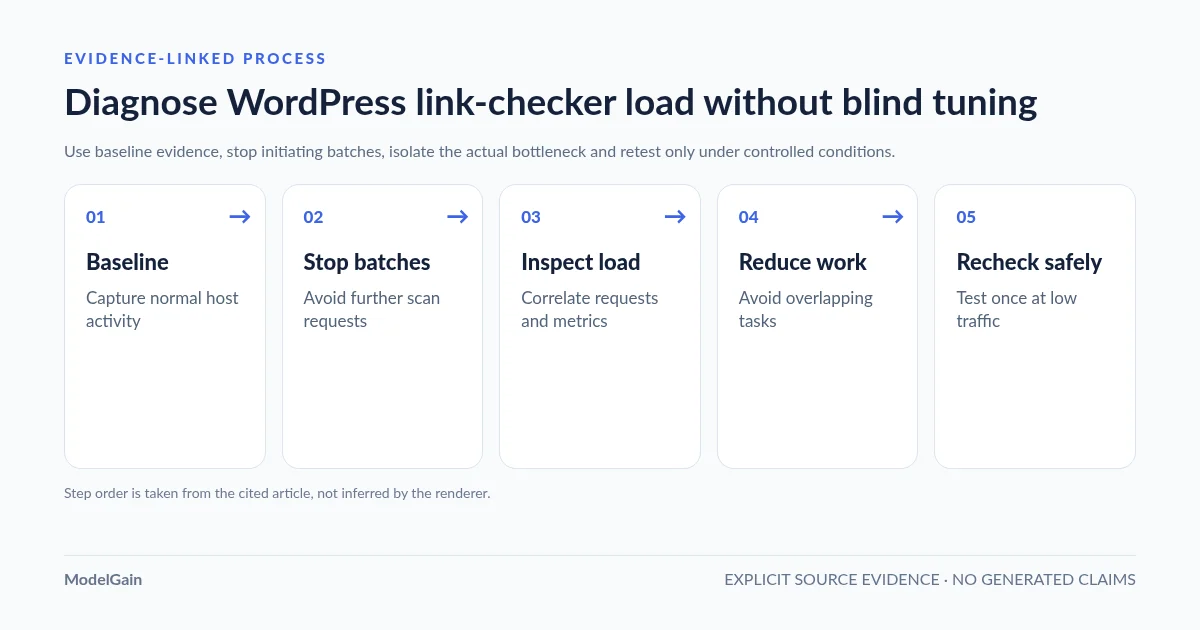
The safest approach is baseline → isolate → inspect → reduce pressure → retest. The correct remedy depends on whether your site is overloaded during URL discovery, remote link checks, unrelated background work, or bulk link edits. Those are different tasks. Below is a practical diagnostic process for WordPress site owners and a precise explanation of what ModelGain Content Link Health Check does—and does not—control.
What slows down your WordPress site during link checking?
Applies when: A site owner reports server slowness, high CPU or timeouts near a WordPress broken-link scan and wants an evidence-first way to isolate it.
Quick answer
Record a clean no-scan baseline and verify that scan activity correlates with the load. Stop new browser-driven batches, inspect PHP/DB/hosting metrics, avoid overlapping work and recheck in a controlled window. Separate scanning from bulk edit costs and do not invent plugin throttling controls.
What to do
-
Record public response behavior, PHP/CPU, memory and database pressure before and during scanning.
-
Stop launching new scan batches, note other cron/backup tasks and review the actual requests and logs.
-
Use one controlled low-traffic run; stop if visitor experience suffers, then proceed only with verified source-link repairs.
When do you see the problem?
All paths are listed below. Select a symptom to focus on the most relevant path.
Compare live and idle PHP activity
Stop initiating more scan batches and compare public response times, PHP workers and CPU with a normal no-scan window. A dispatched request may still finish; do not assume every spike came from the checker.
Inspect actual database and plugin contention
Check hosting/database slow-query data and concurrent cron, backup or import tasks. Scan-state writes are not automatically the only cause. Avoid changing database or PHP limits before confirming the bottleneck.
Treat remote blocks as evidence, not an invitation to retry rapidly
Record affected external hosts; 403/429 and timeouts can reflect permissions, WAF or network conditions. Recheck later conservatively and keep uncertainty separate from hard 404/410.
Separate mass content writes from read-only scanning
Bulk changing hundreds of hrefs can create substantial WordPress writes and cache work. Stop the bulk operation, restore availability and plan smaller reviewed source changes; ModelGain v0.1.0 does not auto-edit posts.
Diagnose the site without blaming the scanner
If slowness persists outside scan windows, investigate normal hosting load, cache misses, plugin/theme conflicts, bot traffic and scheduled jobs first.
Protect public availability first
Stop starting more scan work, do not try repeated tests under overload, and involve your host/engineer to identify saturated requests and restore the customer journey before any controlled retest.
Did this help?
First: what activity actually causes the slowdown?
Before tuning a link checker, note when the site gets slow. Does CPU rise only while you have a scanner’s admin screen open? Do visitors see slow pages at the same time? Does the issue occur while the tool checks URLs or only when it writes corrections to posts? Does it happen with multiple scan/browser tabs? Also check scheduled jobs, backup windows, imports, crawler traffic and other resource-heavy plugins that may overlap with your test.
| Observed pattern | Likely area to inspect | Safe first action |
|---|---|---|
| CPU or PHP workers rise while a scan runs | WordPress admin requests, local URL discovery, outbound HTTP checks and PHP execution times | Let in-flight work settle; compare equivalent no-scan and scan windows |
| High database load or slow admin screens | Expensive queries, other plugin work, scan-state writes and contention | Check existing slow-query/hosting metrics before changing database settings |
| Many 403/429 or remote timeouts, with modest local CPU | Destination-site protections, rate limits, DNS/TLS or network latency | Record the affected hosts and recheck conservatively later |
| Slowdown occurs during bulk link fixes, not checks | Mass content updates, write operations, cache invalidation and PHP/MySQL load | Stop batch edits; restore normal service and plan verified smaller edits |
| Public pages are slow even with no scan running | Broader hosting, caching, bots, traffic, scheduled jobs or a different plugin | Diagnose the independent baseline before blaming the checker |
Five safe checks before changing WordPress settings
Record baseline → Stop new scan batches → Inspect PHP and database activity → Reduce competing work → Recheck one bounded scan. This sequence tests the cause without risking blind performance tuning.
- Record baseline. Capture the time, page response behavior and available CPU, memory, PHP-worker and database metrics during a normal no-scan period. Note site traffic and any scheduled backups or imports. Avoid exposing credentials, private URLs or full access logs in public reports.
- Stop new scan batches. If the tool is controlled from an admin tab, stop initiating more scan work and close that tab. An already dispatched HTTP/PHP request may still complete. Observe whether visitor-facing responses and resource usage recover; if necessary, ask the host to investigate the remaining workers.
- Inspect PHP and database activity. Compare web-server request logs, PHP-FPM busy/slow-request data and hosting CPU/memory graphs with the recorded scan window. If available, inspect database slow-query summaries. Find evidence of the actual bottleneck; do not assume every spike is a WordPress cron event.
- Reduce competing work. Avoid running imports, backup jobs, mass edits and repeated scans at the same time. Test off-peak, use one admin scan session and avoid manually refreshing or launching overlapping tasks. Do not globally disable security controls merely to make a scanner appear cleaner.
- Recheck one bounded scan. During a low-traffic window, run only the smallest supported controlled test and compare the same metrics. Stop if public performance deteriorates. Decide whether to continue, ask the plugin provider about its limits, or change tools based on repeatable evidence.
For broad WordPress diagnosis, start with Tools → Site Health and your hosting performance dashboard. WordPress’s performance handbook explicitly recommends selectively isolating plugins to evaluate whether they affect performance. Prefer any disruptive isolation on staging or during an approved maintenance window; turning off plugins, caches or security software on a busy production site can create problems unrelated to link checking.
Why a link scan can create work on two different servers
A local WordPress checker has to discover outbound links in source content and send HTTP requests to their destinations. Discovery uses your WordPress runtime and database; checking an HTTP(S) target uses your server’s networking and PHP execution capacity, while the destination server also sees the request. A cloud-based crawler can shift much of that work outside your WordPress host—but it may offer different coverage, privacy and crawl-control trade-offs. You cannot assume a setting from one product exists in another.
Network calls can take longer than expected even when CPU usage is modest. Slow DNS, TLS negotiation, timeouts, remote bot defenses or blocked HEAD requests may increase elapsed time or produce inconclusive status labels. HTTP 429 means the target is rate-limiting a request; it is not evidence that you should hammer the site harder or disable its defenses. Conversely, slow public WordPress pages may come from busy PHP workers, database contention or traffic wholly unrelated to link checking.
The WordPress HTTP API handbook documents how remote requests can have timeouts and redirect behavior. Its HEAD request reference explains what HEAD retrieves. A checker may try GET for particular HEAD failures, but that behavior must be verified for the exact installed plugin and version.
How ModelGain Content Link Health Check v0.1.0 paces work
Upaccn Content Link Health Check, the public distribution of ModelGain’s link-diagnostic tool, uses admin/browser-driven incremental batches. Its released version 0.1.0 discovers anchor href values stored in published public post-type content and groups duplicate HTTP/HTTPS targets with their source posts. The implementation currently processes up to 20 posts per discovery batch and up to 3 distinct URLs per checking batch. The administrator keeps the scan page open until those browser-driven batches finish; that is not a guarantee that a large site has negligible aggregate work.
These figures describe per-batch code limits, not a tested requests-per-second guarantee or user-adjustable throttle. The shipped admin JavaScript schedules a subsequent batch after a short pause of roughly 50 milliseconds; it does not enforce a fixed sitewide hourly crawl budget. The current public interface does not promise a slider for crawl concurrency, custom rate scheduling or automatic off-peak cron scanning. Do not open multiple simultaneous scan tabs in an attempt to speed it up. Stopping further browser-driven batches does not cancel PHP requests that have already started.
The tool checks the first HTTP response without following redirects; it begins with a HEAD request and may use a limited-range GET when HEAD receives HTTP 403 or 405. It records hard 404/410 responses as Broken and numeric 3xx under Redirect (including 304, which is actually cache validation). Specific access restrictions (including 401/403), 408/425/429, 5xx and network errors are generally classified as Retry; certain other unexpected responses, such as a final 405, can be Unknown. A Retry label is a request for human re-verification, not a promise of an automatic background retry loop.
It writes diagnostic scan-state tables on your WordPress host but does not edit source posts, create redirects, automatically repair links, crawl rendered Bricks/Elementor output or scan arbitrary menu and custom-field links. Its results interface shows up to 100 URL rows, with up to five source references per URL and +N more for additional source posts. None of these features provides a hardware benchmark or guarantees the tool cannot contribute to load. The relevant version scope is documented on its WordPress.org release listing.
Why advice for another Broken Link Checker may not apply
One WordPress.org support case titled “High server load during scans” describes CPU spikes while a different Broken Link Checker product was running. Its support team explained that the user could adjust scan limits for that product’s local engine, but not its cloud crawler. This is evidence of a real user question, not proof that all local checkers have adjustable batch sizes or that a particular product caused the spike.
A separate WordPress.org review about performance during bulk fixes described serious disruption while editing hundreds of redirected links. That report concerns writing many link corrections, not merely scanning destinations. Do not use it as evidence that ModelGain’s read-only content diagnostic performs the same writes: it does not. The general lesson is to distinguish read-only discovery from batch content mutation and to validate edits before applying them at scale.
What to measure without exposing server secrets
Use timestamps to correlate four simple kinds of evidence: public response quality (slow pages or errors), PHP/CPU/memory pressure, database or queue contention and admin scan requests / outgoing URL checks. If your host supplies an APM trace or PHP slow log, review it for the exact scan interval. A resource dashboard is usually safer and more actionable than publishing raw server logs containing IP addresses, cookies or query tokens.
If you have approved command-line access, a read-only process snapshot can show busy processes, but it does not attribute every CPU sample to a plugin:
# Read-only snapshot on a Linux WordPress host; no root required.
ps -eo pid,comm,%cpu,%mem,etime --sort=-%cpu | head -n 16

# Compare timestamps against your hosting dashboard and PHP logs.
# Do not post raw logs, session tokens or sensitive query URLs online.
WordPress Site Health offers configuration checks but is not a complete profiler for outbound HTTP, PHP-FPM workers or database query cost. If it reports cron/loopback errors, investigate those as their own category rather than assuming the link checker has scheduled itself. The official WordPress loopback guide explains what WP-Cron and loopback requests do, but its generic behavior does not prove a specific link checker uses WP-Cron.
When to stop scanning immediately
If public pages start timing out, customer interactions fail, database connections saturate or host alerts show resource exhaustion, prioritize service availability over finishing the scan. Stop starting further batches, avoid running another scan for comparison during the incident and ask your host or engineer to identify the busy requests. Once service is stable, test during a controlled off-peak window with the right monitoring in place.
Do not use global timeouts, unlimited workers, blanket WAF allow-lists or unrestricted retries as first-line fixes. They can mask a root cause or move the overload to another component. Googlebot crawling is incoming traffic to your website; the local WordPress link checker makes outgoing requests from your host to other websites. Search Console crawl statistics do not measure this plugin’s outgoing batches or resource costs. Google notes in its crawl availability guidance that sustained server availability problems can limit how much Google is able to crawl. This is a reason to protect public uptime, not a recommendation to use Googlebot emergency rate-limiting rules to control your WordPress plugin.
Continue link maintenance without unnecessary scans
When the site’s performance is stable, resume with the specific URL and source pages most likely to affect users, rather than treating “scan everything again” as the only workflow. If the scan already identified a likely missing URL, first use the source-post location guide to find its editable owner and the evidence-first triage guide to choose whether to repair, verify or defer. For blocked external destinations, see the 403 false-positive diagnostic.
The ModelGain Content Link Health Check product page describes its deliberately narrow read-only role. A good link maintenance process balances reliable evidence, source ownership and the cost of checking—not maximum crawler speed or a report with the largest number of warnings.
Frequently asked questions
Can a broken-link checker make WordPress slow?
Yes, depending on the plugin architecture, how many links are checked, remote timeout behavior and available server resources. But a CPU spike during a scan is only a correlation until you compare the no-scan baseline, relevant PHP/DB requests and other overlapping jobs.
How can I reduce the load without disabling link checks forever?
Stop overlapping scans, use a lower-traffic maintenance window, review the installed product’s actual limits and monitor PHP, database and visitor response metrics. Do not assume an arbitrary concurrency slider or scheduled scan feature exists unless your specific plugin version documents it.
Does ModelGain’s link checker run continuously with WP-Cron?
The current v0.1.0 workflow is started in the admin interface and uses browser-driven incremental batches. It is not advertised as a continuously running background cron crawler. A slow WordPress site can still have separate WP-Cron, backup or import activity that warrants investigation.
Does a 429 or 403 mean the scanned URL is broken?
No. 429 commonly indicates rate limiting; 403 may reflect permissions or bot blocking. ModelGain’s diagnostic tool puts inconclusive results in Retry rather than Broken. Recheck conservatively instead of forcing more requests to the target.
Is bulk fixing links as expensive as checking them?
They have different costs. Checking URLs primarily involves discovery and remote HTTP requests. Bulk editing writes to WordPress content and can trigger other processes. ModelGain Content Link Health Check v0.1.0 does not perform those bulk edits, so anecdotes about other plugins’ mass-edit behavior should not be attributed to it.
Primary documentation and real-world cases
- WordPress.org: Upaccn Content Link Health Check v0.1.0 behavior and product scope.
- WordPress.org support: High server load during scans.
- WordPress.org review: Performance impact during bulk link fixes.
- WordPress.org: Site Health for installation diagnostics.
- WordPress Performance Handbook: identify plugins and optimize safely.
- WordPress HTTP API: outbound request behavior.
- WordPress HTTP HEAD request reference.
- WordPress loopback and WP-Cron behavior.
- Google Search Central: server availability and crawl troubleshooting.