WORDPRESS
Broken Internal Links After WordPress Migration: Locate Source Pages
WordPress internal links broken after migration? Separate permalink 404s from outdated URLs, locate source pages and verify safe repairs.
WordPress internal links broken after a migration? Do not start with a database-wide replacement. First find out which URLs fail and which WordPress pages link to them. A site where nearly every pretty permalink returns 404 needs different troubleshooting from a site where a handful of old-domain links, renamed slugs or staging URLs remain in posts.
Use this guide to classify the failure, build an old-to-new URL mapping and locate the source pages that still reference obsolete targets. The goal is a safe, verifiable fix: the right public page loads, the original WordPress content points directly to it, and genuine historical URLs retain appropriate redirects. This is about migration-induced internal navigation, not repairing unrelated outbound citations or promising a ranking recovery.
What broke after your WordPress migration?
Applies when: After a WordPress site move, internal navigation fails or old URLs remain in published links. Diagnose server routing separately from obsolete source links.
Quick answer
When nearly every permalink is 404, inspect WordPress/server rewrite routing before editing posts. When isolated old-domain or slug links fail, map verified old and new URLs, locate their WordPress source owners, update those links selectively and preserve relevant redirects. Audit staging URLs and scanner false positives separately.
What to do
-
Test live public URLs and separate sitewide rewrite problems from individual old or renamed link targets.
-
Confirm the correct destination and identify every source post, menu, widget or template that points to the obsolete URL.
-
Apply an editor-level correction or host rewrite fix, preserve needed redirects and recheck navigation, canonicals and sitemaps.
Which migration symptom is closest to yours?
All paths are listed below. Select a symptom to focus on the most relevant path.
Check routing before editing content
A sitewide pretty-permalink failure often belongs to rewrite rules, host routing or permalink configuration. Verify published post URLs and settings, then apply the smallest authorized routing fix.
Map every old URL to the right destination
Verify target content before deciding between a direct internal-link update, a relevant permanent redirect or removing an obsolete reference. Never blanket-redirect old paths to an unrelated homepage.
Separate production from staging references
Inspect where staging or HTTP hosts are stored, and only replace public navigation references with verified canonical production HTTPS URLs. Keep test-only configurations distinct.
Keep valid redirects, update internal sources
A correct 301/308 is not a hard broken link. Update important internal hrefs directly to the final page while retaining genuine historical redirects for outside visitors.
Check the exact status, not just Redirect
Some scanners group all 3xx codes under Redirect. HTTP 304 is cache validation, not a move, and does not identify a new URL. Check the response semantics before changing a WordPress link.
Find the owner of every obsolete href
Use link-checker source records or read-only WordPress searches to find stored content. Check menus, widgets and builders separately; five visible source records may be only a preview.
Did this help?
Is the 404 caused by WordPress routing or by an outdated internal link?
Test your homepage and several known published post URLs by opening them directly, not only by clicking a link from an old article. Record their status and the URL in the browser’s address bar. A sitewide failure and an isolated obsolete reference have different owners and remedies.
| What fails? | Likely investigation | Do not do this first |
|---|---|---|
| Homepage works; nearly every pretty post URL returns 404 | Check WordPress permalink settings and host rewrite rules after the move. | Bulk-edit every post’s links. |
| Current post URLs open, but old slugs or old-domain links fail | Build old → new URL mapping; find references in source posts and menus. | Redirect every missing page to the homepage. |
| Links navigate to a staging or temporary domain | Identify where the staging host was stored and verify the production canonical destination. | Replace the domain in all database fields without review. |
| First hop is 301/308; final page is correct | Keep needed historical redirects and update important internal source links to the direct destination. | Call a working redirect a hard 404. |
| Scanner groups a 304 or other unclear 3xx under Redirect | Inspect the exact status: 304 is cache validation, not a navigational move or replacement URL. | Invent a redirect target from the broad 3xx label. |
| Scanner shows 403/429 but the URL opens normally | Check permissions, anti-bot protection or request-specific conditions before changing content. | Remove a valid link solely because of a scanner result. |
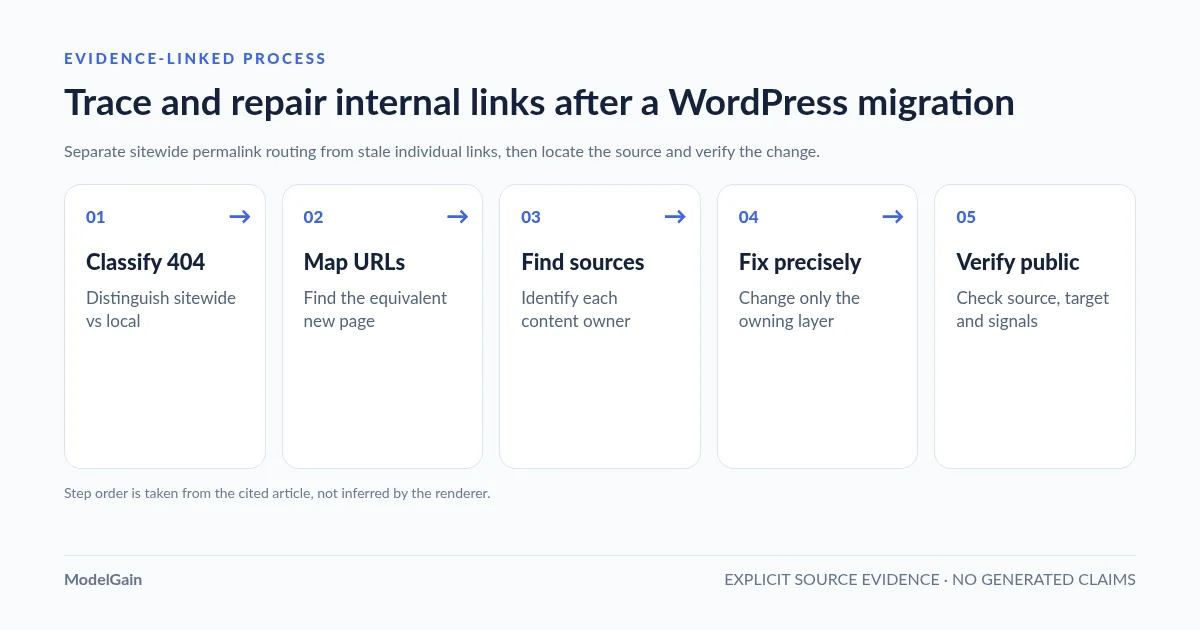
Five steps: from the broken target to the corrected source page
Classify the failure → Map old and new URLs → Locate each source → Apply the smallest safe fix → Recheck navigation and search signals. Keep a per-URL evidence record so a migration audit does not turn into untraceable site-wide edits.
- Classify the failure. Check several representative URLs on the live domain. Distinguish true 404/410 targets from a 301/308 path, access restriction or sitewide pretty-permalink failure. Save the observed status and date.
- Map old and new URLs. Match every affected historical path to a verified replacement with equivalent content. Include domain, protocol, path, query-sensitive variants and trailing-slash differences; mark pages intentionally removed rather than guessing a destination.
- Locate each source. For each obsolete internal target, find the WordPress posts, pages, navigation items, widgets or builder templates that still reference it. One broken target may be linked from many different sources.
- Apply the smallest safe fix. Correct a source link in the right editor, or repair sitewide routing when the permalink system is the actual problem. Preserve valid old-to-new redirects separately. Back up and review any proposed bulk replacements.
- Recheck navigation and search signals. Confirm clean public source pages, final target URLs, redirects, canonicals, sitemaps and relevant Search Console reports without relying on an authenticated admin view.
Case 1: almost every WordPress post is 404 after the move
When the homepage works but many known published posts and pages return 404 at their current permalinks, first test whether the WordPress URL routing or the web server’s rewrite rules were lost during migration. The official WordPress common-errors handbook specifically documents pretty-permalink failures after migration and directs administrators to Settings → Permalinks, then the relevant rewrite configuration if needed.
Open Settings → Permalinks and compare the configured structure with the site’s intended published URL format. Where authorized, re-save the existing intended setting to regenerate WordPress rewrite rules, then test known posts. On Apache, verify rewrite support and the applicable .htaccess rules; on Nginx, inspect the site configuration and WordPress routing because Nginx does not process .htaccess. Avoid changing permalink structure repeatedly or deploying copied rewrite snippets without first identifying the server and site configuration.
If all posts recover without changing their stored links, this was not a mass broken-link editing problem. Conversely, if newly published URLs work but specific historical links still fail, the next step is source attribution and URL mapping—not another blind permalink reset. Changing home or siteurl alone does not repair every embedded old-domain reference; see the WordPress migration handbook for the broader URL and data considerations.
This pattern appears in actual WordPress support cases. In “404 pages after migration”, a site owner reported the homepage loading while other pages returned 404; the troubleshooting focused on permalink and rewrite configuration. A separate local server/domain migration thread traced navigation failures to Apache’s handling of .htaccess and AllowOverride. These are individual configurations, not a claim that every post-migration 404 has the same root cause.
Case 2: old domains, paths or slugs remain in internal links
When a page moved from https://old.example/guide/ to https://new.example/resources/guide/, a source article can still contain the old absolute URL. The old link may return 404, may redirect to the correct guide, or may end up at an unrelated homepage. The correct fix depends on the final destination, not merely the first response.
Maintain a mapping table for each verified move:
| Old URL | Verified current URL | Source owner | Action |
|---|---|---|---|
old.example/guide/ |
new.example/resources/guide/ |
Resources overview (post ID, if known) | Update internal href; retain relevant old-address redirect. |
new.example/old-product/ |
new.example/products/current/ |
Product comparison article | Update after checking that the replacement actually matches. |
new.example/retired-page/ |
None, content permanently removed | Navigation menu and older post | Remove or revise the source citation; use correct removal response where appropriate. |
Google Search Central’s site-move guidance recommends updating internal links after moving, making old-to-new mappings, retaining appropriate permanent redirects and keeping redirect chains short. It warns against sending unrelated old URLs to one generic homepage, which can be treated as a soft 404. A redirect for historical bookmarks is a different responsibility from updating the internal links you control on the current site.
For a working 301/308 with a correct endpoint, updating important source links remains sensible but not every old redirect represents a broken page. See when a 301 internal link warrants editing. For a true missing endpoint, only use a permanent redirect when you have identified a valid replacement; otherwise revise or remove the obsolete link in the source content and treat removed targets according to their actual lifecycle.
Where can I find the WordPress source pages linking to the wrong address?
The ModelGain Content Link Health Check product, publicly listed as Upaccn Content Link Health Check, can assist with URLs found in the stored post_content of published public WordPress post types. Start a fresh scan at Tools → Content Link Health, keep the admin page open while batches execute, and review the relevant URL’s source-post references.
Scope matters: version 0.1.0 is a content-link diagnostic, not a full migration auditor or a rendered DOM crawler. It does not rewrite posts, create redirects or check arbitrary builder templates, navigation menu settings, custom fields or image/script resources outside scanned post bodies. It groups URLs by target and stores references to sources, but its admin results preview displays up to five source records per URL plus a +N more count. Treat the preview as a starting point, not proof you have found every source. Its broad Redirect classification includes any HTTP 3xx, even 304 Not Modified, which is not a navigation redirect; the tool does not follow the final target. The plugin writes its own local scan-state data while leaving source content unmodified.
If you only have a target URL and no source reference, search Posts → All Posts and Pages → All Pages for the old hostname, old path or a distinctive slug. The built-in search is not an exhaustive byte-accurate href finder. On sites with WordPress CLI access, narrow candidate published post bodies with the documented read-only post-list search:
# Search stored content on a WordPress 6.2+ installation.
wp post list --post_type=post,page --post_status=publish \
  --s='old.example' --search_columns=post_content \
  --fields=ID,post_title,post_type --format=table

# Inspect a candidate by its actual ID before changing a link.
wp post get 123 --field=post_content
These read-only queries can miss encoded URL variants, relative links and content owned by page builders, menus or plugin metadata. If a link is visible on the rendered site but absent from posts, inspect the menu, footer, reusable template or builder element that emits it. A link repeated on 100 public URLs might come from one shared template, not 100 independent articles. Read the full source-post location guide for an editor-by-editor workflow and the scanner’s source-list limitations.
Should you use WordPress search-and-replace to fix migration URLs?
Sometimes—but not as the first diagnostic action. A bulk change can affect page-builder metadata, embedded links, shortcodes, media references and configuration values that were intentionally different. WordPress’s migration handbook warns that moved sites may retain references in more places than standard post content. A blanket domain substitution also cannot infer that /old-product/ should now map to /catalog/new-product/.
If you own the site, have approved a verified one-to-one URL mapping, and a maintenance/rollback window is available, first create tested backups and use a dry-run assessment of the exact tables and old/new string. WP-CLI documents that search-replace can handle serialized data and offers a no-write --dry-run. The example below restricts the diagnostic preview to the default wp_posts table; replace that name with your installation’s actual table-prefix name. It still compares multiple text columns rather than only the href attributes in post_content:
# Diagnostic only: produces a count, makes no database edits.
wp search-replace 'https://old.example' 'https://new.example' \
  wp_posts --dry-run --skip-columns=guid
Do not remove --dry-run without a reviewed change plan. This table-scoped example omits postmeta, options and any plugin-owned tables; a broader dry run requires separately identifying and reviewing those tables. The report counts matching database values, not broken href anchors or correct replacements. Review serialized data, site-specific tables, custom fields, multisite scope and guid handling before any approved write. WordPress migration docs explicitly caution against casually changing post GUID values. Prefer editing individual WordPress source links for small, mixed, context-dependent migrations; bulk substitution is not a substitute for a verified URL map.
Staging URLs, HTTPS changes and redirect chains
After a staging-to-production deployment, links may still target staging.example or an old http:// address. Identify the actual source owner and check whether the target is supposed to be public before changing the stored URL. Do not replace development addresses inside private/test-only configuration as if they were public navigational links; keep production, staging and temporary preview destinations separate.
Where the new public URL is correct, update controlled internal links to the direct HTTPS destination and keep justified old-address redirects for existing external references. If the chain routes through multiple hosts or ends on the wrong page, fix the mapping rather than sending everything to the home page. Google’s redirect guidance and site-move guide distinguish permanent redirects from the source-link cleanup that follows migration.
How to verify migration link repairs are finished
After each scoped change, test both a current source page and the intended destination in an ordinary unauthenticated browser. Follow the link from the page, confirm it reaches the right content, and verify that redirects do not loop or downgrade unexpectedly. Test representative post, page, category and any public custom post type. Keep a record of original URL, new URL, owner, change date and observed final status.
For the broader migration, confirm self-referencing canonical URLs, current XML sitemaps, appropriate robots directives and Search Console indexing/crawl reports. A link checker is not a substitute for these checks. Missing crawl errors in Search Console is not proof that every rendered link is healthy, and a Search Console migration report by itself cannot tell you which editor stores an obsolete link. Both Google’s site-move checklist and the WordPress troubleshooting handbook recommend verifying actual URLs and routing.
Frequently asked questions
Why do all my WordPress internal pages return 404 after migration?
If the homepage works but most published pretty URLs fail, inspect permalink/rewrite configuration before changing post bodies. Check Settings → Permalinks and the host’s Apache or Nginx routing; this pattern can be a sitewide web-server problem rather than thousands of bad links.
How do I find WordPress posts still linking to my old domain?
Search stored public post content for the old host or path, inspect the corresponding source IDs in a source-aware link checker, and separately check menus, templates and builder data. Confirm actual href values; not every string match is a hyperlink.
Should I update internal links that already 301 to the new domain?
For important links you control, yes, point directly to the verified new URL. A correct permanent redirect is not automatically a broken link and should normally be retained for old bookmarks and external references; it does not replace the need to fix outdated source links.
Can I fix all migration 404s with a WordPress database search-and-replace?
No. Search-and-replace cannot repair missing rewrite configuration or infer correct new destinations when paths changed. Use an old-to-new map, source attribution, backup and a dry run; edit or redirect based on what each case actually means.
Will the ModelGain plugin find broken links inside Bricks or Elementor templates?
Not automatically. Version 0.1.0 scans anchors in stored published post content; it does not render arbitrary builder templates or guarantee detection of menu/custom-field URLs. Use the relevant editor and rendered-page inspection for links outside that scope.
Official sources and technical references
- Google Search Central: site move, link updates and redirect mapping.
- Google Search Central: redirects and URL moves.
- WordPress: pretty-permalink 404s after server changes.
- WordPress: migrating, URL settings, widgets and GUID cautions.
- WordPress support: 404 pages after migration.
- WordPress support: permalink rules after a local domain migration.
- WP-CLI: serialized data and read-only dry-run replacement report.
- WP-CLI: locating source content using post list.
- WordPress.org: source-content link scanner’s actual product boundary.