WORDPRESS
WooCommerce Scheduled Actions Stuck Pending? Diagnose the Queue Runner
WooCommerce Scheduled Actions stuck Pending? Check due dates, queue-runner health, WP-Cron and failed hooks before deleting or rerunning jobs.
WooCommerce scheduled actions can remain Pending because they are not due yet, because the queue runner is not starting, because it cannot keep up, or because an individual callback cannot finish. Before changing cron settings or clearing actions, compare the scheduled time, the most recent completed action, and the hooks that make up the overdue queue. A Pending count alone is not a diagnosis.
Open WooCommerce → Status → Scheduled Actions. This guide focuses on finding out why WooCommerce work stays Pending, including cases where new actions continue to appear but none complete. For the separate question of why WordPress reports WP-Cron as enabled while Action Scheduler does not run, see our WP-Cron versus queue-runner diagnostic guide.
Diagnose WooCommerce scheduled actions stuck Pending
Applies when: WooCommerce displays scheduled jobs as Pending and you need to determine whether they are actually stuck.
Quick answer
Future-scheduled Pending actions are expected. For overdue jobs, determine whether the runner never starts, processing cannot keep up, or individual callbacks cannot complete. Avoid clearing the queue or bulk-running unknown actions on a live store.
What to do
-
Review Pending, Complete, Failed and In-progress items; note the oldest past-due action, recurring hooks and actual business impact.
-
Inspect whether any actions have completed recently, then examine cron/loopback or the affected hook's logs according to the result.
-
After fixing a verified cause, check the completion rate and any affected order, subscription or notification workflow.
Which Pending pattern best matches the store?
All paths are listed below. Select a symptom to focus on the most relevant path.
No backlog demonstrated yet
A job with a future due time should remain Pending. Compare the oldest due time against normal completion activity before making changes.
Trace cron through the runner
Verify WP-Cron triggering, queue runner startup and loopback/async behavior. Investigate the earliest failed gate.
Check capacity and failing hooks separately
If jobs complete more slowly than they arrive, measure backlog growth and resources. If one hook repeats failures, inspect its logs and plugin rather than increasing overall concurrency.
Did this help?
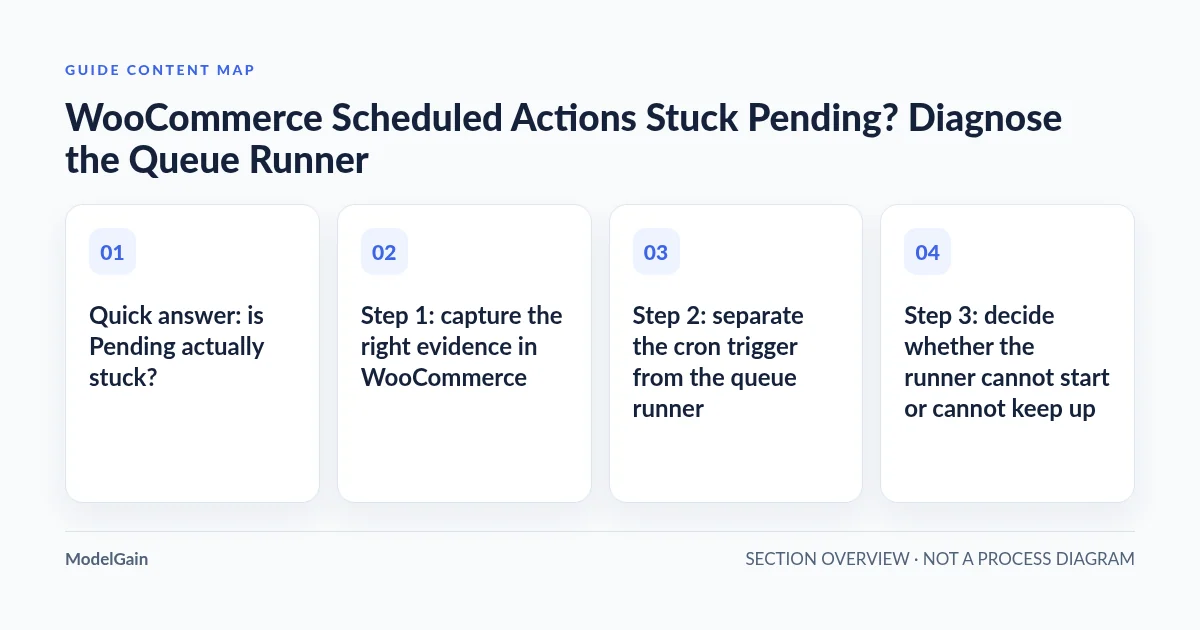
Quick answer: is Pending actually stuck?
| What you see | What it tells you | What to check next |
|---|---|---|
| Pending action scheduled for tomorrow | Expected future work; no failure established | Leave it alone unless the originating feature is already broken |
| A few actions become past due, then complete | Intermittent delay may be normal with traffic-triggered cron | Compare completion times and whether the delay persists |
| Oldest past-due action keeps aging; no new completions | Possible trigger or runner failure | Inspect Site Health, cron events, loopback requests, and queue logs |
| Some hooks complete; one hook repeatedly fails | Queue is not necessarily globally broken | Read that hook’s action logs and identify the owning integration |
| Completions continue but pending count grows | Throughput may be lower than the rate of new work | Check dominant hooks, processing duration, CPU and PHP limits |
Step 1: capture the right evidence in WooCommerce
Under WooCommerce → Status → Scheduled Actions, inspect Pending, Complete, Failed and In-progress separately. Record a small baseline before pressing Run, cancelling anything, or installing a replacement cron:
- Oldest overdue scheduled time. Distinguish it from a future scheduled time. Check the WordPress timezone under Settings → General.
- Most recent completion. A recently completed action proves at least some queue work has run; it does not prove every hook is healthy.
- Top pending hooks and groups. Look for a single integration generating most of the backlog, versus a broad mix of unrelated tasks.
- Latest failure log. Capture the error, timestamp and hook without publishing the arguments of payment, customer, order or subscription actions.
- Trend after normal traffic. Does the oldest overdue age increase and do completions stop? Or does the queue occasionally catch up?
WooCommerce’s own Scheduled Actions documentation describes this screen as the place to inspect individual tasks and logs. Action Scheduler’s FAQ also notes that a small number of past-due actions can be normal; multiple actions more than a day overdue warrant investigation. Do not turn that example into a universal alert threshold: business-critical renewals may require much tighter monitoring.
Step 2: separate the cron trigger from the queue runner
Action Scheduler normally requests queue processing from a recurring WordPress cron event, action_scheduler_run_schedule, and can also request background processing when an admin request ends. Once started, it claims due actions in batches and executes their registered callbacks. A cron event existing is not proof that the runner launched, claimed work, or completed a callback. The Action Scheduler processing overview documents both initiation routes and its use of asynchronous follow-up requests.
Check Tools → Site Health for scheduled-event and loopback warnings. If you have WP-CLI access, the following commands are read-only:
wp cron event list --fields=hook,next_run_relative,recurrence --format=table
wp action-scheduler status
wp action-scheduler action list --help
The first command helps reveal whether the WordPress cron event is registered and overdue; the second reports Action Scheduler information where its WP-CLI integration is available; the third lists the exact options supported by the installed release without running an action. If the Action Scheduler subcommand is unavailable, use the WooCommerce admin screen instead rather than installing tools as a first reaction.
Important: DISABLE_WP_CRON set to true is not automatically broken. Some hosts intentionally replace visitor-triggered WP-Cron with a server cron. Verify that replacement is configured and actually firing. The enabled flag in a system status report also does not prove successful execution. See the WooCommerce Subscriptions cron requirements for this distinction.
Step 3: decide whether the runner cannot start or cannot keep up
A queue can grow while the scheduler continues working. Treat zero recent completions and completions that fall behind new work as different problems.
| Evidence over an observation window | Likely investigation | Unsafe shortcut to avoid |
|---|---|---|
| No new Completed actions across unrelated hooks | WP-Cron initiation, async loopback, runner disablement, PHP fatal or host blocking | Blindly adding another cron or disabling security |
| Completed advances, but overdue backlog increases | Slow callbacks, excessive enqueues, PHP workers, memory, timeouts, database contention | Immediately increasing concurrency or batch size |
| Only one hook fails repeatedly | Callback exception, missing dependency, integration-specific data or external service | Clearing every other job in the queue |
| Actions remain In-progress unusually long | Slow or interrupted execution and claim recovery; examine logs and runner activity | Deleting claimed actions while a worker may still run |
Action Scheduler’s performance guidance explains why default web-based processing is intentionally conservative and why larger queues can fall behind despite a working runner. A WordPress.org support report describes a store where pending actions kept increasing even though periodic runs were being attempted. That report validates the symptom, not a diagnosis of your store.
Step 4: inspect the hook before attempting one controlled run
Use the Hook, Group and action log to narrow the failing feature. A WooCommerce store may have actions originating from subscriptions, payment gateways, webhooks, email, CRM connectors, analytics or stock sync plugins. The hook name is a useful clue, but it does not reliably identify an owner on its own; a callback or wrapper may belong to another component.
A single manually executed action can help distinguish an automatic-trigger problem from a callback that fails even when invoked. But running a task can send an email, renew a subscription, synchronize stock, publish a webhook, or initiate other real effects. Only run a specific action after identifying its owner and verifying that repeating it is safe. Prefer a staging copy with external email, payment and webhook side effects disabled for a controlled test.
If an authorized safe test action completes manually but stays overdue when left to the normal background scheduler, investigate automatic initiation and runner activity. If it fails manually with a consistent exception, focus on the callback and its dependency. If it completes manually but is routinely delayed, monitor throughput rather than assuming cron is entirely stopped. WooCommerce’s testing guide outlines the manual-run and CLI options.
Step 5: choose the fix that matches the measured failure
- Cron never fires: confirm the host’s cron configuration, site traffic behavior, and whether a deliberate server-side replacement has stopped. Correct one trigger path and verify recent completion timestamps.
- Loopback or async requests fail: inspect server, PHP and WAF logs for the actual internal request and error. Fix the specific blocking rule or networking failure; do not disable the entire firewall to make a test pass.
- Queue processes too slowly: compare the rate of newly scheduled actions with completed actions; investigate slow hooks, PHP timeouts, available workers and database load. A dedicated WP-CLI runner may be appropriate for a high-throughput store, but it is an operational change, not a universal cure.
- One integration repeatedly fails: resolve that plugin or remote-service failure. Increasing queue throughput can simply accelerate a failing retry loop.
- An old backlog remains: decide task-by-task whether a job is obsolete, genuinely due, or commercially sensitive. Preserve evidence and take a database backup before destructive changes.
For advanced operations, Action Scheduler’s WP-CLI documentation explains its queue runner and options. It warns that processing hooks or groups in parallel can violate implicit ordering dependencies. Do not use --force, unlimited batches, bulk deletion, or a second dedicated runner as a first-response troubleshooting action. Those commands may execute customer-facing work, change state, and create duplicate business effects when used without understanding the queue.
A privacy-conscious support checklist
If hosting or plugin support is needed, send the evidence they can act on: WordPress/WooCommerce/Action Scheduler versions, cron configuration, the oldest overdue time, last successful completion, dominant hooks, anonymized error excerpts, Site Health warnings, and whether processing advances over a defined observation period. Avoid exporting full action arguments: they can contain identifiers, email addresses or business data. Record whether the site uses a CDN, security plugin, object cache and an external cron service; none is automatically the culprit.
ModelGain Queue Health for Action Scheduler can assist with read-only backlog, failure, runner and likely callback-owner diagnostics, plus a support report designed not to include action arguments. The tool does not process, delete, reschedule or repair jobs; inferred ownership is a lead to verify, not proof of fault. See the WordPress.org plugin listing for availability and compatibility before installing it.
Common questions
Should I delete all Pending WooCommerce scheduled actions?
No. Pending actions can be future-dated or carry business operations such as order emails, renewals and remote integrations. Bulk deletion can permanently skip work and removes useful troubleshooting evidence. Find the dominant hooks and determine why each type of action exists before considering deletion.
Will visiting wp-cron.php fix the queue?
It may trigger a scheduled event but does not demonstrate that every Action Scheduler callback runs successfully. Treat that as an execution attempt, not a reliable root-cause fix. Check subsequent completion timestamps and logs, and avoid using public endpoint hits as an ad hoc production runner.
Does a successful manual run prove that WP-Cron is broken?
No. It establishes that the selected callback completed under one invocation path. The default runner may be delayed by traffic, blocked background requests, constrained resources or a backlog that produces work faster than it can drain.
Can a single stuck action stop every WooCommerce task?
Not necessarily. Action Scheduler processes actions in batches, and a failing callback may coexist with normally completed hooks. Inspect recent completions, claims, relevant logs and resource limits before blaming one row.
Related troubleshooting guides and sources
- Action Scheduler not running when WP-Cron is enabled — deeper trigger-versus-runner diagnostics.
- Past-due versus failed actions — interpret queue status before cleanup.
- WooCommerce: Scheduled Actions — official admin interface and task concepts.
- Action Scheduler FAQ — cron initiation, alternative runners and overdue expectations.
- Action Scheduler performance — runner throughput and conservative defaults.
- Action Scheduler WP-CLI reference — CLI options and the risks of concurrent queue processing.